Save drafts and share a private preview
Your edits stay in a draft until you publish. Save a draft to come back to, share a preview link so others can review it first, and stop a link when the review is done.
Everything you change in the editor saves to a draft, and visitors keep seeing your published page until you select Publish. To get feedback before you go live, share a preview link: anyone with it sees your latest saved changes.
How drafts work
The editor saves every change on its own a moment after you stop typing. The top bar says Saving…, then All changes saved. If your connection drops, it says Couldn't save. Retrying… and keeps trying, and your browser warns you if you try to leave before your changes are saved.
The badge beside your page's name says what visitors see:
| Badge | Meaning |
|---|---|
| Draft | Not published yet. Only your team can see it. |
| Published | Visitors see this version. |
| Published · unpublished changes | Visitors see the last published version until you publish. |
| Unpublished | Offline. Visitors can't see this page. |
Save a draft
Autosave keeps every edit safe. Save draft marks a point you can come back to later.
- Select Save draft, beside Publish in the top bar, or press ⌘S on a Mac or Ctrl+S on Windows.

- A message confirms it: "Draft saved. Visitors still see the published version." on a live page, or "Draft saved. Publish when you're ready." on a page that isn't live yet.
The button reads Draft saved until you change something else. Saved drafts appear in Version history, labeled Draft, so you can restore one later. See Undo changes and restore an earlier version.
Publish your changes
Select Publish. Your live page updates and the badge reads Published. When there's nothing new to publish, the button is dimmed and says "No changes to publish".
To take your page offline, open the arrow beside Publish and choose Unpublish. Your draft and every version stay. For more on going live, see Publish your page and go live.
Share a preview
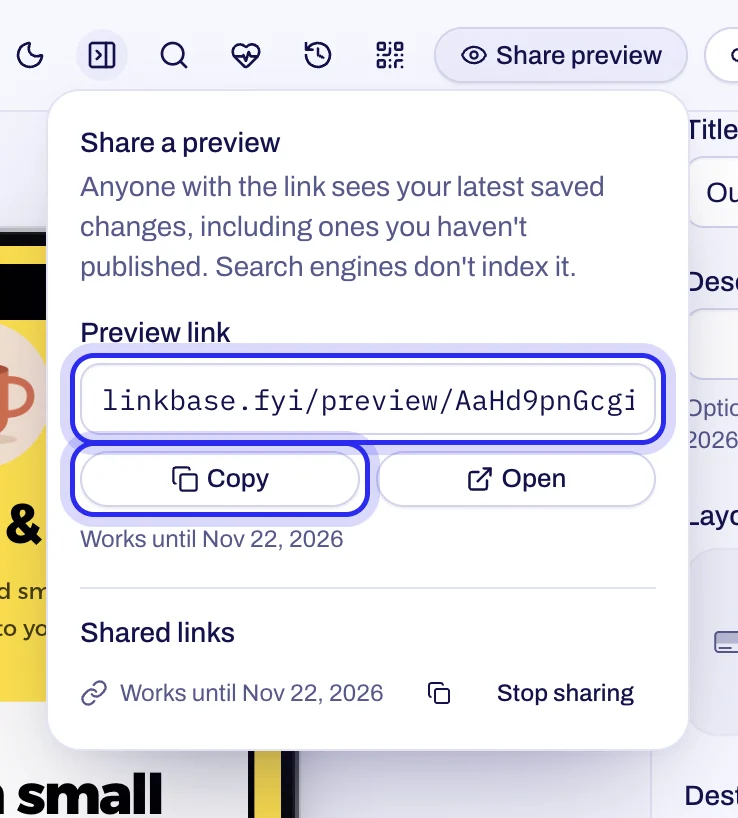
- In the editor's top bar, select Share preview. On a smaller screen, it's under More.
- Under Link works for, choose 1 day, 7 days or 30 days.
- Select Create link. The panel shows the Preview link, and the date it stops working.
- Select Copy and send the link, or Open to check it yourself.
What reviewers see
- Your latest saved changes, including ones you haven't published, under a banner that says "Preview of unpublished changes" and when the link stops working.
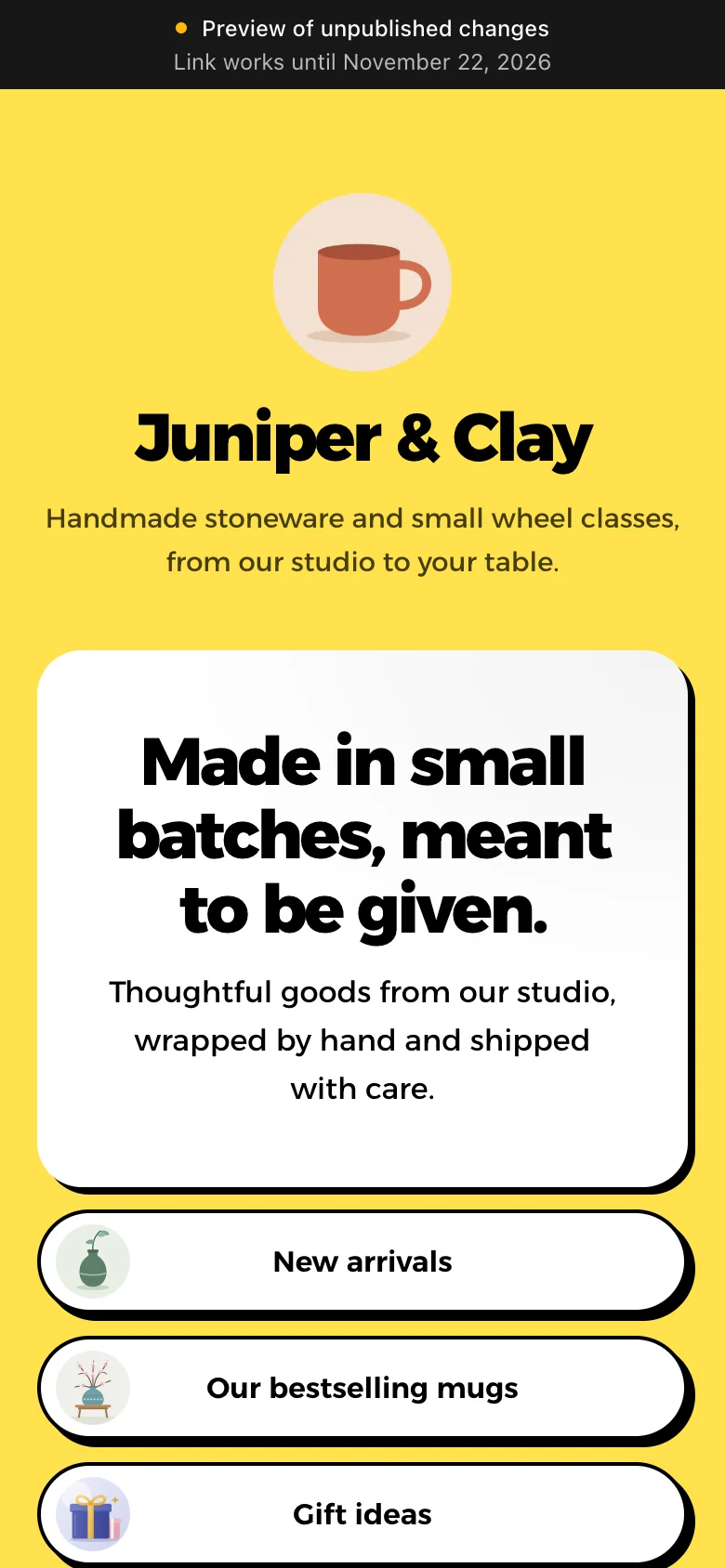
- Every tab of your page.
- No sign-in. Anyone with the link can open it.
Each time they open the link, they see your newest saved edits, so you don't need a new link after making their changes. Search engines don't list preview links.
What doesn't work in a preview
- Forms and email signups can't be sent.
- Locked links, folders and tabs show their lock but can't be unlocked.
- Bookings can't be made.
- Tracking pixels never load, and preview visits don't count in your analytics.
Stop sharing a preview link
Shared links, in the Share preview panel, lists the page's links that still work, each with the date it stops working: "Works until" and the date.
- In the editor's top bar, select Share preview.
- Under Shared links, find the link. To send it again, select Copy.
- Select Stop sharing. The link stops working at once, and anyone who opens it sees "This preview isn't available". The page's other links keep working.
Links also stop on their own after the 1, 7 or 30 days you chose. An expired link shows "This preview isn't available". Create a new one if your reviewer needs more time.
Links shared before the Shared links list was added don't appear in it. They keep working until they expire.
Pick the shortest time that works, and share a link only with people who should see your unpublished changes. Anyone who has it can open it, including people it's forwarded to, until it expires or you stop it.
Who can do what
- Editors, admins and owners can edit, save drafts, publish and share previews. Anyone who can edit the page can also see its shared links and stop them. Viewers see the editor read-only. See Roles and what each can do.
- Publishing needs a plan. Without one, you can keep building your draft, and publishing says "Publishing needs a plan. Start a free trial or subscribe in Plan & billing."
- Preview links are on every plan. Without a plan, Share preview offers an upgrade, and links you've already shared keep working until they expire or you stop them. See How plans and the free trial work.
Troubleshooting
"This page was changed somewhere else. You're now seeing the latest version." Someone else, or you in another browser tab, saved changes to this page at the same time. The editor reloads the latest saved draft. Check your last edit and redo it if it's missing.
My live page doesn't show my changes. Edits stay in the draft until you publish. Check the badge: Published · unpublished changes means there's something to publish.
"Couldn't save. Retrying…" doesn't go away. Check your internet connection. Keep the editor open until it says All changes saved.
For a checklist to send your reviewers, read Get a yes before you publish.