Publish your page and go live
What publishing does, why going live needs a trial or a plan, and how drafts, unpublished changes and unpublishing work.
Publishing puts the current version of your page online at its address. Until you publish, everything you do in the editor is a draft that only people in your workspace can see, and after you publish, new edits wait in the draft until you publish again.
Before you start
- You need a plan to go live. Each plan can be tried free once, with no card needed.
- You need to be an editor, admin or owner of the workspace. Viewers can look but not publish.
Publishing needs a plan. Without one, your pages are saved as drafts and Choose a plan shows where Publish would be. See How plans and the free trial work.
Publish from the editor
- Open the page in the editor.
- Wait for All changes saved in the top bar.
- Select Publish, at the right end of the top bar.

"Page published" confirms it, and the status beside the page's name changes to Published.
- To get your address, select Page link, the link button beside Save draft. It shows "Published at" and your address, with Copy link and Open published page. On smaller screens, these are under More.
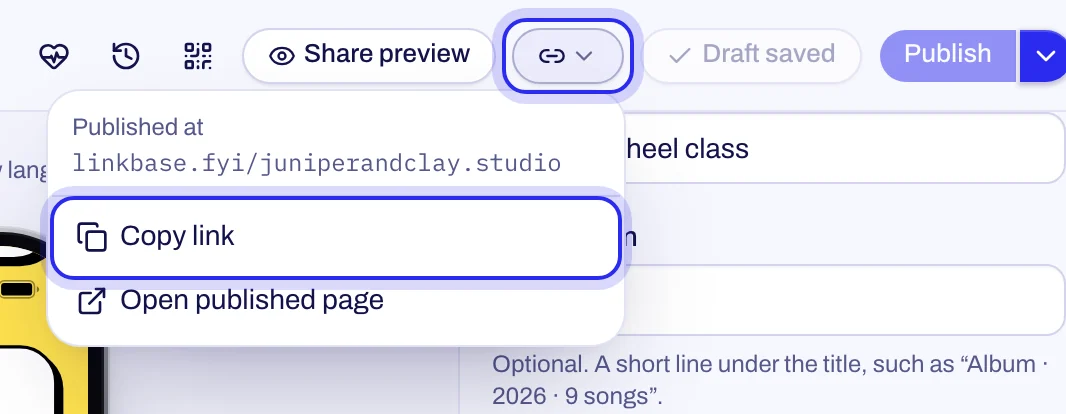
You can also publish from Pages: select Publish on the page's card, or choose Publish from its menu.
If you don't have a plan yet
- Select Choose a plan, in the editor or on the page's card. It opens Plan & billing in your account settings.
- Pick a plan and select Start free trial, or subscribe.
- Go back to your page and select Publish.
If someone else owns the workspace, its pages go online with their plan. When they don't have one, Choose a plan is dimmed and says to ask them.
Draft, published and unpublished changes
The status beside the page's name tells you what visitors see:
| Status | What visitors see |
|---|---|
| Draft | Nothing yet. Only your team can see the page. |
| Published | The version you published, which matches your draft. |
| Published · unpublished changes | The last published version, until you publish again. |
| Unpublished | Nothing. The page is offline. |
Every edit saves itself as part of the draft. After you publish, the next edit changes the status to Published · unpublished changes, and Publish turns on again.
When there's nothing new to publish, Publish is dimmed and says "No changes to publish".
Save a draft without publishing
Save draft, beside Publish (or ⌘S on a Mac and Ctrl+S elsewhere), saves a restore point in Version history. Visitors keep seeing the published version. To show someone your changes before they go live, create a Share preview link: see Save drafts and share a private preview.
What publishing leaves out
Visitors never see a half-finished block. Publishing skips:
- hidden blocks and hidden tabs
- blocks with no content yet, such as a link with no URL or a heading with no text
- blocks whose schedule has ended
- anything behind a password gate that has no password yet. The message names it, for example "Published. Home isn't on your page yet: it needs a password."
- links to a tab that's hidden or deleted
- blocks your plan doesn't include, such as a booking block on a plan without bookings
Page health flags some of these, such as links to hidden tabs and locks with no password, and its Fix button takes you to them.
Take your page offline
- In the editor, open the arrow beside Publish (More publishing options).
- Choose Unpublish.
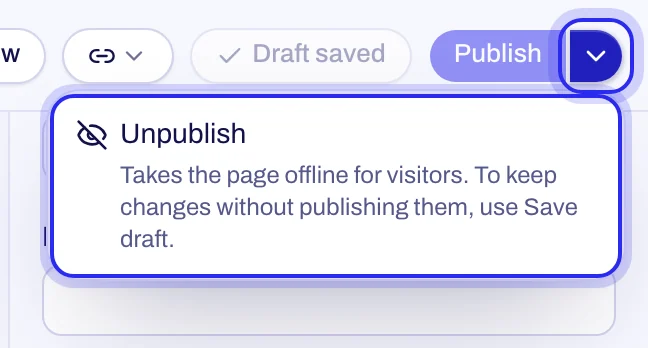
You can also choose Unpublish from the page's menu in Pages. "Page unpublished" confirms it. Anyone who opens your address sees "This page isn't available", and QR codes for the page open a "not available" page. Your versions are kept, so Publish puts it back online.
To stop visitors seeing your changes, you don't need to unpublish: just don't publish them. Save them with Save draft instead.
When a trial or plan ends
Your pages, short links and QR codes pause, and visitors see "This page isn't available". Nothing is deleted. Subscribe or start another plan's trial and they come back at once, without publishing again.
Common questions
How soon do visitors see my changes? As soon as you publish. If you still see the old version, reload the page.
Does publishing change my address? No. Your address stays the same however often you publish.
Can I go back to an earlier version? Yes, every publish is saved in Version history. See Undo changes and restore an earlier version.