Spotlight a link or send visitors straight to it
Pin one link to the top of its tab with a frame and an animation, or send your page's address straight to a link for a while.
Two settings help one link get noticed. Spotlight pins a link to the top of its tab, framed and animated. Send visitors straight here skips your page for a while: anyone who opens your page's address goes straight to that link instead.
Before you start
Spotlight and skip-to links are on the Pro and Team plans. On other plans, a link's Priority section offers an upgrade instead.
- Both are for Link blocks, and you'll find them in the link's Priority section, below its other settings.
- Your page has one spotlight and one skip-to link at a time. Turning either on for a link moves it from any other link.
Spotlight a link
- In the editor, select the link.
- Scroll down its settings to Priority, and turn on Spotlight.
- Choose an Animation: None, Pulse, Shine or Wiggle. Shine is the default.
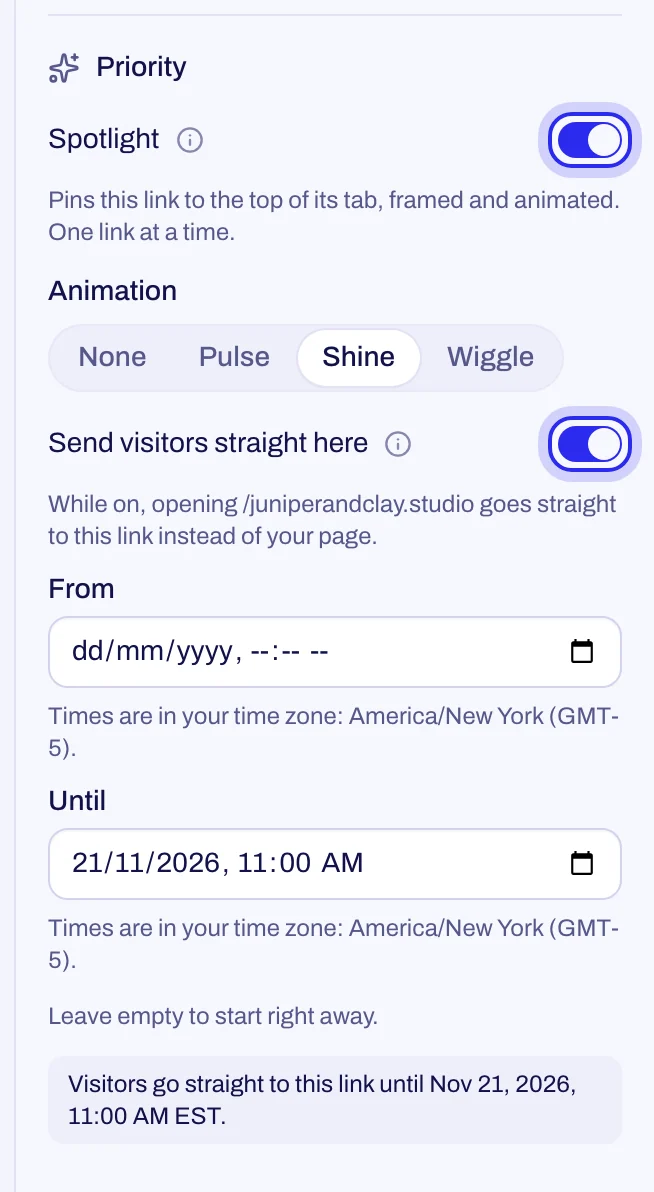
- Publish.
Visitors see the link first on its tab, framed with a ring in your theme's accent color. A link inside a folder moves out of it to the top of the tab. Visitors whose device asks for reduced motion see the frame without the movement. On the preview, the link carries a Spotlight label.
If another link already has the spotlight, the settings say "Another link is in the spotlight. Turning this on moves it here."
The spotlight is different from the Featured card block, which is a large image card you place anywhere on your page.
Send visitors straight to a link
Use this for a launch, a live stream or a ticket sale, when everyone who taps your bio link should land on one place.
- Select the link.
- In Priority, turn on Send visitors straight here. The hint under it names the address it affects, such as "While on, opening /yourname goes straight to this link instead of your page."
- Under From, leave the date empty to start right away, or pick when to start.
- Under Until, pick when to stop. It starts a week from now, on the hour.
- Publish.
From and Until use your device's time zone, which is named under the fields. The settings then say "Visitors go straight to this link until" a date, or "from" a date if it starts later, on that same clock and with the zone named. On the preview, the link carries a Skip-to label. When the Until time passes, your page comes back on its own.
What it affects
- Your page's main address only, and your custom domain if you have one. Your other tabs still open at their own addresses.
- Only while the link itself shows. If the link is scheduled, visitors are sent to it only while both windows are open.
- Not your preview. The editor and preview links still show your page, so you can keep working on it.
Links you can't skip to
- A link behind a lock, or inside a locked folder or tab: "Links behind a gate can't be skipped to."
- A link to one of your own tabs: "Links to one of your tabs can't be skipped to."
- A hidden link, since it isn't on your published page.
Set Until a little after your event ends rather than far in the future. If you forget to turn it off, your page comes back on time anyway.
Turn them off
Select the link, turn off Spotlight or Send visitors straight here in Priority, and publish. If you move to a plan without these features, they stay visible in the link's settings so you can still turn them off.
Common questions
Do visitors see my page at all while it's on? Not at your main address: they go straight to the link. Your other tabs, at their own addresses, still open as usual.
Can the same link have both? Yes. They're separate settings.
Can I spotlight a button or a product? Only Link blocks. For other content you want seen first, put the block at the top of the tab, or use a Featured card or a Cover block.