Roles and what each can do
What owners, admins, client admins, editors and viewers can each do in a workspace, and which roles take a seat.
Every member of a workspace has one role, and it decides what they can change there. Use this page to pick the right role before you invite someone. The same person can have a different role in each workspace they're in.
The five roles
- Owner: full access, including deleting the workspace. The workspace uses their plan. Every workspace has exactly one owner.
- Admin: manages members, domains and all pages.
- Client admin: invites and manages the client's own people, and creates, edits and publishes pages.
- Editor: creates, edits and publishes pages.
- Viewer: views pages and analytics.
What each role can do
| Owner | Admin | Client admin | Editor | Viewer | |
|---|---|---|---|---|---|
| View pages and analytics | Yes | Yes | Yes | Yes | Yes |
| Create, edit and publish pages | Yes | Yes | Yes | Yes | No |
| Create short links and QR codes, upload images | Yes | Yes | Yes | Yes | No |
| View and export the Audience | Yes | Yes | Yes | Yes | No |
| Change a page's address, delete it, or move it to another workspace | Yes | Yes | No | No | No |
| Domains, webhooks and workspace settings | Yes | Yes | No | No | No |
| Schedule reports | Yes | Yes | No | No | No |
| Invite and manage members | Yes | Yes | The client's people | No | No |
| Billing | Manage | View | No | No | No |
| Export, hand over or delete the workspace | Yes | No | No | No | No |
Viewers can open the pages, the Media library and the Links section, read-only.
Limit editors and viewers to some pages
Owners, admins and client admins always reach every page. Editors and viewers can be limited to the pages they work on, such as one client's location:
- Open Settings → Members.
- In the Members list, beside the person, select All pages or their page count, such as 1 page.
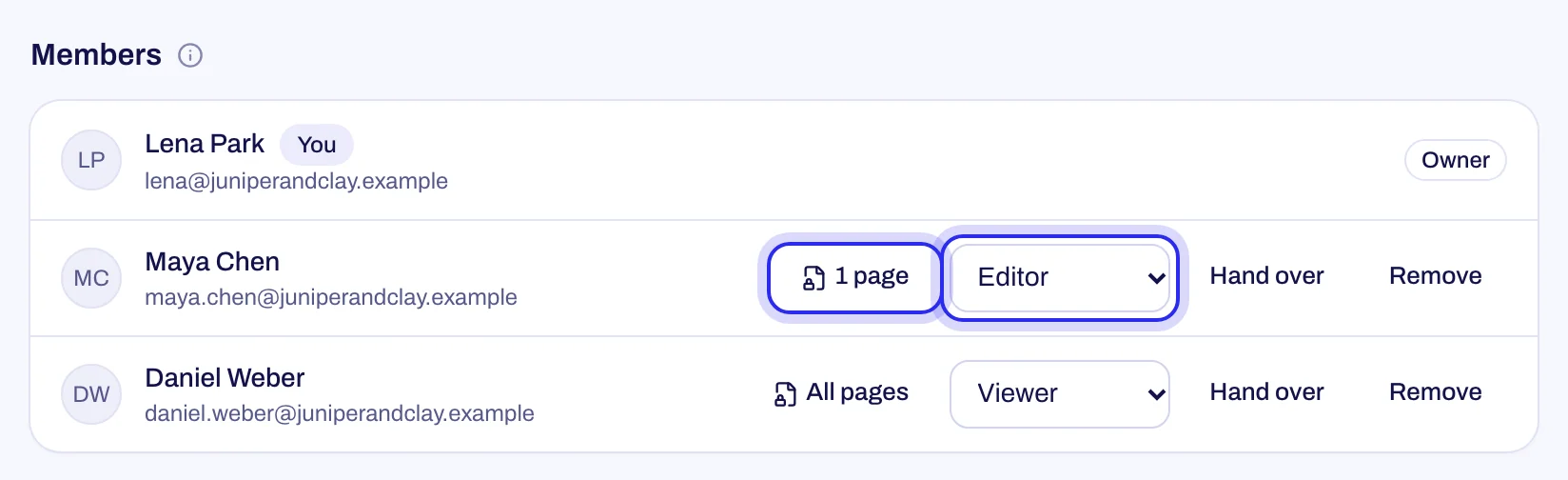
- Choose Only selected pages, tick the pages, and select Save access.
Someone limited this way sees only those pages, with their analytics and audience. They can't create or duplicate pages, or use the workspace's short links. New pages aren't added for them automatically.
Limiting pages is on the Team plan. After a downgrade, existing limits stay in place, and you can always give someone every page back.
Seats
- Each person takes one seat, however many of the owner's workspaces they're in.
- Viewers take no seat, unless they're on the account's agency team.
- Pending invitations take a seat too, except invitations as viewer.
Seats belong to the owner's plan. See the pricing page for how many each plan includes.
Change someone's role
- Open Settings → Members.
- In the role menu beside the person, choose the new role.
"Role updated" confirms it, and it applies right away. Owners and admins can change anyone except the owner. Client admins can change only the client's own people, and only to client roles.
Owner isn't in the menu. Ownership moves only when the owner hands the workspace over and the other person accepts: see Hand a workspace over to a client.
Roles in an agency's workspaces
Once your account has an agency team, the workspaces you own work a little differently:
- Your teammates show the Agency team badge. Account admins are admins in every workspace they reach; members are editors or viewers. Only you, the account owner, change their role or access, on the Team page.
- Everyone else except the owner is the client's and shows the Client badge. In these workspaces you give only client roles: Client admin, Editor or Viewer.
See Set up your agency team and Give a client their own admin.
Common questions
Why can't I change a teammate's role here? "This person is on the account's team. Only the account owner can change their access, on the Team page." Their access is managed in one place, so it stays the same across workspaces.
Can an owner leave their own workspace? No. A workspace always needs an owner, so hand it over to another member first, or delete it.
Can I see who did what? Yes, for pages and for workspace changes. See See who changed what.