Set up your page's top bar
Add a bar across the top of your page with a menu, search, contact, share and language buttons, links and your name, and choose how it looks.
The top bar runs across the top of your page and can stay in view while visitors scroll. It holds a menu of your tabs and links, search, contact, share and language buttons, links, a social icon and your name, in three zones: start, center and end.
Turn on the top bar
- In the editor, select Top bar at the top of the structure panel, above Tabs. You can also click the bar on the preview, or open Top bar & buttons in the page settings and select Edit top bar.
- Turn on Show the top bar.
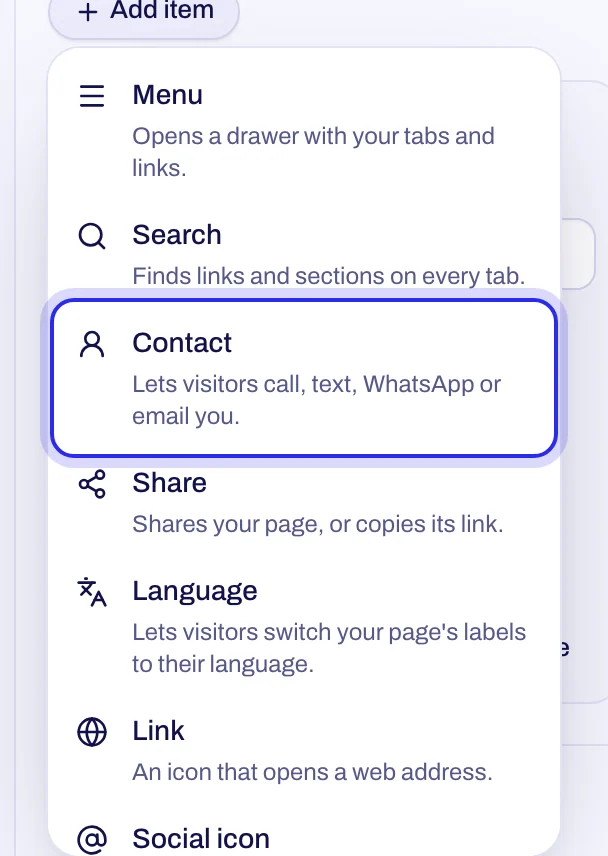
- Select Add item and choose what to add. Adding your first item turns the bar on too.
- Select each item to fill in its settings.
- Publish.
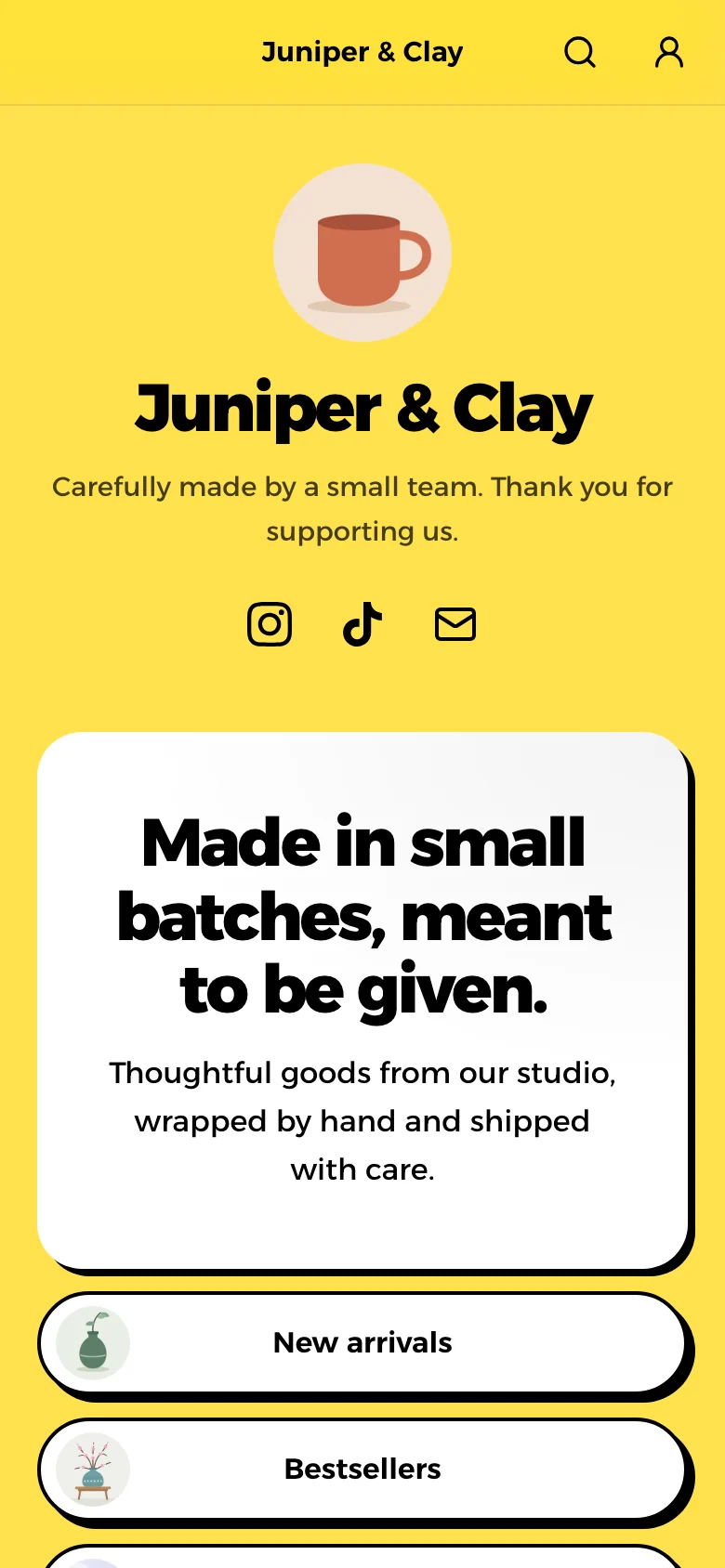
The preview draws the bar first on your page, as visitors will see it. While it has no items, it shows a dashed box: "Top bar: add items in its settings". To get back to your other page settings, select Page settings at the top of the panel.
Items you can add
| Item | What it does | What to set |
|---|---|---|
| Menu | Opens a drawer with your tabs and links | List the page's tabs, and up to 12 links: Add a link from this page or Add a web address |
| Search | Finds links and sections on every tab | Nothing |
| Contact | Lets visitors call, text, WhatsApp or email you | Phone, Email, and Ways to reach you: Call, Text message, WhatsApp, Email |
| Share | Shares your page, or copies its link | Nothing |
| Language | Lets visitors switch your page's labels to their language | Nothing |
| Link | An icon that opens a web address | Address and Icon |
| Social icon | One of your social profiles | Profile |
| Name or avatar | Your name, avatar or both | Show (Name, Avatar or Both) and Appears (Always or After scrolling) |
- Contact starts with the phone number and email you already gave in the page actions' Contact details or a Contact card block, if any. WhatsApp needs an international number starting with +, such as +1 202 555 0123.
- Social icon uses the profiles in your page's Social profiles. Add the profile there first.
- Name or avatar set to After scrolling fades in once visitors scroll past your header.
Every item also has a Label: what screen readers say. Leave it empty to use the default shown in the hint. For a Link, write one that says where it goes.
Arrange the items
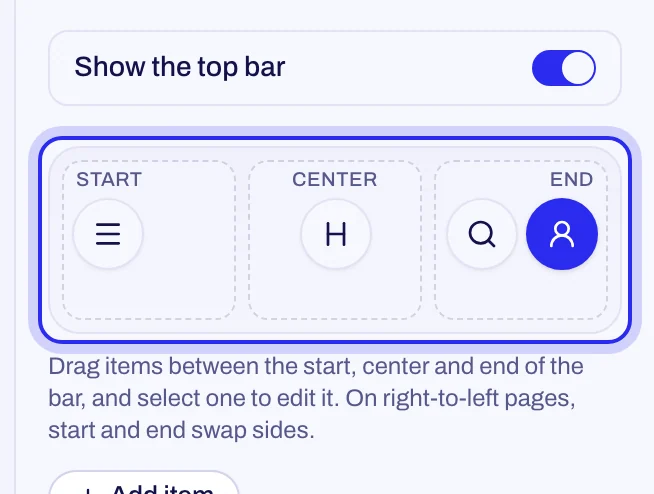
In the bar's settings, drag items between the Start, Center and End zones. Each zone holds up to four items; a full one is marked Full.
You can also select an item and change its Zone, or move it with Earlier and Later. To delete it, select Remove. With the keyboard, focus an item and use the left and right arrow keys to move it, Home and End to send it to either end, and Enter to edit it.
New items go to a sensible zone: the menu at the start, your name in the center, the rest at the end. On right-to-left pages, start and end swap sides.
Choose a style
Under Style:
- Position: Sticky stays at the top while visitors scroll. Scrolls away moves off with the page.
- Background: None, Solid or Glass, a frosted version of your page's color.
- Height: Compact or Regular.
- Icons: Plain, Soft circle or Theme buttons, which match your page's buttons.
The top bar and your page actions
Page actions are the round buttons at the top of your page, such as Add contact, Share, Search and Language, set in Top bar & buttons. While the top bar shows, it replaces them: they're hidden, not shown below the bar, so visitors see one row of buttons, not two. Turn the bar off and they come back.
When you turn the bar on, the Contact, Share, Search and Language buttons you had switched on are added to it. If you turn on more page actions later, select Add them to the top bar in the page actions' settings, or add them yourself with Add item.
Visitors can change your page's language from the top bar too: add the Language item. See Let visitors change your page's language.
What visitors see
An item shows only when it has something to do, and a bar with nothing to show is left off your page:
- Menu needs links, or a page with more than one tab. It lists only links visitors can see.
- Contact needs a phone number or an email address, with at least one way to reach you turned on.
- Link needs an address.
- Social icon needs that profile on your page.
The menu opens as a drawer from the side of the screen. On phones, the contact options open from the bottom.
Troubleshooting
"The bar is full: up to 4 items in each zone." Remove an item, or move one to a zone with room.
"Your page has no Instagram link, so visitors won't see this icon." The Social icon points at a profile your page doesn't have. Add it under Social profiles, or pick another Profile.
"Enter a phone number, such as +1 202 555 0123." Type the number with its country code, using only digits, spaces and common separators. For WhatsApp, start it with +.
The bar shows in the editor but not on my page. Publish, and check that at least one item has what it needs.