Show a block only between two dates
Give a block a start time, an end time or both, so it appears and disappears on its own, and see how time zones affect it.
You can set any block to show only during a time window: from a start time, until an end time, or both. It appears and disappears on time without you republishing, which suits sales, launches, ticket releases and events.
Before you start
Scheduling is on the Pro and Team plans. On other plans, the Schedule section offers an upgrade instead. See How plans and the free trial work.
- Every block can be scheduled except Social icons.
- A schedule on a folder applies to everything inside it.
Schedule a block
- In the editor, select the block.
- Scroll down its settings to Schedule.
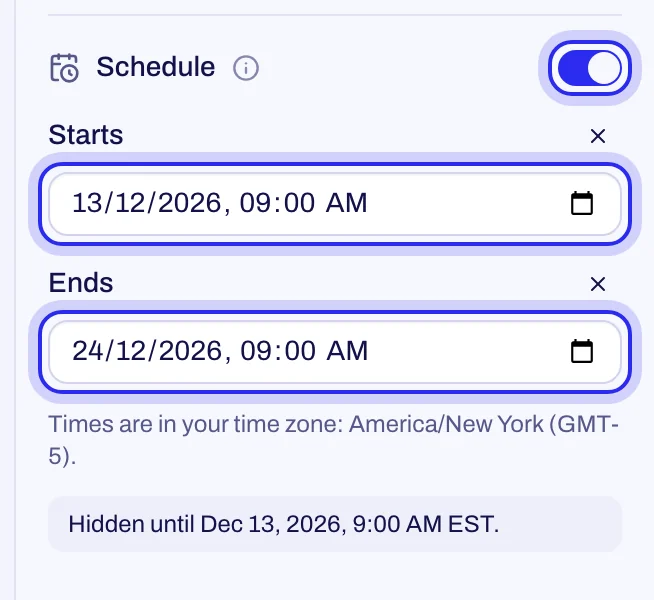
- Turn on the switch beside Schedule (Show only during a time window).
- Pick a date and time under Starts, Ends, or both.
- Publish.
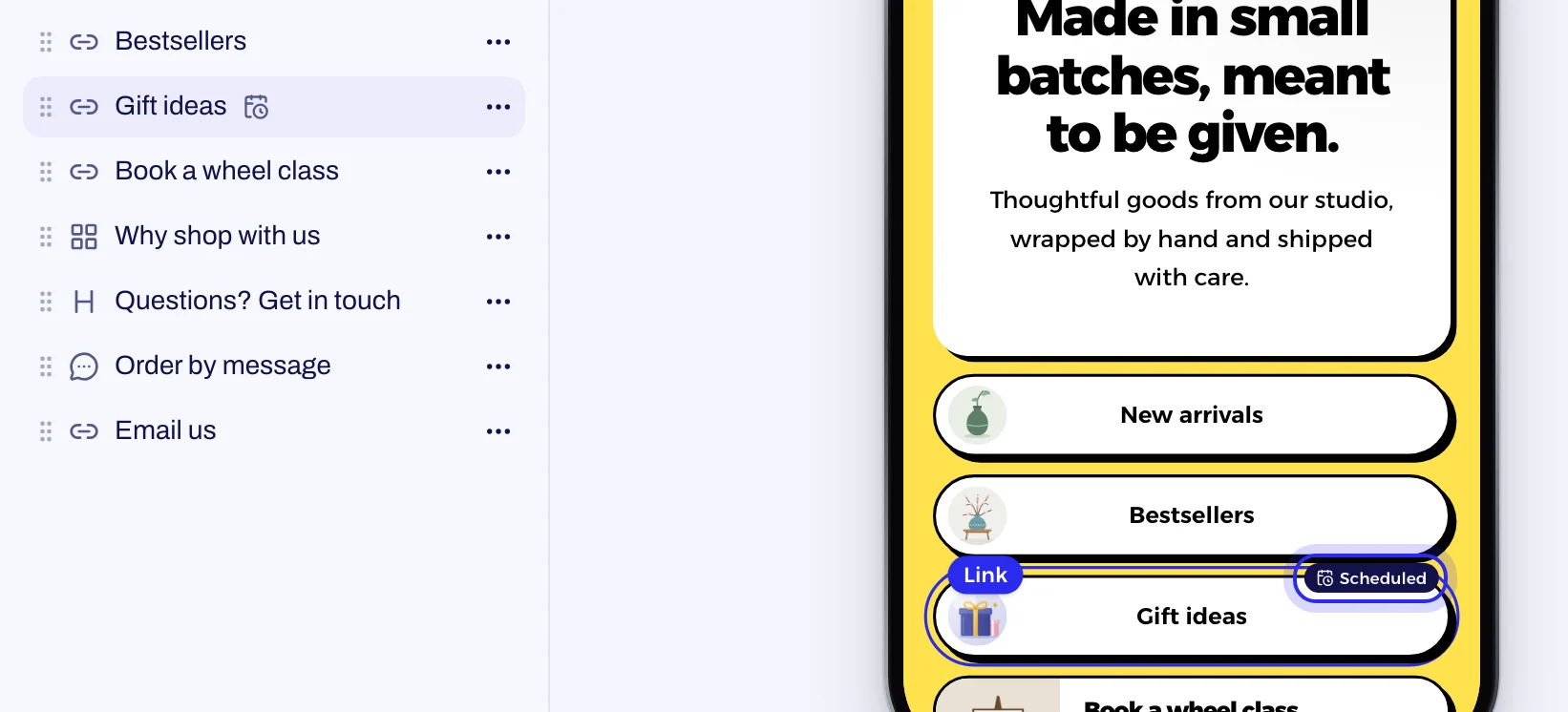
A line under the fields says where the block stands right now: "Hidden until" a date, "Showing now, until" a date, or "Ended" with the date it stopped. It reads on the same clock as the fields and names the zone, for example "Hidden until Dec 13, 2026, 9:00 AM EST." In the Blocks list a calendar clock appears beside the block, and on the preview an upcoming block is labeled Scheduled and a finished one Ended. The preview always shows scheduled blocks, so you can keep editing them.
- Only a start: the block appears then and stays.
- Only an end: the block shows now and disappears then.
- Both: the end has to be after the start.
How time zones work
You enter times in your device's time zone, which is named under the fields, for example "Times are in your time zone: America/New York (GMT-5)."
Linkbase saves each time as one exact moment, so the block switches at the same instant for every visitor, wherever they are. If you set 9:00 AM in New York, a visitor in London sees the block appear at 2:00 PM their time.
A teammate in another time zone sees the same moment shown in their own time, in both the fields and the line under them, with their zone named. To launch at a time somewhere else, such as midnight where your customers live, convert it to your own time zone before you enter it.
Publish once, and it runs on its own
The schedule is part of your draft, so publish after you set or change it. From then on, the block appears and disappears at its times with no further publishing.
If you publish after a block's end time has passed, it's simply left off the page.
Change or remove a schedule
- Clear one time: select the × beside Starts or Ends.
- Remove the whole window: turn off Show only during a time window. The settings then read "Visitors always see this block."
Publish to update your live page.
Troubleshooting
"The end has to be after the start." Move the end later, or the start earlier.
The block didn't appear at its start time. Check that you published after setting the schedule, and that the block isn't hidden or inside a hidden or scheduled folder. A hidden block stays hidden whatever its schedule.
The time looks wrong. Your device's clock or time zone may be set differently from where you think. Check the time zone named under the fields.
I moved to a plan without scheduling. Blocks scheduled before keep their windows, and you can still clear them. You can't add a new schedule until your plan includes it again.
Related
- A Countdown block shows the time left until a moment, and a Coupon block can hide itself when its code expires. See Every block you can add.
- To send your whole page's address to one link for a while, see Spotlight a link or send visitors straight to it.
- For ideas on timing launches and sales, read Schedule links to appear and disappear.