Add a link and choose its layout
Add a link that opens a website, an email, a phone call or another tab, and pick one of six layouts, from a plain button to a photo card.
A Link block is a button that opens a website, an email, a phone call or another tab of your page. You can show it as a plain button, a card with a picture, a photo with the title over it, or a discount code to copy.
Add a link
- Open your page in the editor, and select the block you want the link to follow.
- Select Add block at the top of the structure panel, or press A.
- Choose Link, under Essentials. The line under the library's title says where it goes: after the block you selected, or at the end of the tab.
- In the settings panel on the right, type a Title. This is the text on the button, cut to two lines on the page.
- Under Destination, keep Web address and type the address in URL.
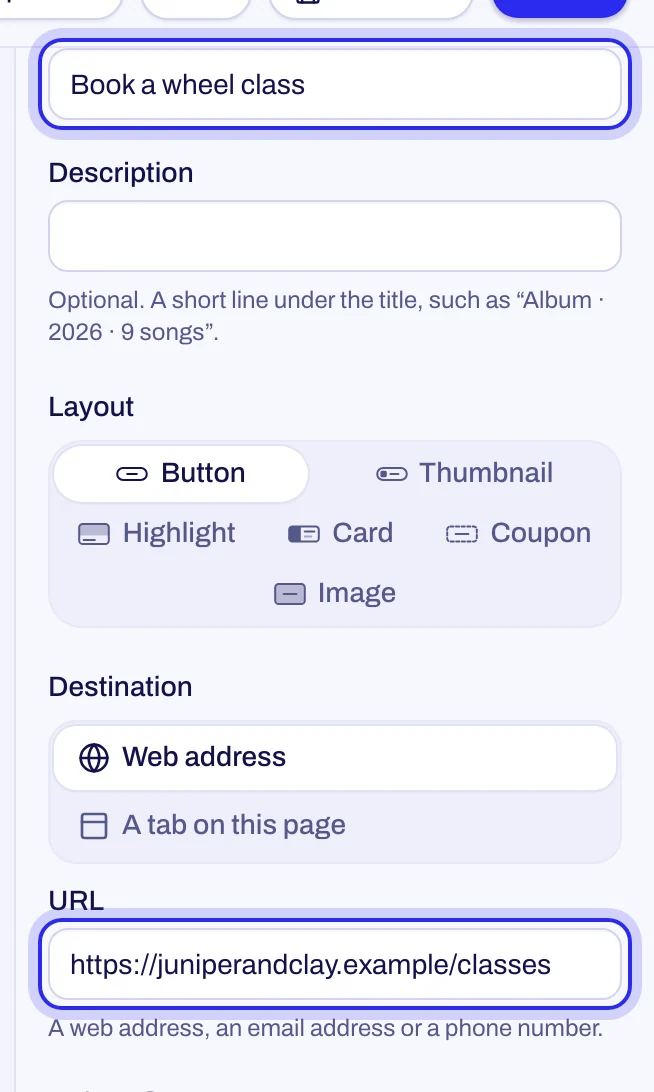
- Optional: add a Description, a smaller line under the title of up to 140 characters, such as "Album · 2026 · 9 songs".
You can type addresses the short way. example.com becomes https://example.com, an email address opens a new email to it, and a phone number such as +1 202 555 0123 starts a call.
Until the link has an address, the preview shows a dashed box that says "Add a URL to show this link", and visitors don't see it. Once it has one, the link appears on your page the next time you publish.
Choose a layout
Pick a Layout in the link's settings, under Description. You can switch at any time; the title, address and image stay.
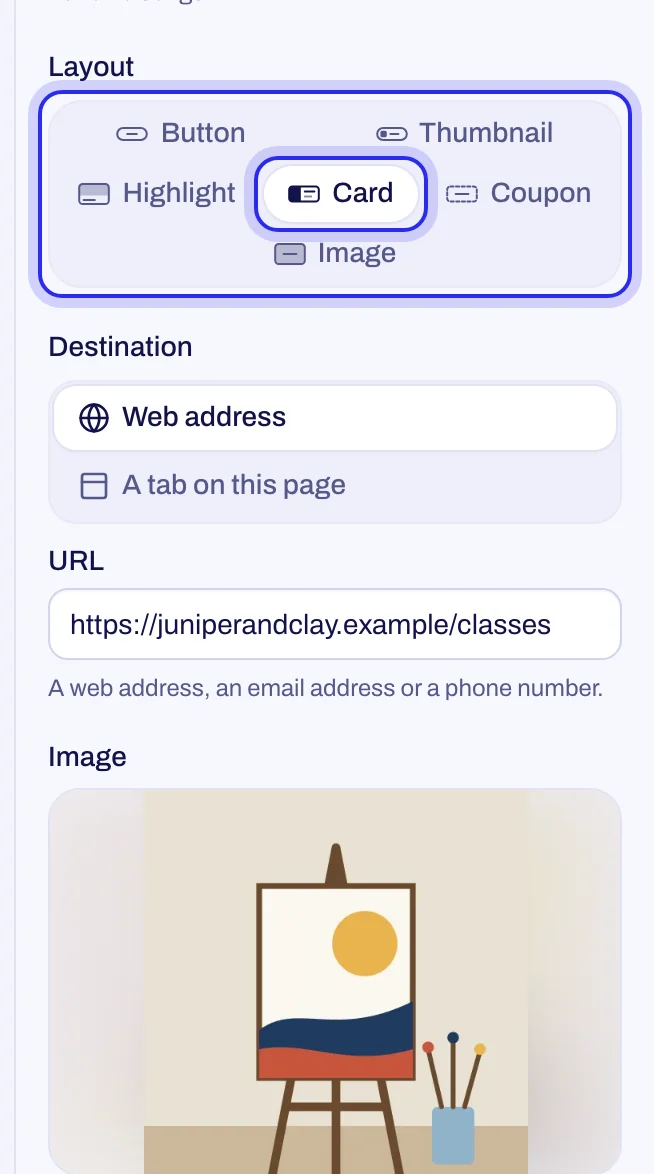
| Layout | What visitors see | Works well for |
|---|---|---|
| Button | The title on a button in your theme's style | Most links |
| Thumbnail | A button with a small square image at its start | Links people recognize by a logo or face |
| Highlight | A card with a wide image above the title | A new release, an article, an event |
| Card | A horizontal card with an optional picture filling one side | Products, projects, partners |
| Image | A photo that fills the card, with the title over it in white | Portfolio pieces, places, visual links |
| Coupon | A discount code with Copy code, and a Redeem link if you add an address | Sharing a code |
Each layout adds the settings it needs:
- Image (Thumbnail, Highlight, Card and Image): choose one from your media library, upload one, or paste an Image URL that starts with
https://. See Upload and reuse images. - Image fit and Image side (Card): Fill crops the picture to a square, and Show all keeps a logo or signature whole. Start or End puts it on either side, and it mirrors on right-to-left pages.
- Shape and Text position (Image): Wide, Landscape or Square, with the title in the Center or at the Bottom. The photo is darkened behind the text so it reads on any picture. Without a photo, the link shows as a button.
- Corners (Card, Highlight and Image): Theme follows your theme, or pick Square, Small, Medium or Large.
- Code (Coupon): up to 64 characters, which visitors copy with one tap. The URL is optional: it's where they use the code.
The picture is decoration: screen readers announce the title, so give every link a title that says where it goes.
For a code with an expiry date, use the separate Coupon block instead. It hides itself once the code expires. See Share a coupon code.
Link to another tab of your page
- Under Destination, choose A tab on this page.
- Pick the tab under Tab. The arrow button beside it takes the editor to that tab.
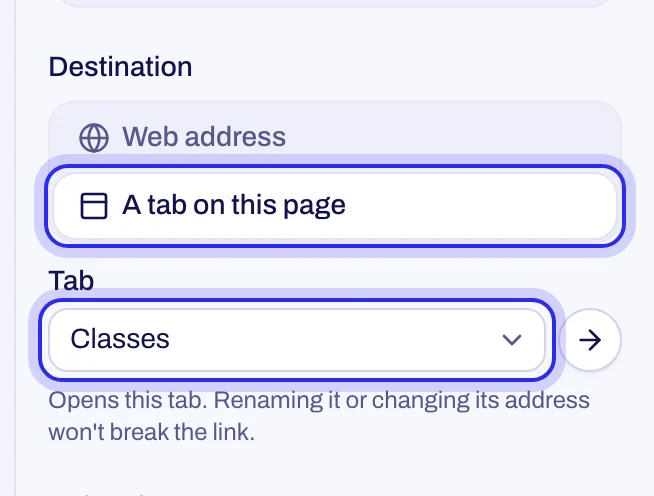
Renaming the tab or changing its address won't break the link. If the tab is later hidden or deleted, the preview marks the link Tab hidden or Tab deleted, and visitors don't see it until you point it somewhere else. To learn more about tabs, see Split your page into tabs.
Make a link stand out
- Animation: Pulse, Shine or Wiggle draws the eye. Animations stop for visitors whose device asks for reduced motion. Coupons don't animate.
- Tag: the Tag section adds a short label on the link's top edge, such as New or Sold out, up to 30 characters.
More settings below the link
Scroll down the link's settings for these sections:
- Rules send visitors to a different address by country or device. See Send visitors to different links by country or device.
- Schedule shows the link only between two dates. See Show a block only between two dates.
- Access locks the link behind a password, an email or a warning. See Lock a link, tab or folder behind a gate.
- Priority pins the link to the top of its tab, or sends your page's address straight to it. See Spotlight a link or send visitors straight to it.
Troubleshooting
"Enter a web address, an email address or a phone number." The address isn't one a link can open. Links take web addresses, email addresses and phone numbers. Check for a space, a missing dot or a typo, then press Enter or click outside the field.
"Use an image address that starts with https://." Images from other sites must use a secure address. Upload the image to your media library instead, or copy its https:// address.
The link isn't on your live page. Check that it has an address (no dashed box on the preview), that it isn't hidden or scheduled, and that you've published since adding it.
The image doesn't show. The Button layout has no picture. Switch to Thumbnail, Highlight, Card or Image.
For help wording your links, read Write link button text people want to tap.