Reorder, hide and duplicate blocks
Move blocks by dragging or from their menu, hide one without deleting it, make a copy, delete one, and undo any of it.
You can rearrange your page by dragging blocks, hide a block without losing it, copy one to start the next, and undo any change while you edit. Everything here changes your draft: visitors see it once you publish.
Move a block
By dragging:
- In the structure panel's Blocks list, point at the grip handle at the start of the block's row.
- Drag it up or down. The other blocks slide out of the way.
- Let go where you want it.
You can also drag a block on the preview itself. A line shows where it will land.
From the menu:
- Select the … button at the end of the block's row in the Blocks list.
- Choose Move up or Move down.
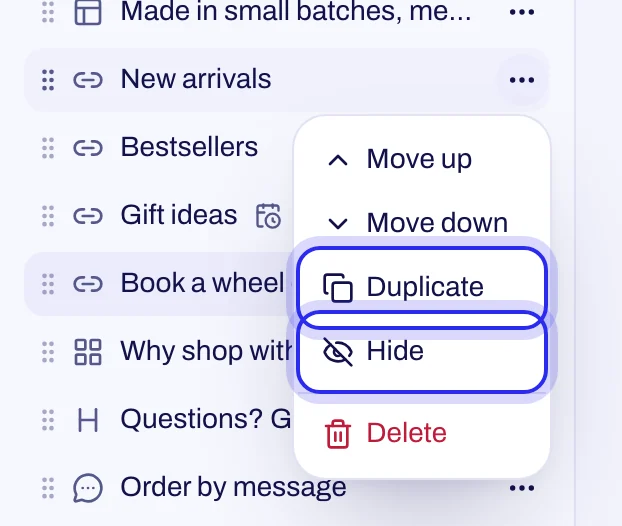
To another tab: drag the block onto the tab's name, or choose Move to tab in its menu and pick the tab. It goes to the end of that tab. Move to tab shows once your page has more than one tab.
With the keyboard: focus the grip handle and press Space or Enter. Use the up and down arrow keys to change its place, and the side arrow keys to move it into or out of a folder. Press Space or Enter to drop it, or Escape to cancel. Screen readers announce each position.
Move a block on a phone or tablet
- Tap Blocks in the toolbar at the bottom. Each row has Move up and Move down buttons, and you can press and hold the handle to drag.
- Or tap a block on the preview, then Move up or Move down in the strip at the bottom of the screen.
On touch screens, Move up and Move down step into a folder the block meets and out of it at either end.
Hide a block
Hiding keeps a block in your draft but off your page, which is handy for something seasonal or not ready yet.
- Select the block.
- Select Hide at the bottom of its settings, or in its row's menu.
The block's name is crossed out in the Blocks list, and the preview outlines it with a dashed line and a Hidden label.
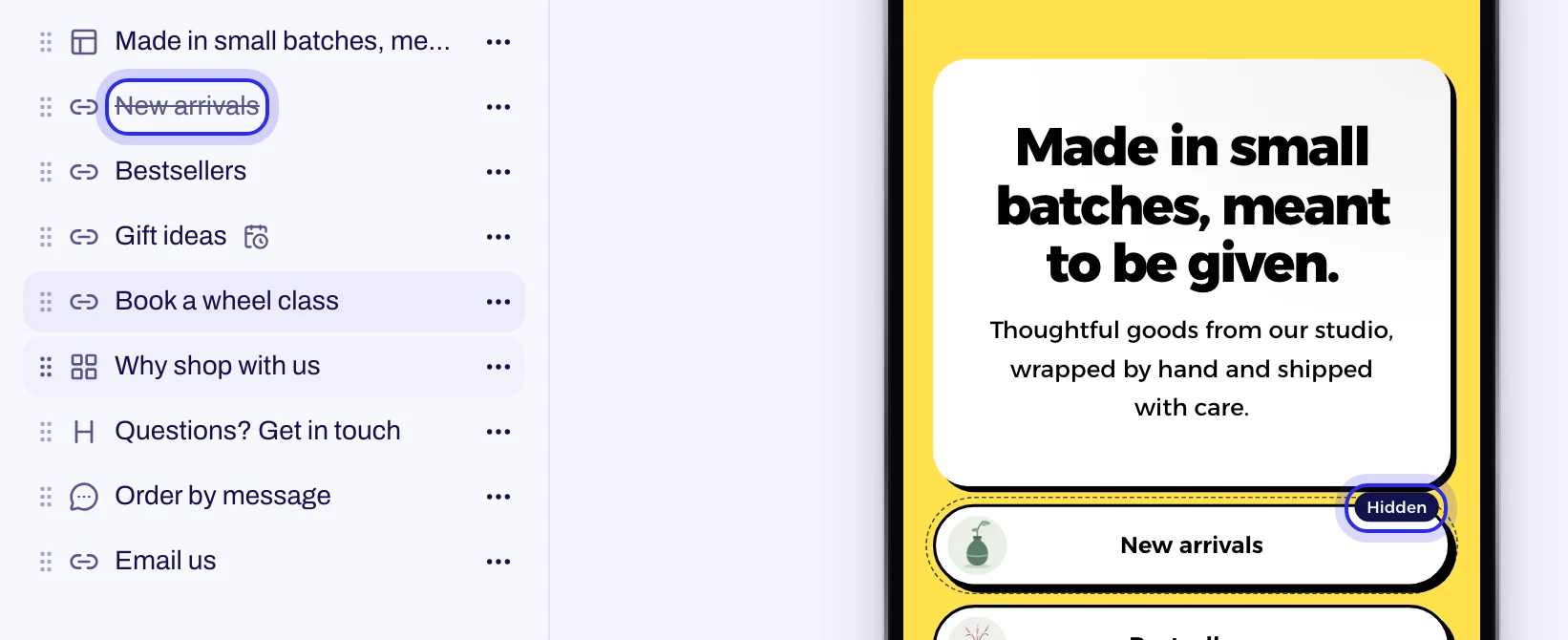
- Publish. Visitors no longer see the block.
To bring it back, select Show in the same places and publish again.
Hiding a folder hides everything inside it. To hide a block only for a while, schedule it instead, so it comes back on its own.
Saved versions and drafts keep hidden blocks, so restoring one brings them back, hidden as they were. Versions saved before this was added hold only what visitors could see, and the restore dialog tells you so.
Duplicate a block
- Open the block's menu with ….
- Select Duplicate.
The copy appears right below the original and is selected, ready to edit. Copying a folder copies everything inside it. On a phone, tap the block and use Duplicate in the strip at the bottom.
If the block was locked with a password, the copy has no password yet. The preview marks it No password, and visitors don't see it until you set one in its Access section.
Delete a block
- Select the block.
- Select Delete at the bottom of its settings, or in its row's menu.
There's no confirmation, because you can undo it. Deleting a folder deletes the blocks inside it too. On a phone, tap the block and use Delete in the strip at the bottom; the message that follows has an Undo button.
Undo a change
Select Undo at the top of the editor, or press ⌘Z on a Mac or Ctrl+Z on Windows. Moves, hides, copies and deletes can all be undone, one step at a time.
Undo lasts while the editor is open. After you reload or leave, use Version history to go back to a saved draft or a published version. See Undo changes and restore an earlier version.
What can go where
- Any block can go inside a folder except another Folder and Social icons. Folders hold one level of blocks.
- A spot a block can't go is outlined in red while you drag, and nothing moves when you let go.
Troubleshooting
The block went into a folder when I dragged it. In the Blocks list, dragging sideways by a small step moves a block into or out of a folder. Drag straight up or down, or use Move up and Move down in its menu.
I can't drag or see the menu. You're a viewer in this workspace, so the editor is read-only. Ask an owner or admin for editor access. See Roles and what each can do.
A hidden block still shows on my live page. Hiding changes your draft. Publish to update the live page.