Send visitors to different links by country or device
Give one link a different destination for each country or device, like the right app store on iPhone and Android. First match wins.
Link rules let one button send each visitor to the right place: the App Store on an iPhone, Google Play on Android, or your local shop in each country. Visitors no rule matches go to the link's own address.
Before you start
Link rules are on the Pro and Team plans. Compare them on the pricing page.
- Rules work on link blocks that open an address. A link to one of your page's tabs can't have rules.
- A link can have up to 10 rules, and each country rule up to 60 countries.
- Set the link's own URL first. That's where everyone goes when no rule matches.
Add a rule
- In the editor, select the link in the preview or under Blocks.
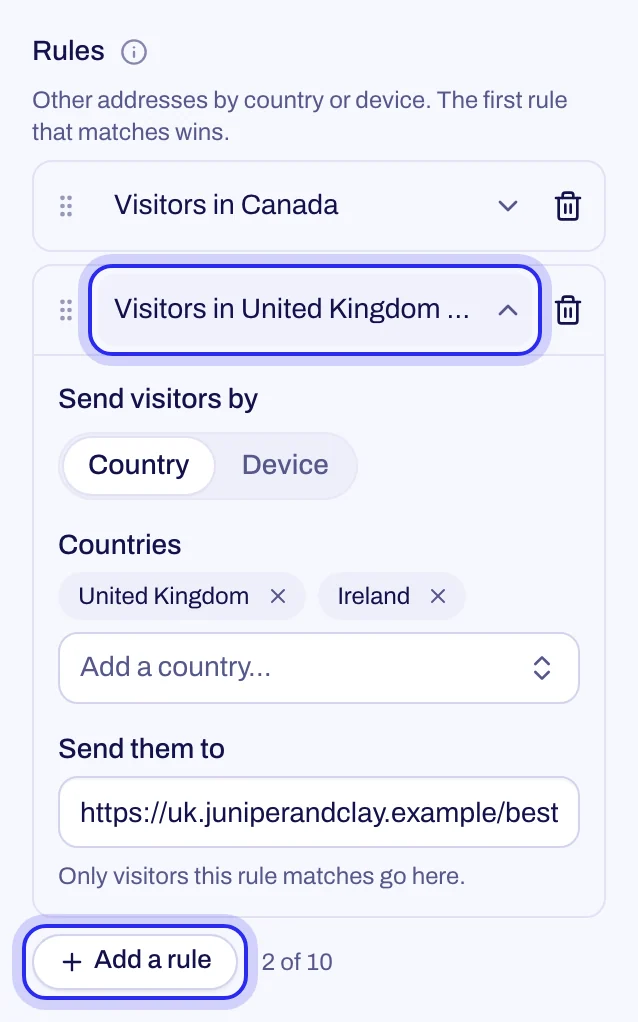
- In its settings panel on the right, find Rules and select Add a rule. The new rule opens below its row.
- In Send visitors by, choose Country or Device.
- Choose who the rule is for:
- For Country, pick each country from Add a country…. To take one out, select the × on its name.
- For Device, turn on iPhone and iPad, Android, or Computers and other devices.
- In Send them to, enter the address for those visitors.
- Publish your page.
Each rule's row names who it's for, such as "Visitors in France or Belgium" or "Visitors on Android". A row that still says Pick countries or Pick devices, or has no address, is skipped until you finish it. To delete a rule, select the trash icon on its row.
How rules are checked
Rules are checked from the top, and the first one that matches wins. Drag a rule by its handle to change the order. Visitors no rule matches get the link's own URL.
A "Get the app" button might look like this:
| Order | Rule | Send them to |
|---|---|---|
| 1 | Device: iPhone and iPad | Your App Store listing |
| 2 | Device: Android | Your Google Play listing |
| Last | No rule matches | The link's own URL, such as your website's download page |
Order matters when rules overlap. If a country rule for Canada comes first and a device rule for Android second, a visitor in Canada on an Android phone gets the Canada address. Put the rule that matters most at the top.
What visitors see
Visitors see one ordinary button. When they tap it, Linkbase picks the address and sends them on in a moment. No cookies are set and nothing about the visitor is stored. Rules also work when your page is on your own domain.
- Country comes from the visitor's internet connection, so someone on a VPN counts as being where the VPN is. If the country can't be told, the visitor gets the link's own URL.
- Device comes from the visitor's browser. Most iPads ask for desktop websites, so they count as Computers and other devices, not iPhone and iPad.
When rules don't apply
- In the editor and in preview links, links open their own URL. Test rules on your published page.
- Locked links: once a visitor unlocks a link behind a gate, it opens its own URL.
- Send visitors straight here: if you use it on this link, your page's address sends visitors to the link's own URL, not through its rules. See Spotlight a link or send visitors straight to it.
- After a downgrade: rules stay saved, but every visitor goes to the link's own URL until your plan includes rules again. You can still remove them, but not add or change them.
Test your rules
- Publish your page.
- Open it on an iPhone, an Android phone and a computer, and tap the link on each.
- For a country rule, ask someone in that country to try it, or use a VPN set to that country.
Clicks on the link are counted in your analytics as usual, under the link. Analytics don't show which rule a visitor matched. See Understand your analytics.
For ideas on when rules help and when separate links work better, read Link rules: send visitors to the right place by country or device.