Lock a link, folder or tab with a password, email or age check
Ask visitors for a password, their email address or a confirmation before they see a link, a folder or a whole tab.
You can keep a link's address, a folder's contents or a whole tab hidden until a visitor enters a password, leaves their email address or confirms a warning. Use it for client files, a members' area, a freebie in exchange for an email, or content for adults only. What's locked isn't in your page at all until someone unlocks it, so it can't be found by reading the page's code.
Age checks are on every plan. Password and email locks and sensitive-content warnings are on the Pro and Team plans. See Pricing.
Choose a lock
Each lock is set under Who can see it:
| Option | Visitors are asked to | Good for |
|---|---|---|
| Everyone | Nothing: there's no lock | |
| Visitors with the password | Enter a password you share with them | Client files, a private price list, a members' tab |
| Visitors who leave their email | Leave their email address | A free guide or download in exchange for a signup |
| Visitors who confirm a warning | Confirm their age (18+ or 21+), or that they want to see sensitive content | Adult or upsetting content, alcohol, age-limited offers |
Lock a link or a folder
- Open your page in the editor and select the link or the folder in the structure panel on the left. Its settings open on the right.
- Scroll down the settings to the Access section.
- Under Who can see it, choose the lock you want.
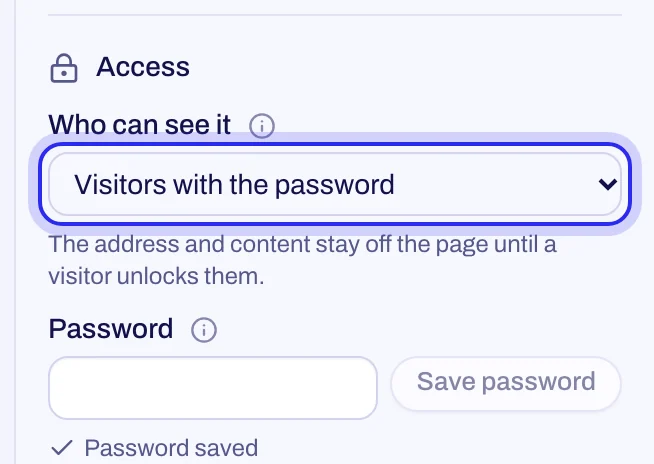
- Finish the lock's settings:
- Password: type it in Password (at least 4 characters) and select Save password. "Password saved" appears.
- Email: nothing more to set. Visitors who leave their address are added to Audience.
- Warning: under Warning, choose Sensitive content or Age limit. For an age limit, choose a Minimum age of 18+ or 21+. On a plan with only age checks, there's no Warning to choose: just pick the Minimum age.
- Select Publish.
To lock other kinds of blocks, such as a file, a video or a form, put them in a folder and lock the folder.
Lock a whole tab
- In the structure panel on the left, under Tabs, open the menu (...) beside the tab's name.
- Choose Access. A dialog titled "Access to" and the tab's name opens.
- Choose under Who can see it and finish the settings as above.
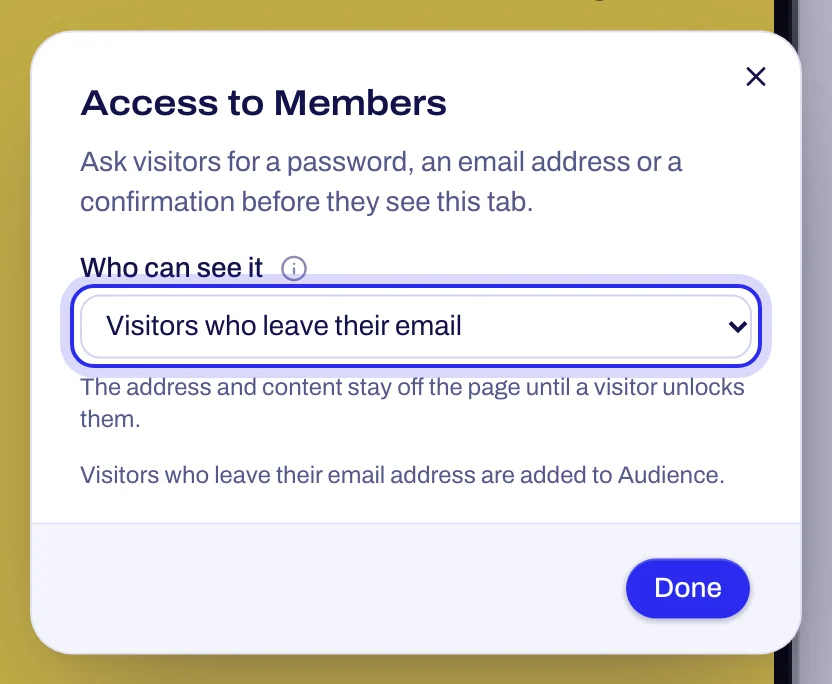
- Select Done, then Publish in the top bar.
A lock icon appears beside the tab's name in the editor. Visitors still see the tab in your page's tab bar, with a lock beside its name, and the prompt opens inside it. For more on tabs, see Split your page into tabs.
Passwords
- Set one before you publish. Until a password is saved, the link, folder or tab isn't on your page at all, and the editor marks it No password. If you publish without one, the message after publishing names what's missing.
- It can't be shown again. Linkbase stores passwords scrambled. The settings say "A password is set. Enter a new one to change it."
- Changing it locks everyone out. Visitors who unlocked with the old password need the new one.
What visitors see
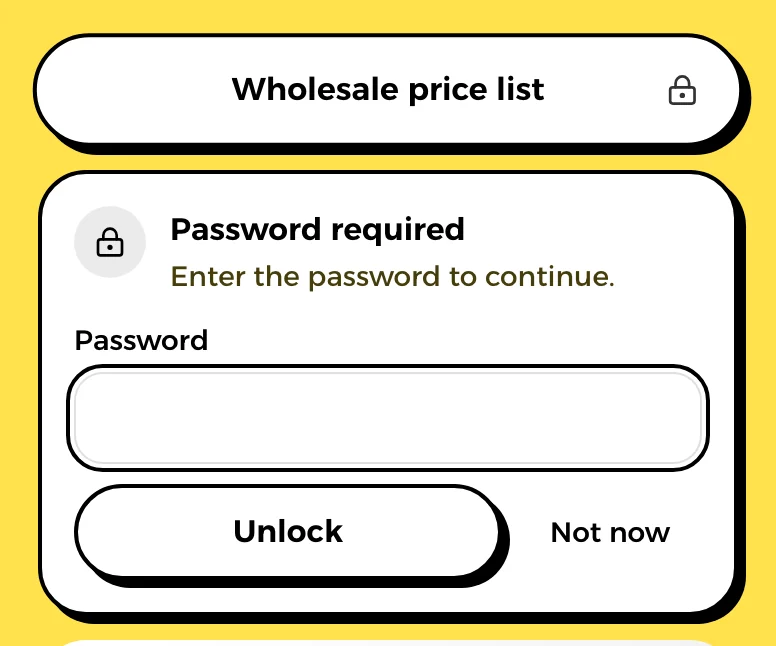
- A locked link looks like your other links, with a lock icon. Pressing it opens the prompt right below it, with Not now to close it. Once unlocked, the link opens as usual.
- A locked coupon shows a hidden code and Reveal code instead of the code. See Share a coupon code.
- A locked folder or tab shows the prompt inside its frame. Once unlocked, its contents appear in place.
- Wrong passwords: "That password isn't right." After 10 tries in 10 minutes, the visitor is asked to wait a few minutes before trying again.
Once unlocked, everything a visitor unlocked stays open in that browser for an hour, even if they reload the page. The prompts appear in your page's language.
In the editor and in preview links, the prompt shows but can't be used. The editor says "Visitors can unlock this once the page is published."
Email locks and your list
- Visitors see "Unlock with your email", with a note that your page will get their email address.
- Their address joins Audience → Subscribers as Subscribed, with no confirmation email. See View, search and export your audience.
- Someone who unsubscribed earlier gets in, but stays unsubscribed.
- If your account has reached its subscriber limit, visitors still get in, but their address isn't kept.
- A connected webhook receives
subscriber.createdfor each new address.
Warnings and age limits
A warning asks visitors to confirm, for example with I'm 18 or older or Show anyway. It doesn't check anyone's age. If you link to adult content, the Terms of Service ask you to put those links behind an 18+ confirmation like this one, which is on every plan. See What's allowed on Linkbase.
Things to know
- Locks inside locks: a locked link inside a locked folder or tab asks for both, one after the other.
- Search engines: what's locked is never in your page for them to read, and locked tabs are left out of your page's sitemap.
- Skip-to-link: a locked link, or a link in a locked folder or tab, can't be the link your page skips to. See Spotlight a link or send visitors straight to it.
- After a downgrade: locks you've already published keep working, and you can still remove them by choosing Everyone. Age checks stay available. You can't add or change any other lock until your plan includes them again.
For ideas on sharing private files this way, read Keep files private: password-protect a link or a whole tab.