See who changed what
Find who saved or published each version of a page, and read or download the workspace's audit log of member, settings and billing changes.
Use these records to find out who changed something, and when. Linkbase keeps two: a page's version history shows who saved or published each version, and what changed in it. The workspace's audit log records everything else, from invitations to domain changes, and owners and admins can read and download it on the Team plan.
See who changed a page
- Open the page in the editor.
- In the top bar, select Version history, the clock icon. On a narrower screen, it's in the top bar's ⋯ menu.
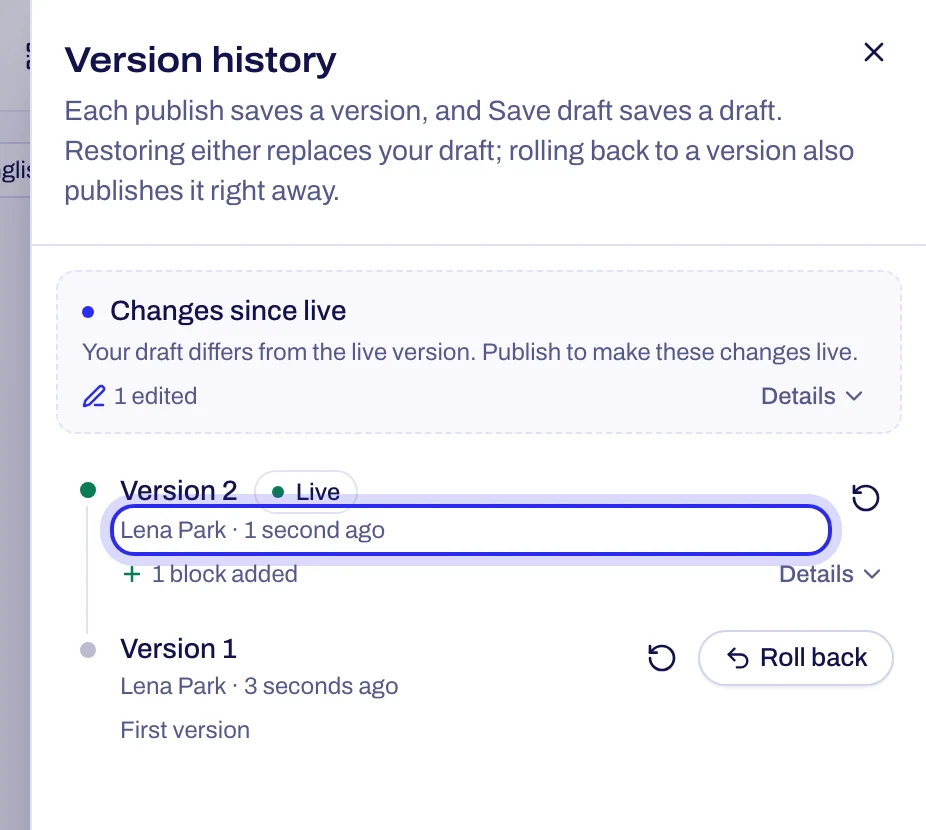
Each version, and each draft saved with Save draft, shows who saved it and when. Someone who has since left the workspace shows as "A former member".
Select Details on a version to see what changed: blocks added, removed, edited or moved, tabs added, removed or renamed, and page settings such as the theme, the header or the social links. Changes since live shows what your current draft would change.
To restore or roll back a version, see Undo changes and restore an earlier version.
What the audit log records
Each workspace's audit log is a running record of who did what, and when:
- Members: invitations sent and canceled, people joining, leaving and being removed, role changes and page access changes, and changes to the agency team.
- Ownership: handover offers sent, withdrawn, declined and accepted, a client's requests for the workspace and declined requests, and a client leaving the agency.
- The workspace: its creation, settings changes, with which settings changed, and messages sent to the client.
- Pages: pages created, duplicated, moved, imported, published, unpublished and deleted, drafts saved, preview links shared, versions restored and rollbacks, and verification granted or removed.
- Media: images uploaded and deleted.
- Domains: domains added, verified, disabled, restored and removed.
- Audience: exports, unsubscribes, deleted subscribers and form replies, and webhook settings saved or removed.
- Bookings: booking types and hours saved, booking types deleted and bookings canceled.
- Billing: trials, checkouts, plan changes, cancellations and failed or reversed payments.
- Referrals and data: referral events, and workspace exports requested and downloaded.
Changes made automatically, such as a billing update from the payment provider, are recorded without a person.
Read the audit log
The audit log is part of the Team plan, for the workspace's owner and admins.
- In the sidebar, select Settings, then Audit log.
- Each row shows when it happened, who did it with their name and email, what happened in plain words, and what it happened to, by name.
Times and date filters are in your own time zone, and every row names it. An admin somewhere else sees the same entries on their clock.
Filter the list by Who, by What (such as Members, Pages or Billing), and by From and To dates. Newer and Older move between pages. Filters stay in the page's address, so you can bookmark a view or share it with another admin. The dates in a shared link are read on each person's own clock, so an admin in another time zone may see a few more or fewer entries near the start and end of the range.
Changes made automatically, such as a billing update from the payment provider, show Linkbase as who did it. So do entries from people whose accounts have since been deleted.
Download the audit log
Select Download CSV on the Audit log page. The file has the entries that match your filters, up to 10,000 rows, with names rather than bare IDs:
| Column | What it holds |
|---|---|
time_utc | When it happened, in UTC |
actor_name, actor_email | Who did it. Automatic changes show Linkbase |
action, description | What happened, as a stable name and in plain words |
target_type, target | What it happened to, by name when it has one |
details | Extra facts, such as the new role or the settings that changed |
actor_id, target_id | IDs, for matching against other records |
Times in the file are always in UTC, so they mean the same thing wherever the file is opened. The rows are the ones your filters matched on your clock, so an entry near midnight can show a different date in the file than on the screen.
The workspace's data export also includes the whole log, as audit-log.csv:
- In the sidebar, select Settings. The General tab opens.
- Under Export workspace data, select Request export.
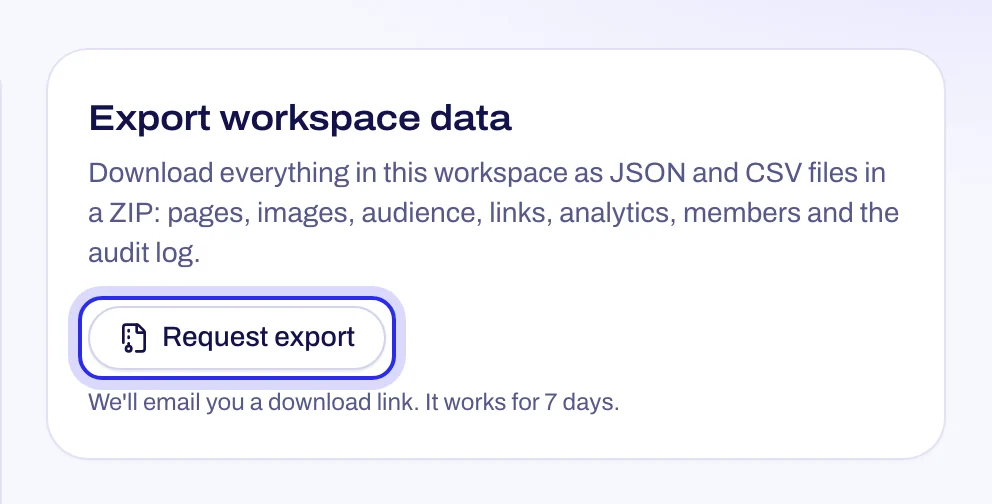
- When the email arrives, select Download export. The link works for 7 days, and only while you're signed in.
- Open the ZIP and find
audit-log.csv. Each row has the actor's name and email, the action, and the target by name next to its ID.
Only the workspace's owner can request the data export. Admins use Download CSV on the Audit log page. More on exports in Download your data.
How long it's kept
The audit log is kept for as long as the workspace exists. It's deleted with the workspace, when everything else is, 30 days after the workspace is deleted.
When someone deletes their Linkbase account, their entries stay in the log, shown as Linkbase.
Common questions
Does the log record every edit to a block? No. It records when a draft is saved and when the page is published, not each edit. To see exactly what changed, use the page's version history.
Can I see what a teammate did across all my clients? Each workspace keeps its own log, so open each one, or download its CSV.