Invite people to a workspace
Send an invitation by email, choose the person's role and which pages they reach, and follow it until they join.
Invite someone when they need to work on, or look at, the pages in a workspace. Owners and admins invite people from Settings → Members: each person gets an email with a link to join, and you choose their role and, for editors and viewers, which pages they can reach.
Before you start
- You need to be an owner or admin of the workspace. Client admins can invite the client's own people too: see Give a client their own admin.
- Not sure which role to give? Roles and what each can do compares them.
Viewers are free on every plan. Admins, client admins and editors each take a seat, and seats for people besides you come with the Team plan, which includes some and lets you add more. Limiting someone to selected pages is on the Team plan too. See the pricing page.
Send an invitation
- In the sidebar, select Settings, then the Members tab.
- In the Invite people card, enter the person's Email.
- Choose a Role. The line under the form says what the role can do.
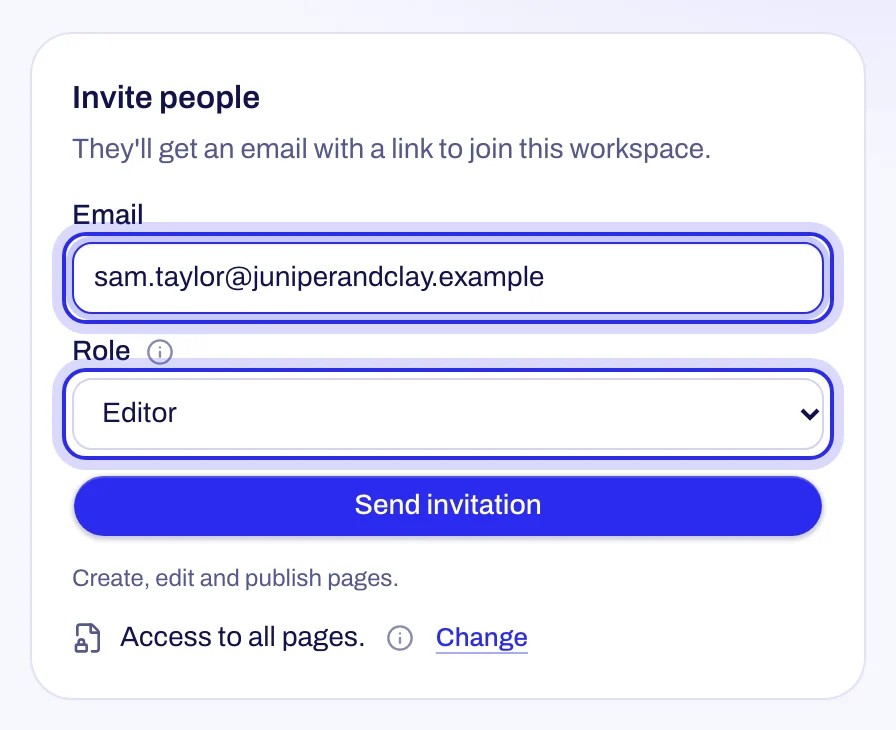
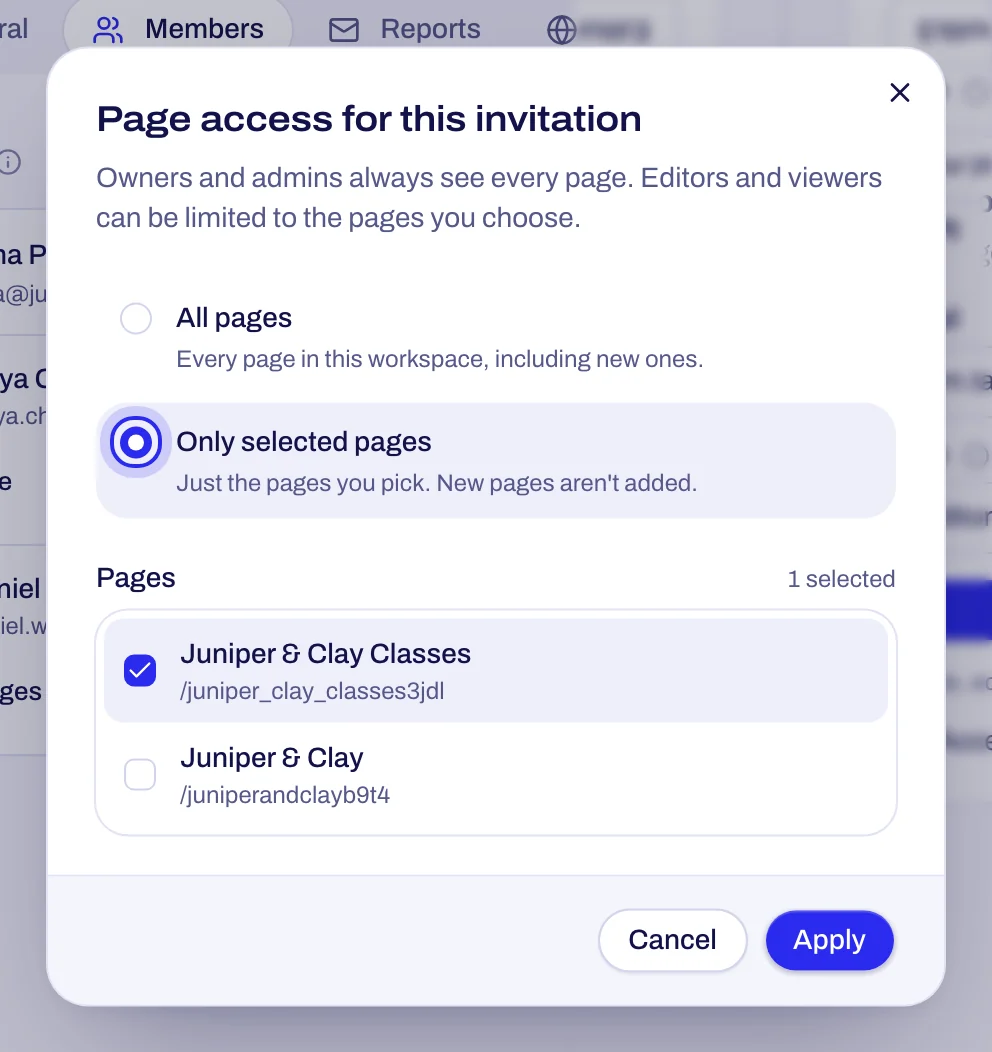
- For an editor or viewer, choose their pages: next to Access to all pages., select Change.
- Choose Only selected pages, tick the pages, and select Apply.
- Select Send invitation.
A message confirms the invitation, and it appears under Pending invitations with the date it expires. Invitations last 7 days.
You can also open this form from the command menu: press ⌘K, or Ctrl K, and choose Invite a member.
What the person you invite sees
They get an email naming you, the workspace and their role, in the workspace's email language, with an Accept invitation button. If they already have a Linkbase account, the invitation also appears in their notification bell.
- New to Linkbase: they create an account on the same page, with the invited address, and join in one step.
- Already have an account: they sign in, and the invitation is accepted.
- Signed in with another address: they're asked to Sign in with another account. An invitation works only for the address it was sent to.
Once they accept, the workspace opens for them, without the setup steps new accounts usually see, and they appear in your Members list.
Follow up on pending invitations
Under Pending invitations, each invitation shows its role, the pages it's limited to and when it expires:
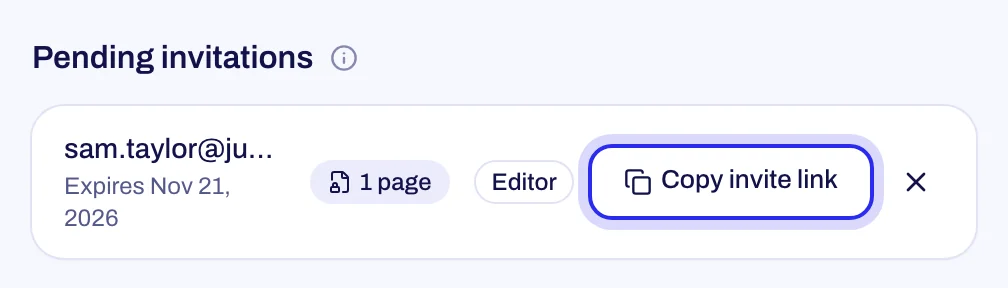
- Copy invite link gives you the link to send another way, if the email didn't arrive. It still works only for the invited address.
- Cancel invitation, the cross at the end of the row, stops the link working and frees its seat, if it held one.
To send a fresh invitation, invite the same address again. The new one replaces the old one and doesn't take another seat.
Change someone's access later
In the Members list:
- Choose a new role in the menu beside the person. "Role updated" confirms it.
- For an editor or viewer, select All pages or the page count beside their name to choose their pages, then Save access. "Only selected pages" doesn't add new pages automatically.
- Select Remove beside them, then Remove member in the dialog. They lose access right away, and you can invite them again later.
People limited to selected pages can't create or duplicate pages, and see only those pages' analytics and audience. With no pages selected, they see empty lists until you add some.
Troubleshooting
"No seats left" appears above the form. Every seat on the owner's plan is taken, counting pending invitations, so the role menu offers only Viewer. Cancel an invitation you no longer need, or ask the owner to add seats or upgrade in Plan & billing. See Upgrade, downgrade or switch billing.
"This person is already a member of the workspace." They're in already. Change their role in the Members list instead.
The role menu offers only Client admin, Editor and Viewer. The workspace belongs to an account with an agency team, where the people you invite are the client's. Your own people join from the Team page: see Set up your agency team.
"Only selected pages" can't be chosen. Limiting pages needs the Team plan, and the dialog shows the upgrade. You can always give someone every page back, on any plan.
The invitation expired. Invite the same address again.