Undo changes and restore an earlier version
Undo and redo while you edit, and use version history to restore a saved draft or roll your live page back to an earlier version.
Undo takes back your last changes while you edit. For anything older, Version history keeps every version you've published and every draft you've saved, and can put any of them back.
Undo and redo
- Select Undo or Redo at the top of the editor.
- Or press ⌘Z to undo and ⇧⌘Z to redo on a Mac, or Ctrl+Z and Ctrl+Y on Windows.
Each step is one change: adding, moving or deleting a block, or a burst of typing in one field. While your cursor is in a text field, the shortcuts undo typing in that field only.
Undo lasts while the editor is open. Reloading the page, leaving the editor, or restoring a version clears it.
Open version history
Select Version history, the clock button in the editor's top bar. On a smaller screen, it's under More.
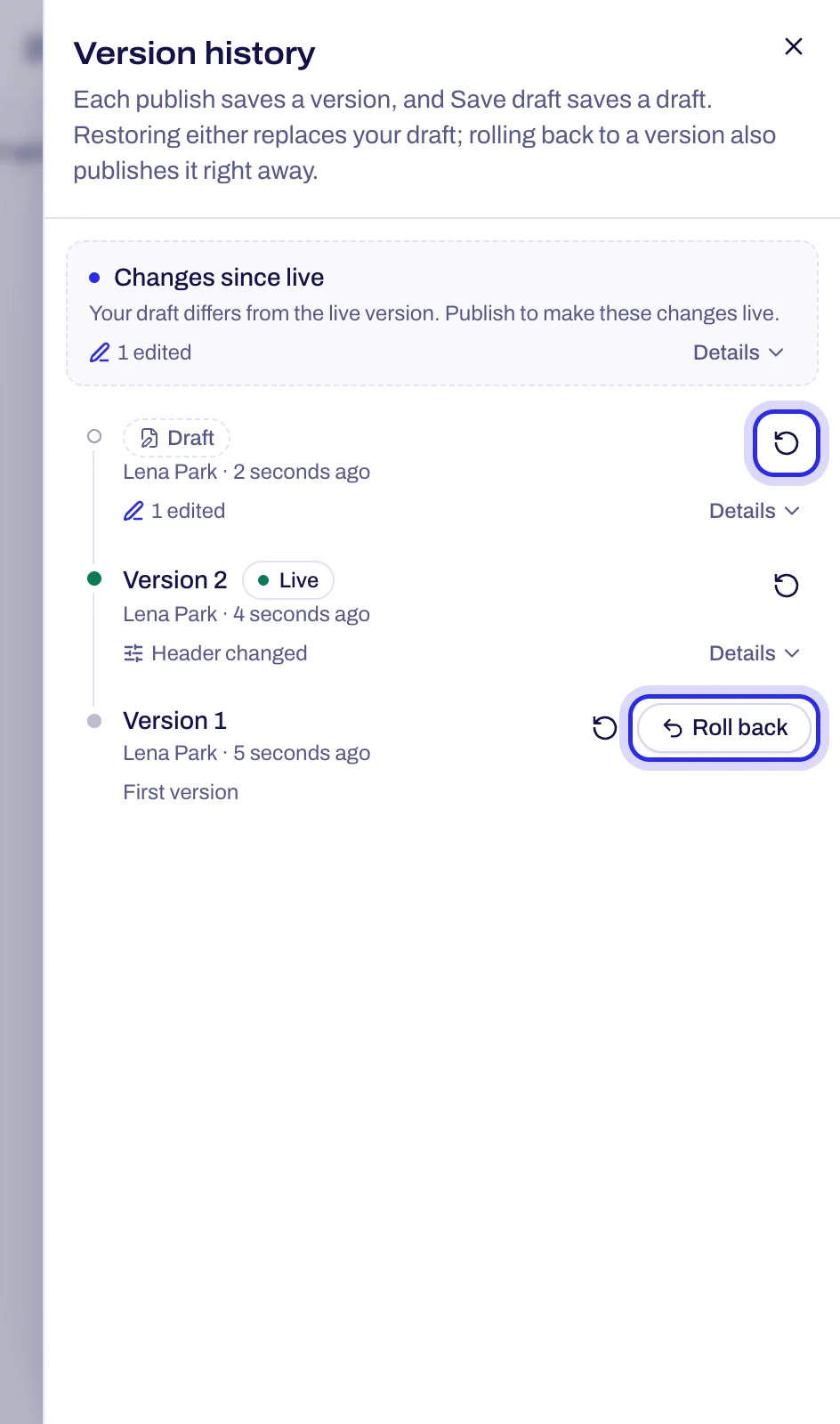
The list runs newest first and holds up to 50 entries:
- Versions: each time the page was published, numbered, with who published it and when. The one visitors see now is marked Live.
- Drafts: each time someone selected Save draft, labeled Draft.
- What changed: each entry sums up what changed since the one before, such as "1 block added · Header changed". Select Details to see each block, tab and setting.
- Changes since live: at the top, when your draft differs from the live page.
Restore a version or draft to your draft
Restoring puts an earlier version into your draft. Your live page doesn't change until you publish.
- Open Version history.
- Next to the version or draft you want, select the restore button (Restore to draft).
- Confirm with Restore version or Restore draft.
- Check the result in the editor, then select Publish when you're ready.
Roll back your live page
Rolling back restores a version and publishes it in one step, for when something wrong is live right now.
- Open Version history.
- Next to a version that isn't live, select Roll back.
- Confirm with Roll back and publish.
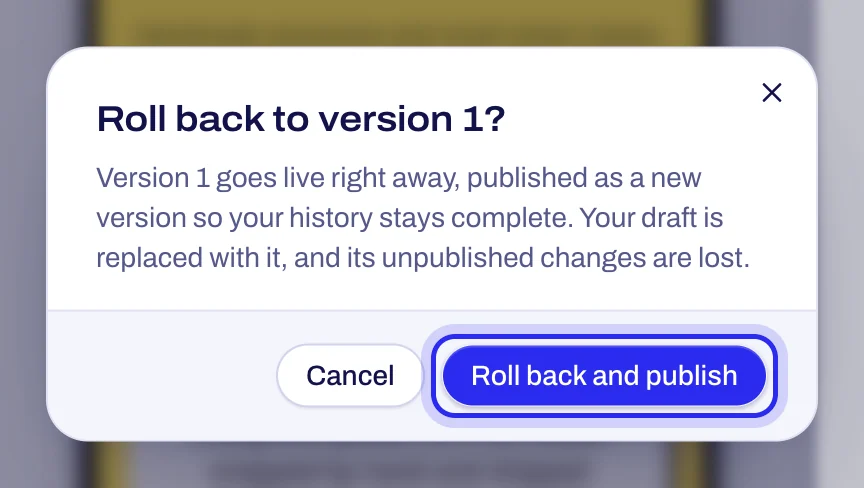
The version goes live at once as a new version number, so your history stays complete. A message confirms it, such as "Rolled back to version 3. It's live as version 6." Drafts can be restored but not rolled back to, since they were never live.
What comes back, and what doesn't
Comes back: tabs and blocks, including hidden ones and blocks still being worked on, social profiles, the page name, header, theme, language, search and sharing settings, the spotlight and skip-to links, and what was behind locks.
Doesn't come back:
- Tracking pixels. They stay as they are now.
- Hidden blocks and tabs, in older versions only. Versions and drafts saved before hidden items were kept hold only what visitors could see; the restore dialog says so when that's the case.
Restoring and rolling back replace your whole draft, and its current changes are lost. If you might want your current work later, select Save draft first, so it's in the history too.
Who can restore
Editors, admins and owners can restore and roll back. Viewers can open the history but not change anything. See Roles and what each can do.
Both buttons wait while edits are still saving.
Common questions
I switched templates by mistake. Applying a template is one change, so Undo takes it back while the editor is open. After that, restore the draft or version from before.
Why isn't my version in the list? The list shows the latest 50 entries. Saving a draft with no changes since the last one doesn't add an entry.
I restored the wrong version. Restoring never removes anything from the history, so open Version history again and restore the right entry. Only the draft you replaced is gone, unless you saved it as a draft first.