Set up your agency team
Invite the people you work with to your account once, give each a role, and choose which client workspaces they reach.
Your agency team is the people who work across your clients' workspaces. You invite each person to your account once, from the Team page, and choose which workspaces they reach, instead of inviting them to every workspace in turn.
Before you start
- Only the account owner, the person who pays, manages the team. Account admins can't invite or change teammates.
- Create a workspace for each client, or plan to give people All workspaces, which includes workspaces you create later.
The agency team is on the Team plan. Every teammate takes a seat, even before they reach a workspace. See the pricing page.
Invite a teammate
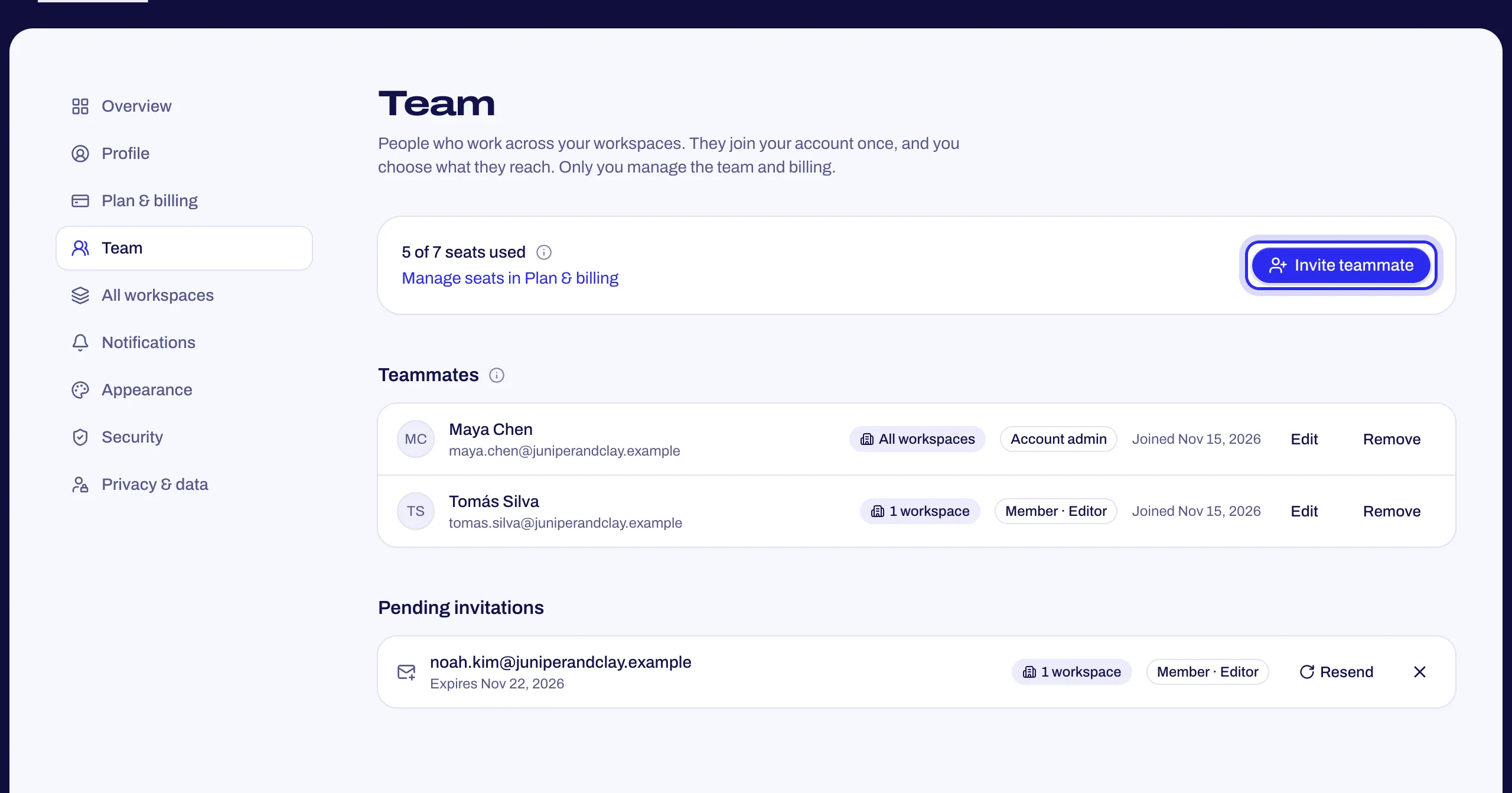
- Open the account menu at the bottom of the sidebar, choose Account, then Team in the account's menu.
- Select Invite teammate, beside the number of seats used.
- In the dialog, enter their Email.
- Choose an Account role:
- Account admin: an admin in every workspace they reach. They can create workspaces for your account and manage those workspaces' members.
- Member: works in the workspaces you choose. Pick their Role in workspaces: Editor or Viewer.
- Under Access, choose All workspaces, or Selected workspaces and tick the ones they need.
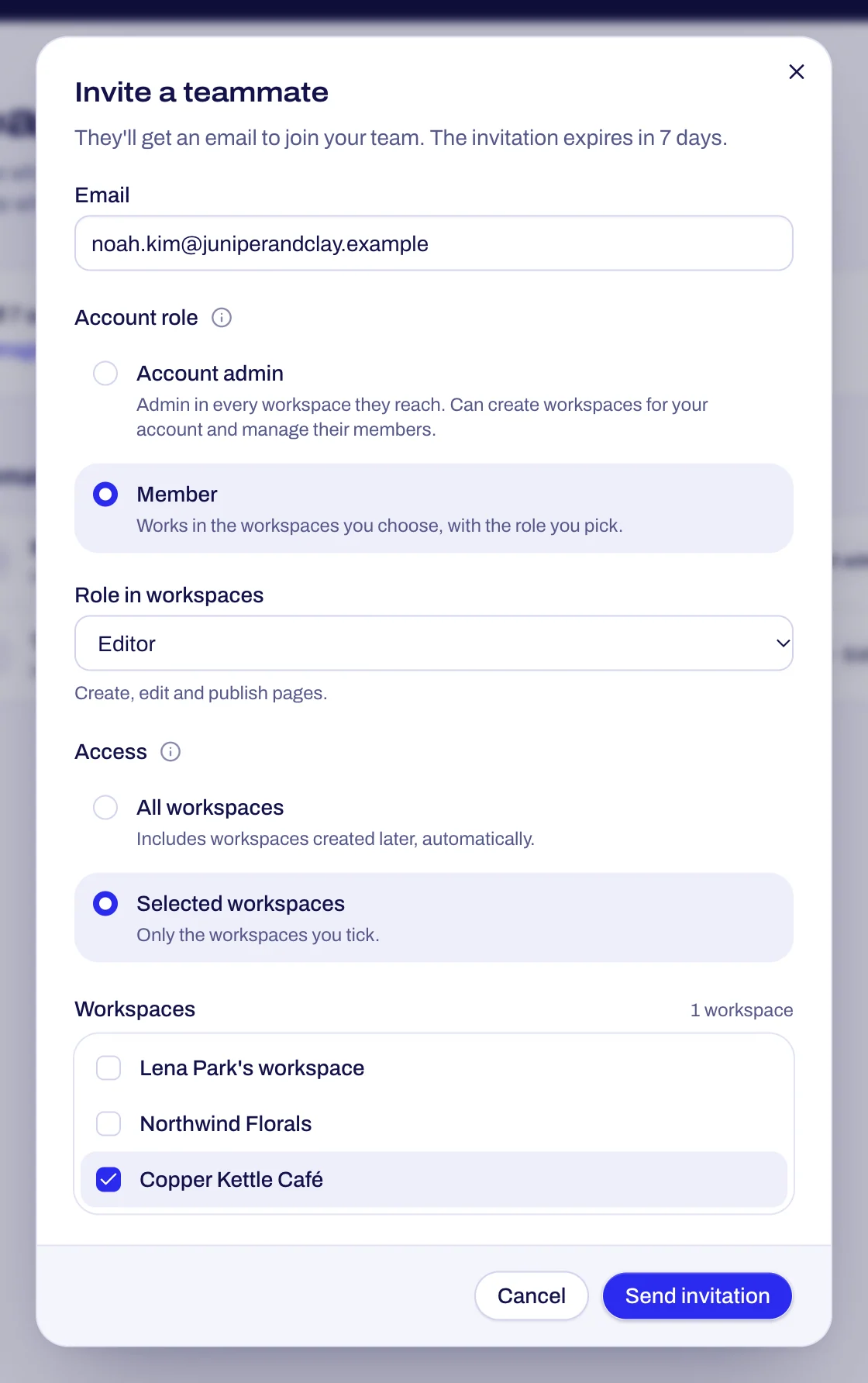
- Select Send invitation.
The invitation appears under Pending invitations and lasts 7 days. Resend sends it again with a new expiry date, and Cancel invitation withdraws it.
What your teammate does
They get an email inviting them to your team, with a Join the team button. They sign in or create an account with the invited address, then select Join the team.
From then on they reach the workspaces you chose, with the role you picked. Each of those workspaces lists them under Members with the Agency team badge.
Change or remove a teammate
On the Team page, under Teammates:
- Edit changes their account role, their role in workspaces or their access. The change applies at once.
- Remove takes away every workspace they reach through the team and frees their seat. Their pages and other work stay.
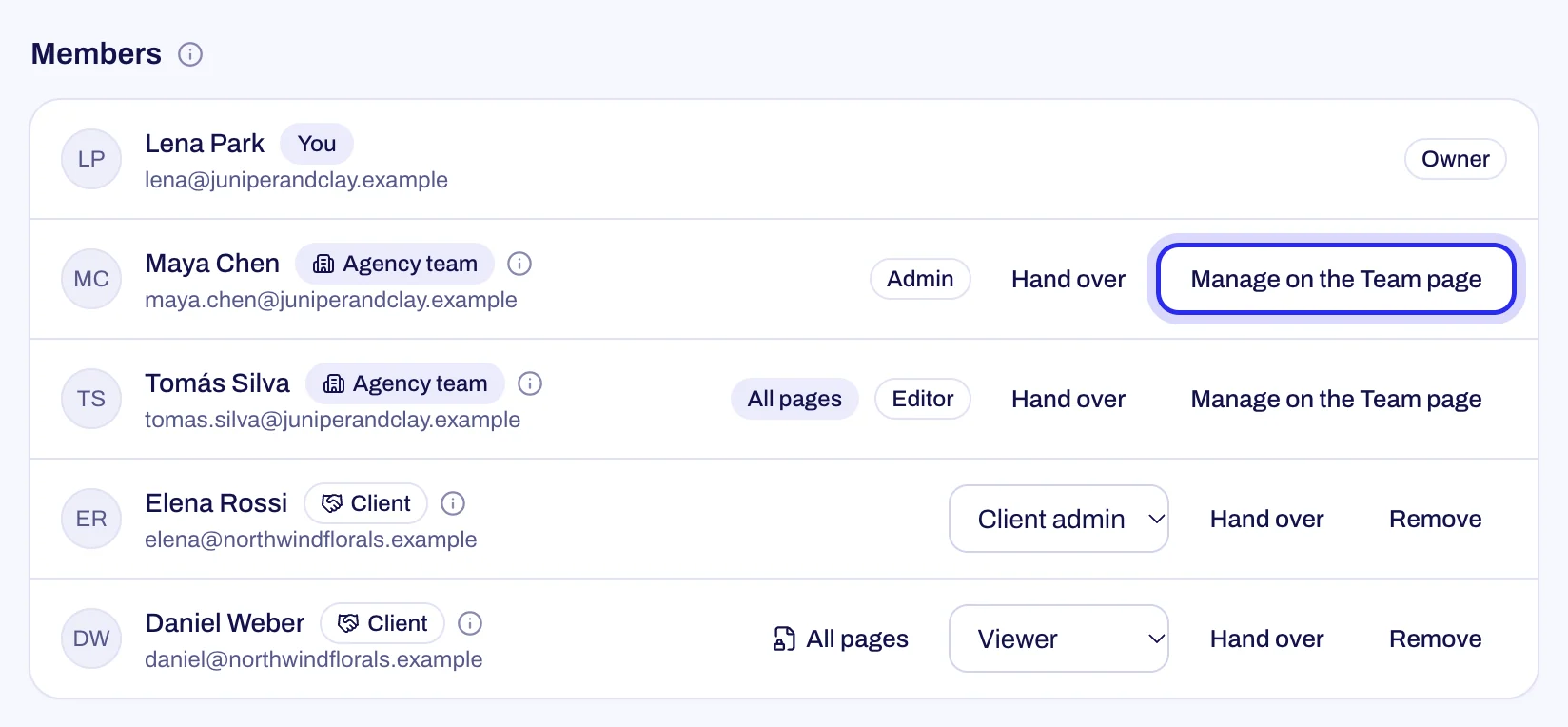
Teammates are managed only here. In a workspace's Members list, nobody can change a teammate's role, limit their pages or remove them, and you see Manage on the Team page instead.
How your workspaces change
Once someone joins your team, the workspaces you own become agency workspaces:
- Their invite forms offer only client roles: Client admin, Editor and Viewer. Your own people join through the Team page, never as workspace admins.
- People invited straight to a workspace are the client's and show the Client badge. See Give a client their own admin.
- Account admins can create workspaces for you. In Create workspace, they choose your account under For. The workspace belongs to you and uses your plan.
- Each client workspace is limited to 1 of the client's people and 1 page by default, which you can change on the Team page or per client. See Give a client their own admin.
- All workspaces gives you every client's numbers in one list. See See all your workspaces at a glance.
Seats
- Each teammate takes one seat, however many workspaces they reach, viewers included. Pending team invitations take one too.
- The client's editors and client admins take a seat. The client's viewers are free.
- The Team page shows how many seats are used. To add more, select Manage seats in Plan & billing.
If you're on someone's team
Your own Team page lists the teams you're on, under Teams you're on. To leave one, select Leave team and confirm. You lose the workspaces you reached through it.
Common questions
What happens if I leave the Team plan? Your teammates keep their access, and you can still edit or remove them and cancel invitations. Inviting new teammates needs the Team plan again.
"This person is already on your team." They've joined already. Select Edit beside them to change what they reach.
Someone is already a member of one of my workspaces. Can I add them to the team? Yes. Once they join and reach that workspace through the team, their membership there becomes a team one, with the team's role and every page.
For a complete agency setup, from one workspace per client to the handover at the end of a contract, read How agencies run every client's page from one account.