Schedule reports for clients
Email a client their page's views, visitors and clicks every week or month, in their language, without sending screenshots.
Schedule a report to keep a client up to date without sending screenshots. It emails the numbers of one page, or of a whole workspace, to any address you choose, every week or every month. Recipients don't need a Linkbase account.
Before you start
- Only owners and admins can schedule reports. Everyone else sees them listed read-only.
- Reports go out at 9:00 in the workspace's time zone. If your client is somewhere else, set Time zone in Settings → General to theirs first. It also decides when each day starts and ends in the workspace's analytics.
Scheduled reports are on the Pro and Team plans. See the pricing page.
Schedule a report
- Open the client's workspace, then Settings → Reports.
- Under Scheduled reports, select New report, on the right.
- In Report on, choose the client's page, or All pages for the whole workspace.
- In How often, choose Weekly or Monthly.
- Choose the email's Language. It starts as the workspace's email language.
- In Recipients, enter up to 10 email addresses, separated by commas or new lines.
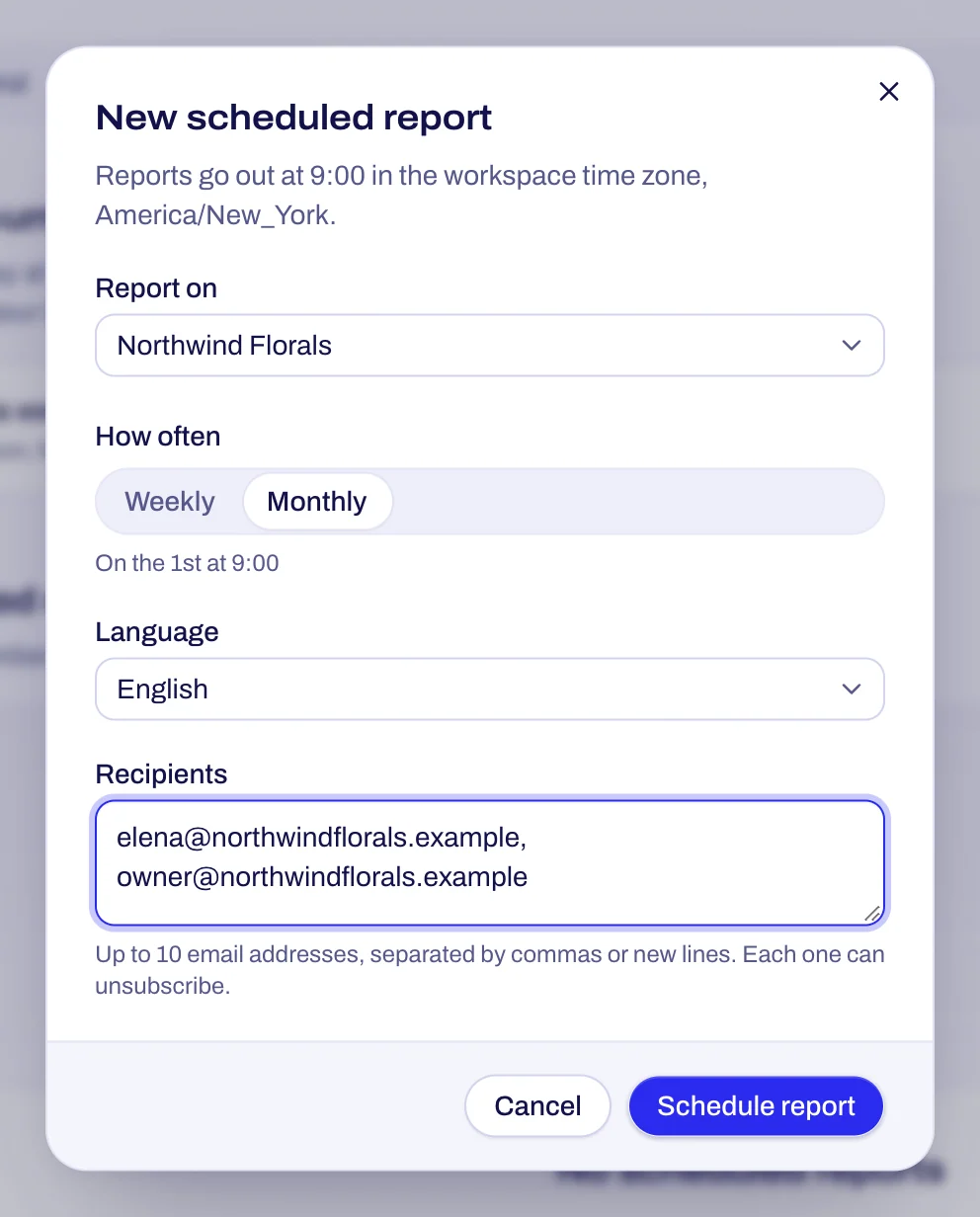
- Select Schedule report.
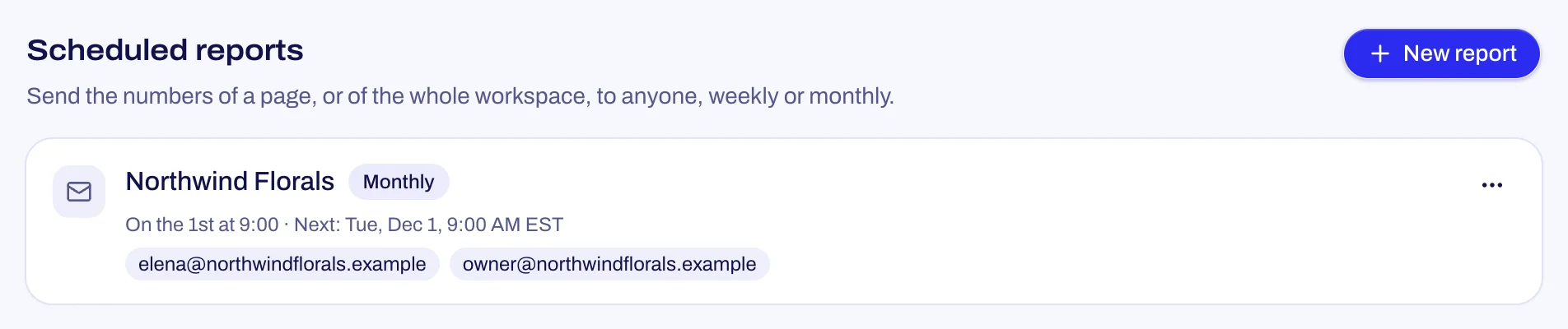
The report appears in the list with its schedule, the date of the next one and its recipients.
When reports arrive
| Sent | Covers | |
|---|---|---|
| Weekly | Mondays at 9:00 | Monday to Sunday of the week before |
| Monthly | On the 1st at 9:00 | The month before |
A period with no views and no clicks sends nothing, so a client never gets an empty report.
What the client gets
The email is titled with the cadence, the page or workspace name and its views and clicks. Inside are:
- views, unique visitors, clicks and click rate, each compared with the period before;
- the top links and the top referrers;
- a line saying which workspace sends the report, and when.
Numbers and dates follow the report's language, and Arabic reports read right to left. Each email ends with Unsubscribe from this report, which asks before changing anything.
Edit or delete a report
Open the report's actions menu, the ⋯ button at the end of its row:
- Edit changes the page, cadence, language or recipients. Select Save.
- Delete stops it for everyone after you confirm. "Its recipients won't get it anymore."
A recipient who unsubscribed stays listed, struck through and marked Unsubscribed, and that report never emails them again.
Good to know
- Limits: up to 10 recipients per report and 20 reports per workspace.
- After a downgrade: reports stay listed and can be deleted, but they stop sending.
- Live numbers instead: invite the client to the workspace as a viewer. Viewers are free on every plan and can open the workspace's analytics at any time. On the Team plan, you can limit them to their own pages. See Invite people to a workspace.
Setting up several clients? Create each report from the client's own workspace, so it reports on their pages only and goes out on their clock.
The Weekly summary at the top of the same tab is a different email: each member's own summary, on every plan. See Your weekly summary email. To download the numbers instead, see Export analytics and schedule reports.