Create and switch workspaces
What a workspace holds, how to create one for each brand or client, and how to move between them.
A workspace holds one brand's or one client's work: its pages, its people and its settings. You get one the first time you sign in, and you can create more and switch between them from the top of the sidebar.
What a workspace holds
Each workspace has its own:
- pages, and the images in its Media library;
- short links and QR codes, under Links;
- analytics, and the Audience its pages collect: signups, form replies and bookings;
- members, each with a role;
- custom domains, scheduled reports and settings such as its time zone.
Workspaces don't share content or members. What they share is your plan: every workspace you own uses your account's plan, so its limits, such as how many pages you can have and how many seats, count across all of them.
Your first workspace is named after you, as "yourname's workspace". You can rename it at any time.
Switch to another workspace
- At the top of the sidebar, select the workspace's name. Your role in it is shown under the name.
- Under Workspaces, choose the one you want.
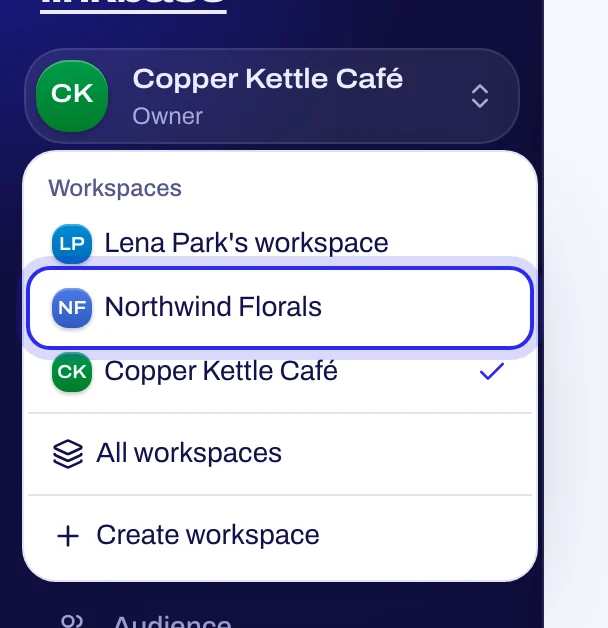
It opens on its Pages. You can also press ⌘K on a Mac, or Ctrl K on other computers, and pick a workspace under Workspaces in the command menu.
Create a workspace
- Select the workspace's name at the top of the sidebar.
- Choose Create workspace, at the bottom of the menu.
- In the dialog, enter a Workspace name, up to 60 characters.
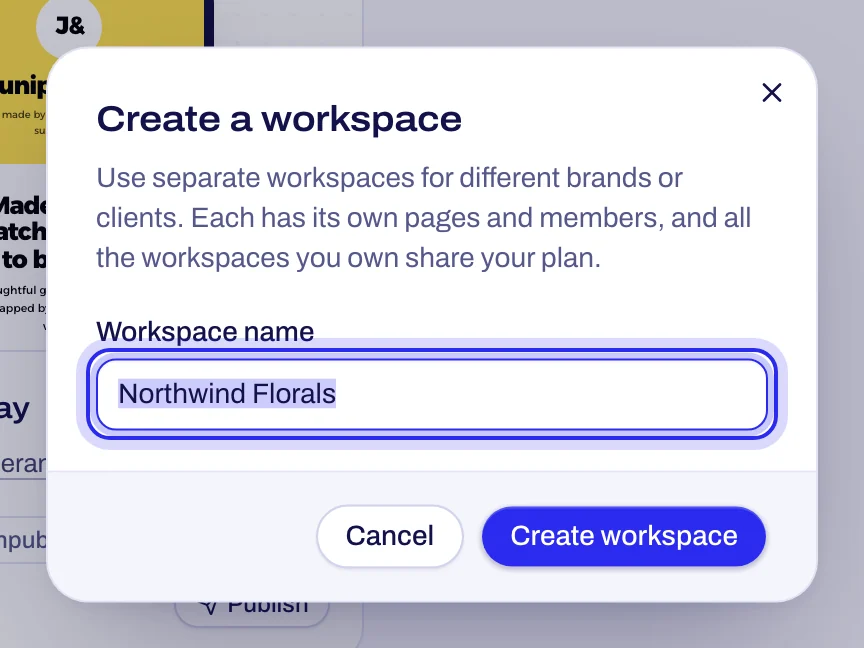
- Select Create workspace.
The new workspace opens on its Pages, ready for its first page. You're its owner, and it uses your plan.
Give each brand or client a workspace of its own rather than mixing them. Members, reports and handovers all work per workspace, so a client who leaves can take theirs whole.
How many workspaces you can own depends on your plan. At the limit, the dialog says so and links to Plan & billing instead. Compare plans on the pricing page.
If you're an account admin on an agency's team, the dialog also has a For field. Choose the agency's account to create the workspace for it: it belongs to the account's owner and uses their plan, and you're an admin in it. See Set up your agency team.
Change a workspace's name and settings
In the sidebar, select Settings. The General tab opens first. Owners and admins can change:
- Workspace name.
- Workspace URL: the part of the dashboard's address after /w/. It doesn't change the addresses of your public pages.
- Time zone: when each day starts and ends in your analytics, and when scheduled reports go out. A new workspace starts on your device's time zone, and Use my time zone switches to it later.
- Email language: the default language for emails sent on behalf of the workspace, such as invitations. It doesn't change your dashboard's language.
- Profile image: shown instead of the initials in the sidebar, the workspace list and the command menu.
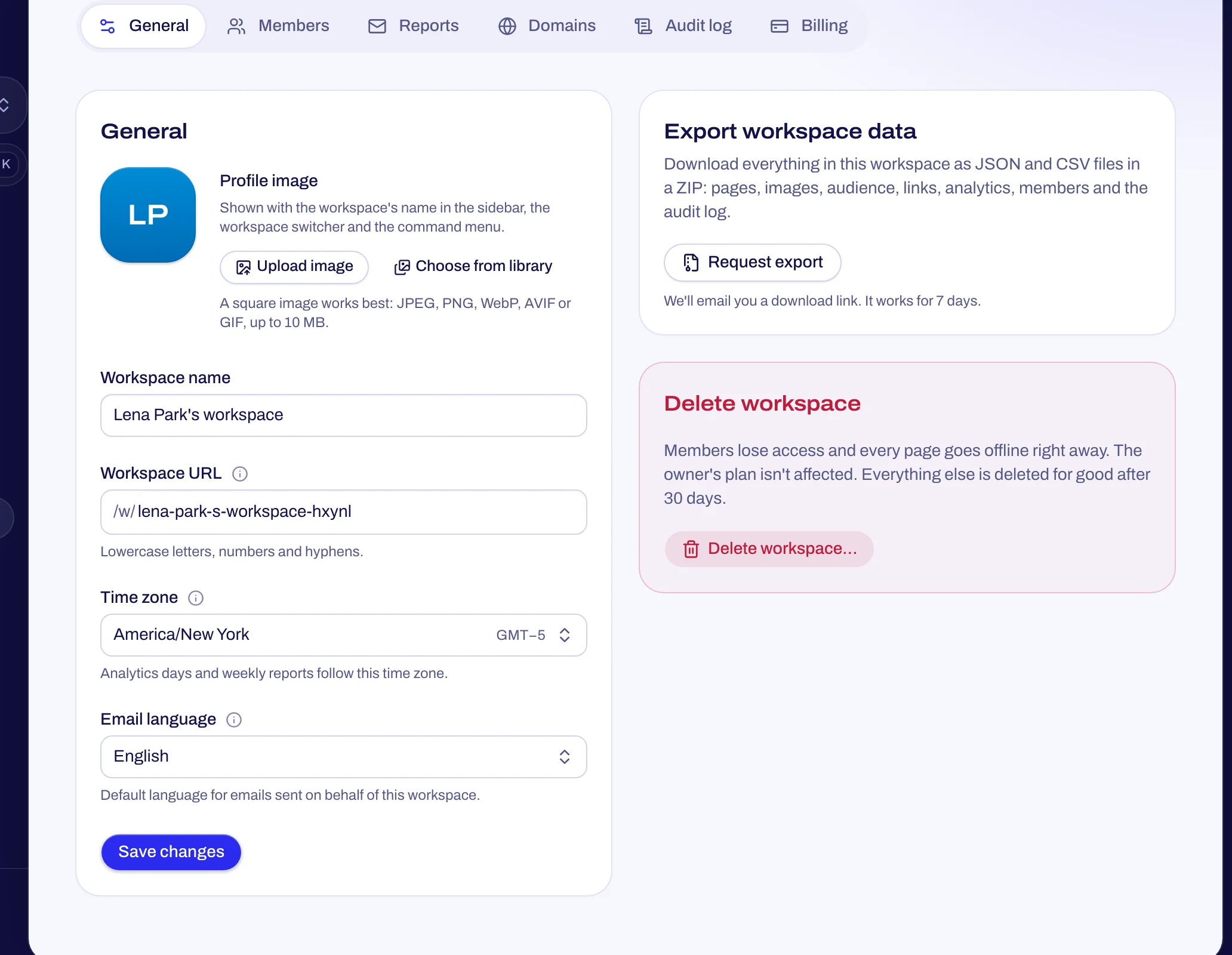
Select Save changes when you're done. The profile image is saved as soon as you upload or choose it. Everyone else sees these settings read-only.
Common questions
Why don't I see Create workspace? If you joined only to work in someone else's workspace, such as an agency's client, the workspace's name has no menu. The sidebar offers Start your own free trial instead, which creates a workspace of your own. An agency's client sees Managed by and the agency's name instead, and can request ownership of the workspace: see Client admins.
Which one is my agency's own workspace? In an agency account, your agency's own workspace shows Agency under its name at the top of the sidebar and in the workspace list. Your clients' workspaces show your role there.
Can I move a page to another workspace? Yes. Owners and admins choose Move to another workspace from the page's menu on Pages. To copy it instead, see Duplicate a page into another workspace.
Can I see every workspace at once? Once you own more than one, the same menu offers All workspaces. See See all your workspaces at a glance.
How do I delete a workspace? The owner opens Settings → General, selects Delete workspace and types the workspace's address to confirm. Members lose access and its pages go offline right away, and everything else is deleted for good after 30 days. The owner's plan isn't affected. To keep a copy, download the workspace's data first.