Share your page
Copy your page's address, share it anywhere, and pick the right tool for print, campaigns and single tabs.
Your page has one address, …/yourname, and it works for everyone as soon as you publish. Copy it from the editor or from Pages, then put it anywhere people can tap or type it: your bios, messages, emails and print.
You choose the address when you create the page. Owners and admins can change it later, and the old address forwards to the new one for 90 days. See Choose or change your page address.
Before you start
- Publish your page first. Until you do, the address shows a "not found" page, and the editor's link menu says Publish to get a live link. See Publish your page and go live.
- Want feedback on a draft? Share a private preview instead of your address. See Save drafts and share a private preview.
Copy your address in the editor
- Open your page from Pages.
- In the top bar, select Page link, the link icon beside Save draft. On wide screens the button shows your address. On narrower screens it's under More, at the top of the menu.
- The menu shows your address under Published at. Select Copy link.
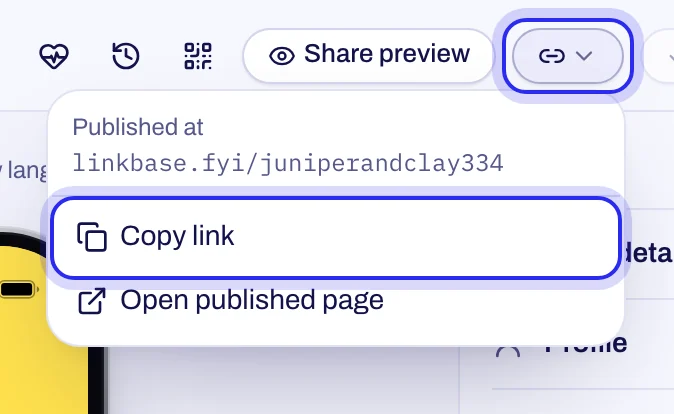
The icon turns into a check mark for a moment once the link is copied. To see what visitors see, choose Open published page from the same menu. It opens in a new tab.
If copying fails, you'll see "Couldn't copy the link. Open the page and copy it from the address bar." Open the published page and copy the address from your browser's address bar instead.
Copy it from the Pages list
Every page in Pages shows its address. Once the page is published, the address is a link: open it and copy it from your browser. The page's menu also has View page.
If you've connected your own domain
Once a custom domain is connected, the editor's Page link shows the domain, and so do your page's Share button and link cards. Your page's QR code leads there too. Your …/yourname address keeps working, and search engines are told the domain is the main one. See Connect your own domain.
Pick the right way to share
| You want to | Use |
|---|---|
| Put your page in Instagram, TikTok or other bios | Your page address. See Put your page in your social bios. |
| Print it on a flyer, menu or sign | A QR code. See Create and style a QR code. |
| Send people to one section, like your menu | The tab's own address. See Link straight to one tab of your page. |
| Count clicks from one post or campaign | UTM tags on your address, or a short link on Pro and Team. See Track campaigns with UTM tags and Create short links. |
| Change the card people see in chats | Your share image and titles. See Set your search title, description and share image. |
Let visitors share it too
A Share button on your page lets visitors pass it on. On phones and other devices with a share sheet, it opens that. Elsewhere, it shows your page's QR code, Copy link, and links to share on WhatsApp, X, Facebook, LinkedIn, Telegram or by email.
- In the editor, select a tab's name under Tabs, so no block is selected. The settings panel on the right shows your page's settings.
- Open Top bar & buttons.
- Under Page actions, turn on Share. Its icon moves from Off to the top edge of your page, where you can drag it to the start or the end.
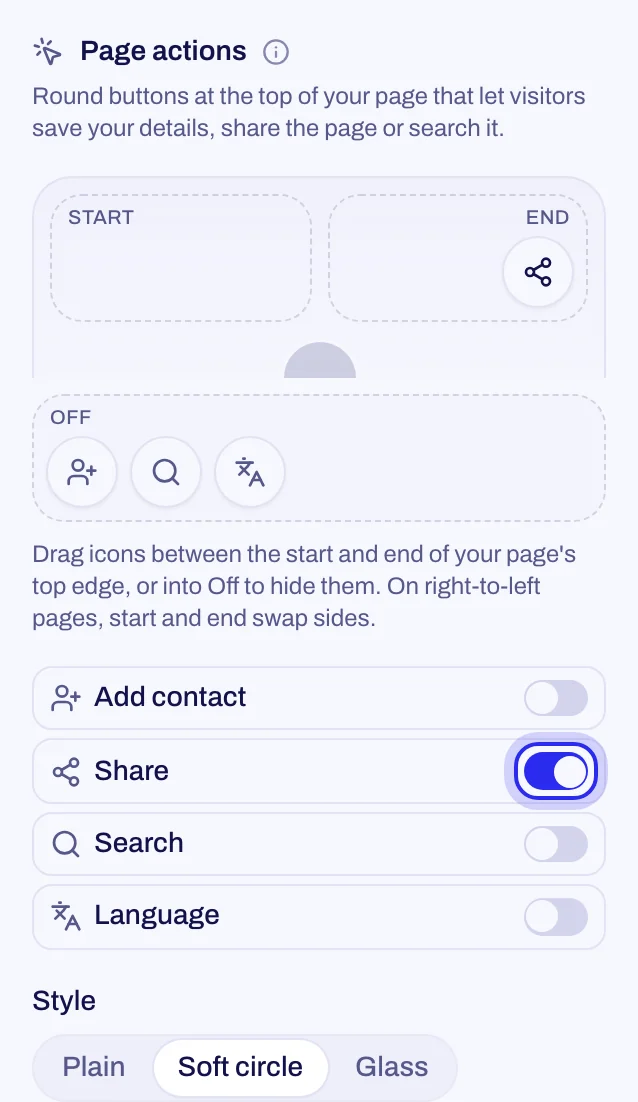
- Publish your page.
If your page has a top bar, these buttons don't show: add Share to the bar instead. See Set up your page's top bar.
Common questions
Can I change my address? Yes, if you're an owner or admin: select Change address in Page details, or in the page's menu in Pages. The old address forwards to the new one for 90 days, so update your links within that time. You can also show your page at a domain you own. See Choose or change your page address and Connect your own domain.
Does it matter how people type my address? No. Capitals and an @ are ignored: …/YourName and …/@yourname both open …/yourname.
Can I add tracking tags to my address? Yes. Tags such as ?utm_source=newsletter stay on the address and show up in your analytics.
Why does my link show "not found"? The page isn't published or was unpublished, the address has a typo, or it points to a tab that's hidden or deleted. Check the status badge beside your page's name in the editor.