Set your search title, description and share image
Choose how your page appears in search results and as a link card in chats and social apps, or hide it from search engines.
Search & sharing decides what search engines show for your page and what people see when your link is shared in chats and social apps. Every field is optional: leave one empty and Linkbase uses your name, your bio or an image made from your page.
Open Search & sharing
- Open your page in the editor.
- Select a tab's name under Tabs, so no block is selected. The settings panel on the right shows your page's settings. On a phone or tablet, tap Edit in the bottom toolbar with no block selected to open Page settings.
- Open Search & sharing, below Social profiles.
At the top, Preview follows what you type. Switch between Search result and Link card to see both. They're close guesses: each search engine and app draws its own.
Set your search result
- Type the title in Search title.
- Type a sentence or two in Search description. The preview above shows how they read.
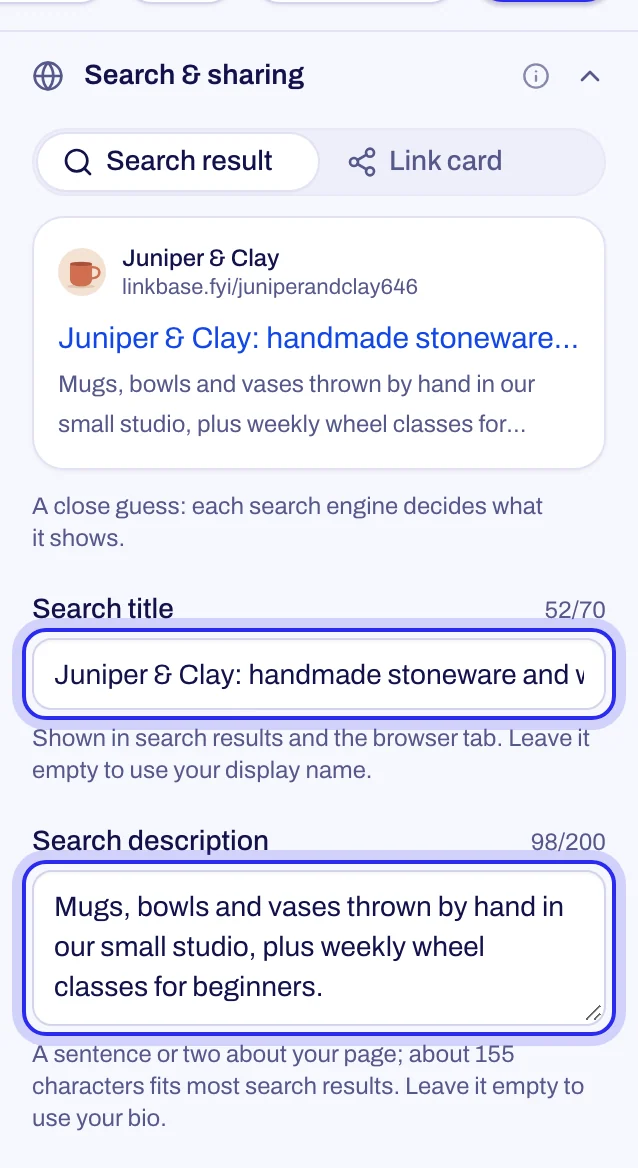
Both fields are optional:
| Field | What it's for | Limit | If you leave it empty |
|---|---|---|---|
| Search title | Search results and the browser tab | 70 characters | Your display name |
| Search description | A sentence or two about your page | 200 characters | Your bio |
Each field counts characters as you type. Past about 60 characters for the title and 155 for the description, the count changes color: search results usually cut off the rest.
Write the title people would search for, such as your name and what you do: "Maya Chen, wedding photographer in Lisbon". Write the description as a reason to visit: what's on the page and who it's for.
Two more settings help search engines:
- This page is about: A person, An organization or A local business. It tells search engines who's behind the page.
- Hide this page from search engines: asks search engines not to list your page or any of its tabs. Anyone with the link can still open it, and the page won't be shown in the Linkbase showcase.
Set your link card
Under Sharing, further down the section:
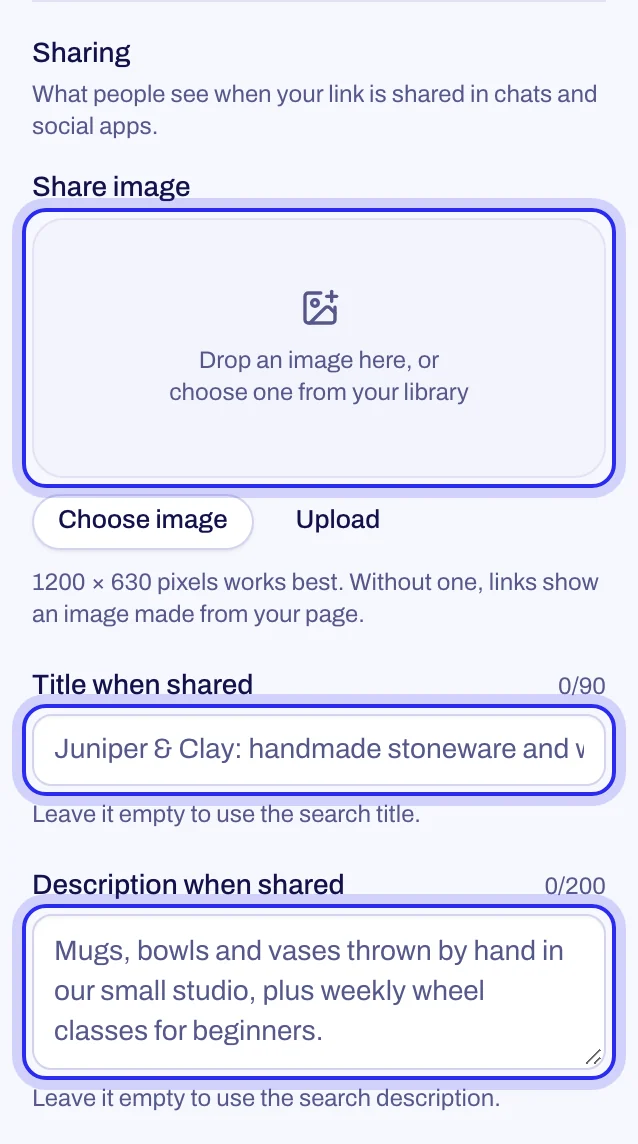
- Share image: select Choose image to pick one from your media library, or Upload. 1200 × 630 pixels works best. Add a Description for people who use screen readers.
- Title when shared: up to 90 characters. Leave it empty to use the search title.
- Description when shared: up to 200 characters. Leave it empty to use the search description.
Without a share image, link cards show an image made from your page: your initials, your name and your page's address, in your theme's colors, with your verified badge if your page shows one.
Changes go live when you publish. Apps keep their own copy of a link card, so a card that's already been posted may not change. New shares pick up the new one.
Give a tab its own search result
Every tab after the first has its own address, and it can have its own search title and description.
- Under Tabs, open the tab's menu (the three dots beside its name) and choose Edit tab.
- Under Search, fill in Search title and Search description, or turn on Hide this tab from search engines.
- Select Save, then publish.
Empty fields use the tab's name with your page's title, such as "Menu · Maya Chen", and your page's description. When someone shares a tab, its card uses the tab's title and description with your page's share image.
Your first tab is your page's main address, so it uses the page's Search & sharing settings, and the dialog says so. See Link straight to one tab of your page.
Prove you own the page to a search tool
Some tools ask you to add a code to your site before they show you its data. Linkbase supports Google Search Console, Bing Webmaster Tools, Pinterest, Yandex Webmaster and Facebook domain verification.
- In Search & sharing, open Site verification.
- Paste the code the tool gives you, or the whole meta tag, into that tool's field. It saves when you leave the field.
- Publish your page.
- Go back to the tool and finish verifying.
If the field says That isn't a verification code for this service., check that you pasted the code into the right tool's field.
Common questions
Why do search results show something else? Search engines decide what they show and when they visit your page again, so changes can take a while to appear. They may also write their own description.
How do search engines find my page? Published pages and tabs that aren't hidden are listed in a sitemap for search engines. On a custom domain, the domain has its own, at /sitemap.xml, which you can submit in Google Search Console.
Does a custom domain change my search result? Search engines are told your domain is the main address for your page and each tab, so results point there. See Connect your own domain.