Connect your own domain
Show your page at a domain or subdomain you own, like links.yourbrand.com, with HTTPS set up for you.
You can show any page at a domain you own, such as links.yourbrand.com. You add the domain in Linkbase, create the records it shows you where you manage the domain's DNS, and Linkbase checks them and sets up HTTPS for you at no extra cost.
Before you start
Custom domains are on the Pro and Team plans. Pro includes one domain and Team includes ten, counted across all the workspaces the owner has. See the pricing page.
- You need to be an owner or admin of the workspace. In an agency's workspace, the client's admins see the Domains tab read-only and can ask the agency for a domain; other roles don't see it.
- The workspace needs at least one page.
- You need a domain you've registered and access to its DNS settings, usually at the company you bought it from.
A domain connected to Linkbase shows only your page. If your website already lives at yourbrand.com,
connect a subdomain like links.yourbrand.com instead, and your website stays where it is.
Add the domain
- In the sidebar, select Settings, then open the Domains tab.
- Select Add domain.
- In Domain, enter the name without
https://or a path, such aslinks.yourbrand.com. If you paste a full web address, the form shows the name it will use: We'll use links.yourbrand.com. - In Page, choose the page visitors should see.
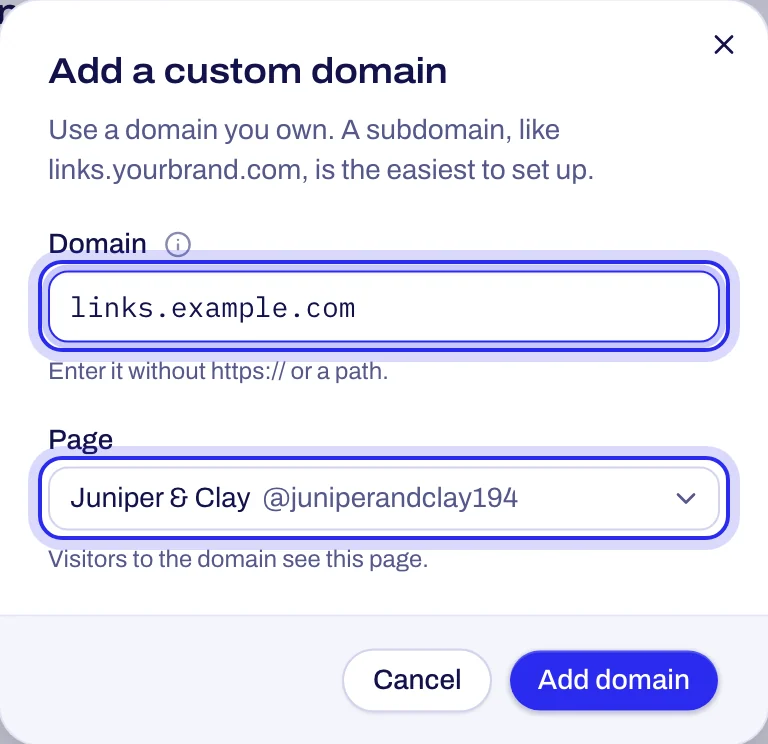
- Select Add domain.
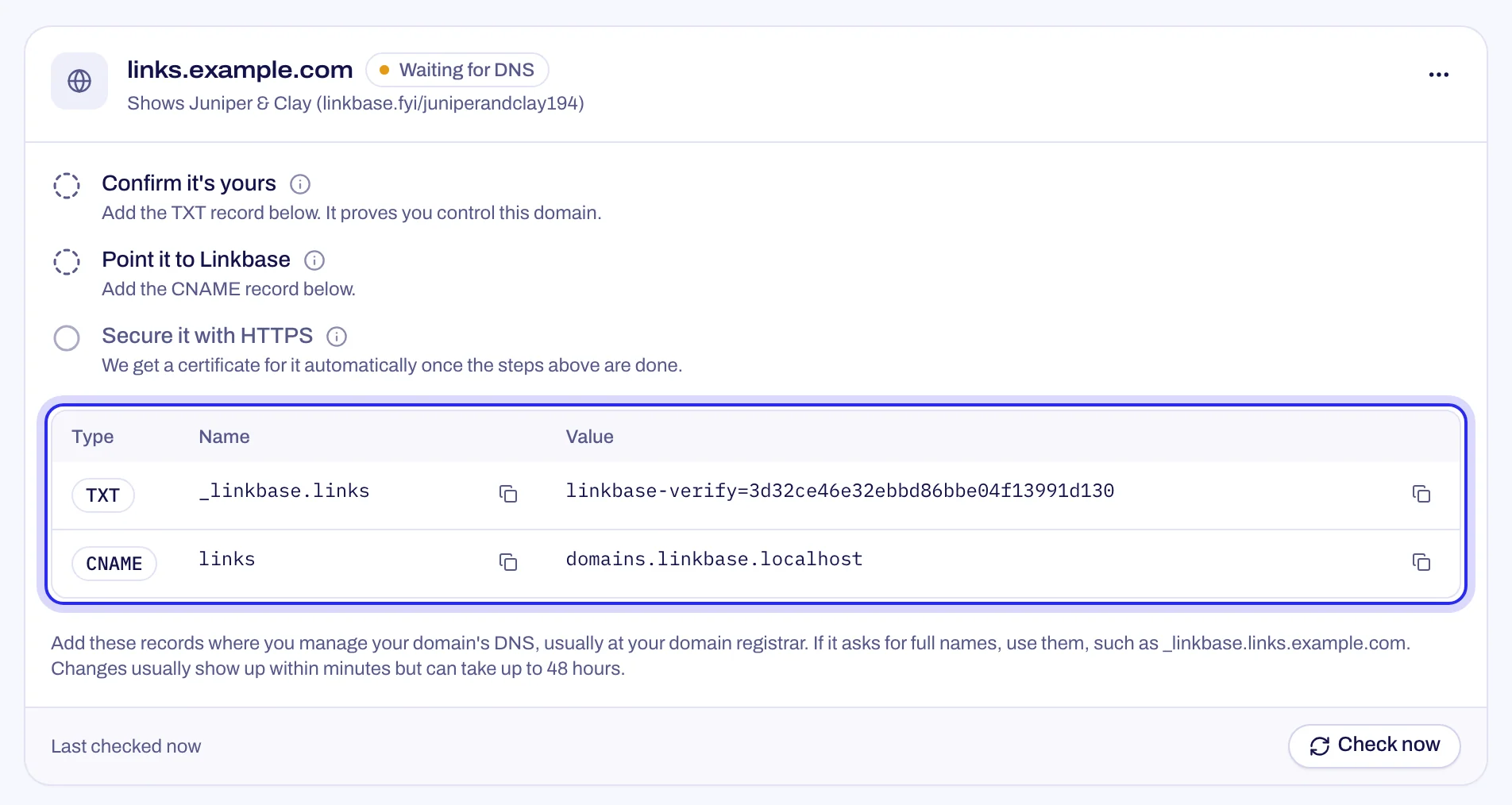
The domain appears as a card marked Waiting for DNS, with a three-step checklist (Confirm it's yours, Point it to Linkbase and Secure it with HTTPS) and a table of DNS records to create.
Create the DNS records
Open your domain's DNS settings in another tab. For each row in the table, create a record with the same Type, Name and Value. Each value has a copy button.
- Confirm it's yours. Add the TXT record. Its name starts with
_linkbase. It proves you control the domain, so nobody else can connect it. - Point it to Linkbase.
- For a subdomain like
links.yourbrand.com, add the CNAME record. - For a root domain like
yourbrand.com, add the A record, and remove any other A or AAAA records for the same name.
- For a subdomain like
- If any rows are marked For our hosting provider, add those too.
Names are shown the way most DNS providers ask for them: relative to your domain, with @ for the root. For links.yourbrand.com, the TXT record's name is _linkbase.links and the CNAME's is links. If your provider wants full names, use _linkbase.links.yourbrand.com and links.yourbrand.com.
Wait for the checks
While this tab is open, Linkbase checks your DNS by itself: right away, then every few seconds, then every 30 seconds for 15 minutes. Last checked shows when it last looked, and Check now looks again. If the checks stop, the card says Automatic checks have paused. Select Check now after you change your DNS.
DNS changes usually show up within minutes but can take up to 48 hours. Until the records are in place, the domain keeps showing whatever it showed before.
Once both records are found, the card shows Connected, and you'll see a message that the domain is connected. The Securing chip turns into HTTPS when the certificate is ready.
What changes once it's connected
- Your page opens at
https://links.yourbrand.com, and its other tabs at addresses likelinks.yourbrand.com/menu. - Your
…/yournameaddress keeps working, and search engines are told the domain is the main address. - The editor's Page link, your Share button, link cards and the generated share image all show the domain.
- Your page's QR code leads to the domain, and so do its tabs, unless you've sent the code to a web address. The code itself holds a Linkbase address, so printed codes keep working if you remove the domain later.
- The workspace's short links also work on the domain, like
links.yourbrand.com/s/summer-menu. - Your page becomes verified, and its badge can say it owns the domain: Verified · owns links.yourbrand.com. See Get the verified badge.
Change or remove a domain
A domain shows one page. To show a different page, remove the domain and add it again with the other page. You'll get a new TXT value, so update that record in your DNS.
To remove a domain, open the menu on its card, choose Remove, then Remove domain. Your page stops loading at that address right away.
If you're an agency
Domains in client workspaces work the same way, with a few things to know:
- The agency manages them. You and your account admins add and remove domains. The client's admins see the Domains tab read-only, with each domain's DNS records, and can ask you for a domain, which you approve or decline.
- Your plan's domains are shared by all your clients. Team includes ten domains for your whole account, not ten per client. Each client workspace's domain uses one, whoever's workspace it's in, and they can't be set aside for particular clients.
- Register the domain in the client's name. Ask the client to buy the domain and give you access to its DNS settings. Then it's theirs if they leave.
- The domain goes with the workspace. If you hand the workspace over, the domain stays with it and counts toward the new owner's plan. If their plan doesn't include it, it keeps working for 14 days, then pauses until they upgrade.
If your plan changes
If you move to a plan with fewer domains or none, the domains it doesn't include keep working for 14 days, then pause and stop showing your page. The oldest connected domains are kept first. Settings → Domains shows the date and marks paused domains Paused. Upgrade, or remove other domains, and they're back within the hour. A domain Linkbase itself turned off shows Turned off by Linkbase instead, and no plan change brings it back: contact support by replying to any email from us. See Upgrade, downgrade or switch billing.
Troubleshooting
It's been waiting for DNS for a long time. Look at the record names in your DNS provider. Many providers add your domain to every name, so a full name typed there becomes _linkbase.links.yourbrand.com.yourbrand.com. Use the short name in that case.
My DNS provider proxies the record. Some providers, Cloudflare for example, can route traffic through their own servers. Set the CNAME or A record to "DNS only", so the check can see it points to Linkbase.
My root domain still shows my old site. Remove the old A and AAAA records for that name, so only the one from the table is left.
The card says Turned off by Linkbase. We turned the domain off under our rules. Owners and admins get an email and a notification with our reason, and again if we turn it back on. To ask about it, open a support request.
The card says Needs attention. The domain is connected to another account at our hosting provider. Remove it there, then select Check now.
"Another workspace already uses that domain." A domain can be in one workspace at a time. Remove it from the other workspace first.
"Our hosting provider is still verifying the domain." This usually takes a few minutes. The card keeps checking.
Add domain is grayed out or missing. All the domains your plan includes are in use, counting your other workspaces: remove one or upgrade. If your plan doesn't include custom domains, the tab shows an upgrade prompt instead.