Link straight to one tab of your page
Every tab has its own address. Find it, change it, and share or print it so people land on the right section.
Every tab on your page has its own address, such as …/yourname/menu, so you can send people straight to your menu, shop or booking tab instead of your first tab. Your first tab is your page's main address, …/yourname.
Find a tab's address
- Open your page in the editor.
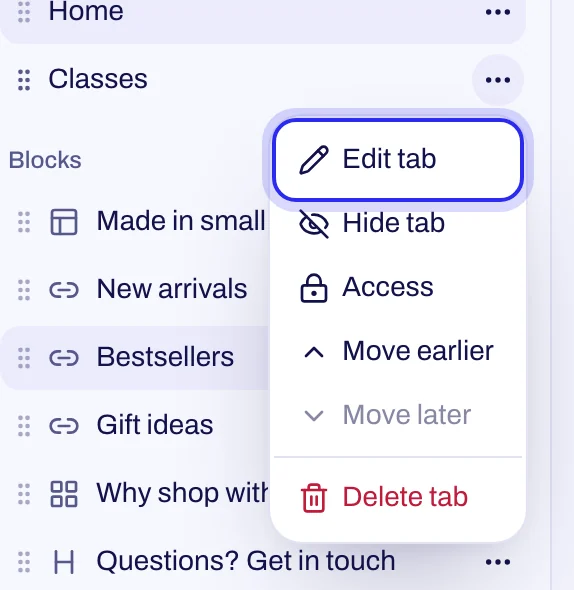
- Under Tabs, in the panel on the left, open the tab's menu (⋯, beside its name) and choose Edit tab.
- Look under Address. The line below it reads "Visitors open this tab at", followed by the path, such as
/yourname/menu.
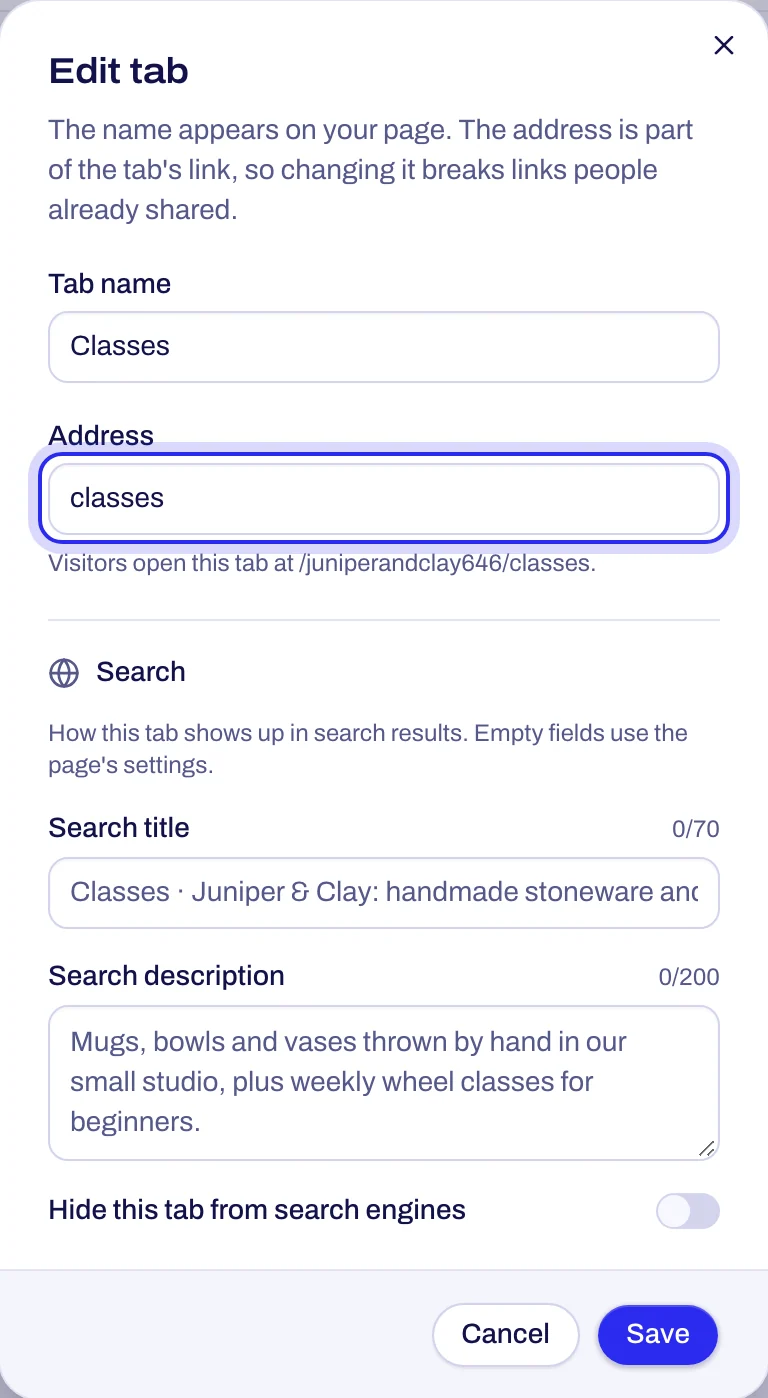
The full address is your page's address followed by the tab's, the same way it appears in Page link. You can also open your published page, select the tab, and copy the address from your browser.
On a phone or tablet, tap Blocks in the bottom toolbar to see your tabs.
Your first tab doesn't need its own address: visitors who open …/yourname land on it, and its tab address, such as …/yourname/home, leads there too.
Change a tab's address
- In Edit tab, change Address. Use lowercase letters, numbers and hyphens, starting and ending with a letter or number, up to 40 characters.
- Select Save.
- Publish your page.
Each address can be used by one tab on the page. If you see Another tab already uses this address., choose a different one.
Changing a tab's address breaks links people already have: the old address shows a "not found" page.
Renaming a tab doesn't change its address, so a tab you added as "New tab" keeps new-tab until you change
it. Set the address when you create the tab, before you share it.
Changing your page's own address is different: for 90 days, the old page address and its tab addresses forward to the new ones, so …/oldname/menu opens …/newname/menu. See Choose or change your page address.
Share it
- In bios and messages: paste the full address.
- To measure a campaign: add UTM tags to the end, such as
…/yourname/menu?utm_source=flyer. See Track campaigns with UTM tags. - On print: your page's QR code can open the tab. In its dialog, under Where scans go, choose A tab and pick it, on any plan. See Track scans and change where a QR code points.
- On your own domain: tabs are at addresses like
links.yourbrand.com/menu. See Connect your own domain. - On your page itself: a link block can open one of your tabs. See Add a link and choose its layout.
What visitors see
Visitors land on that tab, with your header and tab bar, and can move to your other tabs from there.
- A locked tab shows its prompt first: a password, an email address or a confirmation. See Lock a link, tab or folder behind a gate.
- A hidden or deleted tab shows a "not found" page.
- A new tab works once you publish. Until then, its address shows "not found".
- Send visitors straight here only redirects your main address. Tab addresses keep opening their tabs. See Spotlight a link or send visitors straight to it.
Give a tab its own search result
In Edit tab, the Search section sets the tab's own search title and description, or hides it from search engines. See Set your search title, description and share image.