Get the verified badge
Ask Linkbase to verify your page, or connect your own domain, so a verified badge shows next to your name.
The verified badge is a check mark next to your name that tells visitors the page really belongs to who it says. Nobody can switch it on for themselves: a page shows it once Linkbase verifies it, or once it's shown at a custom domain you've connected.
The verified badge is on the Pro and Team plans. Compare plans on the pricing page.
Two ways to get verified
| Ask Linkbase | Connect your own domain | |
|---|---|---|
| What it proves | Linkbase's team checked who the page represents | You control the domain that shows the page |
| What visitors read when they tap it | Verified by Linkbase | Verified · owns and your domain |
| How long it takes | Usually a few days | As soon as the domain shows Connected |
A page can have both. Visitors then read Verified by Linkbase.
Ask Linkbase to verify your page
Anyone who can edit the page can ask, including an agency working on a client's page.
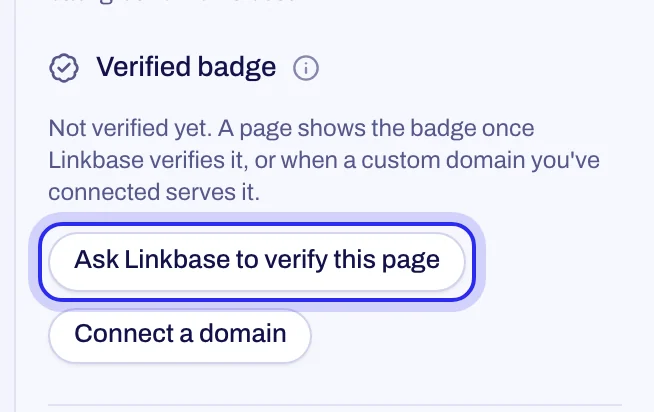
- Open the page in the editor. The settings panel on the right shows the page's settings, with Profile open. If a block's settings show instead, select your name or photo in the preview.
- Scroll to the end of Profile, to Verified badge.
- Select Ask Linkbase to verify this page.
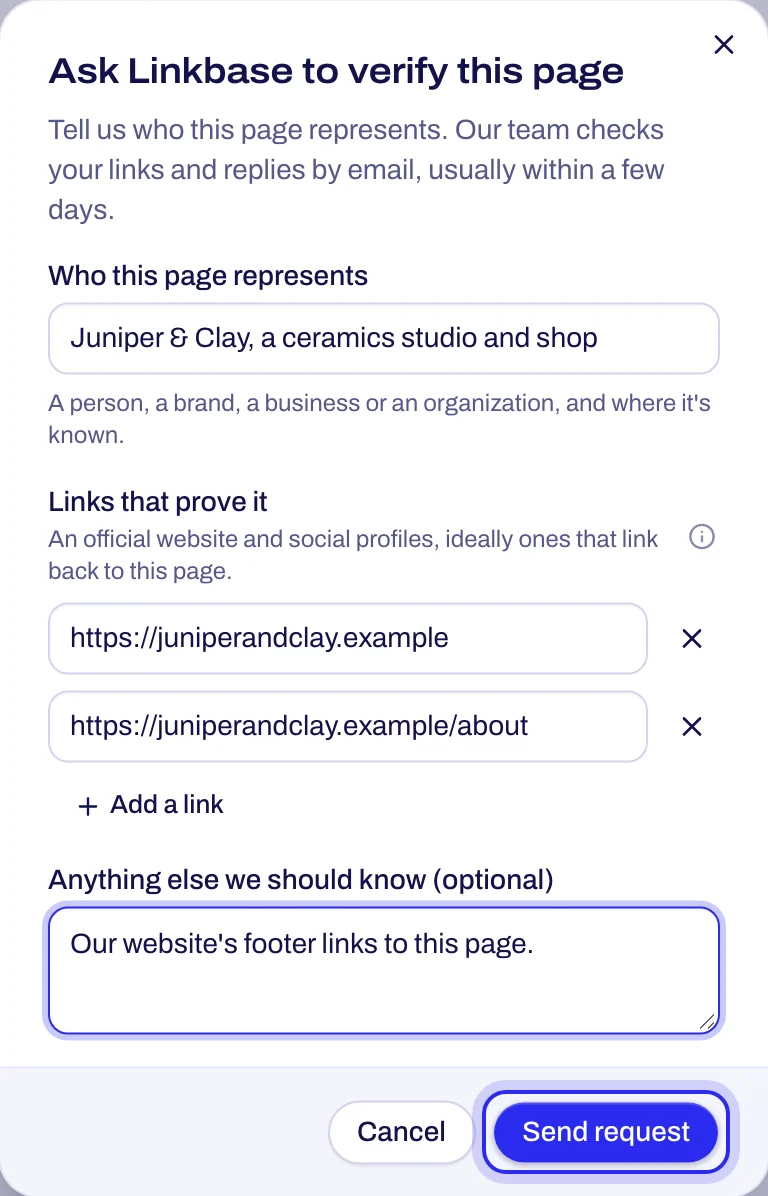
- In Who this page represents, name the person, brand, business or organization, and where it's known. For example: "Alex Morgan, a ceramicist in Lisbon".
- Under Links that prove it, add an official website and social profiles, one in each field. Select Add a link for another field, up to five links.
- Add anything else the team should know in Anything else we should know (optional).
- Select Send request.
The row now reads "Verification requested on" with the date. While a request is waiting, you can't send another one for the same page.
Linkbase's team opens each link to check it's official and belongs to who the page represents. Sites and profiles that link back to your Linkbase page are the quickest to confirm, so add your page's address to them before you ask.
If it's approved
- You get an email saying your page is verified, and the news appears in your notification bell too.
- The badge shows next to your name on your published page, and a check appears next to the page's name in Pages.
- QR codes for the page carry the badge too, so people see whose code it is before they scan. You can turn this off with Verified seal in the QR code designer.
If it's declined
The Verified badge row says "The last request was declined." with the team's reason, and an email titled "About your verification request" gives the same reason. You can ask again 7 days after the decision. Until then, the row reads "You can ask again from" with the date; after that, it shows Ask again. Use the reason to add stronger proof.
Get verified with your own domain
A custom domain proves you control it, so it also verifies the page it shows.
- Open Settings → Domains and connect a domain to the page. Connect your own domain walks through it.
- Wait until the domain shows Connected. The page is verified from then on.
Only owners and admins manage domains. For them, the editor's Verified badge row also has a Connect a domain button. A page verified by its domain can still ask Linkbase to verify it.
Show, hide or recolor the badge
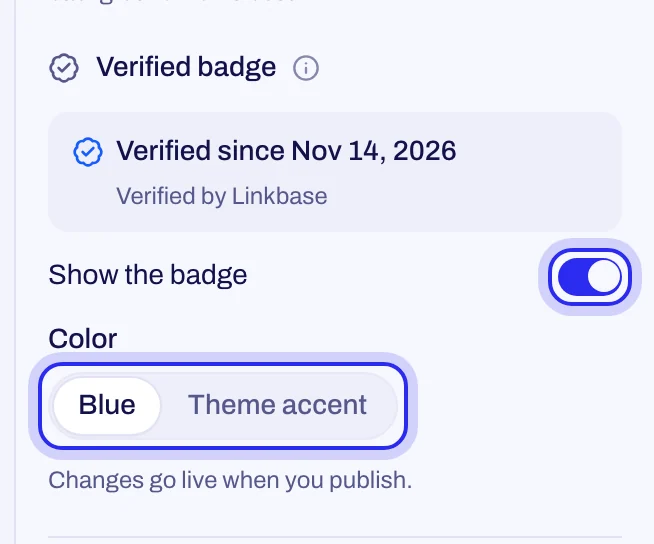
On a verified page, the Verified badge row shows "Verified since" with the date, and how the page was verified: Verified by Linkbase, or Owns and your domain.
- Open the page in the editor and scroll to Verified badge at the end of Profile.
- Turn off Show the badge to hide it. The page stays verified, so you can turn it back on at any time.
- Under Color, choose Blue or Theme accent, your theme's own accent color.
- Select Publish in the top bar. Changes go live when you publish.
Visitors who tap or hover over the badge read Verified by Linkbase, or Verified · owns and your domain.
What keeps or removes the badge
- Your plan. The badge shows only while the page's workspace is on a plan that includes it. On a plan without it, the badge leaves your published pages, but the verification is kept, and the badge returns when you upgrade again.
- Your domain. Domain verification lasts while the domain stays connected to the page. Removing the domain ends it. So does a pause: after a downgrade, a domain your plan no longer includes keeps working for 14 days, then pauses.
- Owners and copies. Verification belongs to the page, not to whoever owns or edits it. A page keeps it when it's handed over or moved to another workspace. A duplicate starts unverified.
- Linkbase can remove a badge, for example if its proof stops being valid or the page breaks the Terms of Service. You can ask again straight away after that.
The badge confirms who a page belongs to. It isn't an endorsement of the page or what it offers, and the terms forbid imitating it, for example with a check mark image next to an unverified name.
Common questions
I don't see Ask Linkbase to verify this page. One of these applies:
- The workspace's plan doesn't include the badge. You see an upgrade prompt instead.
- A request for this page is already waiting, or one was declined less than 7 days ago.
- Linkbase has already verified the page.
- Your role in the workspace lets you view the page but not edit it. See Roles and what each can do.
Does upgrading verify my page? No. A plan with the badge lets the page show it and ask for it, but the badge still comes from Linkbase's check or your domain.
Can I verify my account instead of each page? No. Verification is for one page. Each page you want verified needs its own request or its own domain.