See all your workspaces at a glance
Use All workspaces to compare every client's pages, traffic and people in one list, and find what needs attention first.
Use All workspaces to check on every client at once. It lists every workspace of an account in one place: its pages, its views and clicks over the last 30 days, its people, and anything that needs attention.
Open it
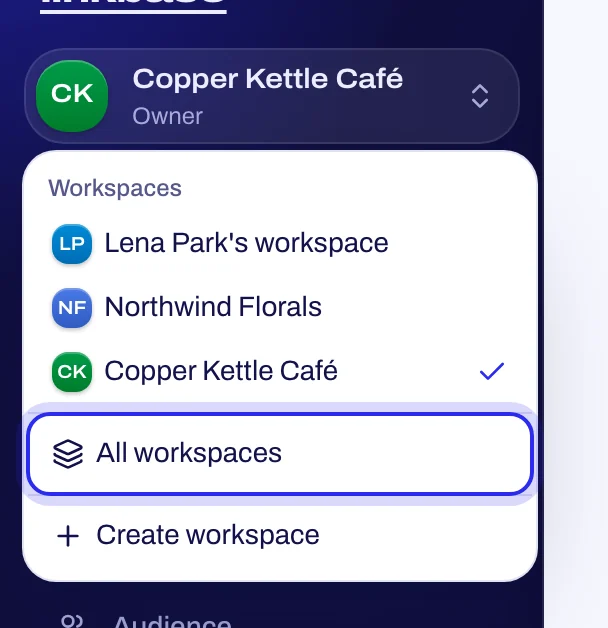
- At the top of the sidebar, select the workspace's name, then All workspaces. It's in the menu once you own more than one workspace, or you're an account admin on an agency's team.
- Or open the account menu at the bottom of the sidebar, choose Account, then All workspaces.
Whose workspaces you see
- Your own account's, if you own any workspaces.
- Each account whose team you're an account admin of. Buttons at the top switch between Your account and the other accounts.
Only workspaces where you're the owner or an admin are listed. A workspace where you're an editor or viewer doesn't appear, so the list never shows numbers you couldn't open yourself.
The totals
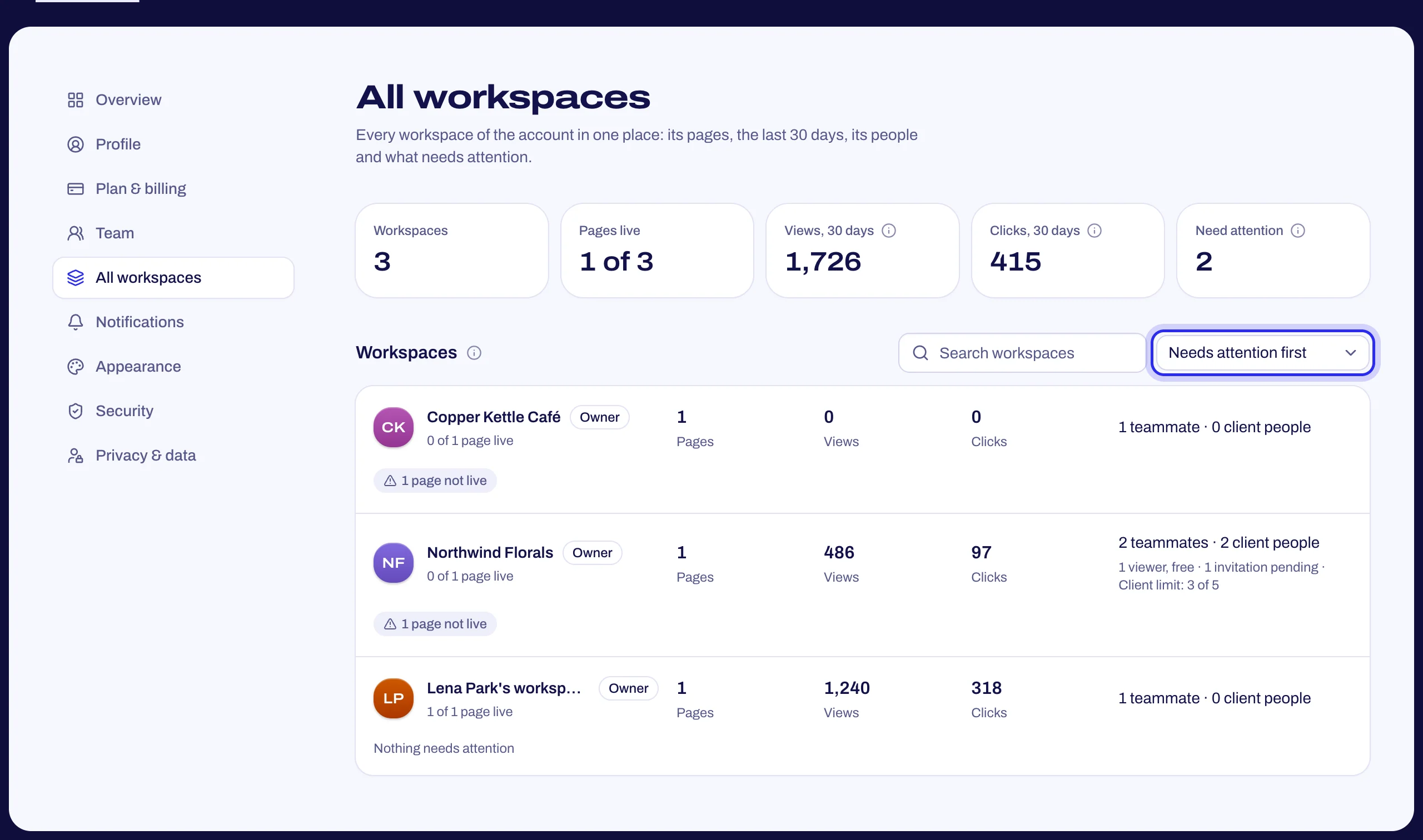
Above the list, five totals cover the whole account: Workspaces, Pages live, Views, 30 days, Clicks, 30 days and Need attention. Views and clicks are counted the way each workspace's analytics count them.
What each row shows
- The workspace's name and image. Select it to open the workspace's pages.
- How many of its pages are live, and its Pages, Views and Clicks.
- Its people: teammates and the client's people, client viewers (free), pending invitations, and the client's people, pages and media storage against their limits. In an account without an agency team, the number of members.
- What needs attention, or Nothing needs attention.
What needs attention
From most to least urgent:
- Pages with unsafe links.
- Pages with broken links.
- More client people than the limit or More pages than the client's limit: the client has more than you allow, usually because you lowered a limit. They can't add more until they're under it. See Give a client their own admin.
- Pages not live.
- Pages with unpublished changes.
Unsafe and broken links come from each page's latest link scan. To fix them, open the page's health report: see Find and fix problems with page health.
Search and sort
- Search workspaces finds a workspace by its name or its workspace URL. Clear search brings the full list back.
- The sort menu offers Needs attention first (the default), Name, Most views, Most clicks and Most pages.
If the list is empty
- No workspaces to oversee: you don't own a workspace or admin an agency's team. Select Open your workspaces to go back to the dashboard.
- One workspace so far: create a workspace for each client from the workspace menu, and they'll all show up here. See Create and switch workspaces.
Sort by Most views to see which clients' pages are busiest, then send each client their own numbers automatically with scheduled reports.