Notifications and messaging a client
What your notification bell shows, how to read and clear it, and how an agency sends a short note to a client's people.
The bell at the top of every dashboard page collects the alerts Linkbase emails you, from invitations to form replies, so you can catch up without searching your inbox. Agencies can also use it to send a client a short note.
What reaches the bell
Alerts we email to your account also appear in the bell:
- invitations to a workspace or to an agency's team;
- a handover offer, and a client accepting yours;
- a client asking to take over their workspace, and your agency's answer when it declines;
- new form replies and bookings, including moved and canceled bookings;
- a data export that's ready to download;
- warnings that your links will pause, or have paused, because a plan ended;
- referral signups and rewards;
- verification decisions and replies from support;
- security alerts, such as a new passkey or a changed password.
Each of these matches an email we sent you. The bell also shows messages from an agency you work with, which aren't emailed. Sign-in emails, such as password resets and sign-in links, the weekly summary and scheduled reports arrive by email only.
Read and clear notifications
- Select the bell, at the top right of every dashboard page, level with its title. A number on it shows how many are unread.
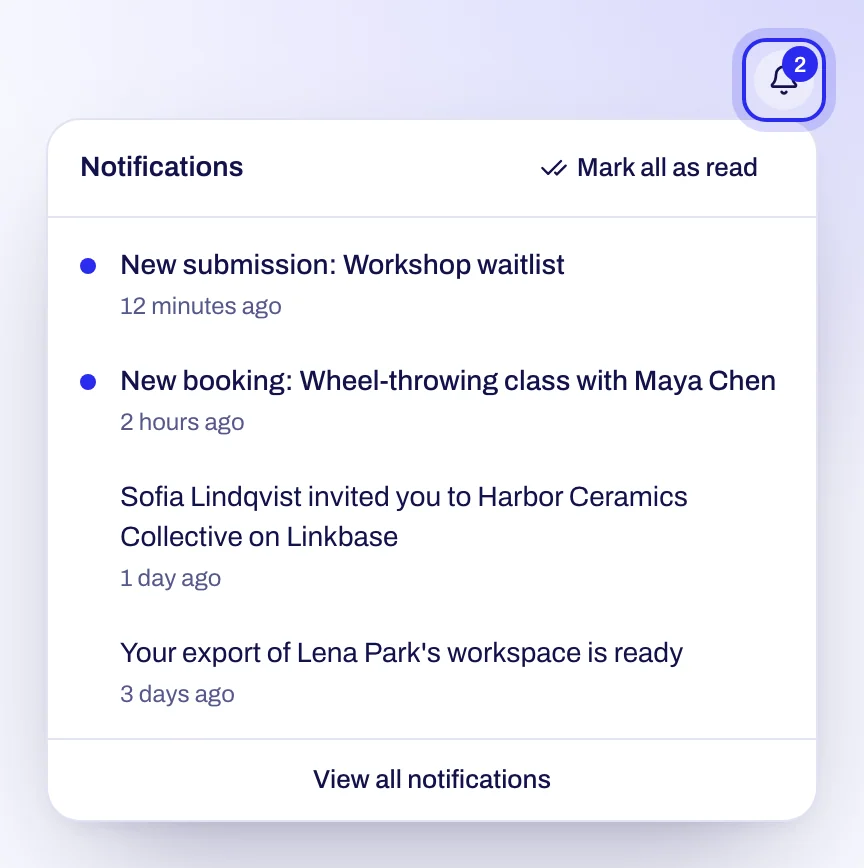
- Select a notification to open what it's about. It's marked as read.
- To clear the rest, select Mark all as read.
The count refreshes every minute, and whenever you come back to the tab. Read notifications stay in the list, without the unread mark, so you can open them again.
To see older notifications, select View all notifications at the bottom of the list. It opens Account → Notifications, where Show more goes further back. The same bell sits at the top of your account settings too.
Message a client
In a client's workspace, your agency's side, meaning the owner and the agency team, can send the client's people a short note that reaches their bell.
- Open the client's workspace, then Settings → Members.
- Select Message the client, above the invite form.
- Write your Message, up to 500 characters. A counter shows how many are left.
- To reach everyone, tick Also send it to the client's editors and viewers. Without it, only the client's admins get it.
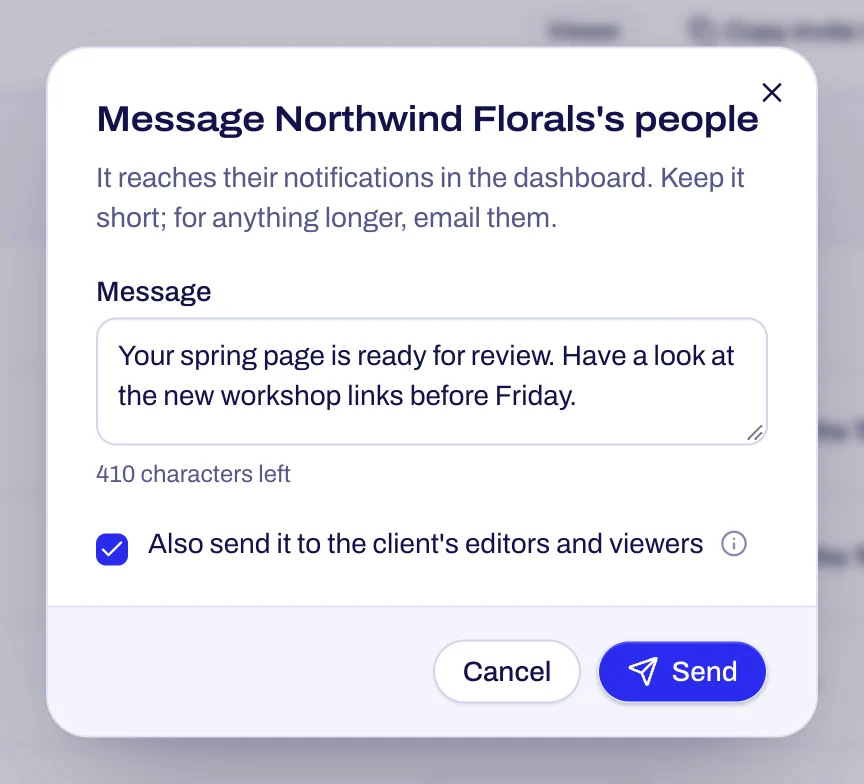
- Select Send.
A message confirms how many people it reached. Each of them sees a notification that you sent them a message about the workspace, with your text below it. Opening it takes them to the workspace's pages.
Messages reach the bell only: no email goes out. For anything long or urgent, email the client as well.
Good to know:
- Message the client appears only in workspaces of an account with an agency team, and only for the agency's side.
- Your agency team never gets these messages, and neither does the owner.
- Each workspace can send up to 10 messages an hour.
- Every message is recorded in the workspace's audit log. See See who changed what.
Troubleshooting
"The client has no one to send it to yet. Invite their people first." The workspace has no client admin yet. Tick Also send it to the client's editors and viewers, or give the client an admin first.
"Too many attempts. Wait a minute and try again." The workspace has sent its 10 messages for this hour. Try again later.
A notification I expected isn't there. Notifications go to the address on your Linkbase account, and only for alerts that would also be emailed to you. For example, new form replies go to the workspace's owner, so editors don't get them.
I don't see Message the client. You're one of the client's people, or the workspace's owner has no agency team. See Set up your agency team.