Duplicate a page into another workspace
Copy a page with its tabs, blocks and design into another workspace, such as a new client's, and see what stays behind.
Duplicate copies a page, with every tab, block and social link, into the same workspace or into another one you can add pages to. Use it to reuse one client's layout for the next, or to start a new page from one you like.
Before you start
- You need to be able to add pages in both workspaces: as an owner, admin, client admin or editor, with access to every page. People limited to selected pages, and viewers, can't duplicate.
- The copy counts toward the plan of the workspace it goes to, which is that workspace owner's plan.
- Copy to appears only when you're in another workspace where you can add pages.
Duplicate a page
- Open Pages in the sidebar.
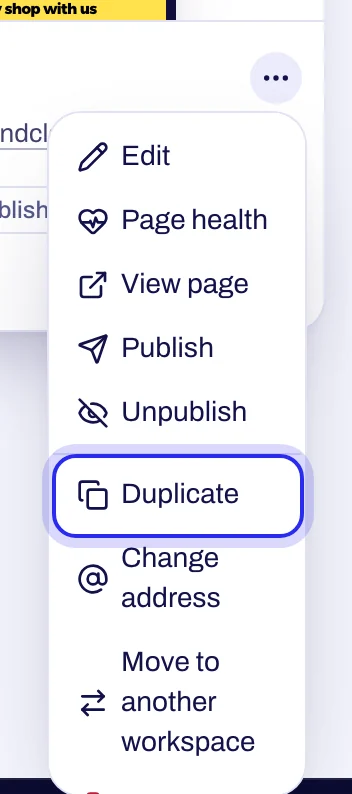
- Open the page's menu, the ⋯ button on its card, and choose Duplicate.
- Check the Page name. It starts as the original's name followed by "(copy)".
- Enter a Username for the copy: 3 to 30 lowercase letters, numbers, periods or underscores. A note under the field says when it's Available.
- Under Copy to, choose the workspace. Leave This workspace to make the copy beside the original.
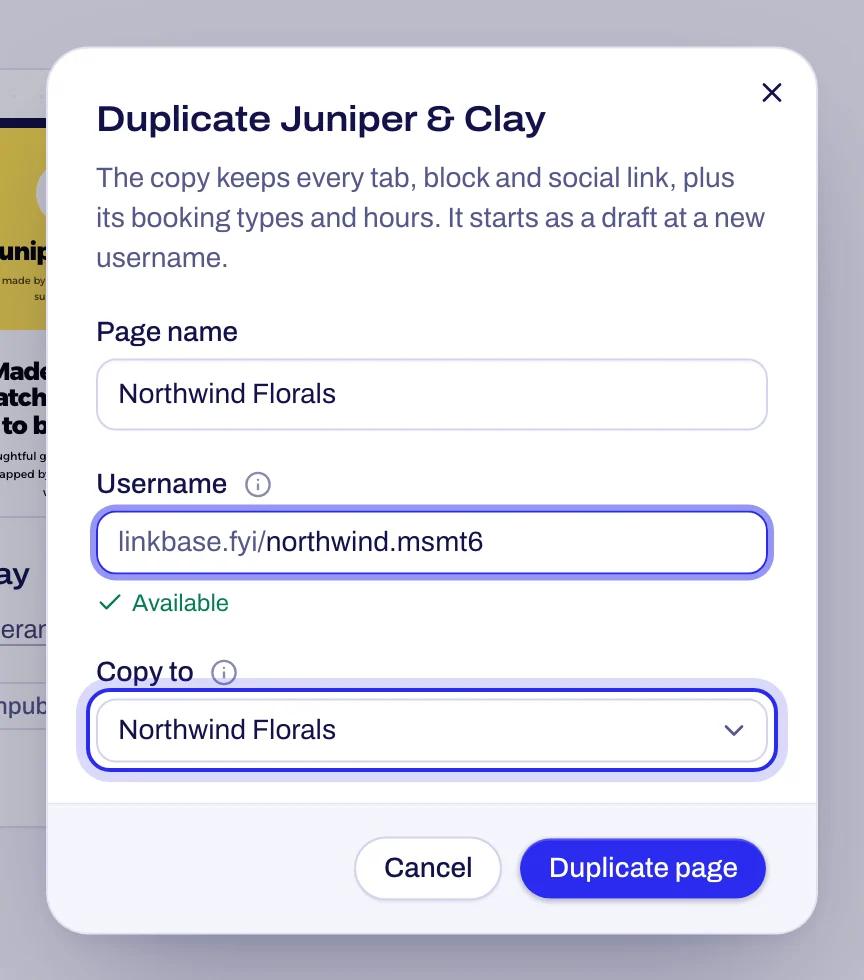
- Select Duplicate page.
A message confirms where it went, with Open to go straight there. The copy is a draft: nobody sees it until someone publishes it in that workspace.
What the copy includes
- Every tab and block, in order, including folders, hidden blocks, schedules, and gates with their passwords.
- The social links.
- The theme and the header: name, bio and photo.
- The search and share settings, and page settings such as the page's language, tracking pixels, and a spotlight or skip-to link.
- The booking types and hours: weekly hours, date overrides and booking rules. The copy's booking blocks offer the copied types.
- In another workspace, the images, videos and audio files the page uses. See below.
What stays with the original
- Version history and analytics.
- The Audience: signups and form replies.
- The bookings people have made.
- Short links, QR codes and the custom domain.
- The verified badge, which belongs to the original page.
Images, videos and audio
When the copy goes to another workspace, the images, videos and audio files the page uses are copied into that workspace's Media library. The copy doesn't depend on the original's library, so it keeps working if the original workspace deletes those files or is handed over. The copied files count toward that workspace's media storage.
A copy in the same workspace uses the same library files as the original, so nothing is copied.
Before you publish the copy, replace the old client's details: the name and bio, links, contact details and any tracking pixel IDs, which are copied as they are.
Troubleshooting
There's no Copy to field. You're not in another workspace where you can add pages, or you're limited to selected pages there. Ask an owner or admin of that workspace for editor access to every page.
Duplicate is missing from the menu. If an upgrade notice shows above your pages, the workspace's plan is at its page limit; pages count across all the workspaces its owner owns. Without the notice, your role or page access doesn't let you add pages here.
The copy is refused with an upgrade message. The workspace you're copying to is at its plan's page limit. Its owner can upgrade, or remove a page they no longer need.
"Your media storage is full. Delete files you no longer use, or upgrade your plan for more room." The workspace you're copying to doesn't have room for the page's images, videos and audio. Delete files it no longer uses in its Media library, or ask its owner to upgrade, then duplicate again.
"That username is already taken. Try another." Usernames are unique across Linkbase. Choose another, such as the client's name.
The copy can't be published. The workspace it went to has no plan yet. Publishing needs one: its owner can start a free trial or subscribe in Plan & billing.
Move instead of copy
To take a page to another workspace with everything that belongs to it, owners and admins choose Move to another workspace from the same menu. Its forms, subscribers, bookings, QR codes, stats and custom domain move with it. It goes offline and becomes a draft there until it's published again.
To reuse only a page's design, see Copy a theme from another page.