Give a client their own admin
Let a client manage their own people with the client admin role, see what it can and can't do, and limit how many people and pages they add and how much media they store.
Give a client a client admin when they want to manage their own people. A client admin is the client's own person in charge of their workspace: they invite and manage the client's people and work on the pages, while your agency keeps control of the settings, domains, billing and your team.
What a client admin can do
- Create, edit and publish every page in the workspace.
- View analytics, and view and export the Audience.
- Invite the client's people as client admins, editors or viewers, change their roles and remove them.
- Limit the client's editors and viewers to selected pages, on the Team plan.
- Cancel pending invitations for client roles.
What a client admin can't do
- Change, limit or remove your agency team, any admin or the owner.
- Give the Admin role.
- Delete pages, or move them to another workspace.
- Change the workspace's settings or webhooks, or add or remove domains (they can see them and ask for one).
- See billing or referrals.
- Schedule reports.
- Change the client's limits, or invite people or add pages past them.
- Export, hand over or delete the workspace.
Make someone a client admin
- Open the client's workspace, then Settings → Members.
- Under Invite people, enter their Email.
- Choose Client admin as the Role. The line under the form says what the role can do.
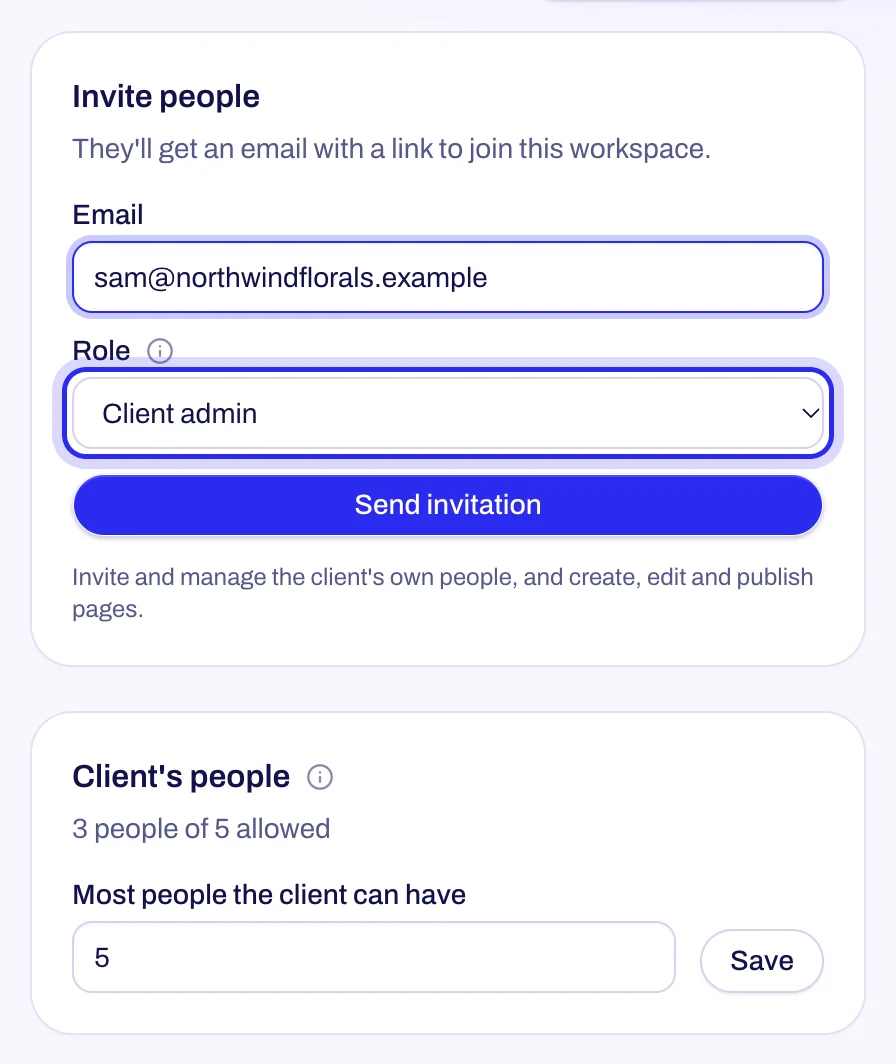
- Select Send invitation.
If they're already a member, choose Client admin in the menu beside their name instead.
A client admin takes a seat on your plan, as the client's editors do. The client's viewers are free, so a client who only needs to look costs nothing. See the pricing page.
Limit the client's people, pages and storage
Each client workspace has three limits: how many of the client's own people it can have, how many pages, and how much media it can store. They stop the client's people from adding more, so a client stays within what they pay you for. Your agency is never stopped by them.
Your defaults for every client
Unless you change them, every client can have 1 person, meaning the client admin and no colleagues, 1 page and 500 MB of storage. To change the defaults for all your clients:
- Open the account menu at the bottom of the sidebar, choose Account, then Team.
- Under Limits for each client, enter People per client, Pages per client and Storage per client (MB). Leave a field empty for no limit.
- Select Save. "Default limits saved" confirms it.
Different limits for one client
-
Open the client's workspace, then Settings → Members.
-
In the Client limits card, enter Most people the client can have, Most pages and Most storage (MB). Each empty field shows the default it follows, such as Agency default: 1.
-
Select Save. "Limits saved" confirms it.
To go back to your defaults, empty the field and save. Only owners and admins can change a client's limits.
How the limits work
- People counts the client's people in every role, the client admin and viewers included, and their pending invitations. The card shows it as, for example, 1 person of 1.
- Pages counts every page in the workspace, including the ones your agency built.
- Storage counts the workspace's media library, its Recently deleted and uploads on their way. It's a share of your plan's storage, so one client can't fill the whole account and stop everyone else uploading. A client is stopped at whichever comes first: their limit or your plan's storage.
- The client's people see only their own workspace's storage in the Media section, never your account's total or your other clients'.
- When a limit is reached, the client's people can't invite anyone else, create or duplicate pages, or upload files. They see a message asking them to ask the agency to raise the limit.
- You and your team can always invite people and add pages past the limits.
- Lowering a limit below what a client already has removes nothing. They just can't add more until they're under it.
- All workspaces shows each client's people, pages and storage against their limits, and flags a client who is over one under what needs attention.
Domains for the client
Your agency adds and removes the client's custom domains. A client admin can't, but they can see them and ask for new ones:
- See the domains. Settings → Domains shows the client admin each domain, its status and the DNS records it needs. If the client owns the domain, they can create the records themselves and select Check now to see it connect.
- Ask for a domain. They select Request a domain, enter the domain, choose the page it should show and add a note if they like, then Send request.
You and your admins get an email and a notification. On the Domains tab, under Domain requests from your client:
- Approve adds the domain, waiting for its DNS records, just as if you'd added it. It counts toward your plan's domains.
- Decline asks for an optional note, which the client sees.
The client admin gets an email and a notification either way, and can Withdraw a request you haven't answered yet.
Who counts as the client's people
In a workspace of an account with an agency team, everyone except the owner and your teammates is the client's. They show the Client badge on Members, and they're the only people a client admin can manage.
Your teammates show the Agency team badge instead. Their access comes from your Team page: see Set up your agency team.
What the client sees
- No billing. Your agency pays, so the client's people see no billing or referrals in the workspace, and no Plan & billing in their account unless they own a workspace of their own.
- No workspace menu. If the client's workspace is the only one they're in, the sidebar shows its name without a switcher, and shows Managed by with your agency's name instead of a free trial: see Taking over your workspace.
- Your messages. You can send the client's admins a short note that appears in their notification bell. See Notifications and messaging a client.
Taking over your workspace
While you're an agency's client, Linkbase doesn't offer you a free trial or show you plans: your agency runs your workspace and sets its own prices.
- Request ownership. In the sidebar, under Managed by and your agency's name, select Request ownership, add a note if you like, and Send request. Your agency has 14 days to reply.
- If your agency agrees, they hand it over: accept the offer at the top of the page, choose a plan, and its free trial starts. Your agency and their team leave the workspace.
- If your agency declines or doesn't reply, they keep managing the workspace for you. You can request again later, or select Leave agency: you leave every workspace you're in with that agency, they keep them and their pages, and you can create a page of your own.
Only the client admin can request ownership.
For agencies
A client admin's request appears at the top of the workspace's Members page, and you get an email. Hand over sends them the handover offer; when they first pay, you earn the referral reward. Decline lets you add a note, and the client stays with you. A client who later leaves your agency instead of a transfer earns you nothing; you keep the workspace and its pages.
Common questions
Why isn't Admin offered for my client? In an agency's workspace the client's people get client roles only. Admin is for your own team, through account admins on the Team page.
What happens when the contract ends? You can hand the workspace over so the client owns it. Their own people, client admins included, stay. See Hand a workspace over to a client.
Can a client admin see my other clients? No. They reach only the workspaces they're members of.