Start from a template
Browse templates by kind of page, preview one with your own name, and apply it to a new or existing page without losing your work.
A template gives your page a finished look and a set of starter blocks made for one kind of page, such as a photographer's, a restaurant's or a podcast's. You can start a new page from one, or switch an existing page to another template at any time.
Where to find templates
| Where | What it does |
|---|---|
| Setup, in the Look step | Starts your first page from the template you pick |
| Pages → Create page → A template | Creates a new draft page from a template |
| Templates in the editor | Switches the page you're editing to another template |
| The template gallery on our website | Use this template starts sign-up and setup with it selected |
Start a new page from a template
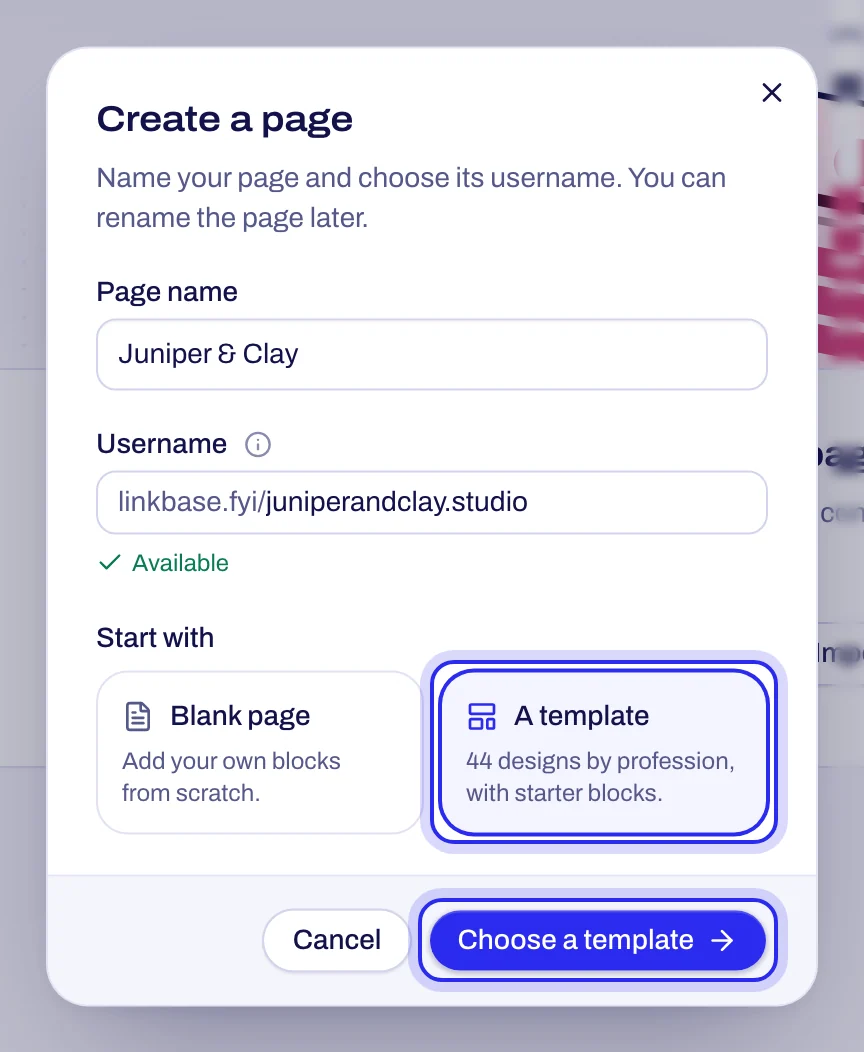
- In Pages, select Create page.
- Enter a Page name and a Username.
- Under Start with, choose A template, then select Choose a template.
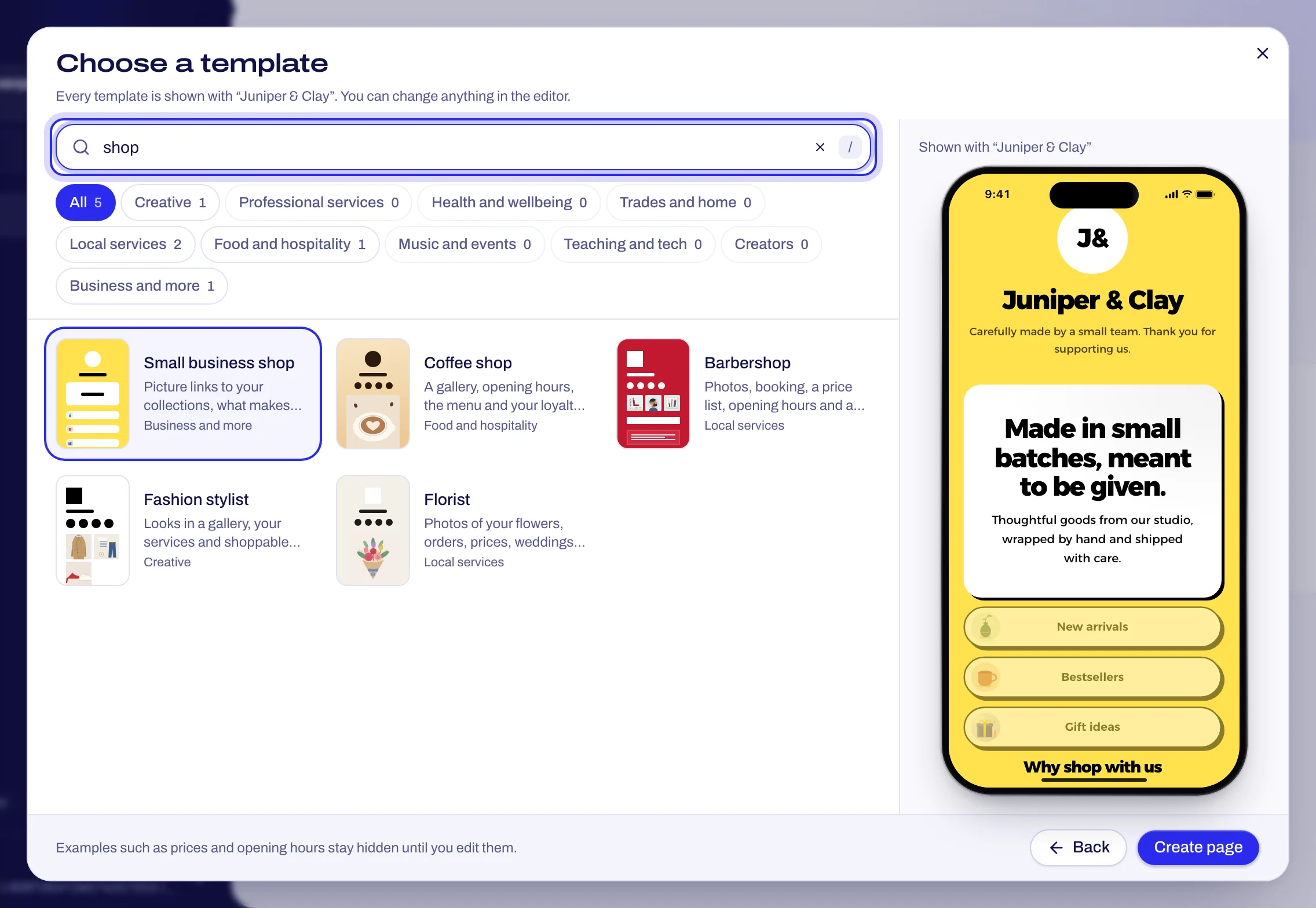
- In the template browser, find a template (see below) and select it.
- Select Create page. Back takes you to the name and username again.
The editor opens on your new page, as a draft, with the template's blocks in place. If someone took the username in the meantime, the dialog goes back to it and shows the error.
Browse and preview
The Create page dialog and the editor use the same template browser:
- Search templates, at the top: type a profession or a kind of page, such as "photographer", "menu" or "podcast". The best match is selected as you type.
- Categories, under the search: Creative, Professional services, Health and wellbeing, Trades and home, Local services, Food and hospitality, Music and events, Teaching and tech, Creators or Business and more. Each says how many templates match, and All shows every one.
- Preview, on the right: select a template to see it on a phone with your page's name. In the editor, it uses your picture, bio and profiles too.
- Keyboard: the arrow keys move through the templates, and Enter uses the selected one.
Switch an existing page to another template
- Open the page in the editor and select Templates in the top bar. On smaller screens, it's under More.
- Pick a template and select Use this template.
- Under "Apply the … template?", choose what to replace:
- Theme only: colors, fonts, buttons and header layout. Your blocks stay as they are. Custom colors and fonts you chose are replaced too.
- Theme and content: the theme, plus the page's blocks and any extra tabs, which are replaced with the template's starter blocks. The option says how many blocks and tabs go.
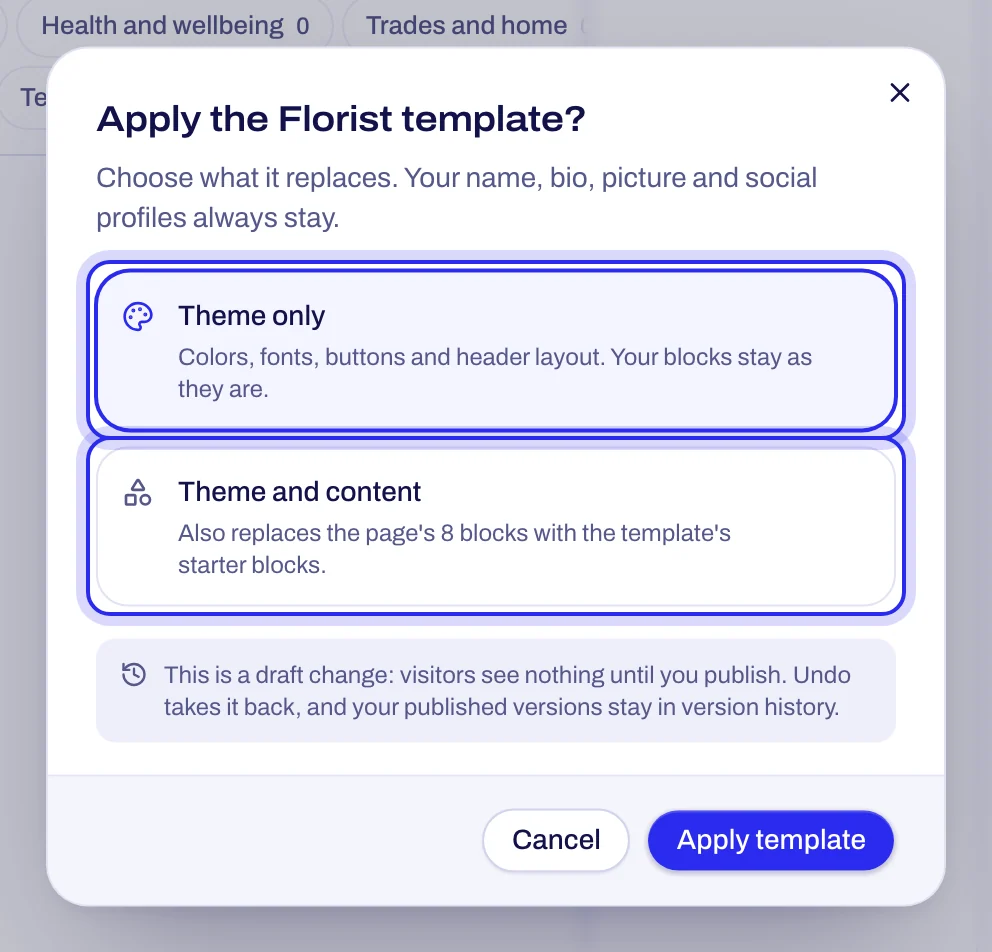
- Select Apply template.
A message confirms the change, with Undo. Your name, bio, picture, social profiles and cover image always stay. Visitors see nothing new until you publish.
With Theme and content, your first tab keeps its address and access settings, and your other tabs are removed. Links people shared to those tabs stop working once you publish.
Keep your work safe
- Theme only never touches your blocks.
- Undo, or ⌘Z on a Mac and Ctrl+Z elsewhere, takes the whole change back in one step while you're still in the editor.
- Your published versions stay in Version history, so you can restore one later. See Undo changes and restore an earlier version.
Before you try Theme and content, select Save draft. It saves a restore point in Version history that you can come back to after you've left the editor.
What a template fills in for you
- Links point to your own social profiles. A link with no matching profile waits in the editor, hidden from visitors, until you give it an address.
- Examples such as prices, opening hours, dates and testimonials are added hidden. You see them in the editor, marked Hidden, and visitors don't, until you edit them and select Show.
- Pictures are illustrations that give the page its shape. Replace them with your own photos.
- Text is in your page's language when it's one of the languages the dashboard comes in, and otherwise in your dashboard's language.
- Booking isn't included. To take appointments, add a booking block yourself: see Set up bookings.
Common questions
Do I need a plan to use templates? No. Every account can use them, even before choosing a plan. Publishing the page needs one.
Can I get my old design back? Select Undo while the message is showing, press ⌘Z or Ctrl+Z, or restore a version from Version history.
Will a template change my address? No. Your page keeps its address, and on Theme and content your first tab keeps its own too.