Import links from another link page
Paste the address of your current link page, choose what to bring over, including images and text, and tidy the new draft before you publish.
Import reads your current public link page and builds a new Linkbase page from it: your name, bio, pictures, headings, text, links, videos, music and social profiles, in the same order, plus its colors and font where the page states them. Images are copied into your media library, so your new page doesn't rely on the old one. You choose what comes over, and the new page stays a draft until you publish it.
Before you start
- The page must be public, at an address that starts with
https://. Pages that need a sign-in can't be read. - Import creates a new page, so your plan needs room for one more. At your plan's limit, Page limit reached shows in Pages instead of Create page and Import.
- Up to 50 links, 12 social profiles and 40 images come from one page.
- Images count toward your media storage. If it fills up, the remaining images are skipped and you're told how many.
- You don't need a plan to import. You need one to publish the result. Without a plan, imported images can use up to a small storage allowance.
Import your page
- In Pages, select Import.
- In the "Import a page" dialog, paste your current page's address into Address of the page. If you leave out
https://, it's added for you.
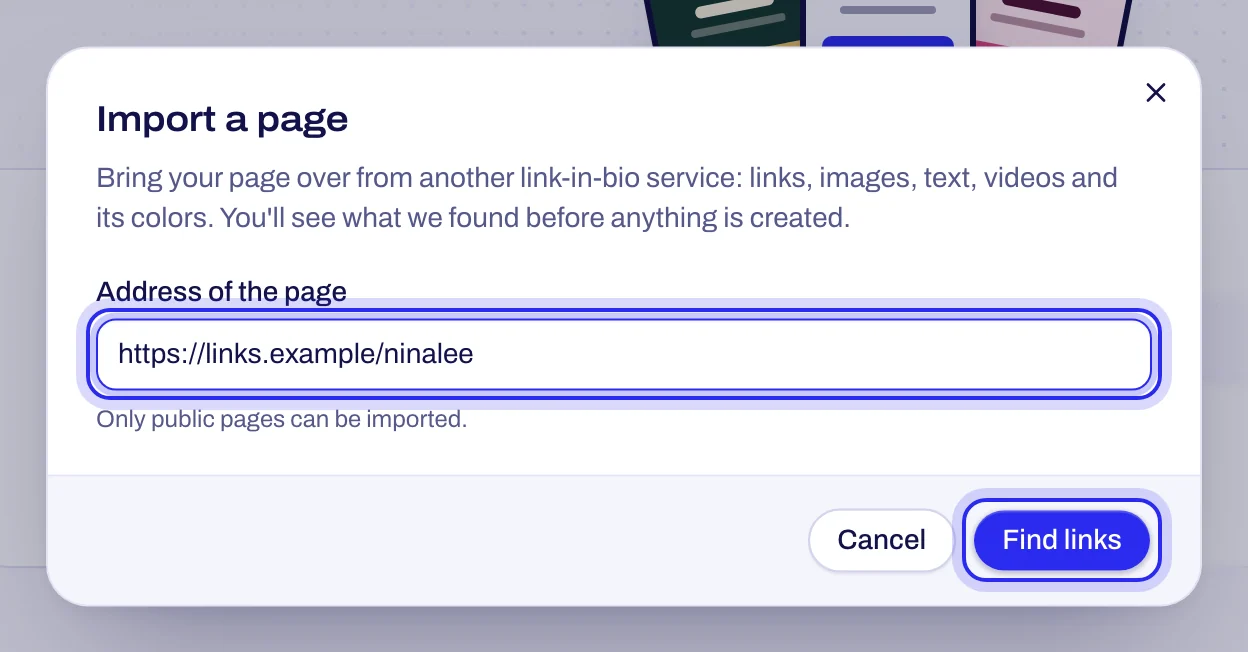
- Select Find links. "Reading the page…" shows while it works, which can take a few seconds.
Nothing is saved yet: next you see what was found.
Choose what to bring over
The "Review the import" screen shows your name, bio and picture, the site they came from, and everything else it found, in groups. Clear any box to leave that thing out, or clear a group's own box to leave out the whole group.
- To leave the picture out, clear Use this profile image.
- Under Links, clear any link you don't want. The count beside it shows how many are selected. To keep the links but not their small pictures, clear Bring link thumbnails and covers.
- Under Headings and text, clear anything you'd rather rewrite yourself.
- Under Images and galleries, clear any picture you don't want, including the cover and background images when the page has them.
- Under Videos and music, clear any player you don't want.
- Under Social profiles, clear any profile you don't want.
- Under Design, keep Use this page's colors and font to start from your old page's look. If the page doesn't state its colors, you see a note instead, and your draft starts with the default theme.
- Check Page name and Username. The username starts as the one you used on the other page, when it's allowed here, and it's checked for availability as you type. See Choose or change your page address.
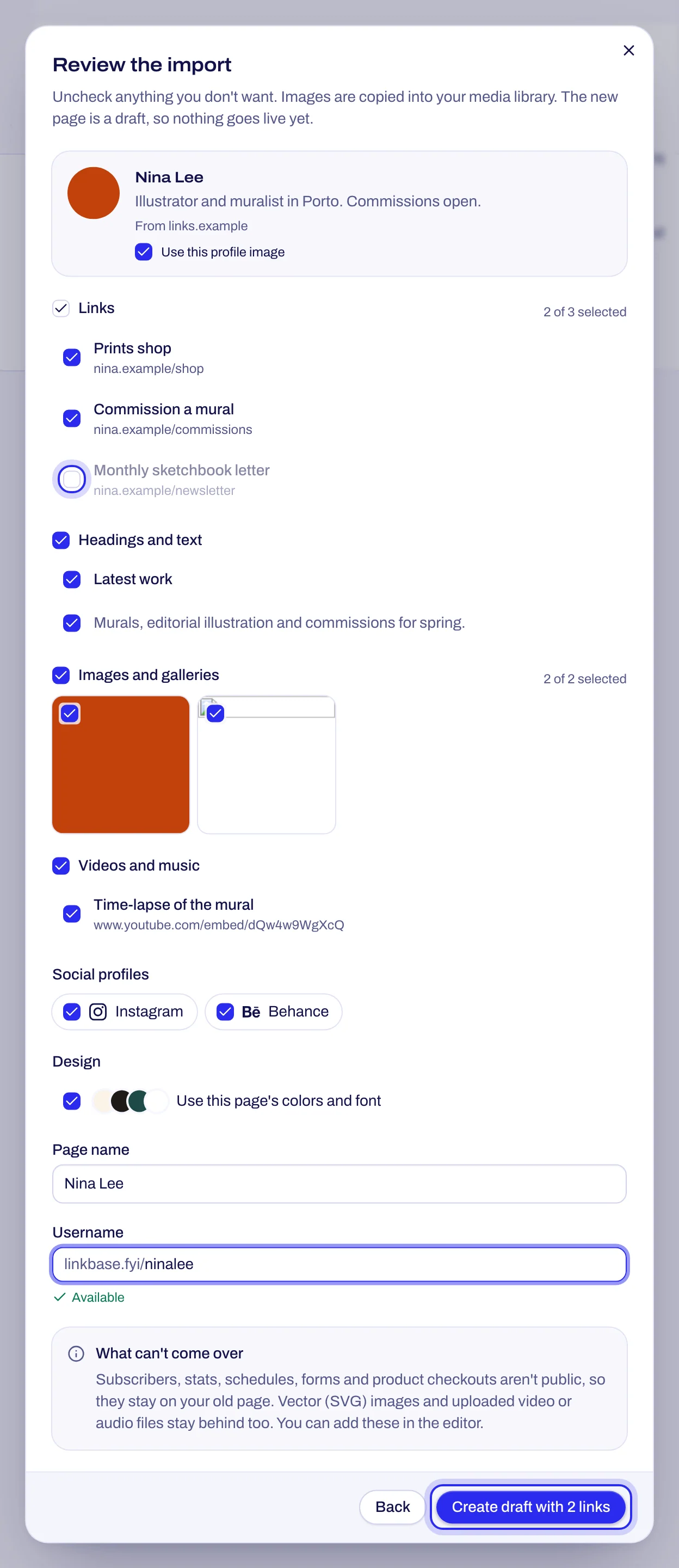
- Select the create button, which says how many links it will add, for example Create draft with 12 links.
If the page has images, Bringing your images over shows how far along it is while they're copied into your media library. Keep the dialog open until it finishes, or select Skip the rest and open the draft to stop early and keep what has arrived.
"Draft created. Check it over, then publish." confirms it, and the new page opens in the editor. If some images couldn't come over, you see how many and why before the draft opens.
What comes over, and what doesn't
| Comes over, copied or rebuilt on your first tab, in page order | Doesn't come over |
|---|---|
| Your name and bio | Subscribers and their email addresses |
| Your profile picture and cover, copied to your media library | Visitor stats and click counts |
| Your links, with their thumbnails copied to your media library | Schedules and timed links |
| Headings and text | Forms and the answers people sent |
| Images and galleries, copied to your media library | Product checkouts, payments and digital downloads |
| Video and music players from the services the blocks support | Vector (SVG) images, and video or audio files uploaded to the other site |
| Your social profiles, shown as icons under your name | Tabs on the other page, which arrive as one tab |
| Colors and a font from Google Fonts, where the page states them | Anything shown only after signing in |
Subscribers, stats and the rest of that column stay with your old service because they aren't on the public page, or the public page doesn't show them in a form that can be read. The other page's own links, such as its sign-up and report links, are left out on purpose, and so are links in its footer and menu that aren't your profiles. A background picture is only applied when the page states one in its CSS.
Tidy the draft
- Check your pictures. They're now in your media library, so they keep working after you close the old account. Add any the report said didn't come over, and click your name at the top of the preview to change your Profile image or cover.
- Edit the links. Delete any you no longer need, fix their titles, and try other layouts, such as Thumbnail or Highlight, for the ones that matter most.
- Add structure. Move the imported headings around, and add the blocks that didn't come over, such as forms or products. See Add your first links and blocks.
- Pick a look. Your draft starts from your old page's colors when they could be read. To change them, select Templates, choose one, and apply it with Theme only to keep your links. See Start from a template.
- Publish, then put your new address in your bios. See Put your page in your social bios.
Keep your old page online until every bio, post and printed code points to your new address. For a checklist of the places old links hide, read How to switch link-in-bio tools without losing visitors.
Troubleshooting
| What you see | What to do |
|---|---|
| "That address can't be imported. Use the public https address of the page." | Copy the address from your browser while viewing the page, signed out, and paste it again. |
| "We couldn't open that page. Check the address and try again." | Check for typos, and that the page is still online. |
| "That site doesn't let other services read its pages, so we can't import from it. You can add your links by hand instead." | That service turns away automatic readers, so nothing can be imported from it. Create a page and add your links by hand. |
| "That address isn't a page we can read." | The address opens a file or something other than a web page. Use the address of the link page itself. |
| "We didn't find a name or any links on that page." | The page may build its links with scripts that import can't read. Create a page and add your links by hand. |
| "No links found. You can add them in the editor." | Your name was found but no links. Create the draft, then add links in the editor. |
| "Too many attempts. Wait a minute and try again." | You can look up 20 pages and create 10 drafts every 10 minutes. Wait, then try again. |
| "N images couldn't be downloaded, or weren't really images." | The other site refused them or they're no longer there. Add them yourself in the editor. |
| "N images were skipped because your media storage is full." | Delete files you no longer use, or upgrade your plan, and add the images in the editor. |
| "N images were left out because the import ran out of time or was stopped." | Add them in the editor, or import again later when the other site responds faster. |
| "That username is already taken. Try another." | Choose another username on the review screen. |
Something is missing. Links built only by scripts that don't ship their data in the page, and links in the page's footer or menu, aren't picked up. Pictures that are icons, or that are vector (SVG) files, aren't brought over. Add them in the editor.