Choose or change your page address
What your page address can contain, what to do when a name is taken or reserved, and how to change it while the old address forwards for 90 days.
Your page's address is your username at the end of the Linkbase link, like …/yourname. You choose it when you create the page, and it never changes when you edit or republish. Owners and admins can change it later, and the old address forwards to the new one for 90 days.
What an address can contain
- 3 to 30 characters
- lowercase letters a to z, numbers, periods and underscores
- no period at the start or end, and never two in a row
Spaces, hyphens, accented letters and other alphabets aren't allowed. Capital letters become lowercase and an @ at the start is dropped, so @Sam.Rivera becomes sam.rivera.
| You type | Result |
|---|---|
sams_bakery | Works |
Sam.Rivera | Works, as sam.rivera |
sam-rivera | Not allowed: use sam_rivera or sam.rivera |
sam..rivera | Not allowed: two periods in a row |
.sam | Not allowed: it starts with a period |
sr | Too short |
Choose your address
You pick the address in one of these places:
- Address, in the first step of setup. See Create your Linkbase page.
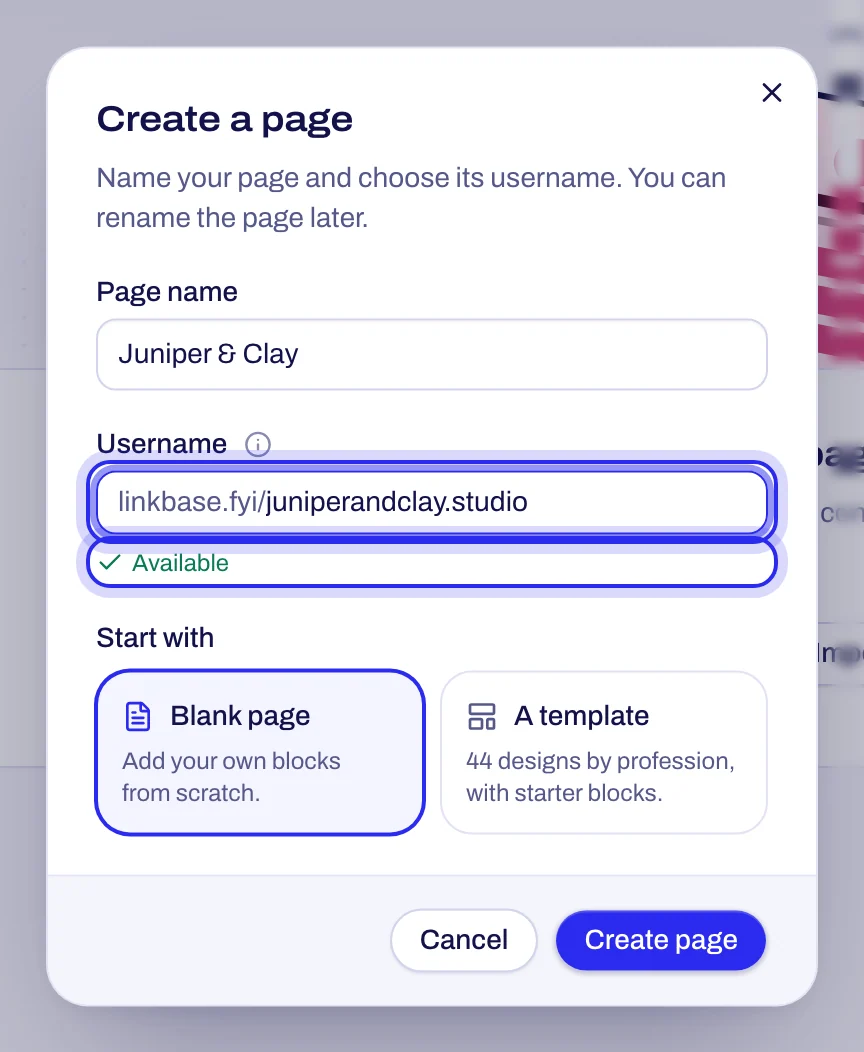
- Username, when you select Create page or Import in Pages, or Duplicate in a page's menu.
- Type your page's name first. In setup and the Create page dialog, the address is suggested from it, without accents or punctuation: "Sam's Bakery" becomes
sams_bakery. - Edit the address if you want another one. It stops following the name once you do.
- Wait for the note under the field. It shows Checking availability…, then Available or Already taken.
A name written only in another alphabet gets no suggestion, so type an address in Latin letters. A few tips:
- Use the name people already know you by, such as your handle on other apps or your brand.
- Keep it short and easy to say out loud. Periods and underscores are easy to miss when you say an address aloud, so use them sparingly.
- Pick one you'll keep. You can change it later, and the old address forwards for 90 days, but a stable address is easier for people to remember.
If your address isn't accepted
| What you see | What to do |
|---|---|
| Already taken | Another page has it. Add a word, such as your city or what you do: sams_bakery_lyon. |
| "That username is reserved. Try another." | Linkbase keeps some names, such as words its own addresses use (help, pricing, blog), brand terms and names often used to impersonate others. Choose another. |
| "Use 3–30 lowercase letters, numbers, periods or underscores, with no period at either end or two in a row." | Remove spaces, hyphens or accents, and check the length. |
| "That username is already taken. Try another." | Someone claimed it after the check. Choose another. |
When a page is deleted, its address stays reserved for 30 days, so nobody, including you, can claim it during that time. An address a page has moved away from is held for 90 days in the same way, except that the page's own workspace can switch back to it. Addresses must also follow the rules in our Terms of Service: no names that infringe someone's rights, impersonate anyone, or are held only to sell or block them.
Change your address
Owners and admins of the workspace can change a page's address. Editors and viewers see the address, but not the button.
- Open your page in the editor. With no block selected, the settings panel on the right shows Page, your page's settings. If a block's settings are showing, select your name at the top of the preview.
- Open Page details. Address shows the page's current address, such as
…/sams_bakery. - Select Change address.
- Type the New address. The rules above apply, and the note under the field shows Checking availability…, then Available or Already taken.
- Select Change address. To keep the old one, select Cancel.
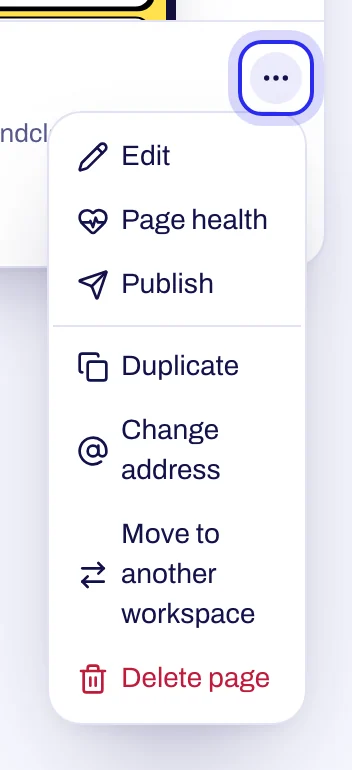
You can also start from Pages: open the page's menu (…) on its card and choose Change address.
What happens when you change it
| What | After the change |
|---|---|
| Your published page | Shows at the new address at once. You don't need to publish again. |
| The old address and its tab addresses | Forward to the new address for 90 days |
| Linkbase QR codes and short links that open the page | Follow it to the new address, because they point at the page itself |
| A custom domain connected to the page | Not affected. It keeps working. |
| Stats, subscribers, form answers and bookings | Stay with the page |
For 90 days, anyone who opens the old address goes straight to the new one, and tab addresses forward too: …/oldname/menu opens …/newname/menu. Links you've posted, and QR codes or flyers you've printed with the old address, keep working.
During those 90 days, nobody else can claim the old address, but an owner or admin of the page's workspace can switch the page back to it at any time. After 90 days, the old address is released and anyone can claim it. Update your bios on other apps, your email signature and your printed material before then.
If you change the address more than once, each old address forwards to the current one for 90 days from the day you left it.
An unpublished page has nothing to forward to. Its old address shows "not found", like any address without a live page, until you publish the page.
Start a second page from this one
To keep this page at its address and start another one from it, such as a version in another language, duplicate it instead.
- In Pages, open the page's menu (…) on its card and choose Duplicate.
- Enter the new Username, wait for Available, and select Duplicate page.
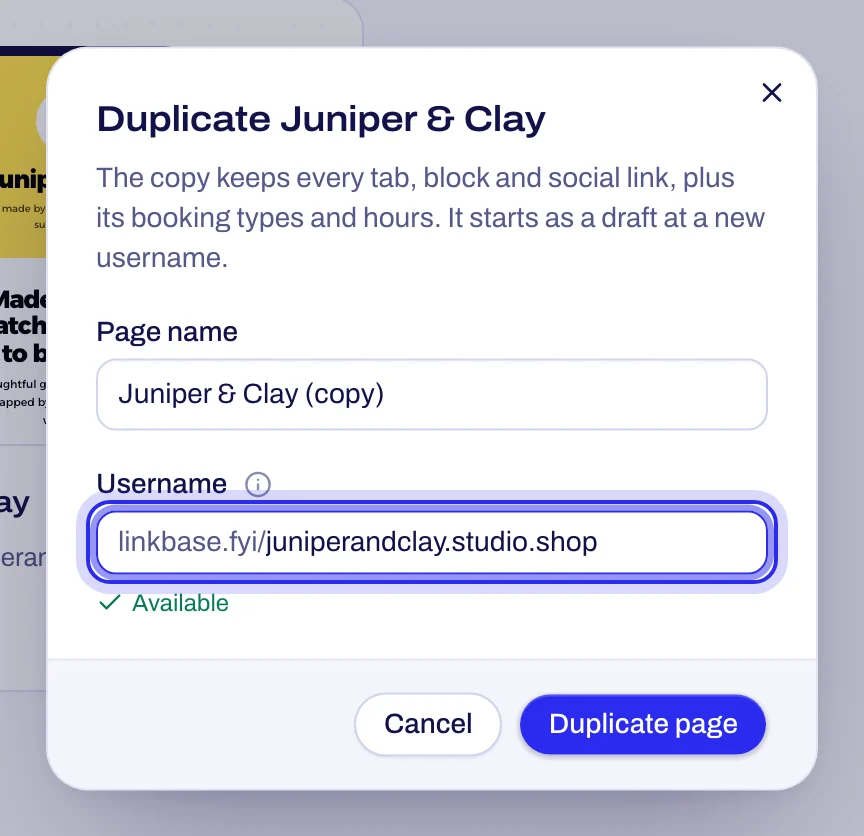
The copy keeps every tab, block and social link, along with the design and settings, and starts as a draft. Its analytics, signups, form replies and QR codes start fresh, and the original keeps its own. See Duplicate a page into another workspace.
Duplicating needs room under your plan's page limit. If you're at the limit, Page limit reached shows in Pages instead of Duplicate, and you'll need to upgrade or delete a page you no longer use. See Have more than one page.
Other ways to get the address you want
- Your own domain. On the Pro and Team plans, you can show your page at a domain you own, such as
links.yourbrand.com. See Connect your own domain. - A tab's address. Each tab has its own address after yours, like
…/yourname/menu, which you can set in Edit tab. Changing it breaks links people already shared. See Link straight to one tab of your page.
The Workspace URL in Settings → General is only the workspace's address in the dashboard. Changing it doesn't change your page's address.