Find and fix problems with page health
Read your page's health score, find broken, unsafe and unverifiable links, and fix each problem from the editor.
Page health checks every link on your page each day and lists what's broken, unsafe or missing. Each problem has a Fix button that opens the right place in the editor. Open it after you change your links, or whenever you want to know your page works for visitors. It's on every plan.
Open page health
- From the editor: select Page health, the heartbeat icon in the top bar. On smaller screens, it's in the More menu.
- From your pages: in Pages, open the page's menu (the three dots beside its name) and select Page health.

Anyone in the workspace who can see the page can open its health. To check links on demand, you need to be able to edit the page.
Read your score
The Health score is out of 100, with a label for how the page is doing:
| Score | Label |
|---|---|
| 90–100 | Looking good |
| 70–89 | Needs attention |
| Below 70 | Needs work |
Under the score you see how many things there are to fix and when links were last checked. The checks are grouped:
- To fix: problems worth fixing. Most of them lower the score.
- Reminders: suggestions that cost no points, such as adding your own share image or publishing changes visitors don't see yet.
- Waiting for a link check: checks that need a link scan first, on a page that hasn't been scanned yet.
Checks you pass are folded away under a count, such as "12 checks passed". The content checks read your page as it would be published, so hidden blocks and hidden tabs are left out.
Fix a problem
- Under To fix, read what each check found.
- Select Fix beside it. The editor opens where the change is made, such as the page's Profile settings.
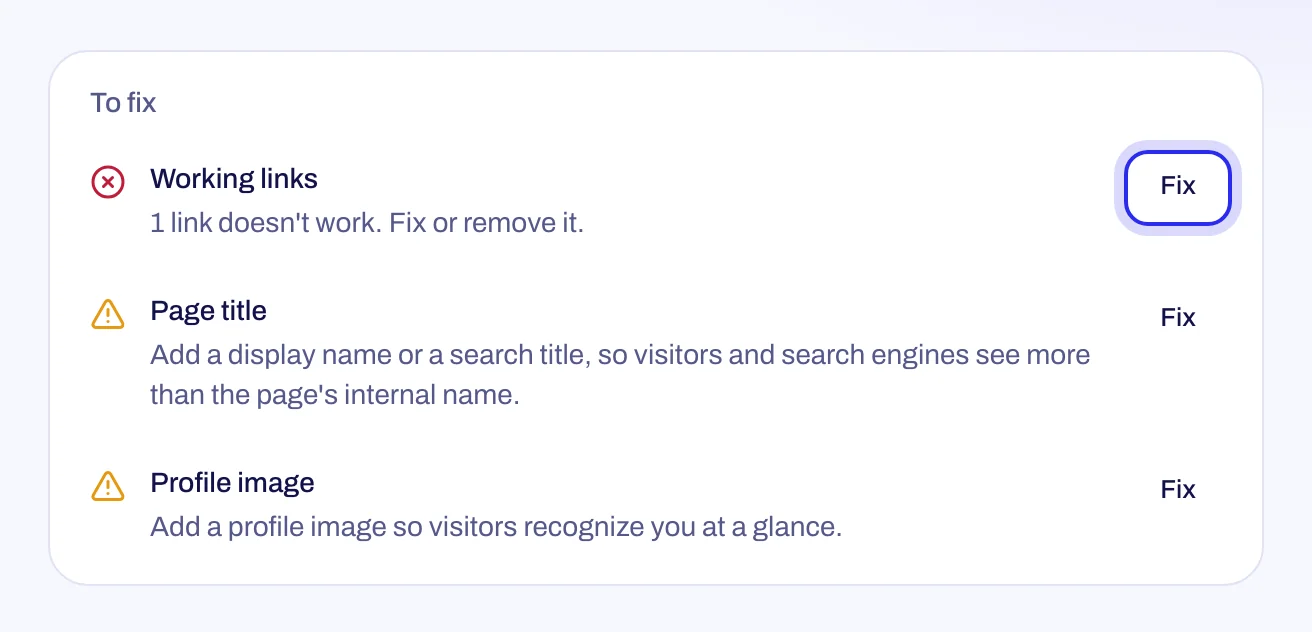
- Make the change. For a broken or unsafe link, correct its address or remove the link.
- Select Publish in the editor's top bar, so visitors get the fix.
- Back in page health, select Check links now if the problem was a link, to confirm it's gone.
Reminders have a Fix button too. They're suggestions, so leaving them costs no points.
What each check means
| Check | It flags | To fix it |
|---|---|---|
| Safe links | A link Google Safe Browsing lists as harmful: malware, phishing, unwanted software or a harmful app | Remove the link. This costs the most points, and browsers may warn visitors away |
| Working links | A link that doesn't work | Correct the address, or remove the link |
| Links with https | A link that starts with http://, which browsers mark as not secure | Change it to https:// if the site supports it |
| Page title | No display name and no search title | Add a Display name in Profile |
| Bio | No bio | Add a short line about who you are |
| Profile image | No profile image | Add one in Profile |
| Image descriptions | Images without a description for people who use screen readers | Add a Description to each image |
| Links to tabs | A link that opens a tab that's hidden or was deleted | Choose another tab for the link |
| Password-locked content | A tab, link or folder that asks for a password that was never set, so visitors don't see it | Set the password in its access settings |
| Number of links | More than 25 links showing directly on one tab; links inside a folder don't count | Group some into folders or tabs |
| Search title | A title over 60 characters, which search results may cut off | Shorten it in Search & sharing |
| Search description | No search description and no bio, or a description over 155 characters. A reminder when search results show your bio instead | Write one, or shorten it, in Search & sharing |
| Share image | No share image of your own (a reminder) | Add one, 1200 × 630 pixels |
| Visible in search | The page is hidden from search engines. It costs no points, since it's your choice | Turn off Hide this page from search engines if you want to be found |
| Published | The page isn't published, or it's offline. A reminder when you have changes visitors don't see yet | Publish it |
For the search checks, see Set your search title, description and share image. For image descriptions, see Make your page easy to read for everyone.
How links are checked
- Automatically, every day. A page edited since its last check is checked again sooner.
- Everything with an address: links in your blocks, your social profiles and your profile image, up to 100 addresses per page. Links to your own tabs have no address, so the Links to tabs check covers them.
- Both versions: your draft and the published page.
To check now, select Check links now. You can do this three times a minute for each page. The button reads Checking links… until the scan finishes, and the panel then shows when links were checked.
The Links list
Under Links, every address with a problem is listed, worst first, with one of three statuses:
- Unsafe: listed as harmful. Linkbase doesn't show these as clickable links in the list, so you can't open one by accident.
- Broken: the reason is shown, such as Page not found (404), The domain doesn't exist, Invalid security certificate, Too many redirects or Points to a private network address.
- Couldn't verify: the site turned the check away or took too long. Social networks and bot shields often refuse automated checks, so these links may work fine. Open each one to make sure. They don't lower your score.
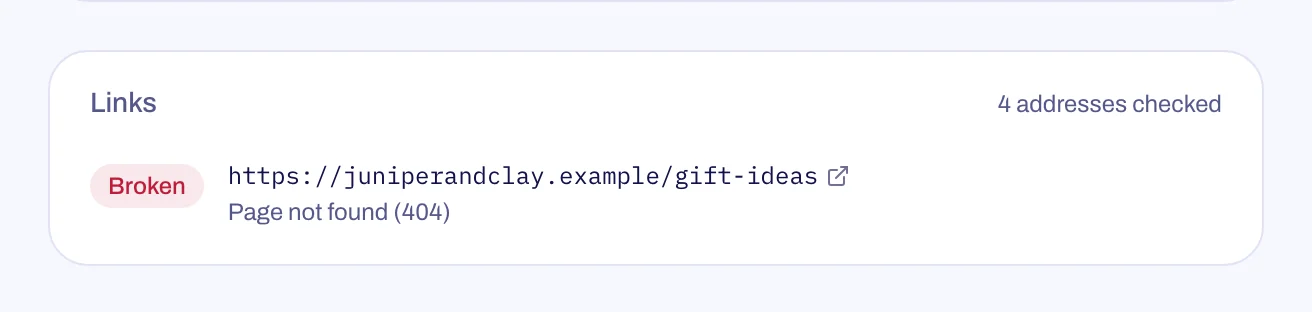
The count at the top, such as "4 addresses checked", is how many addresses the last scan looked at. If every one answered, the list says "Every link answered."
Fix the problem in the editor, publish, then come back and select Check links now to confirm it's gone.
Troubleshooting
A link shows as Broken. Read the reason beside it. Page not found usually means the page moved: open the site, find the page and copy its new address into your link. The domain doesn't exist often means a typo in the address. If the site was only down for a while, select Check links now again later.
The score didn't change after I fixed something. Content checks update as soon as you reload the panel. Link checks need a new scan: select Check links now, or wait for the daily check. If the panel says "The page changed since then.", the last scan is older than your edits.
Safe links stays under Waiting for a link check. The safety check couldn't get an answer, so it waits instead of passing. The other checks still work, and the next scan tries again.
I don't see Check links now. Your role lets you view the page but not edit it. See Roles and what each can do.
For a step-by-step routine, read How to find and fix broken links before your followers do.