Turn on two-factor sign-in
Ask for a code from an authenticator app each time you sign in, save your backup codes, and get back in if you lose your phone.
Two-factor sign-in asks for a 6-digit code from an authenticator app each time you sign in, so a stolen password or a hacked inbox isn't enough to get into your account. Turn it on if you'd like a second lock on your account, and always if other people rely on your pages.
Before you start
- Install an authenticator app on your phone, such as Google Authenticator, Microsoft Authenticator, 1Password or Authy. Linkbase doesn't send codes by text message or email.
- Know your password. Turning it on asks for it. If you've only ever signed in with an emailed link or Google, your account has no password yet: the two-factor section says so and shows Set a password. It opens the password reset page, which emails you a link to create one.
Turn it on
- Open the account menu (your name, at the bottom of the sidebar) and select Account.
- Select Security.
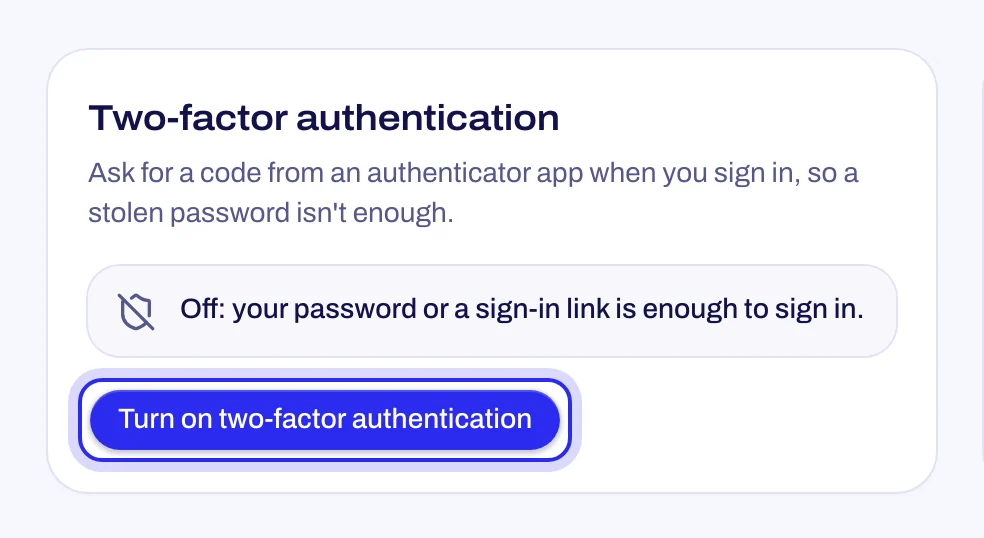
- Under Two-factor authentication, select Turn on two-factor authentication. A window opens at Step 1 of 3.
- Enter your Password and select Continue.
- In your authenticator app, add an account and scan the QR code. If you can't scan it, select Copy key and paste the key into the app instead.
- In Code from the app, enter the 6-digit code the app shows for Linkbase, then select Turn on.
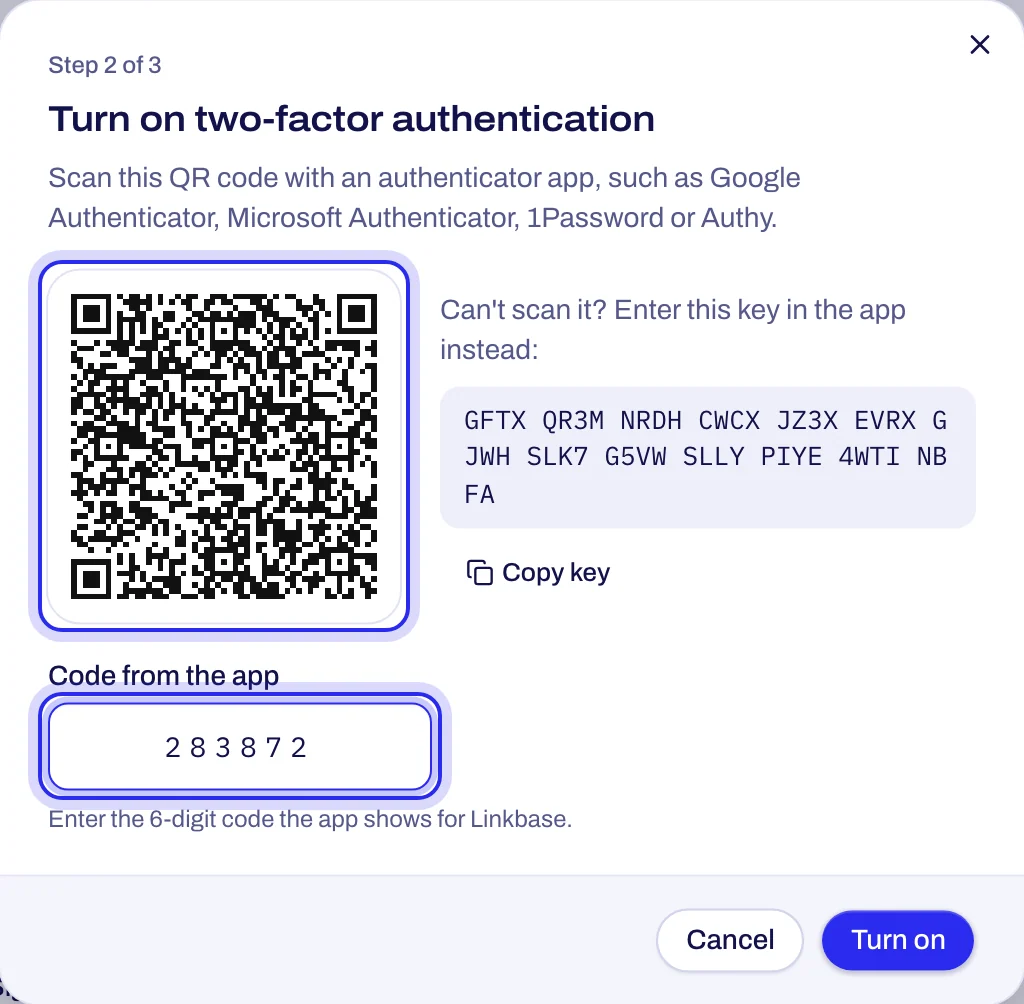
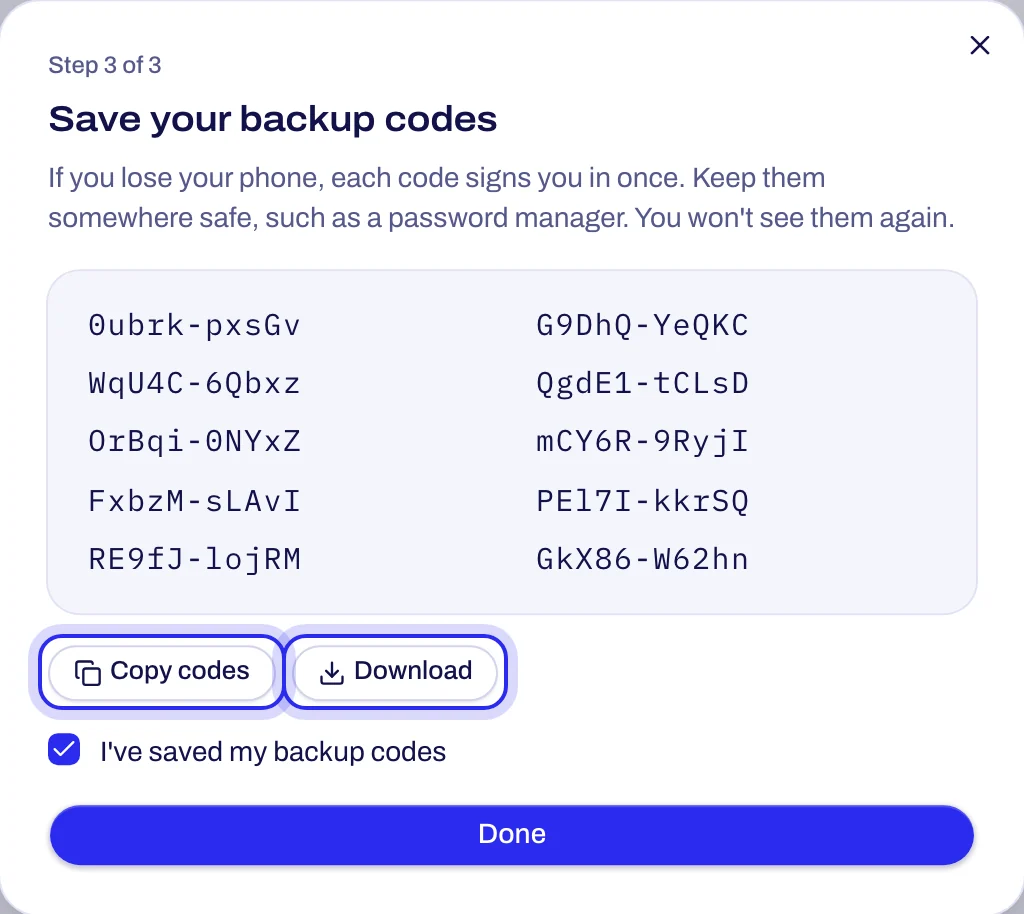
- Save your 10 backup codes: select Copy codes and paste them into your password manager, or select Download to save them as a text file.
- Check I've saved my backup codes, then select Done. Done stays grayed out until the box is checked.
The section now reads "On: signing in asks for a code from your authenticator app." with how many backup codes you have left. You also get an email confirming two-factor authentication is on.
You see your backup codes only once. Each one signs you in a single time if you lose your phone. Keep them somewhere safe that isn't your phone, such as a password manager.
Sign in with two-factor on
- Sign in as usual, with your password, an emailed sign-in link or Google if you use it.
- On Confirm it's you, enter the Authentication code from your app. Codes change every 30 seconds, so use the one showing now.
- Select Verify.
No phone at hand? Select Use a backup code instead, enter one of your codes and select Verify. That code is then used up.
A passkey signs you in without a code, because it already needs your device and your fingerprint, face or PIN.
Make new backup codes
The Two-factor authentication section shows how many backup codes you have left, in red when three or fewer remain.
- Select New backup codes.
- Enter your password and select Make new codes.
- Save the new codes, check I've saved my backup codes, and select Done.
Your old codes stop working at once.
Turn it off
- In the Two-factor authentication section, select Turn off.
- Enter your password and select Turn off again.
Signing in then needs only your password or a sign-in link, and you're signed out on your other devices. You get an email about the change.
If you lose your phone
- You have backup codes or a passkey: sign in with one. Then, in Security, turn two-factor off and turn it on again with your new phone. This also gives you fresh backup codes.
- You have neither: contact Linkbase support, writing from the email address on your account. Support can reset your sign-in: this turns two-factor off, removes your passkeys and signs out every device. You get an email when it's done. Sign in with your password, then set two-factor up again.
Many authenticator apps can back up or sync your codes to a new phone. Turn that on in the app to avoid this altogether.
Troubleshooting
| Message | What to do |
|---|---|
| That code didn't work. Check your authenticator app and try again. | Use the code showing now, for the Linkbase entry. If codes are always wrong, check that your phone's time is set automatically. |
| That backup code didn't work. Check it, or try another one. | Each code works once. Try another code from your list. |
| This sign-in has expired. Start again. | Too long passed, or too many tries. Select Back to sign in and start over. |
| Too many wrong codes. Wait 15 minutes, then try again. | After 10 wrong codes in a row, the code step locks for 15 minutes. |
| For your security, sign out and sign in again with your code or a passkey, then try again. | Making new backup codes or turning two-factor off needs a sign-in that used your code or a passkey. Sign out and back in. |
| That password isn't right. | Enter your Linkbase password. Forgot it? Use Forgot password? on the sign-in page. |
Changing your password or email doesn't change two-factor sign-in. See Change your email or password.
To see what a good setup looks like across devices, read Lock down your account with passkeys and two-factor sign-in.