Add a menu or price list
List dishes or services in sections, with descriptions, prices and dietary tags, for a restaurant, café, salon or studio.
The Menu block lists dishes or services in sections, each with a description, a price and dietary tags. Use it for a restaurant or café menu, or for the price list of a salon, studio or repair shop.
Before you start
Menus are included in every plan. A menu shows prices only, with no buttons. To take orders or bookings, put a link, a form or a booking block next to it. See Build a form and Set up bookings.
Build your menu
- Open your page in the editor and select Add block at the top of the structure panel on the left.
- In the block library, choose Commerce, then Menu. You can also search for "menu" or "price list". The block's settings open in the panel on the right.
- Under Sections, select Add section. Enter a Section title, such as Starters, Mains or Haircuts, or leave it empty for a menu without headings.
- Under the section's Items, select Add item.
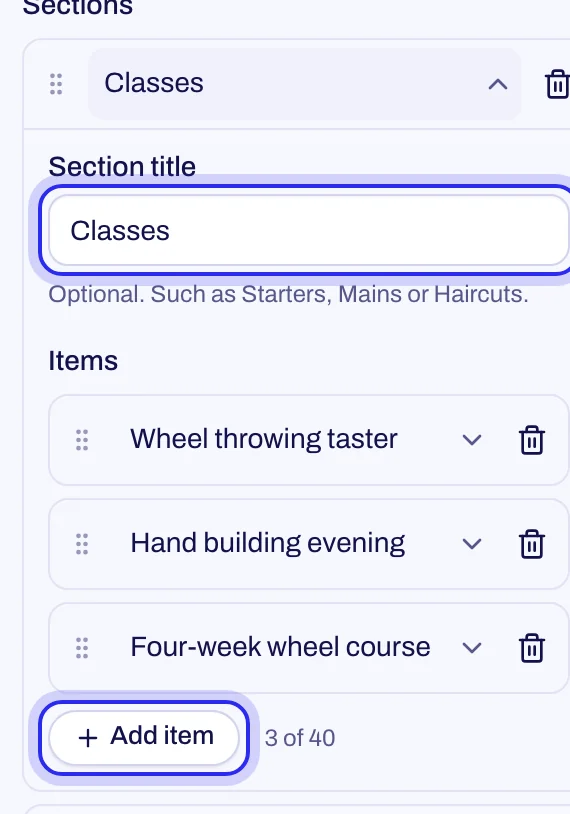
- Enter the item's Name, and its Description and Price if it has them.
- Under Dietary tags, tick the ones that apply: Vegetarian, Vegan, Gluten-free or Spicy.
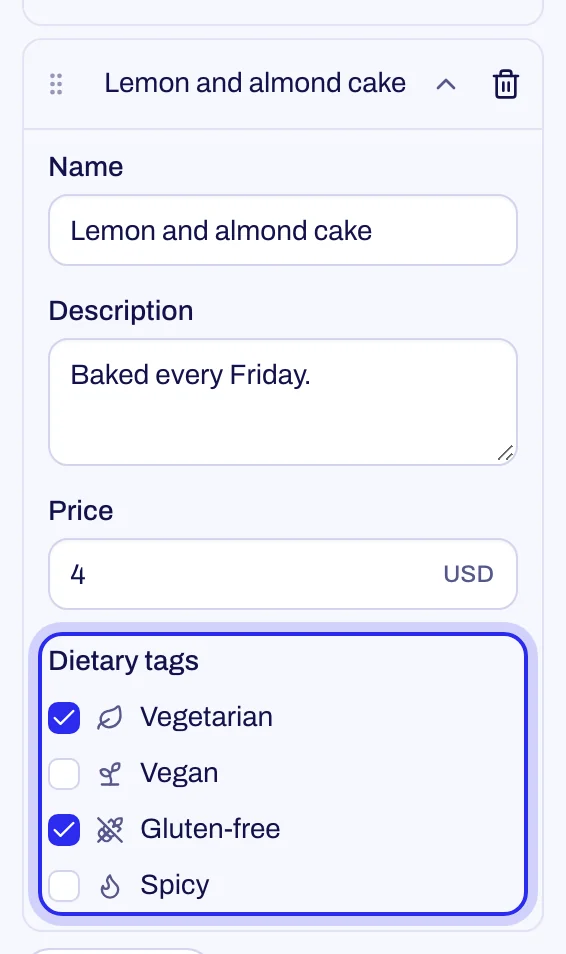
- Add the rest of the section's items, then select Add section for the next section.
- Below the sections, choose the menu's Currency, then select Publish in the top bar.
To open or close a section or an item, select its name. To reorder them, drag them by the handle at the start of their row, and to remove one, select the trash icon at the end.
| Part | Limit |
|---|---|
| Sections | 12 per menu |
| Items | 40 per section |
| Section title | 80 characters |
| Item name | 120 characters |
| Description | 240 characters per item |
What visitors see
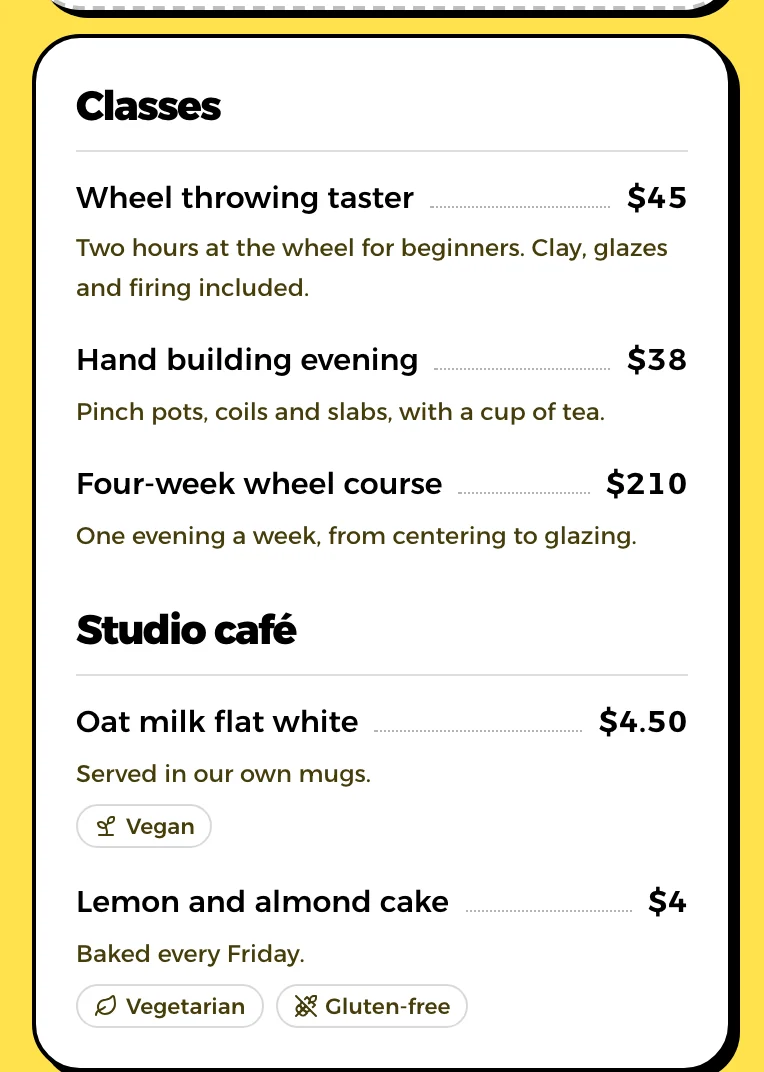
The whole menu sits on one card. Each section title is a heading, and each item shows its name with a dotted line leading to its price, then its description and its tags. Tags show as small icons with their names written out, so they're clear to everyone, including people using screen readers.
Prices use the menu's currency and are written the way your page's language writes them. See How prices, dates and times are shown.
- Items without a name stay off the page, and so do sections with no named items.
- An item without a price shows no price. For a price that changes, such as a market price, say so in the description.
- A section without a title lists its items straight away.
Menu, products or pricing table?
| Block | Best for |
|---|---|
| Menu | Many items in sections, with prices and dietary information, and no buy button. |
| Products | A few items, each with a photo and a buy button. See Sell with product cards. |
| Pricing | Up to three packages compared side by side. See Show your plans with a pricing table. |
Tips
- Separate menus: put food and drinks, or lunch and dinner, on their own tabs. See Split your page into tabs.
- Seasonal menus: on the Pro and Team plans, the block's Schedule section shows it only between two dates. See Show a block only between two dates.
- Changing the currency doesn't convert prices. The amounts stay as you typed them.
For what diners look for before they visit, read Menu, hours and bookings: what diners check before they visit.
Troubleshooting
The block shows "Add an item with a name to show this menu". No item has a name yet. Visitors don't see the menu until one does.
A section is missing from the page. None of its items has a name.
"Enter an amount in digits, such as 19.99." Prices take digits and one decimal separator, with no currency symbol. A comma works too: 12,50 is saved as 12.5. Currencies without decimals, such as the Japanese yen, take whole numbers only.
Add item is grayed out. The section holds up to 40 items. Start another section for the rest.