Share a coupon code
Show a discount code that visitors copy with one tap, with an optional expiry date and a link to your shop.
The Coupon block shows what your offer gives, the code in large type with a Copy code button, and a link to where visitors use it. Use it for a launch discount, a seasonal sale or a thank-you to followers. Give it an expiry date and it disappears from your page when the offer ends.
Before you start
- Create the code in your shop or checkout first. Linkbase shows the code, but your shop is what checks and applies it.
- Coupons are included in every plan.
Add a coupon
- Open your page in the editor and select Add block at the top of the structure panel on the left.
- In the block library, choose Commerce, then Coupon. You can also search for "discount" or "promo code". Its settings open in the panel on the right.
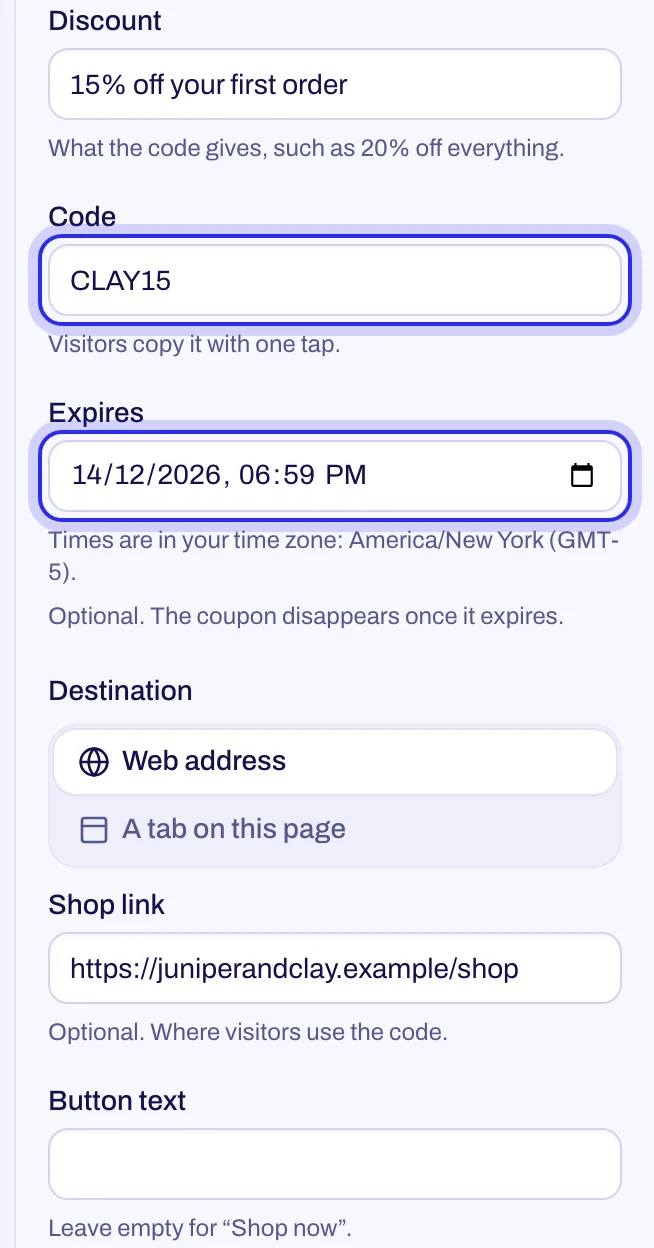
- In Discount, say what the code gives, such as 20% off everything.
- Enter the Code, exactly as your shop expects it. The coupon shows on your page once it has a code.
- Optional: set Expires to the date and time the offer ends. You enter it in your own time zone, which is named under the field.
- Optional: under Destination, choose Web address and enter your Shop link, or choose A tab on this page.
- Optional: change the Button text. Leave it empty to show Shop now.
- Select Publish in the top bar.
| Field | Limit |
|---|---|
| Discount | 120 characters |
| Code | 64 characters |
| Button text | 40 characters |
What visitors see
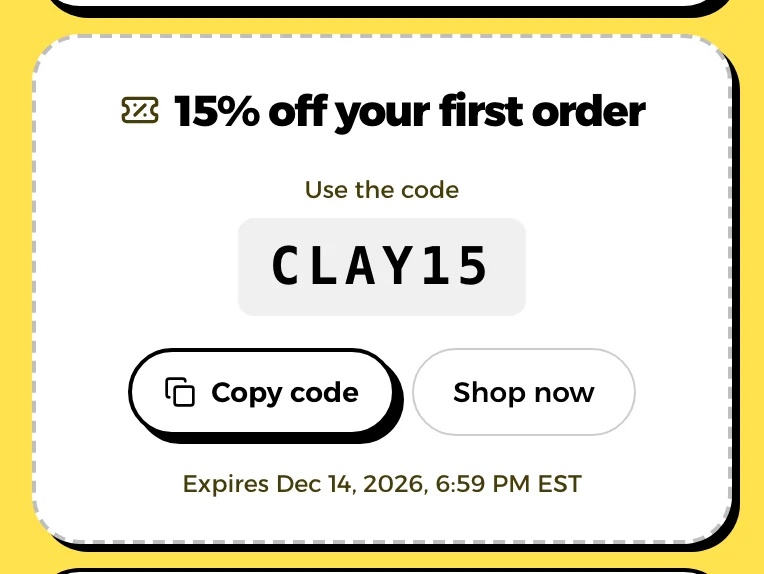
A card with a dashed border shows your discount, "Use the code", the code and Copy code. Tapping Copy code copies it and shows Copied. With a shop link, Shop now (or your own button text) opens it. If Discount is empty, the card says "Discount code".
With an expiry date, the card shows "Expires" and the date and time in the visitor's own time zone, with the zone named. At that moment the coupon disappears from your page. In the editor it stays, with the note "This coupon has expired, so visitors don't see it." To bring it back, change or clear Expires, then publish.
Each tap on Copy code or Shop now counts as a click in your analytics.
Ask for an email address before showing the code
The Coupon block can't be locked on its own. On the Pro and Team plans, you have two ways to show a code only to visitors who sign up:
- Add a Link block and set its Layout to Coupon. Enter the Code, then in its Access section choose Visitors who leave their email. Visitors see the code hidden and a Reveal code button until they unlock it.
- Or put the Coupon block in a folder or tab, and lock that the same way.
Visitors who unlock it are added to your audience. See Lock a link, tab or folder behind a gate.
Expiry date or schedule?
- Expires is on every plan. It hides the coupon at one moment.
- Schedule, on the Pro and Team plans, shows a block only between a start and an end, so a coupon can appear when a sale starts and disappear when it ends. See Show a block only between two dates.
End the code in your shop at the same time as the coupon's expiry, so nobody who copied it earlier can still use it after the offer ends.
Troubleshooting
The coupon disappeared from my page. Its expiry date has passed. The editor says so on the block.
There's no Shop now button. The coupon has no shop link, or it links to a tab that was deleted or hidden. Choose another destination.
Visitors say the code doesn't work. Check the code in your shop: its spelling, its start and end dates, and any minimum order or product rules. Linkbase shows the code exactly as you typed it, but it can't see your shop's settings.
The expiry happened at the wrong time. Expires uses the time zone of the device you set it on. Open the block, check the time zone named under the field, and set the time again.