Set your availability and booking rules
Choose the weekly hours visitors can book, block out days off, and set notice, a booking window, buffers and a daily limit.
Your availability decides which times visitors can book: your weekly hours, the dates that differ, and a few rules every booking follows. Set it up once when you start taking bookings, and come back for holidays or a change of hours. Each page has its own availability, shared by all its booking types. A duplicate of a page starts with the same availability, and changing one doesn't change the other. Changes apply on your page as soon as you save them, without publishing.
Open your availability
- Open Audience → Bookings and select Booking settings at the top right.
- If your workspace has more than one page, choose the page at the top.
- Below Booking types are Weekly hours, Date overrides and Booking rules.
When you change anything, a bar appears at the bottom with Unsaved changes. Select Save availability to keep your changes, or Cancel to undo them. "Availability saved" confirms it.
Until you change them, a page's hours are Monday to Friday, 9 AM to 5 PM, in your workspace's time zone.
Set your weekly hours
You set your hours on your own clock, in your time zone. Visitors see them in theirs.
- Under Weekly hours, check the Time zone. If your device is set to a different one, a button beside it, such as Use America/New York, switches to it.
- Turn on the switch beside each day you take bookings. A day you turn on opens from 9 AM to 5 PM. Days that are off show Unavailable.
- Change the day's start and end times.
- For a break, set the day's end time to when the break starts, such as 12:00 PM, then select the plus button after it. A second range is added an hour later: set its times, such as 1:00 PM to 5:00 PM. Select the X beside a range to remove it.
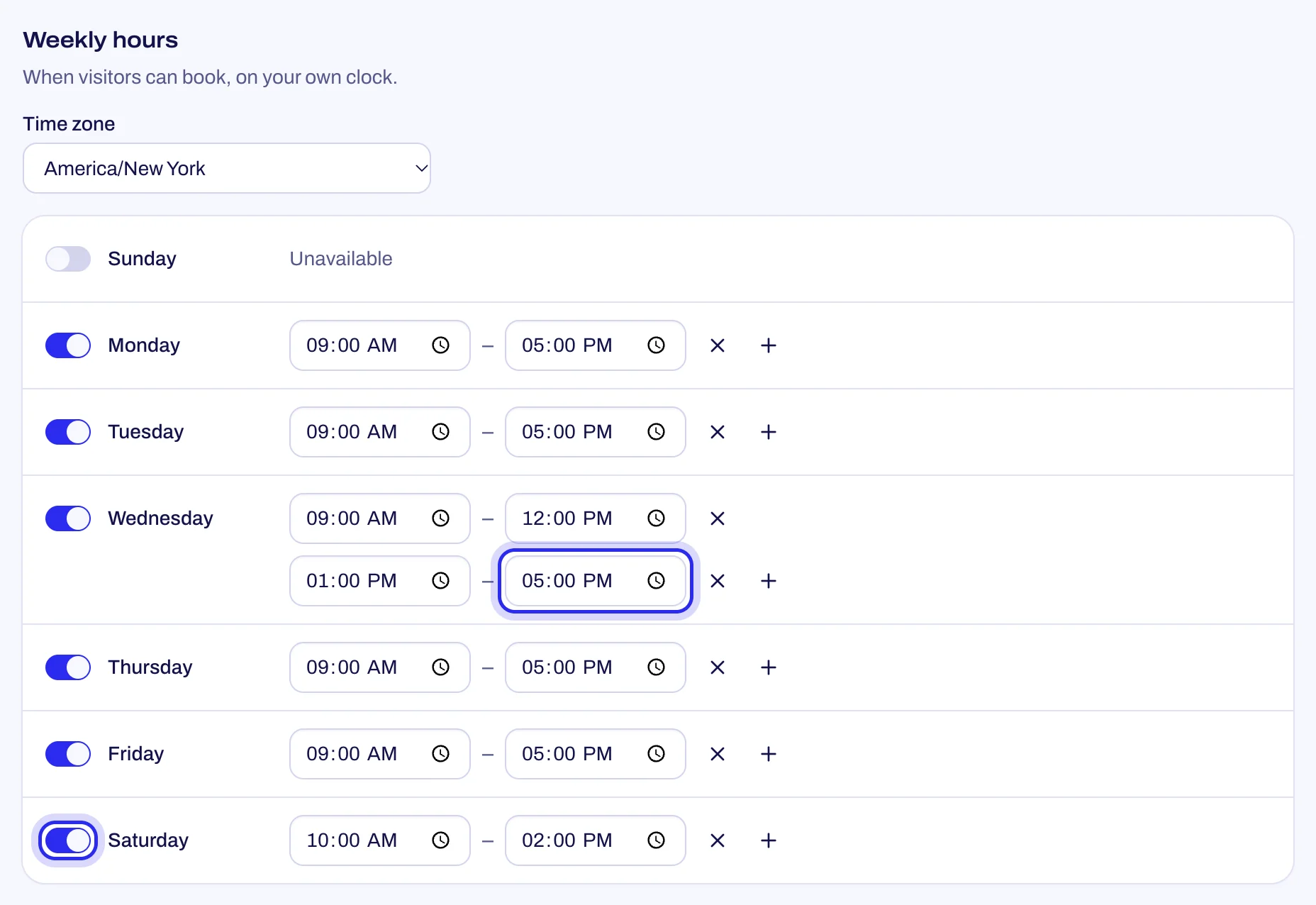
- Select Save availability in the bar at the bottom.
Ranges that overlap are joined when you save. Your hours follow your local clock through daylight saving changes.
When bookings can start
A booking has to fit inside one of your ranges. Start times are spaced for you, counted from the start of each range:
| Booking length | Start times |
|---|---|
| 30 minutes or longer | Every 30 minutes |
| 20 minutes | Every 20 minutes |
| 15 or 25 minutes | Every 15 minutes |
For example, with hours from 9 AM to 5 PM, a 60-minute booking can start at 9:00 AM, 9:30 AM, 10:00 AM and so on, up to 4:00 PM.
Add date overrides
A date override replaces your weekly hours on one date. Use it for a holiday, a day off or a day with different hours.
- Under Date overrides, choose the Date and select Add a date.
- The date is added as Unavailable all day. To open other hours instead, turn that switch off and set the times.
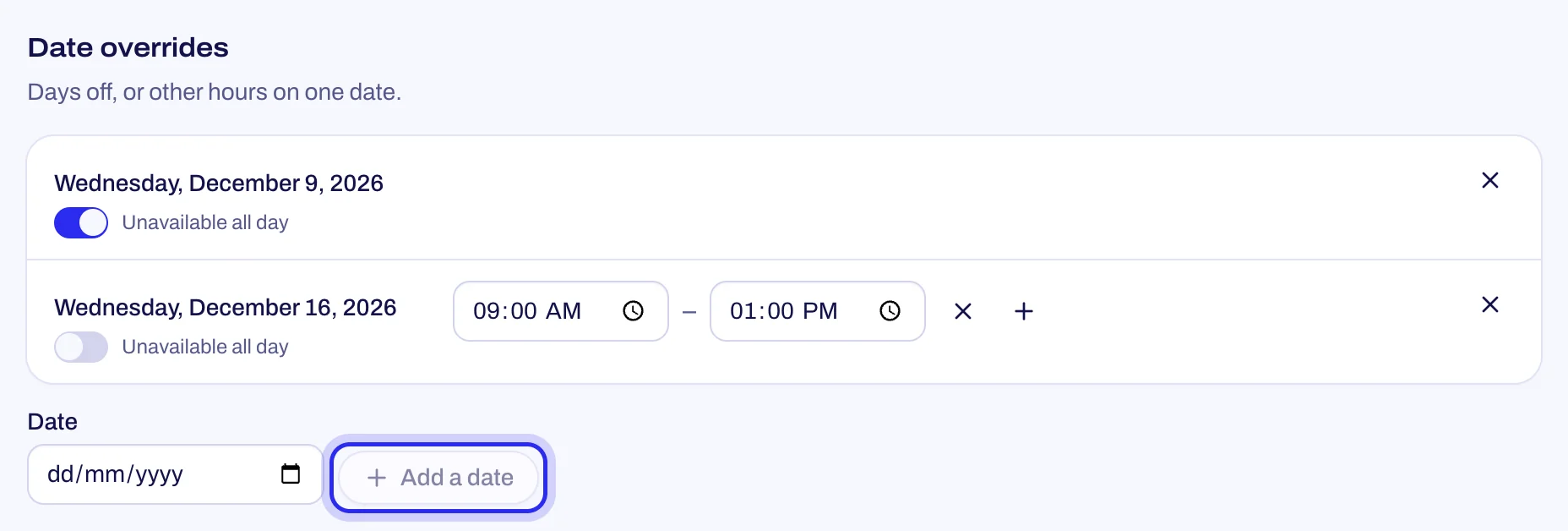
- Select Save availability.
To remove an override, select the X beside it.
Set the booking rules
Under Booking rules, choose each one from its menu, then select Save availability.
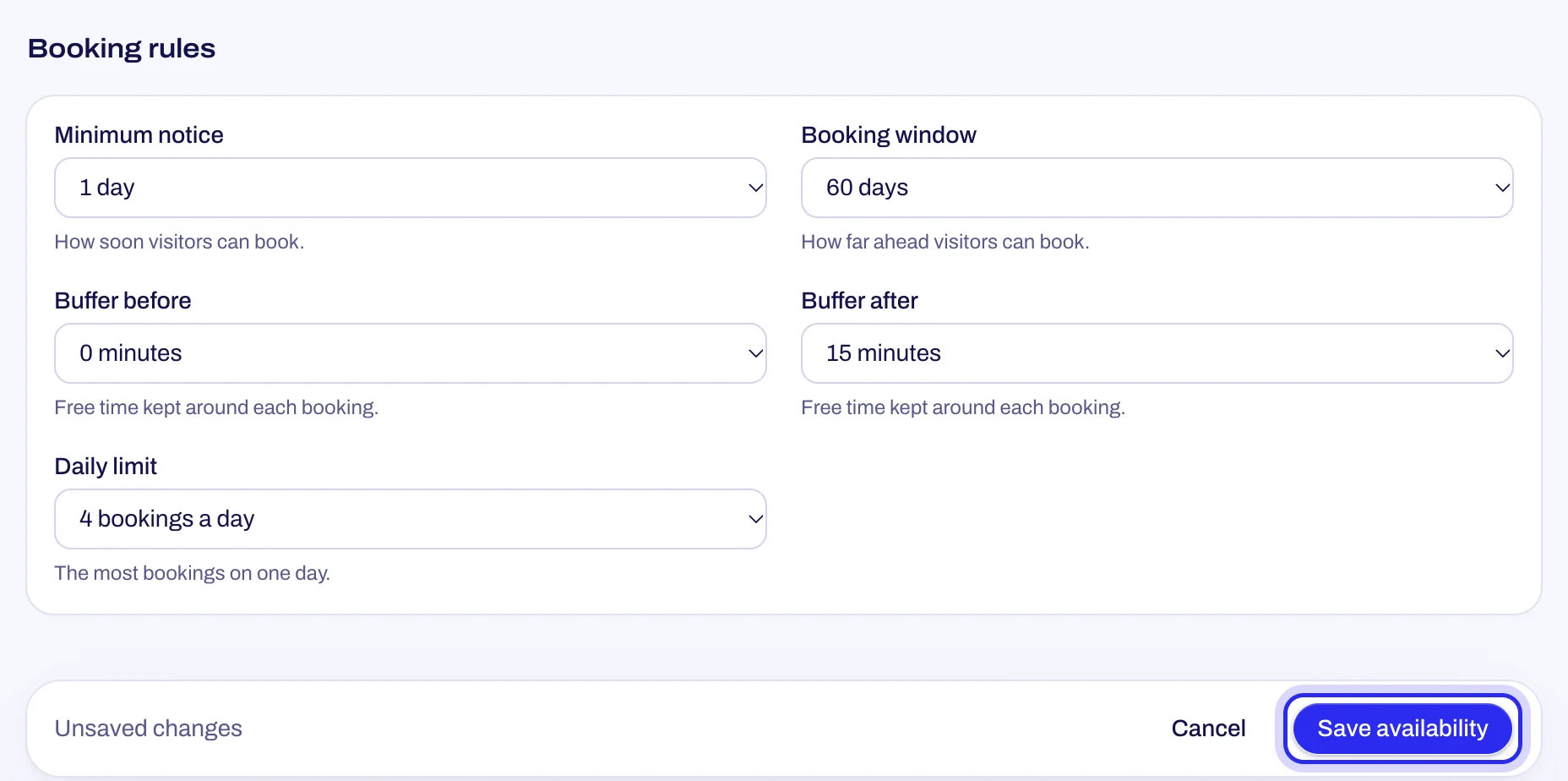
| Rule | What it does | Choices |
|---|---|---|
| Minimum notice | How soon visitors can book. With 4 hours, at 10 AM the earliest time is 2 PM. | From 0 minutes to 7 days |
| Booking window | How far ahead visitors can book, counted in days from today. | 7, 14, 30, 60, 90, 180 or 365 days |
| Buffer before | Free time kept before each booking. | From 0 minutes to 1 hour |
| Buffer after | Free time kept after each booking, such as time to travel or write notes. | From 0 minutes to 1 hour |
| Daily limit | The most bookings on one day, counting every booking type on this page. | No limit, or from 1 to 20 bookings a day |
The rules start at 4 hours' notice, a 60-day window, no buffers and no daily limit. Days for the window and the daily limit are counted on your clock, and canceled bookings don't count toward the limit.
Good to know
- Bookings already made stay put. Changing your hours or rules doesn't move or cancel them, and each keeps the buffers it was booked with. To call one off, see See and cancel bookings, and how guests reschedule.
- One calendar per page. All booking types on a page share these hours, so a booking of one type takes that time away from the others. Pages don't block each other's times, even in the same workspace.
- Linkbase doesn't read your other calendars. When you're busy elsewhere, add a date override or change your hours.
Troubleshooting
A time I expected isn't offered. One of these applies: it's sooner than your minimum notice, it's past your booking window, the booking with its buffers overlaps another booking, the day has reached its daily limit, or the booking doesn't fit before the range ends.
Visitors see "No open times this month." Check that some days are switched on, and that the booking window reaches that month.
"End after it starts." A range's end time is before or the same as its start time.
Times look wrong to visitors. Check the Time zone at the top of Weekly hours. Your hours are set in it, and visitors see them converted to their own.
Save availability is grayed out. A range has an error. Fix the range marked in red, then save.