Build a form
Add a form to your page, choose its fields, make them required, write hints, and set the message people see after sending.
A Form block asks visitors questions and keeps every reply in Audience → Forms. Use it for contact requests, inquiries, applications or short surveys.
Before you start
- Forms are included in every plan. If your plan caps form answers a month, Pricing shows the limit.
- Replies come only from your published page. In the editor and in preview links, visitors can fill the form in but can't send it.
- Changes to a form reach visitors when you publish.
Add a form
- Open your page in the editor and select Add block at the top of the structure panel on the left.
- In the block library, choose Forms & audience, then Form.
- The form is added with three fields: Name and Email, both required, and an optional Message. Its settings open in the panel on the right.
- Give it a Title (up to 120 characters) and, if it helps, a Description (up to 500).
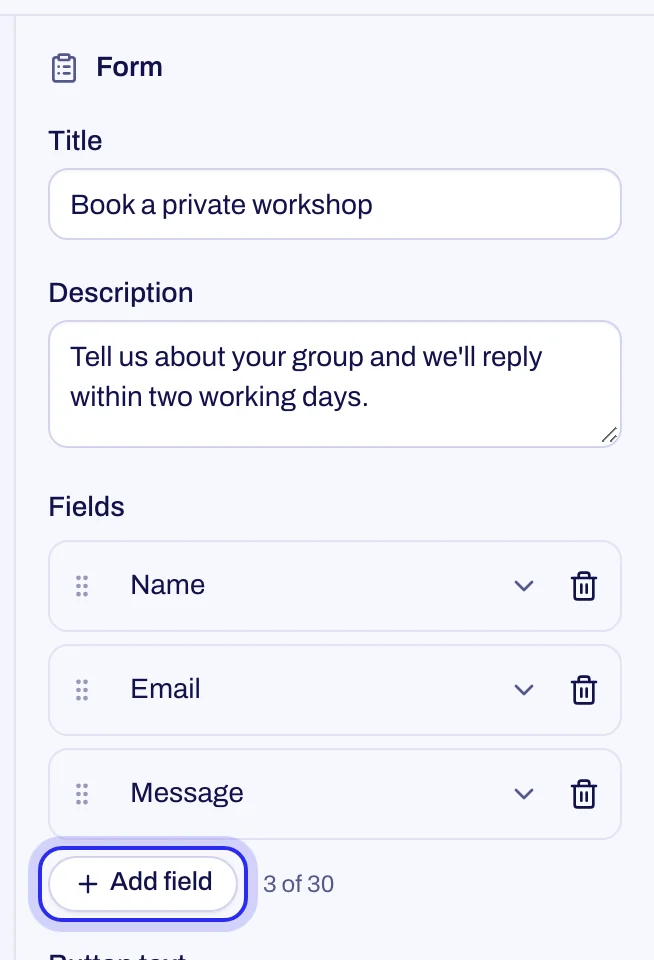
- Edit the fields as described below.
- Select Publish in the top bar.
Add and arrange fields
Under Fields:
- Select Add field. A new Short text field is added at the end, with its settings open. A form holds up to 30 fields.
- Choose its Type first, because its other settings depend on it.
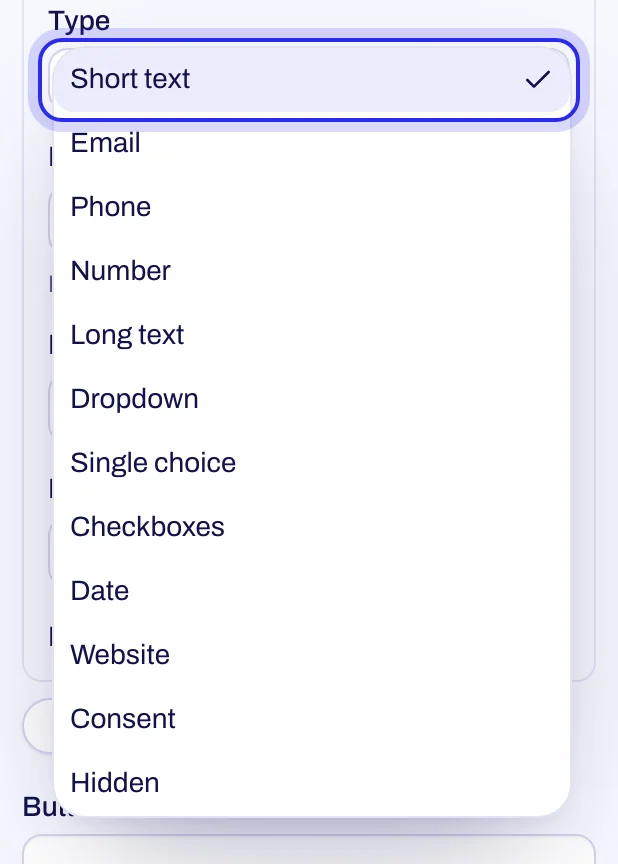
- Fill in the field's settings (see "Each field's settings" below).
- Select a field's name to open or close its settings.
- Drag a field by its handle to move it up or down, or select the trash icon on a field to remove it.
Field types
| Type | What visitors give | What's checked |
|---|---|---|
| Short text | One line of text | Up to 300 characters |
| Long text | A message of several lines | Up to 5,000 characters |
| An email address | That it's a valid address | |
| Phone | A phone number | Digits with spaces, +, brackets, dots or hyphens; 6 to 15 digits |
| Number | A number | Between Smallest and Largest, if you set them. A decimal comma is fine |
| Date | A date from a date picker | That it's a real date |
| Website | A web address | That it's a web address. If https:// is missing, it's added |
| Dropdown | One choice from a list | That it's one of your options |
| Single choice | One choice, shown as round buttons | That it's one of your options |
| Checkboxes | Any number of choices | That each is one of your options |
| Consent | One box to tick, such as agreeing to be contacted | That it's ticked, when required |
| Hidden | Nothing: visitors don't see it | Sent with every reply |
Each field's settings
- Label: the question above the field, up to 120 characters. Leave it empty to use the type's default, such as "Name" for short text or "Message" for long text. For Consent, this setting is called Text to agree to, and it's what visitors tick.
- Placeholder: sample text inside the box before anyone types. It's offered for short and long text, email, phone, number, website and dropdown fields.
- Options: for Dropdown, Single choice and Checkboxes. Write one option per line, up to 20 options of up to 100 characters each.
- Smallest and Largest: for Number fields.
- Hint: a short note under the field, up to 200 characters, such as "We reply within two working days."
- Required: visitors can't send the form until it's filled in. Optional fields show "(optional)" after their label. A Consent field starts out required.
- Value and Address parameter: for Hidden fields, which have these instead of a hint and Required. See below.
Ask only what you need to answer. Every extra required field is one more reason to leave, so start with the defaults and add fields one at a time.
The button and the message after sending
Below Fields:
- Button text: up to 40 characters. Leave it empty for Send.
- Thank-you message: shown in place of the form once it's sent, up to 300 characters. Leave it empty for a short default thank-you. Say what happens next, for example "Thanks. We'll reply to your email within a day."
- Email me about new submissions: on for new forms. See Get an email for each form reply.
Track where replies come from with a hidden field
A Hidden field sends a fixed Value with every reply, or reads an Address parameter from your page's address. For example, set Address parameter to ref, then put your page's address with ?ref=instagram added to the end in your Instagram bio. Replies from that link arrive with "instagram" in the hidden field. When the parameter isn't in the address, the field sends its Value, if it has one.
This works with campaign tags too. See Track campaigns with UTM tags.
What visitors see
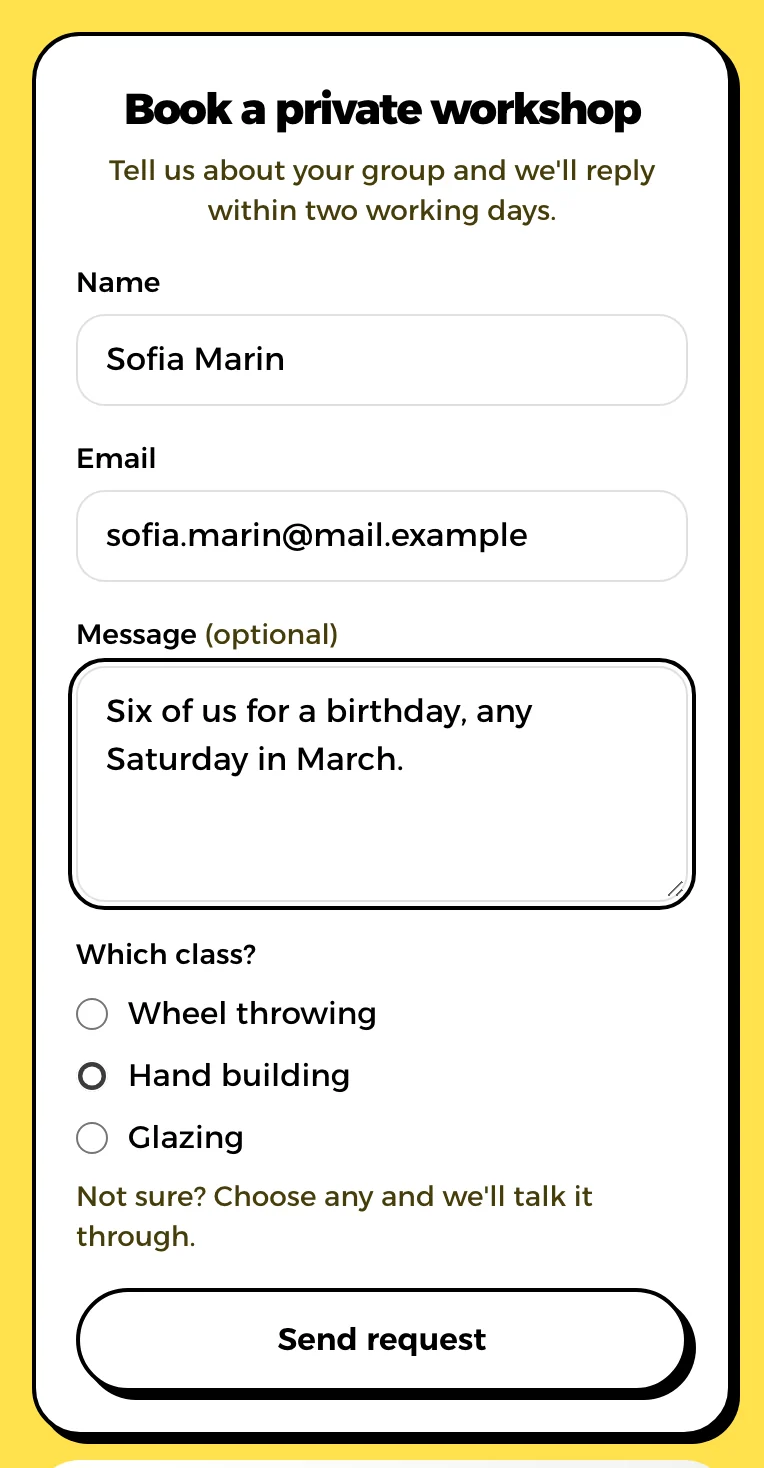
Field labels you leave empty, the default button text and every error message appear in your page's language. What you write appears exactly as you wrote it.
If something is missing or doesn't look right, the field says so, for example "Fill in this field." or "Enter an email address, like name@example.com.", and the first problem gets the focus. Every answer is checked again when it arrives, so nothing slips past the form.
Changing a form later
- Renaming a field keeps its answers together: earlier replies stay under the same column with the new name.
- Removing a field doesn't remove its answers. Earlier replies keep that column in Audience and in exports.
- Adding a field adds a column. Earlier replies leave it empty.
Common questions
Where do replies go? To Audience → Forms. The form appears there once it gets its first reply. See View, search and export your audience.
Does sending a form add people to my subscribers? No. A form keeps replies only. To build an email list, add an Email signup block.
Can visitors attach files? No. Forms take text, numbers, dates and choices.
Visitors see "This form isn't accepting answers right now." Your plan doesn't include forms, or the account has used this month's form answers. The Forms tab says so when it's the limit. New answers are accepted again next month, or after an upgrade.
How do I stop spam? Forms have several protections built in. See How forms keep spam out.