Show your plans with a pricing table
Compare up to three plans or packages side by side, with their features, one highlighted plan and a button for each.
The Pricing block compares up to three plans or packages side by side: a name, a price, what's included and a button for each. Highlight one to draw the eye to it. Use it for coaching packages, memberships, service tiers or rate cards.
Before you start
Pricing tables are included in every plan. Have a link ready for each plan's button: a checkout, a booking page or a chat. A button can also open another tab of your page, such as one with your booking calendar.
Add a pricing table
- Open your page in the editor and select Add block at the top of the structure panel on the left.
- In the block library, choose Commerce, then Pricing. You can also search for "plans" or "packages". Its settings open in the panel on the right.
- Under Plans, select Add plan. Its fields open below it.
- Enter the plan's Name. A plan shows on your page once it has a name.
- Set the Price, and in Period say what it's for, such as per month, per session or one-time.
- In Features, list what the plan includes, one feature per line.
- Optional: turn on Highlight this plan for the one you recommend.
- Under Destination, enter the Button link, or choose A tab on this page.
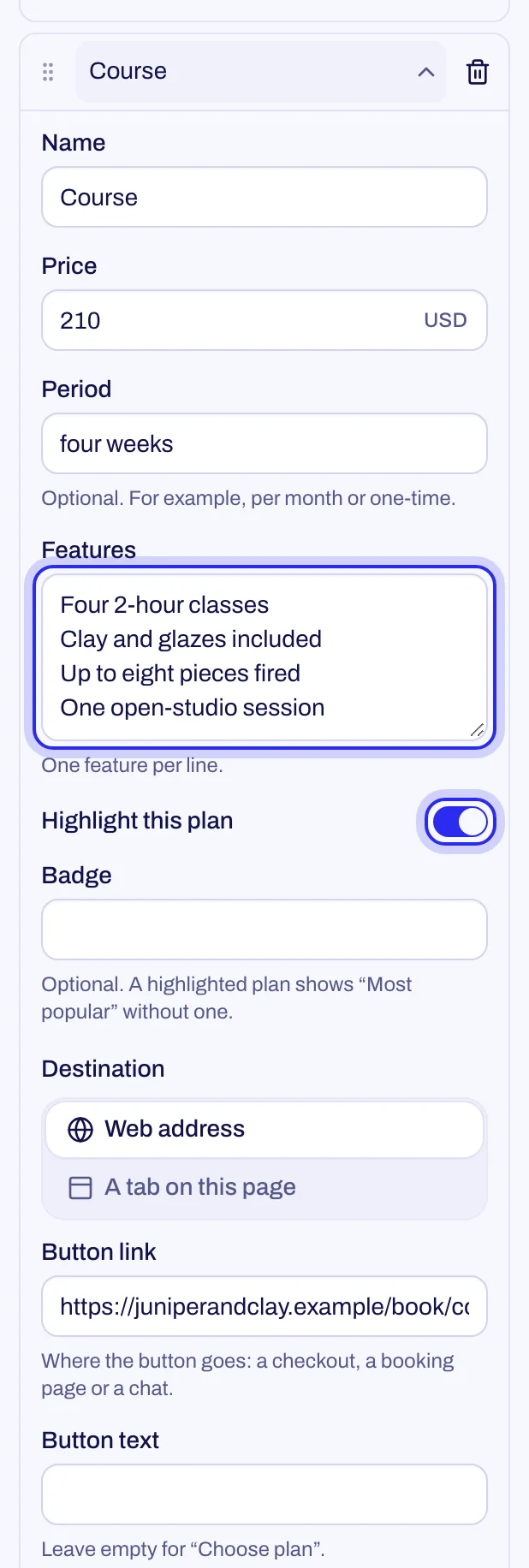
- Add up to two more plans, choose the Currency below the list, then select Publish in the top bar.
To change the order of the plans, drag them by the handle at the start of their row.
Plan fields
| Field | What it does | Limit |
|---|---|---|
| Name | The plan's title. | 60 characters |
| Price | Shown in the table's currency. Leave it empty to show no price. | |
| Period | Small text after the price, exactly as you write it. It needs a price to show. | 40 characters |
| Features | A list with check marks, one line each. Blank lines are skipped. | 1,200 characters in all |
| Highlight this plan | Draws attention to this plan (see below). | One plan at a time |
| Badge | A short label beside the plan's name, such as Best value. | 24 characters |
| Button link | Where the button goes. Without a link, the plan has no button. | |
| Button text | The button's label. Leave it empty to show Choose plan. | 40 characters |
Highlight your recommended plan
Turn on Highlight this plan for the plan you'd like most people to choose. It gets an outline in your theme's accent color, a button in your theme's button style, and a "Most popular" badge, unless you give it a Badge of your own. The other plans get a plainer, outlined button.
Only one plan can be highlighted. Turning it on for one plan turns it off for the others.
What visitors see
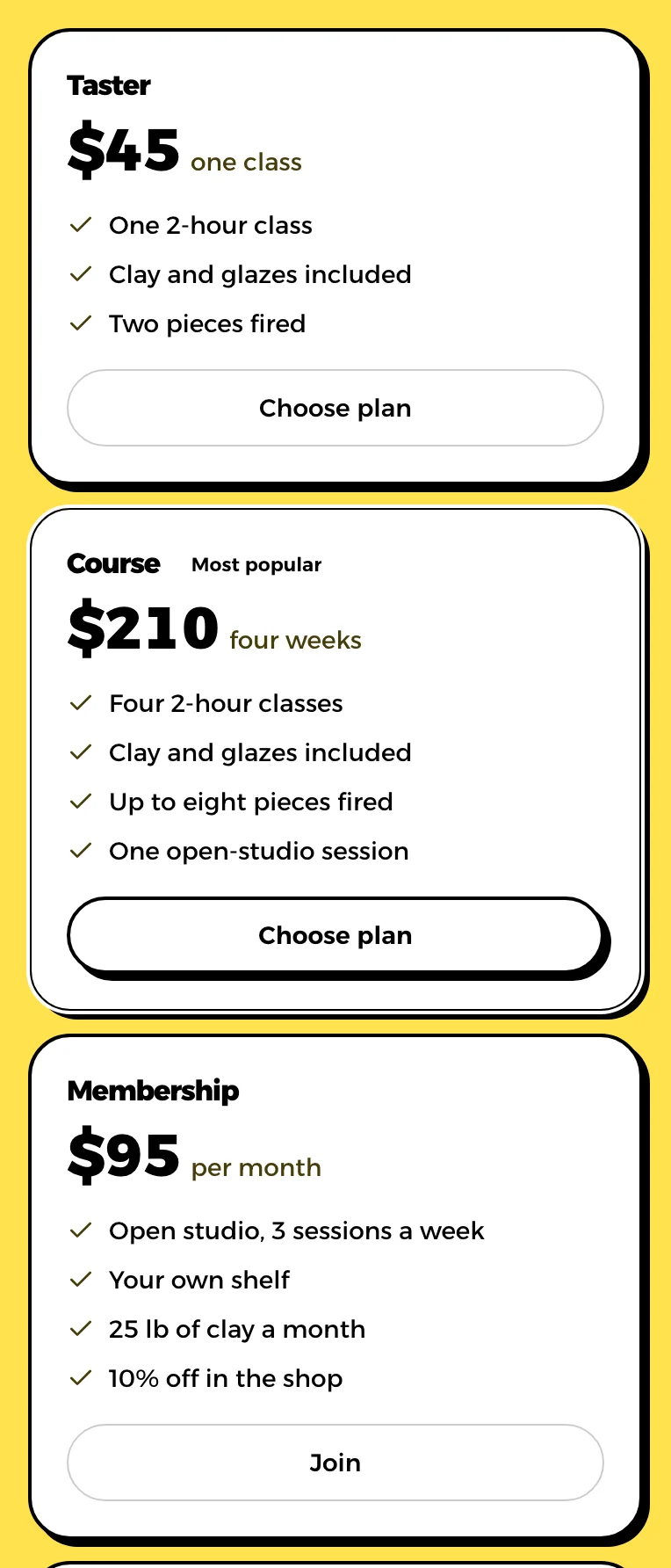
Plans sit side by side when there's room, and stack one above the other on narrow screens. Prices are written the way your page's language writes them, and plans without a name stay off the page. Each tap on a plan's button counts as a click in your analytics.
Pricing table, products or menu?
- Pricing compares up to three options, so visitors can weigh them against each other.
- Products suits a catalog with a photo and buy button for each item. See Sell with product cards.
- Menu suits long lists of services or dishes in sections. See Add a menu or price list.
Tips
- Keep feature lines short and put the most important first. Visitors compare plans line by line.
- List features in the same order on every plan, so the differences stand out.
- Changing the currency doesn't convert prices. The amounts stay as you typed them.
For how to name and order your tiers and which to highlight, read Compare packages at a glance with a pricing table that sells.
Troubleshooting
The block shows "Add a plan with a name to show this pricing table". No plan has a name yet. Visitors don't see the table until one does.
Add plan is grayed out. A pricing table holds up to three plans. For more, add a second Pricing block, or list your options in a menu.
A plan has no button. It has no Button link, or it links to a tab that was deleted or hidden. Choose another destination.
The highlight moved to another plan. Highlighting one plan turns it off for the others. Turn it on again for the plan you want.
"Enter an amount in digits, such as 19.99." Prices take digits and one decimal separator, with no currency symbol. A separator before three digits is read the way your page's language writes numbers, so 1,200 is twelve hundred on an English page. If it could mean two things, Linkbase asks which you meant.