Add Meta Pixel, Google Analytics or Tag Manager
Add your Meta Pixel, Google Analytics 4 or Google Tag Manager ID to a page. They load only for visitors who accept.
Paste the ID of your Meta Pixel, Google Analytics 4 property or Google Tag Manager container, and Linkbase adds the code to your page. Use it to measure your ads, or to see your page's visits in a service you already use. Visitors are asked first: nothing loads until they accept, and never for browsers that ask not to be tracked.
Tracking pixels are on the Pro and Team plans. On other plans, the Tracking pixels section shows an upgrade prompt instead of the fields. See the pricing page.
Before you start
You need to be able to edit the page, and you need the ID from the service, not its code snippet:
| Field | What the ID looks like |
|---|---|
| Meta Pixel ID | A number, like 123456789012345 |
| Google Analytics 4 measurement ID | G- then letters and numbers, like G-XXXXXXXXXX |
| Google Tag Manager container ID | GTM- then letters and numbers, like GTM-XXXXXXX |
Add a pixel
- Open the page in the editor.
- Look at the settings panel on the right. With no block selected, it shows Page, your page's settings. If a block's settings are showing, select your name at the top of the preview.
- Open Tracking pixels, the last section of the page's settings.
- Paste the ID into its field: Meta Pixel ID, Google Analytics 4 measurement ID or Google Tag Manager container ID. Spaces are removed, and letters in Google IDs are capitalized for you.
- Press Enter or move to another field. A valid ID is saved. Anything else shows the format it expects, such as "A measurement ID looks like G-XXXXXXXXXX."
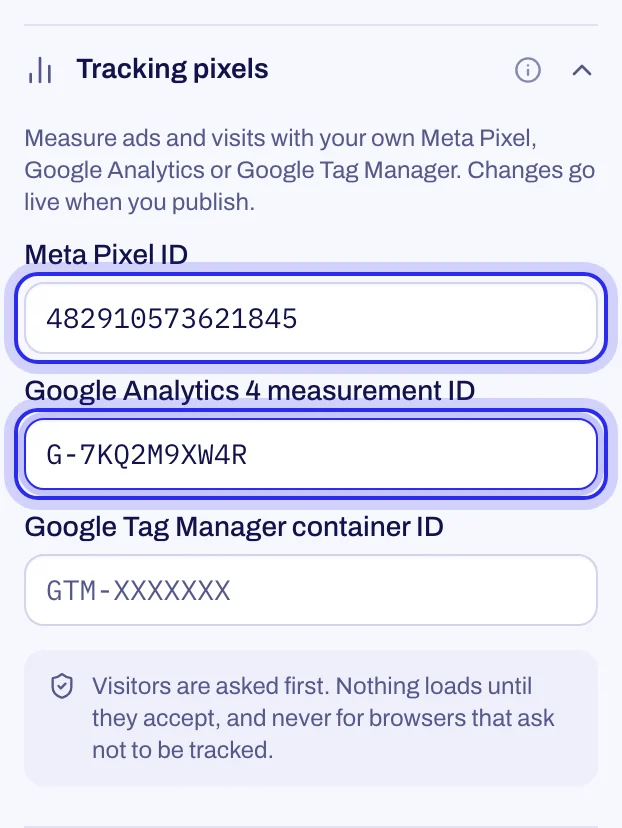
- Select Publish in the top bar. Pixels are part of your page, so they go live only when you publish.
You can add one, two or all three.
What visitors see
The first time someone opens a page with pixels, a Cookies and tracking prompt appears at the bottom of the page. It names your services and offers Decline and Accept.

- Accept loads your pixels for that visit and later ones.
- Decline loads nothing, and the page works exactly the same.
- Privacy choices, at the foot of the page, lets visitors change their answer at any time.
Their answer is remembered for that page for six months, then they're asked again. If you add a pixel or change an ID, every visitor is asked again.
Browsers that send Do Not Track or Global Privacy Control are never asked and never load a pixel. For them, Privacy choices explains that the page loads no tracking. See Change your privacy choices on a page.
What the services receive
When a visitor accepts, Meta Pixel records a page view, Google Analytics records its page view, and Tag Manager loads your container with the tags in it. Linkbase doesn't send them anything else, such as link clicks. Your Linkbase analytics count those.
To use another service's tag, add it to your Google Tag Manager container. It loads only when the container does, after the visitor accepts.
Expect lower numbers in those services than in your Linkbase analytics. Linkbase counts every visit without cookies, including visitors who decline, while pixels only measure visitors who accept.
Check that it works
Preview links never load pixels. To check, publish the page, open its live address, select Accept, then look for the visit in the service's own reports.
If you don't see the prompt on your live page:
- You haven't published since adding the ID. Select Publish.
- You already answered it. Your answer is remembered. Select Privacy choices at the foot of the page to see it again.
- Your browser sends Do Not Track or Global Privacy Control. Then the page never asks and never loads a pixel. Try another browser.
Remove or change a pixel
- Open Tracking pixels in the page's settings.
- Clear the field, or paste a new ID.
- Select Publish.
If the workspace moves to a plan without tracking pixels, published pages keep the pixels they have, and the fields stay so you can remove them. Adding a pixel or changing an ID needs Pro or Team again.
Your part in consent
Pixels send visitors' data to the services you choose, so you're responsible for that data and for the notices and consent the law requires where your visitors are. The prompt helps, but it doesn't replace your own privacy policy where you need one. Our Terms of Service and Cookie Policy explain who is responsible for what, and our guide to privacy-friendly analytics covers the rules in plain language.