Create and style a QR code
Make a dynamic QR code for your page with your colors and logo, check that it scans, and download it as a PNG or SVG.
Every page has one QR code, and it's dynamic: it opens your page's main address until you choose somewhere else, such as one of your page's tabs or, on Pro and Team, any web address, and you can change that at any time, even after it's printed. It counts each scan, and takes your colors and logo before you download it for flyers, packaging, signs or screens.
Before you start
- You need to be an editor, admin or owner in the workspace. See Roles and what each can do.
- The code works before your page is live, but until you publish, scans show a "not available" page.
Starter includes one QR code, and Pro and Team include as many as you need. The count covers all the workspaces the owner has, and a code counts from the first time you open it. Compare plans on the pricing page.
Open your page's QR code
- Open your page in the editor.
- In the top bar, select QR code, the QR icon beside Share preview. On narrower screens, it's under More.

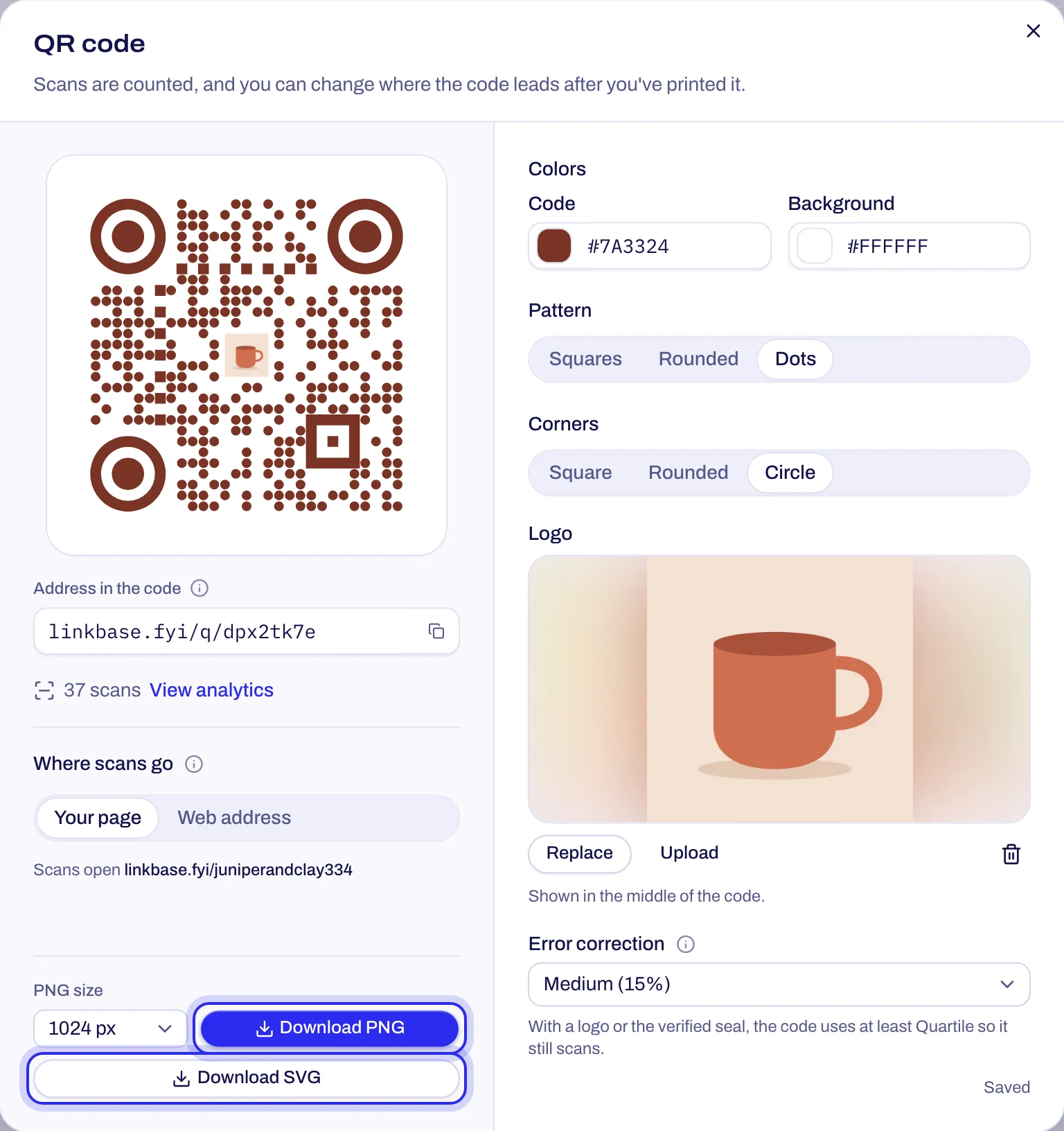
- The QR code dialog opens. The first time, Linkbase makes the code for you.
The dialog shows a live preview, Address in the code with Copy address, the scan count and Where scans go on the left, with the design settings on the right. Every design change saves by itself: the status under the settings reads Saving…, then Saved.
Choose where scans go
Under Where scans go, choose Your page (the main address, the default), A tab or Web address. Scans open shows where the next scan leads. Your page and its tabs work on every plan, and a web address needs Pro or Team. You can change it again whenever you like without reprinting the code. See Track scans and change where a QR code points.
Style it
| Setting | Choices |
|---|---|
| Colors | Code and Background. Pick a color, or type or paste a hex code like #1f3a5f. |
| Pattern | Squares, Rounded or Dots. |
| Corners | Square, Rounded or Circle, for the three large markers. |
| Logo | An image from your media library, shown in the middle of the code. Select Choose image or Upload. |
| Error correction | Low (7%), Medium (15%), Quartile (25%) or High (30%). Medium is the default. |
Higher error correction lets phones read a code that's scratched, smudged or partly covered, but makes it denser. With a logo or the verified seal, the code always uses at least Quartile, so it still scans.
If your page is verified, you also get Verified seal: it shows your verified badge in the middle of the code, so people see whose code it is before they scan. See Get the verified badge.
Watch for the warnings under Colors:
- Low contrast: some phones may not scan this code. Make the code darker or the background lighter.
- A light code on a dark background doesn't scan with every phone. Swap the two colors.
Download it
- At the bottom left of the dialog, under PNG size, choose 512 px, 1024 px or 2048 px.
- Select Download PNG, or Download SVG.
The download includes your latest changes. Which file to use:
- SVG for anything printed. It stays sharp at any size, and the logo is built in, so you can send the one file to a printer.
- PNG at 1024 px for documents, slides and posts. Choose 2048 px for large prints when a printer asks for PNG.
Test before you print
- Print one copy at the real size and scan it with at least two phones, ideally an iPhone and an Android phone.
- Keep the light margin around the code. Scanners need it, so don't crop it or place the code against a busy background.
- Check what opens. If you see "This link isn't available", publish your page first.
For sizes by format and more print advice, read QR codes for print marketing.
What's inside the code
The code holds a short Linkbase address ending in /q/ and a code, not your page's address. That's how scans are counted, and it means you can change where the code leads, restyle it or connect a domain later without breaking copies you've already printed. Scans lead wherever Where scans go says: your page (on your own domain once one is connected), one of its tabs, or a web address.
Common questions
Can a QR code open one tab or another website? Yes. A tab works on every plan, and another website needs Pro or Team. Under Where scans go, choose A tab or Web address. You can switch back to your page, or anywhere else, whenever you like. See Track scans and change where a QR code points.
Can I have several codes for one page, to compare flyers and posters? A page has one QR code. On Pro and Team, create a short link to your page for each placement, and print each link's own QR code: each one counts its own scans, and you can change where it leads later.
Can I show a QR code on my page itself? Yes, with the QR code block, for visitors on a computer who want to open your page on their phone. It opens the address directly, so it has no scan count. See Every block you can add.
I see "You've used all the QR codes in your plan." Starter includes one QR code, and it's already in use for another page or link. Upgrade to Pro for unlimited QR codes.
Where do I see my scans? Select View analytics in the dialog. See Track scans and change where a QR code points.