Write your page in more than one language
Linkbase never translates your words. Here are four ways to serve readers of several languages, and when each one fits.
Linkbase never translates or changes your words: your bio, link titles and headings appear exactly as you typed them. Linkbase's own labels can follow each visitor's language, so a multilingual page comes down to writing your text in each language and arranging it so readers find theirs.
What changes language on its own
With your page's Default language set to Each visitor's language, these follow each visitor:
- Buttons whose Button text you leave empty, such as Buy, Subscribe, Send, Book a time, Choose plan, Contribute and Shop now.
- Form field labels you leave empty, form messages and errors, and the Made with Linkbase badge.
- Dates, times, prices and numbers in blocks such as products, events and countdowns.
Everything you type stays as typed: your page and display name, bio, tab names, link titles, block text, button text you wrote yourself and your search title.
Leave Button text empty wherever the built-in label says what you mean. Then every visitor reads the button in their own language.
With one fixed default language, Linkbase's labels show in that language for everyone, on every tab. See Choose your page's default language.
Four ways to serve several languages
| Approach | Best for | Watch out for |
|---|---|---|
| Both languages side by side | The same links for everyone | Crowded buttons beyond two languages |
| A tab for each language | Different text for each audience | Keeping every tab up to date |
| A page for each language | Separate audiences, or a right-to-left version | Your plan's number of pages |
| Link rules by country | Separate shops or sites for each market | A country isn't a language |
1. Both languages side by side
Write your bio as one short line per language, and pair the words on your top two or three buttons, such as "Shop · Tienda". This suits two languages. With three, every label grows long, and tabs work better.
2. A tab for each language
- In the editor's structure panel on the left, select Add tab (the plus beside Tabs). A tab called New tab appears.
- Open the new tab's menu (⋯) and choose Edit tab.
- Enter a Tab name in its own language, such as Español, and an Address, such as
es. The hint shows where visitors open it, such as/yourname/es. - Under Search, write the tab's Search title and Search description in that language.
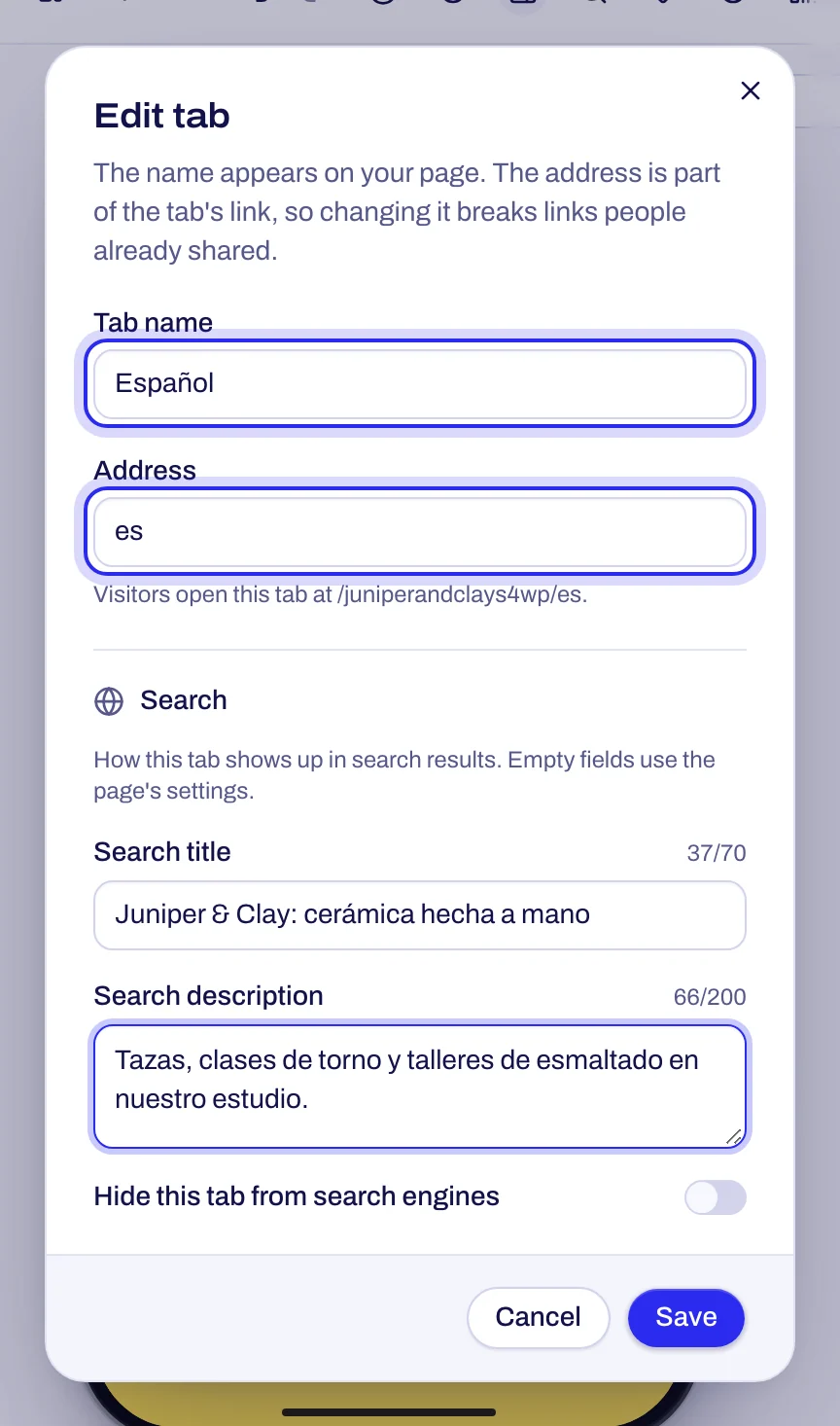
- Select Save.
- Add the tab's blocks, then select Publish in the top bar.
Put your largest audience in the first tab: it's what your main address opens, and it uses the page's own Search & sharing settings. Share each tab's address in posts in that language. Keeping the same blocks in the same order on every tab makes updates easier. For more, see Split your page into tabs and Link straight to one tab of your page.
Labels follow the page's language setting, not the tab. With Each visitor's language, add a Language button so a reader whose browser is set to another language can switch the labels to match the tab they're reading.
3. A page for each language
Give each language its own page, with its own address and Default language. Labels, dates and direction then match the text for every visitor. It suits audiences that don't overlap, or a right-to-left version of an English page.
To start from the same design, open the page's menu in Pages, choose Duplicate, then select Duplicate page. The copy keeps every tab, block and social link and starts as a draft at a new address. Rewrite it, set its language, and link the two pages to each other near the top. How many pages you can have depends on your plan. See Have more than one page.
4. Link rules by country
On the Pro and Team plans, link rules send one button to different addresses by the visitor's country or device, such as your German shop for visitors in Germany. A visitor in Switzerland might read German, French or Italian, so use tabs for languages and link rules for markets. See Send visitors to different links by country or device.
Write each language well
- Name languages in their own words, such as Deutsch rather than German, and use names, not flags. A flag stands for a country.
- Have a fluent speaker check each version. A draft preview link shows them the page exactly as visitors will see it.
- Put dates and times in blocks, not in text, so they're written for each reader. See How prices, dates and times are shown.
For worked examples across Europe, read Multilingual link in bio.