Group links in a folder
Put links and other blocks in a folder that opens and closes, or lay them out side by side as a grid or a carousel visitors swipe.
A Folder groups blocks under one title. Use it to keep a long list of links tidy behind a title visitors open, or to show blocks side by side as tiles in a grid or a carousel.
Add a folder
- In the editor, select Add block, then Folder, under Layout.
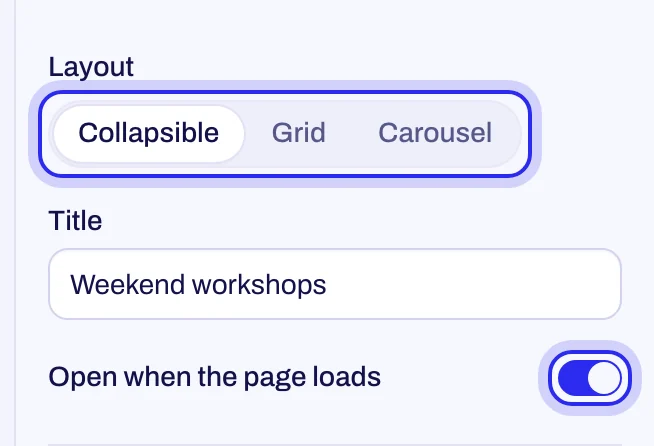
- In the folder's settings, choose a Layout: Collapsible, Grid or Carousel.
- Type a Title. A collapsible folder needs one, since it's what visitors tap. In a grid or carousel the title is optional and shows above the tiles.
- Add blocks inside it, as below.
- Publish.
Put blocks in a folder
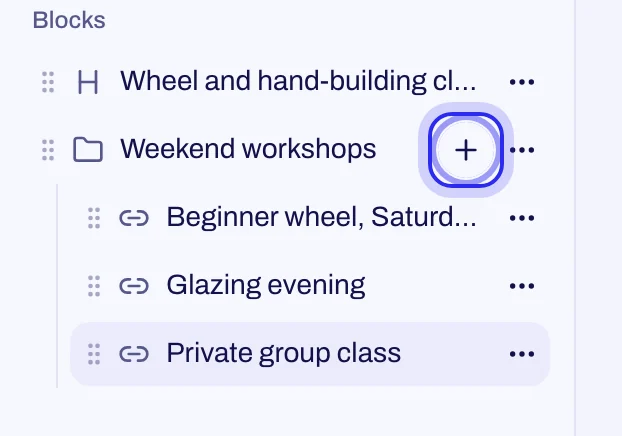
- Add new blocks inside: select the + (Add inside) on the folder's row in the Blocks list. On a phone, it's in the folder's … menu under Blocks. The library says "Goes inside" with the folder's name, and lists only blocks that can go in a folder.
- Drag in on the preview: drop a block on the middle of the folder. The folder shows Move into with its name.
- Drag in on the Blocks list: drag a block just below the folder and slightly to the side, so it lines up with the folder's other blocks.
- With the keyboard: focus the block's grip handle, press Space, then use the side arrow keys to move it into or out of a folder. Press Space again to drop it.
- On a phone: tap the block, then Move up or Move down until it steps into the folder.
To take a block out, drag it out of the folder the same way.
If a block inside a folder is selected when you choose Add block, the new block goes after the folder, not inside it. Use the folder's Add inside to add straight into it.
Choose a layout
| Layout | What visitors see |
|---|---|
| Collapsible | A bar with the title. Tapping it opens the blocks inside; tapping again closes them. |
| Grid | The blocks as tiles in two or three Columns, under the title. |
| Carousel | The blocks as tiles in one row, the next one peeking in, with buttons to move along and swipe on touch screens. |
- Open when the page loads (Collapsible) starts the folder open, for a section you want seen first.
- Switching layouts keeps the blocks inside, so you can try each one.
- Grid tiles stay a half or a third of the page's width on phones too, so image links and short titles fit best.
What can go in a folder
Any block except another Folder and Social icons. Folders hold one level of blocks: there are no folders inside folders.
A folder with nothing visible inside stays off your page, and the preview shows "Drag blocks here to show them" until you add something.
Hide, schedule or lock a folder
What you do to a folder applies to everything in it.
- Hide the folder to take all its blocks off your page at once. See Reorder, hide and duplicate blocks.
- Schedule it to show the whole group between two dates. See Show a block only between two dates.
- Lock it in its Access section: visitors see the title with a lock, and the blocks stay off the page until they enter a password, leave their email or confirm a warning. See Lock a link, tab or folder behind a gate.
Common questions
Can a link inside a folder be in the spotlight? Yes. The spotlight moves it out of the folder to the top of its tab. See Spotlight a link or send visitors straight to it.
Can I move a folder? Yes, like any block. Its blocks move with it, and duplicating a folder copies them too.
My collapsible folder doesn't show. It needs a title. The preview says "Add a title to show this folder" until it has one.