Upload and reuse images
Upload images to your workspace's media library, reuse them in any block or page, and see which files work and what sizes visitors get.
Every workspace has a media library. Upload an image once, then use it in any block or setting on any page in that workspace, without uploading it again.
Upload images
From the media library:
- Open Media in the sidebar.
- Select Upload files, or drag files from your computer onto the grid.
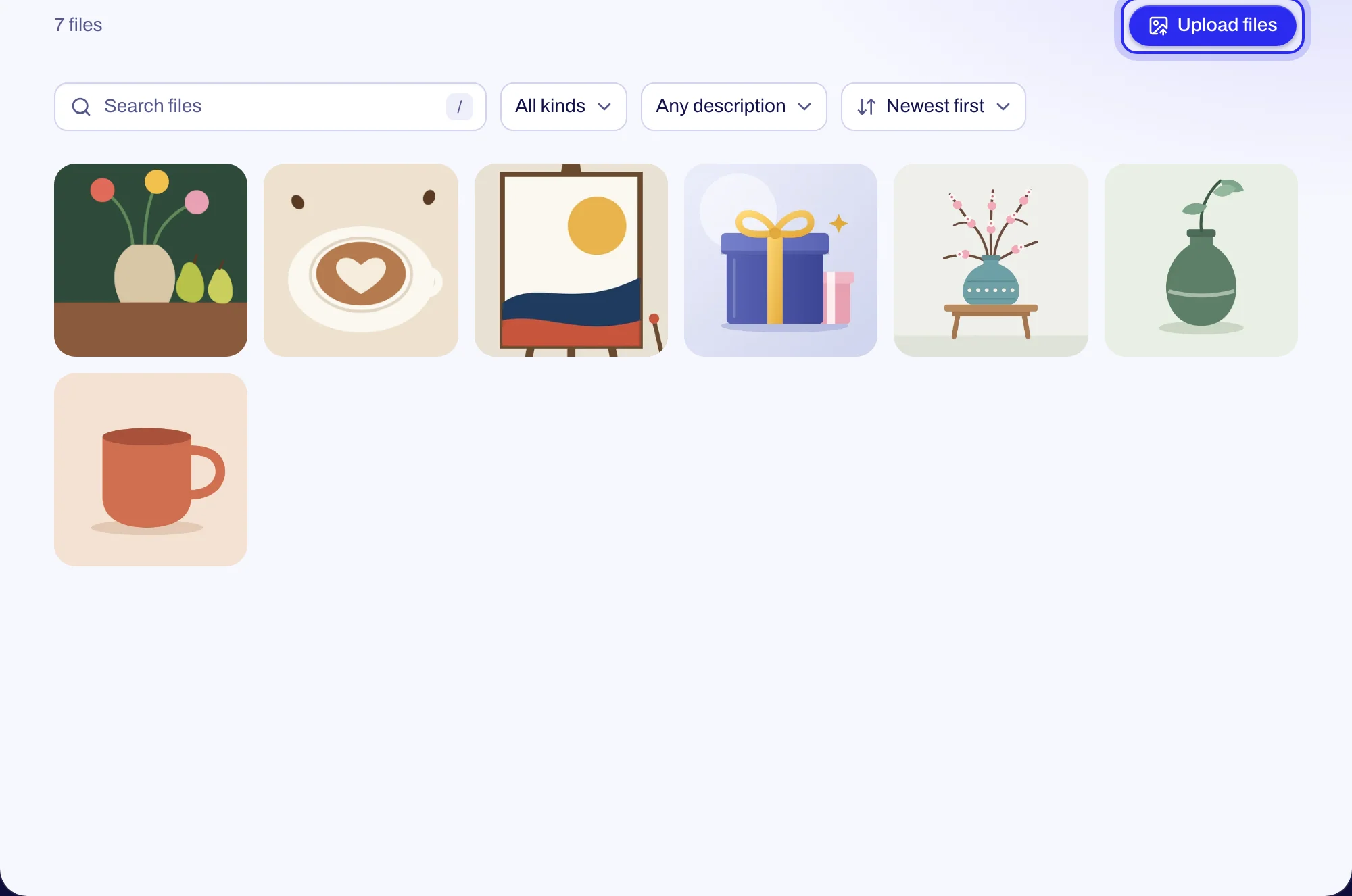
- Each file appears at once with a progress bar, shows Optimizing…, then turns into the finished image.
From a block or setting: in any image field, select Upload, or drop an image onto the field. Images you upload this way land in the library too.
A file that can't be uploaded stays in the grid with the reason, such as "That file is too large. Images can be up to 10 MB.", until you select Dismiss.
What you can upload
| Kind | Formats | Largest file |
|---|---|---|
| Images | JPEG, PNG, WebP, AVIF, GIF | 10 MB |
| Videos | MP4, WebM, MOV | 50 MB |
| Audio | MP3, M4A, AAC, OGG, WAV, FLAC | 15 MB |
- SVG files aren't supported. Export logos as PNG or WebP; both keep a transparent background.
- Videos and audio play in Media grid blocks. See Add a video, song or podcast player.
- Linkbase checks each file's real contents, not its name, so renaming a file doesn't change whether it's accepted.
- You can upload up to 60 files every 10 minutes.
Use an image again
In any image field, select Choose image, pick the image in Choose an image, and select Use image. You can also double-click it.
That works everywhere a page takes an image, such as Image, Gallery and Carousel blocks, link pictures, your profile image and logo, backgrounds and your share image. Galleries and carousels let you pick several images at once, numbered in the order you pick them.
The library belongs to the workspace: every page in it can use the same images, and pages in other workspaces have their own library. When you duplicate a page into another workspace, the images, videos and audio it uses are copied into that workspace's library, and count toward its media storage. See Duplicate a page into another workspace.
What visitors get
- The right size for each screen. Linkbase makes copies of each image 320, 640 and 1280 pixels wide, in WebP, and each visitor's browser loads the smallest one that looks sharp. An image narrower than a size is kept at its own width. For photos that fill the page, upload images at least 1280 pixels wide.
- A blurred preview while the image loads.
- No camera details. The copies visitors get have details such as the photo's location removed. Your original file stays private.
- Animation. Animated GIF and WebP images stay animated.
- Fast pages. Images further down your page load as visitors scroll to them.
Images you add by address, with an Image URL from another site, are shown as they are, from that site. They get none of the above, and they disappear from your page if that site removes them. Uploading is the safer choice.
Describe your images
A description, also called alt text, is what screen readers read aloud and what browsers show when an image can't load.
- In Media, select an image to open its details.
- Type a Description.

- Select Save description. "Description saved" confirms it.
When you pick an image for a block, the block uses the library's description. Blocks follow it from then on: change the description here and every block using the image updates, unless you gave that block its own Description. The profile image, logo and cover in your page's header follow it too, though screen readers skip those images, since your name is right beside them. Pages that are already published show the new description after you publish them again.
Leave the description empty for an image that's only decoration.
Find, sort and delete
- Search files finds images by name or description.
- Filter by kind or description, and sort by Newest first, Oldest first, Name (A–Z) or Largest first.
To delete files:
- Select a file to open its details and select Delete, or select Select above the library, pick files (or Select all) and select Delete. Files no page uses are marked Unused and have a delete button of their own.
- The dialog shows the pages that use them. Choose Move to Recently deleted, or Delete permanently to remove them now.
Files in Recently deleted stay there for 30 days, so you can restore them, and they still count toward your storage until they're removed. Published pages that use a deleted file keep showing it until you republish them; deleting it permanently removes it from them at once. Replace it in your blocks first, so nothing goes missing.
Storage
The bar at the top of the Media section shows how much of your plan's storage the account uses, across all its workspaces: the library, Recently deleted and uploads on their way. Starter includes 1 GB, Pro 5 GB and Team 25 GB; a trial up to 500 MB and an account without a plan 100 MB. Each file also has its own limit: images 10 MB, videos 50 MB, audio 15 MB. When storage is full, new uploads are refused until you empty Recently deleted, delete files you don't use, or upgrade. In an agency's client workspace, the client's people see their own workspace's storage against the limit the agency gave it instead. See Client admins.
Who can upload
Editors, admins and owners can upload, describe and delete files. Viewers can browse the library but not change it, and the library tells them to ask an owner or admin for editor access. See Roles and what each can do.
Troubleshooting
"That file type isn't supported." Save the image as JPEG, PNG, WebP, AVIF or GIF and upload it again. Phone formats such as HEIC need converting first.
"The upload didn't finish." The connection dropped during the upload. Try again.
"Too many attempts. Wait a minute and try again." You've reached the upload limit for now. Wait a few minutes before uploading more.