Find your way around the dashboard
A map of the dashboard: pages and the editor, analytics, audience and bookings, settings and your account menu, and where each task lives.
Everything you make lives in a workspace, and the sidebar takes you to each part of it. For a guided look, open your account menu and choose Take the tour.
The sidebar
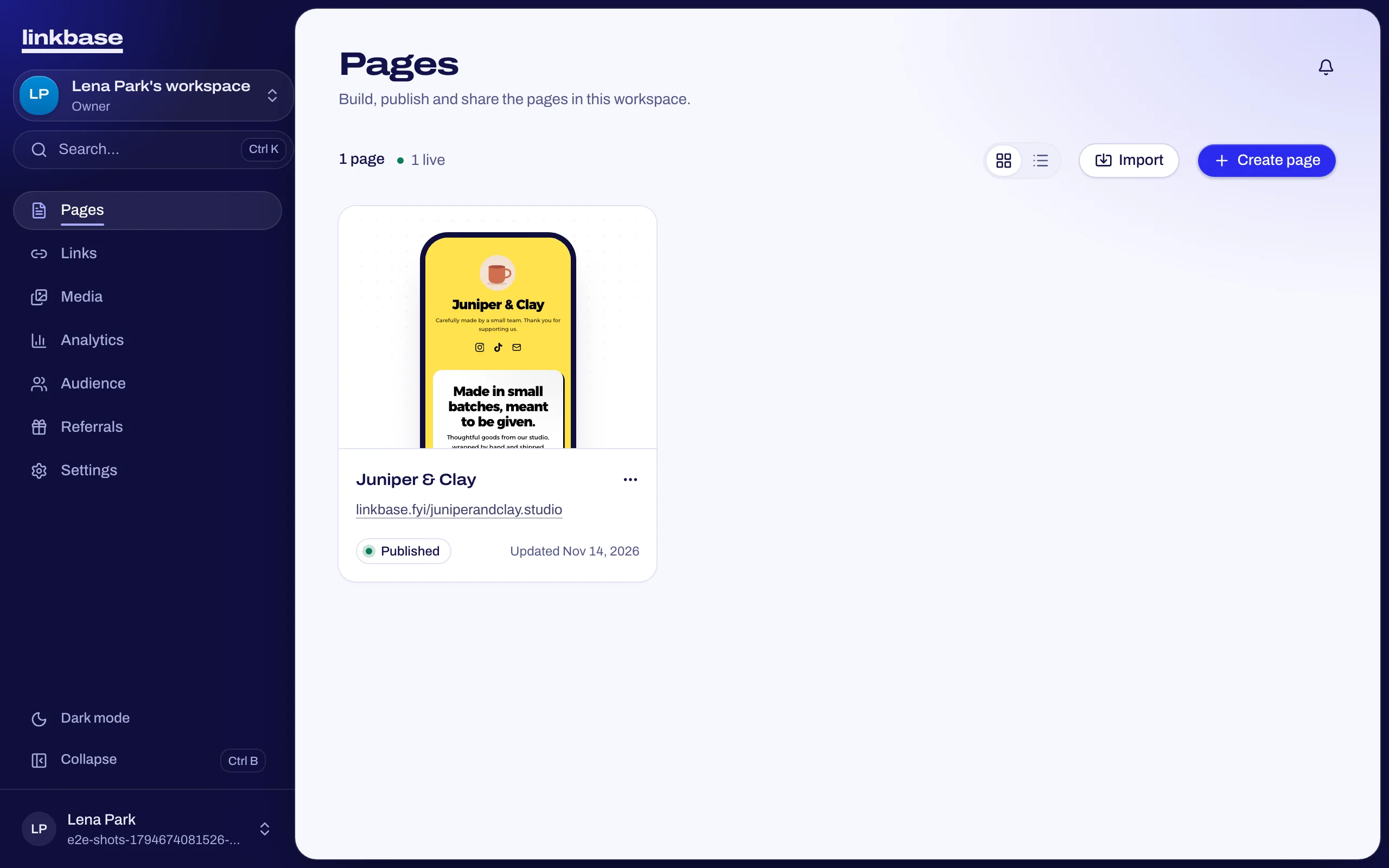
- At the top, the workspace's name opens the workspace menu: your Workspaces, Create workspace, and, if you oversee several, All workspaces to see them side by side.
- Search… opens search and commands (more below).
- The sections, described below.
- At the bottom, Dark mode, Collapse to narrow the sidebar, and your account menu.
The bell at the top right of each screen shows your notifications, such as invitations, handovers and replies from support.
| Section | What it's for |
|---|---|
| Pages | Build, publish and share the pages in this workspace. |
| Links | Short links and QR codes that count every visit. |
| Media | Images you can use on any page in this workspace. |
| Analytics | Views, clicks and where your visitors come from. |
| Audience | People who signed up or got in touch through your pages. |
| Referrals | Invite friends to Linkbase and earn free months. |
| Settings | Name, address and defaults for this workspace. |
Pages
Each page has a card with a miniature, its address and its status. Switch between Grid and List in View as, search by name or username, filter by status and sort the list. Create page and Import start new pages.
A page's menu, the … button on its card, has Edit, Page health, View page (once it's live), Publish or Unpublish, Duplicate, Change address, Move to another workspace and Delete page. Only owners and admins see Change address.
The editor
Edit, or the page's name on its card, opens the editor full screen. Pages, at the top left, takes you back.
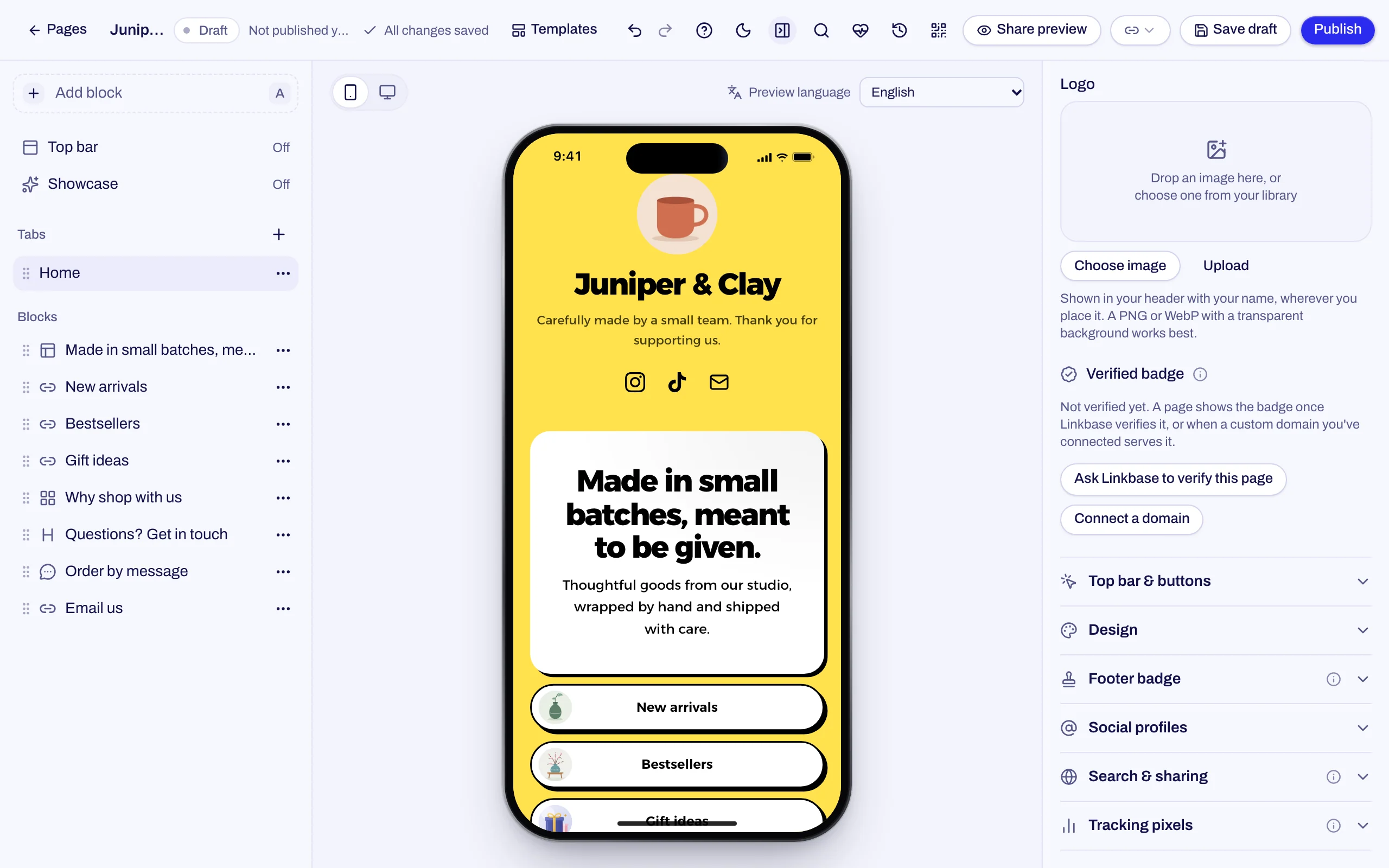
- Top bar: the page's name and status, Undo and Redo, Save draft and Publish, plus Templates, QR code, Share preview, Page health, Version history and Page link. On smaller screens, the extra buttons move into More.
- Structure, on the left: Add block, the page's Top bar and Showcase settings (whether to show the page in the Linkbase showcase on our website, after a review), then its tabs and its blocks, in order.
- Preview, in the middle: your page as visitors see it, on Mobile or Desktop. Click anything on it to edit it.
- Settings, on the right: the selected block's settings, or, with nothing selected, the page's: Page details, Profile, Top bar & buttons, Design, Footer badge, Social profiles, Search & sharing and Tracking pixels.
On phones and tablets, a toolbar at the bottom opens Blocks, Add, Edit and Design. See Add your first links and blocks.
Analytics
Views, unique visitors, clicks and click rate, for one page or all of them, with where visitors come from, their countries and the links they click. See Understand your analytics.
Audience and bookings
Audience has four tabs:
- Subscribers: people who joined your email list through a signup block or an email gate.
- Forms: every reply visitors send through your form blocks.
- Bookings: the appointments people book, with Booking settings for your booking types and hours.
- Integrations: webhooks that send new signups and replies to your other tools.
Bookings are on the Pro and Team plans. See Set up bookings.
Settings
- General: the Workspace name, Workspace URL, Time zone, Email language and the workspace's profile image.
- Members: the people in the workspace and their roles.
- Reports: your weekly summary email and scheduled analytics reports.
- Domains: your own domains for your pages.
- Billing: whose plan the workspace uses.
Your account menu
Select your name at the bottom of the sidebar.
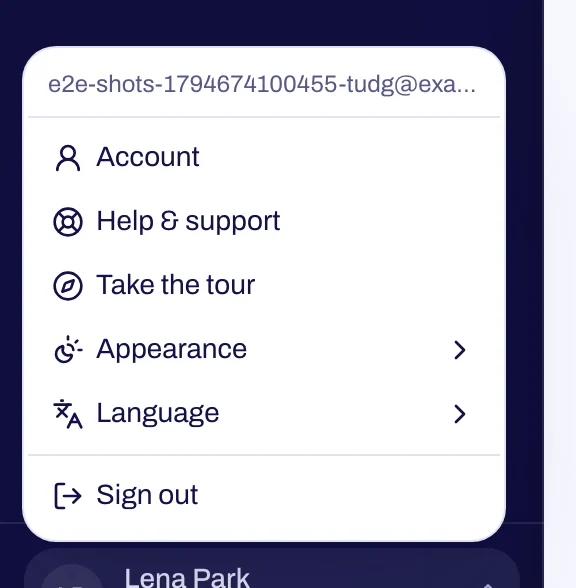
- Account: your account settings, including Profile, Plan & billing, Team, Security, Privacy & data and Notifications.
- Help & support: ask Linkbase for help and follow your requests.
- Take the tour: the one-minute tour of the dashboard, again.
- Appearance: the dashboard's theme, and Light, Dark or System mode.
- Language: the dashboard's language. It doesn't change your pages.
- Sign out.
Search and commands
Press ⌘K on a Mac or Ctrl+K elsewhere, or select Search…, to find any page, section or action and run it without clicking through menus. Type a page's name to open it in the editor, or an action such as "invite" or "theme". In the editor, it also has actions for the page you're on, such as Publish this page and View the live page.
What you see depends on your role
- Viewers see pages and analytics without changing them.
- Audience is for owners, admins and editors.
- Domains, Billing and Referrals appear only for people whose role can use them.