Export analytics and schedule reports
Download any analytics card or the daily rows as a CSV file, and email a page's numbers to anyone every week or month.
You can download the numbers behind any analytics card as a CSV file, and send a page's or the whole workspace's numbers by email on a schedule, to anyone. Use a CSV to build your own charts in a spreadsheet, and a scheduled report to keep a client, a partner or your accountant up to date.
Before you start
- CSV exports and scheduled email reports are on the Pro and Team plans. See the pricing page.
- Only owners and admins can schedule reports. Other members see the list but can't change it.
Download a card as CSV
- Open Analytics, then choose the Page and Date range you want. The file covers exactly what you've chosen.
- On the card, select the download icon in its top corner. Its label names the card, such as Export Referrers as CSV. On a card with tabs, you get the tab that's showing.
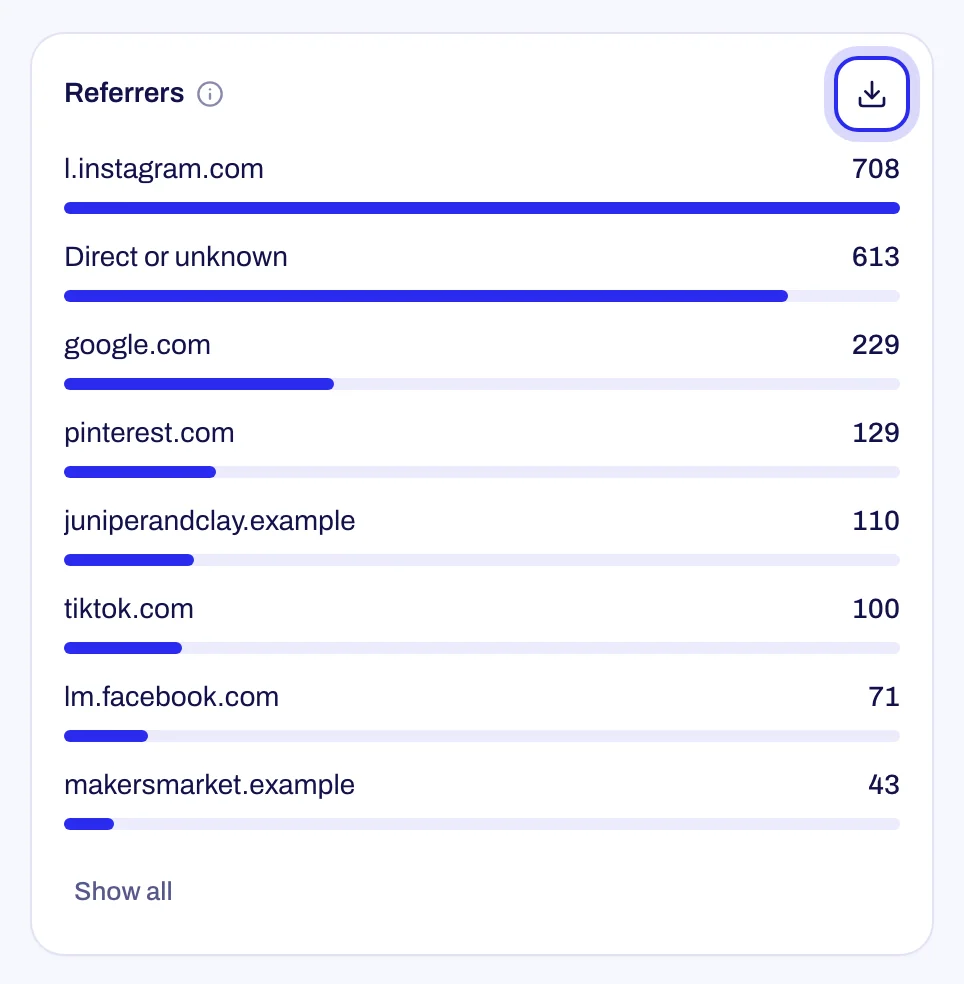
- The file downloads, named after the card and dates, such as
analytics-referrer-2026-10-01-2026-10-31.csv.
The file lists every value, not just the rows the card shows. Most files have the value, then views, visitors, clicks and click_rate. A few differ:
- Top links:
link_id,page,type,title,urlandclicks. - Pages:
page_id,pageandtitlebefore the numbers. - Cities:
countryandcitybefore the numbers.
Download the daily rows
Export daily rows, at the end of the row of filters, downloads the numbers behind everything on the dashboard: one row per day, page and value, with the columns day, page_id, page, dimension, value, views, visitors and clicks. Use it to build your own charts in a spreadsheet. It appears once your pages have had their first visit.
Reading the files
- Column names and values are the same in every language, so files from different months line up.
- Values are stored codes rather than display names: countries are two-letter codes such as
US, languages look likept-BR, and devices aremobile,tabletordesktop. - An empty value means none: a direct visit, a visit without tags, or an unknown country.
- Click rates are decimals, so
0.25is 25%. - Visitors are counted per day, so adding up the
totalrows of the daily file gives the dashboard's totals. - Files stay within the history your plan keeps, and hold up to 200,000 rows. For a very busy workspace, export a shorter range.
Short link and QR code analytics, under Links → Analytics, don't have CSV downloads. To download all of a workspace's data at once, see Download your data.
Schedule an email report
- Open Settings in the sidebar, then the Reports tab.
- Under Scheduled reports, select New report. The New scheduled report dialog opens.
- In Report on, choose All pages or one page.
- In How often, choose Weekly (Mondays at 9:00) or Monthly (on the 1st at 9:00). Times follow the workspace's time zone, named at the top of the dialog.
- Choose the report's Language.
- In Recipients, enter up to 10 email addresses, separated by commas or new lines. Recipients don't need a Linkbase account.
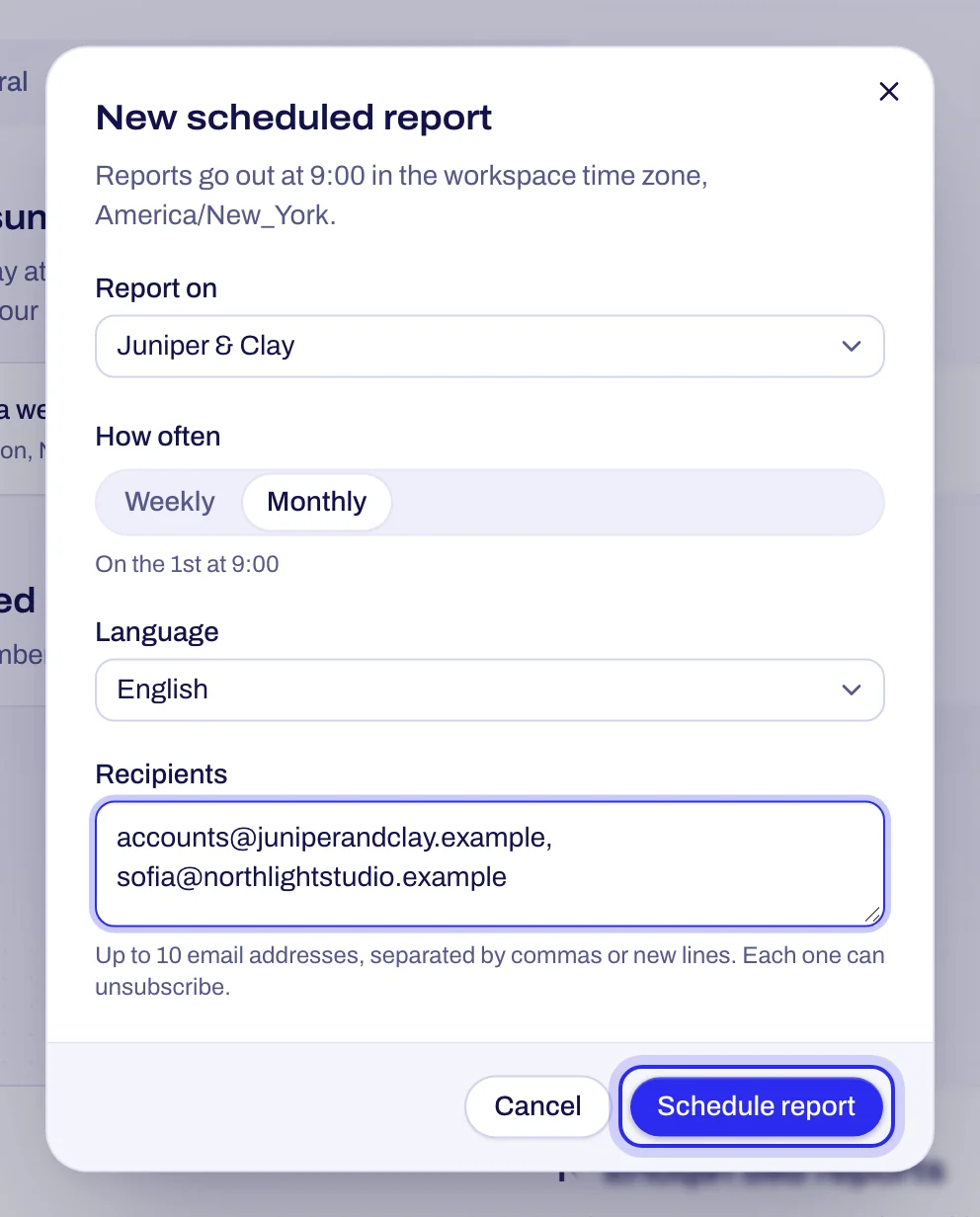
- Select Schedule report.
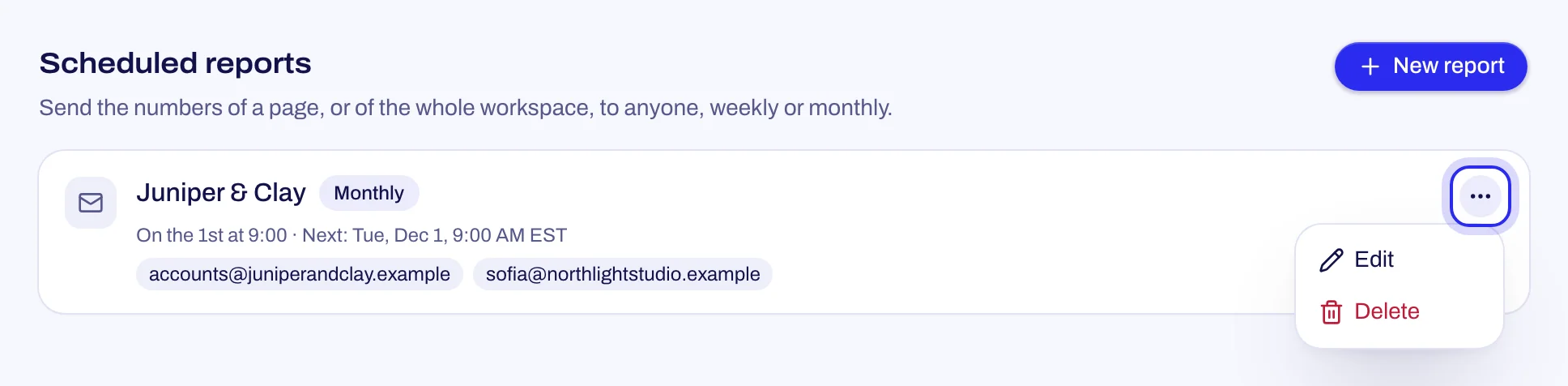
The report appears in the list with its schedule, its recipients and the date of the next one.
A weekly report covers Monday to Sunday, and a monthly report the month before, each compared with the period before it. It has views, unique visitors, clicks and click rate, the top links and top referrers, and an Open analytics button that leads to the dashboard, which only members of the workspace can open. If the period had no views or clicks, nothing is sent.
Change or stop a report
- In Settings → Reports, select the report's menu (⋯) at the end of its row.
- Choose Edit to change it, then select Save. Or choose Delete, then confirm.
Every email has an unsubscribe link. A recipient who unsubscribes stays in the list, struck through, and doesn't get that report again. A workspace can have up to 20 scheduled reports.
If the workspace moves to a plan without these features, scheduled reports stop sending. They stay listed and can be deleted, but not edited. The download icons and Export daily rows disappear from the dashboard.
If something's missing
- There's no download icon or Export daily rows. The workspace's plan doesn't include exports, or no visits have been recorded yet.
- There's no New report button. Only owners and admins schedule reports. On a plan without them, the section explains which plan includes them.
- A recipient didn't get the report. Check that they haven't unsubscribed (their address is struck through), and that the period had views or clicks.
Running reports for clients? See Schedule reports for clients. For the summary you get yourself every Monday, see Your weekly summary email.