Add your first links and blocks
Add a link, a heading and your social icons in the editor, then put them in the order you want visitors to see them.
Your page is a column of blocks. A Link is a button that opens a website, an email or a phone call, a Heading splits the page into sections, and Social icons link to your profiles. Here's how to add each one and put them in order.
Open the editor
In Pages, open your page's menu and choose Edit, or select the page's name. On a large screen, the editor has three parts:
- Structure, on the left: your page's tabs and blocks, in order, with Add block at the top.
- The preview, in the middle: your page as visitors see it. Click anything on it to edit it.
- Settings, on the right: the selected block's settings, or the page's when nothing is selected.
On a phone or tablet, the preview fills the screen, and a toolbar at the bottom has Blocks, Add, Edit and Design.
Add a link
- Select the block you want the link to follow. New blocks go after the selected block, or at the end of the tab when nothing is selected.
- Select Add block at the top of the structure panel, or press A. On a phone, tap Add.
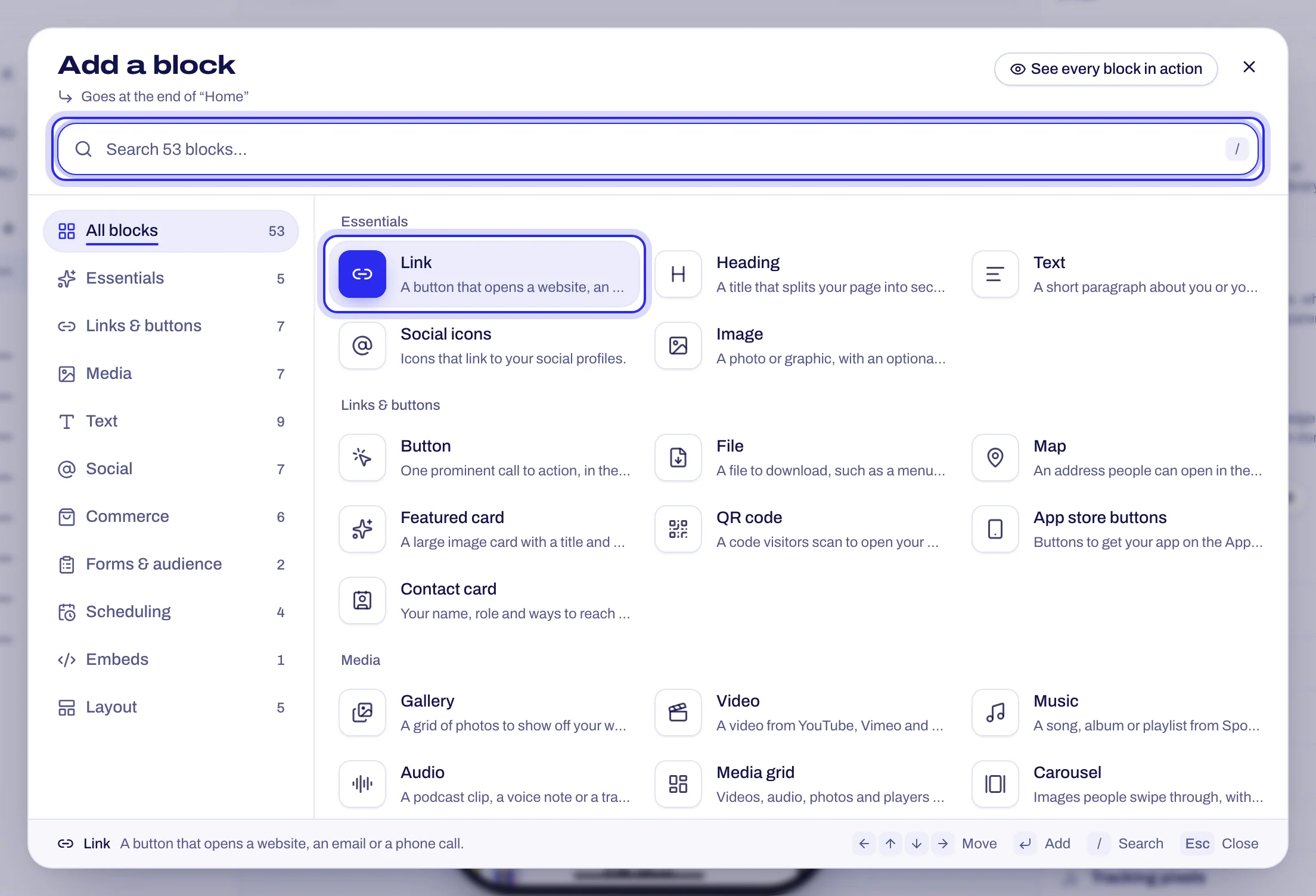
- In the block library, type "link" into Search blocks, or find Link under Essentials, and select it. The line under Add a block says where it will go, such as "Goes at the end of “Home”".
- In the settings panel on the right, type the Title: the words on the button.
- In URL, enter a web address, an email address or a phone number. When you leave the field,
example.combecomeshttps://example.com, an email address opens a new email, and a phone number starts a call.
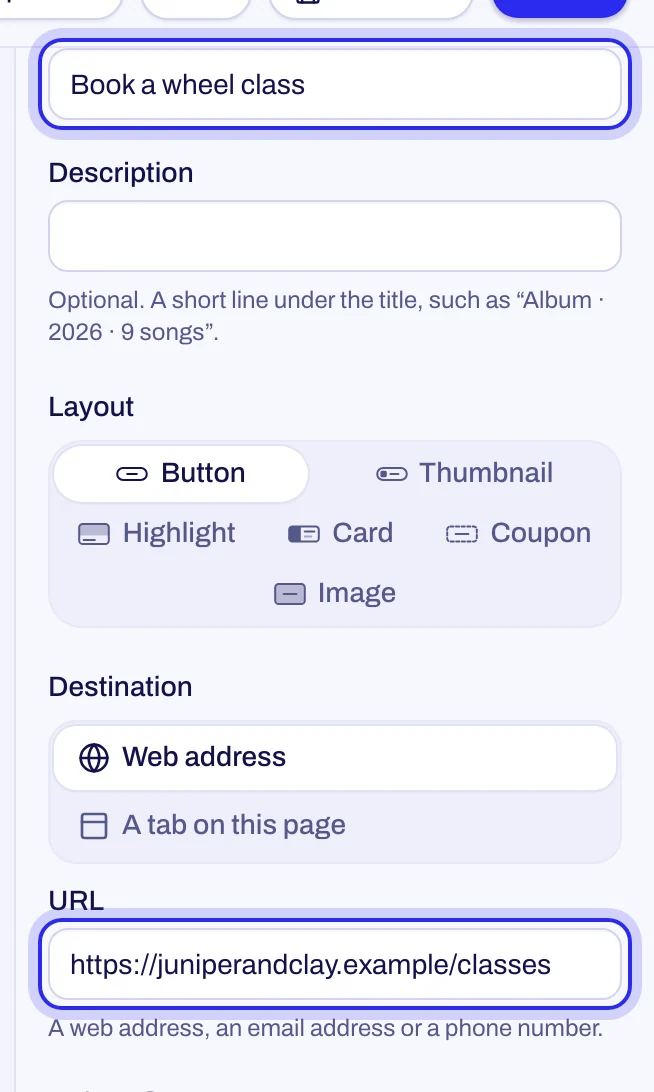
- Optional: add a Description under the title, and choose a Layout: Button, Thumbnail, Highlight, Card, Coupon or Image.
Until it has a URL, the link shows "Add a URL to show this link" in the editor and stays off your published page. To open another tab of your page instead of a website, set Destination to A tab on this page. For every layout and option, see Add a link and choose its layout.
Add a heading
- Select Add block and choose Heading.
- Type its Text, and optionally a Subtitle: a line under the heading that says more about the section.
- Choose a Size, Small or Large, and an Alignment.
Add your social icons
Your social profiles show as icons at the top of your page, under your name.
- Click your name at the top of the preview. The settings panel shows the page's settings.
- Open Social profiles.
- Paste a profile link into the field, such as
instagram.com/yourname, and select Add or press Enter. The platform is recognized from the link, and emails and phone numbers work too.
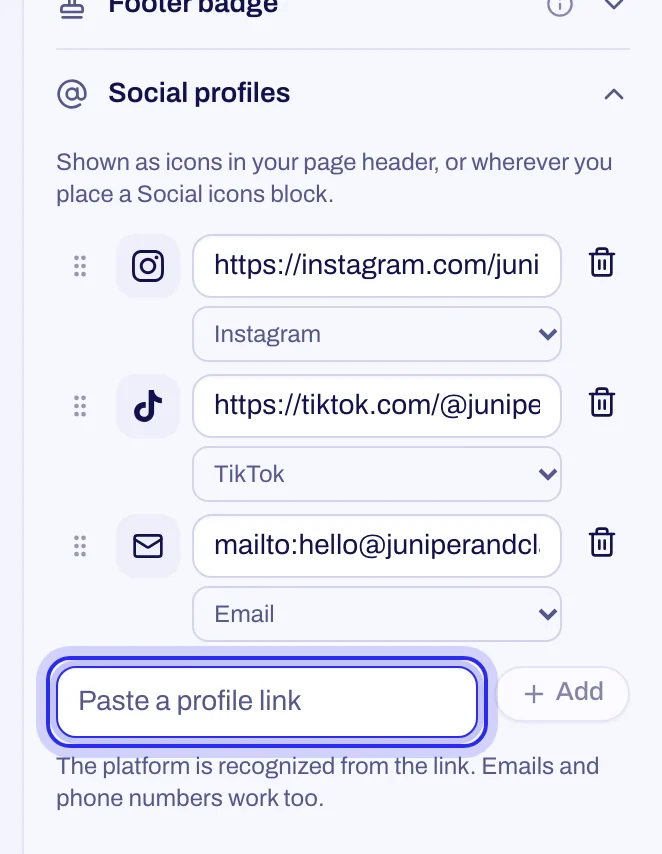
- Add the rest the same way, up to 30. Drag them by their handles to change their order.
To show the icons somewhere else, such as at the end of the page, add a Social icons block where you want them, and choose its Style (Plain or Filled) and Size. On a tab with this block, the icons appear there instead of under your name. You can edit your profiles from the block's settings too.
Link, Heading and Social icons work on every plan, and before you've chosen one. A block that needs a particular plan says so in the library, for example Needs Pro.
Put your blocks in order
- Drag a block by its handle in the structure panel, or drag it on the preview. A line shows where it will land.
- Use the menu: open a block's menu (…) in the structure panel and choose Move up or Move down. The same menu has Move to tab, Duplicate, Hide and Delete.
- Use the keyboard: focus a block's handle and press Space or Enter, move it with the up and down arrow keys, then press Space or Enter to drop it. Escape cancels.
- On a phone: tap a block, then tap Move up or Move down in the strip at the bottom of the screen.
For folders, tabs and hiding blocks, see Reorder, hide and duplicate blocks.
Your changes save themselves
Every change is saved as you go, and the top of the editor says All changes saved. To take a change back, use Undo, or ⌘Z on a Mac and Ctrl+Z elsewhere. Visitors don't see any of it until you select Publish: see Publish your page and go live.
Troubleshooting
- A link doesn't show on my live page. Check that it has a URL, that it isn't marked Hidden, and that you've published since adding it.
- "Enter a web address, an email address or a phone number." The URL has a typo or no real domain. Paste the address straight from your browser's address bar.
- "This profile is already on your page." That profile is in your list already. Look for it further down.
- The icons under my name disappeared. A Social icons block is on this tab, so the icons show there instead.
To see everything you can add, open See every block in action in the block library, or read Every block you can add, and what it's for.