Sell with product cards
Add products with a photo, a price, a badge and a buy button that opens your own shop, payment link or chat.
The Products block shows up to 12 product cards, each with a photo, a price and a Buy button that opens your own shop, payment link or chat. Use it to show your bestsellers or a small range right on your page. Visitors pay wherever the button leads. Linkbase never takes the payment or a cut of it, as How payments work on Linkbase explains.
Before you start
- Products are included in every plan.
- Have a link ready for each product: its page in your online shop, a payment link from your payment provider, or a chat link. A button can also open another tab of your page.
Add products
- Open your page in the editor and select Add block at the top of the structure panel on the left.
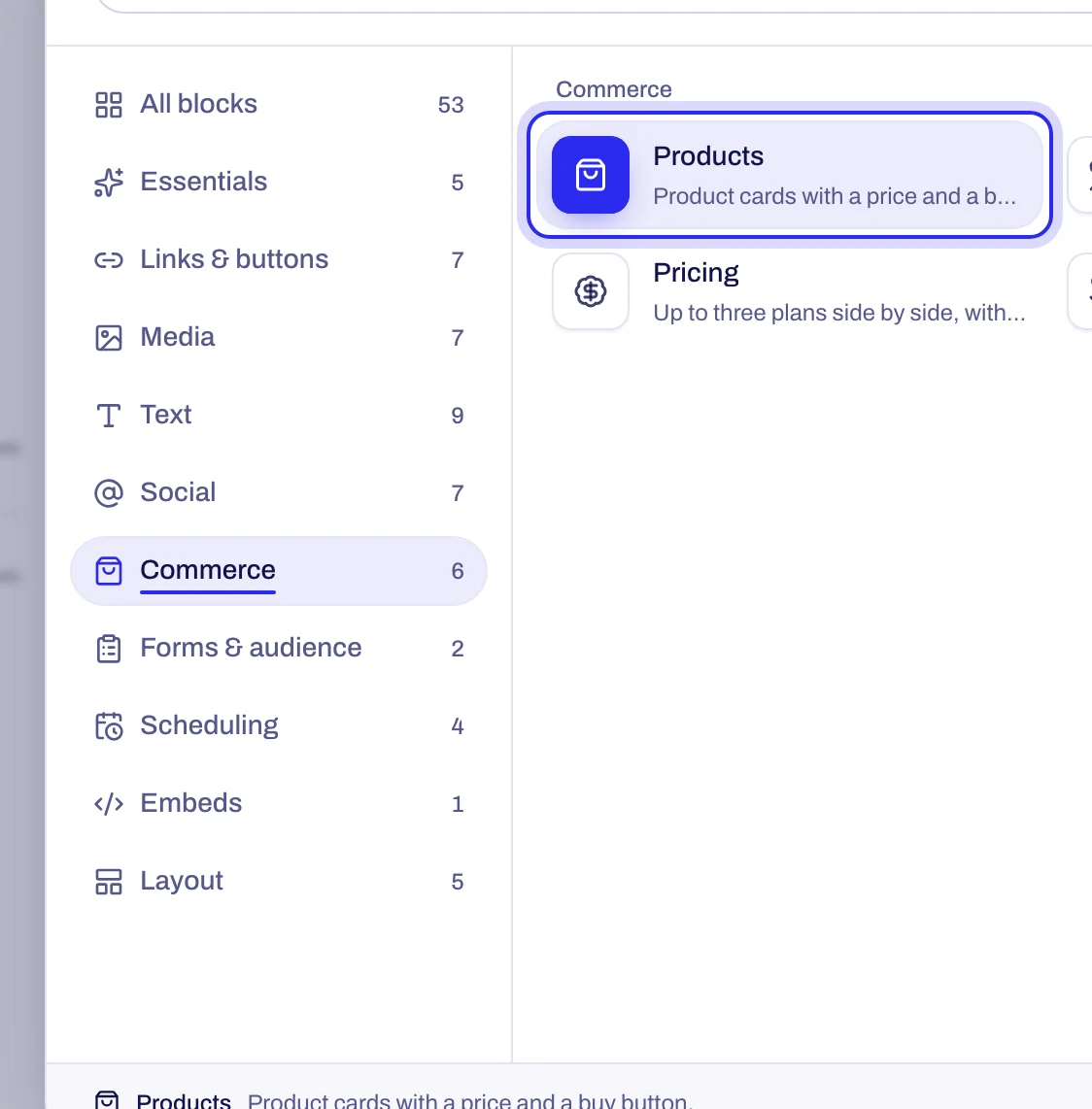
- In the block library, choose Commerce, then Products. You can also search for "shop" or "merch".
- The block is added and its settings open in the panel on the right. Under Products, select Add product. Its fields open below it.
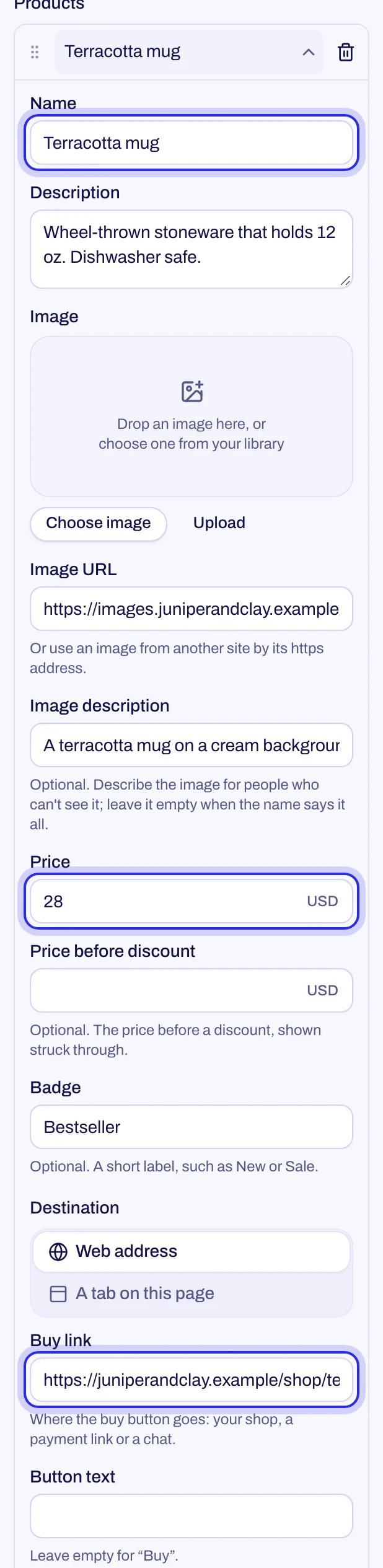
- Enter the product's Name. A product shows on your page only once it has a name.
- Fill in the other fields you need, such as Price and Buy link (see the table below).
- Select Add product again for each of the others. The counter beside the button shows how many of the 12 you've used.
- Below the list, choose the Currency for the whole block, and a Layout.
- Select Publish in the top bar. Until you do, visitors see the last published version of your page.
To change the order, drag a product by the handle at the start of its row. To remove one, select the trash icon at the end of its row.
What each field does
| Field | What it does | Limit |
|---|---|---|
| Name | The product's title on its card. | 120 characters |
| Description | A short line or two under the name. | 240 characters |
| Image | A photo from your media library, or one you upload here. You can paste an Image URL instead. | |
| Image description | Read aloud by screen readers. Leave it empty when the name says it all. | |
| Price | Shown in the block's currency. Leave it empty to show no price. | |
| Price before discount | Shown struck through beside the price, when it's higher than the price. | |
| Badge | A short label on the card in your theme's accent color, such as New or Sale. | 24 characters |
| Buy link | Where the button goes. Under Destination, choose Web address or A tab on this page. Without a link, the card has no button. | |
| Button text | The button's label. Leave it empty to show Buy, in your page's language. | 40 characters |
Prices are written the way your page's language writes them. See How prices, dates and times are shown.
Choose a layout
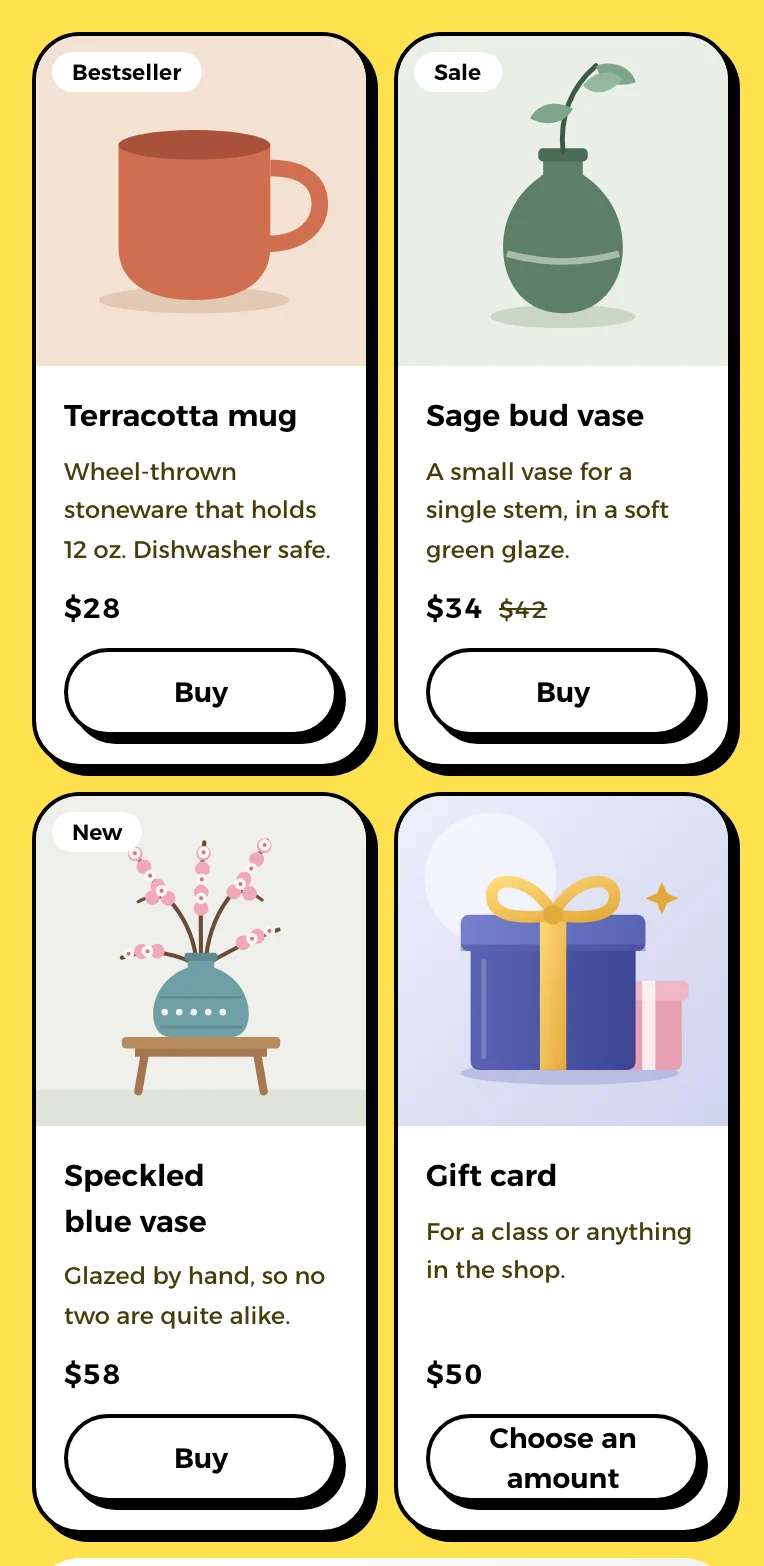
- Grid: cards with the image on top, in 1, 2 or 3 Columns.
- List: one product per row, with a small image beside the text.
- Slider: one row of cards that visitors swipe, with the next card peeking in. With a mouse or trackpad, arrows appear over the cards. The slider never moves on its own.
Good to know
- One currency per block. Changing it doesn't convert your prices: the amounts stay as you typed them. To show prices in two currencies, use a block for each.
- More than 12 products? Add a second Products block, or give each range its own tab. See Split your page into tabs.
- Clicks are counted per block. Taps on any buy button in a products block count as clicks on that block, together, not per card. To compare two products, put each in its own products block. Linkbase can't see whether the visitor then paid. Your shop or payment provider has your sales.
- Label the whole block in its Tag section, with words such as Sold out or Limited offer. A Badge labels one product.
- Limited drops: on the Pro and Team plans, the block's Schedule section shows it only between two dates. See Show a block only between two dates.
For a step-by-step plan for selling from your page, read How to sell online without a website.
Troubleshooting
The block shows "Add a product with a name to show this block". No product has a name yet. Visitors don't see the block until one does.
The old price isn't struck through. Price before discount shows only beside a Price, and only when it's higher.
"Enter an amount in digits, such as 19.99." Prices take digits and one decimal separator, with no currency symbol. You can type a comma, as in 19,99, and it's saved as 19.99. Currencies without decimals, such as the Japanese yen, take whole numbers only.
"This could be 1200 or 1.2." A comma or a point before three digits can mean thousands or decimals. Amounts are read the way your page's language writes numbers, so 1,200 is twelve hundred on an English page. When it could still mean two things, Linkbase asks instead of guessing: type the one you mean, such as 1200 or 1.20.
"Use an image address that starts with https://." Images from other sites need an https address. Or upload the image instead.
"Enter a web address, an email address or a phone number." The buy link isn't an address Linkbase can open. If you type shop.example.com, Linkbase adds https:// for you.
Add product is grayed out. The block holds up to 12 products. Add another Products block for the rest.