Sign in with a passkey
Add a passkey to your Linkbase account and sign in with your fingerprint, face or device PIN instead of typing a password.
A passkey lets you sign in to Linkbase with your fingerprint, your face or your device's PIN instead of a password. It's saved on your device or in your password manager, and it can't be guessed or phished. Add one on each device you sign in from, for a faster and safer way in.
Before you start
- You need a device and browser that support passkeys. Most current phones, computers and password managers do.
- You add passkeys while signed in, and that sign-in must be less than a day old. If two-factor sign-in is on, it must also have used your authenticator code or a passkey. Otherwise you're asked to sign in again first.
Add a passkey
- Open the account menu (your name, at the bottom of the sidebar) and select Account.
- Select Security.
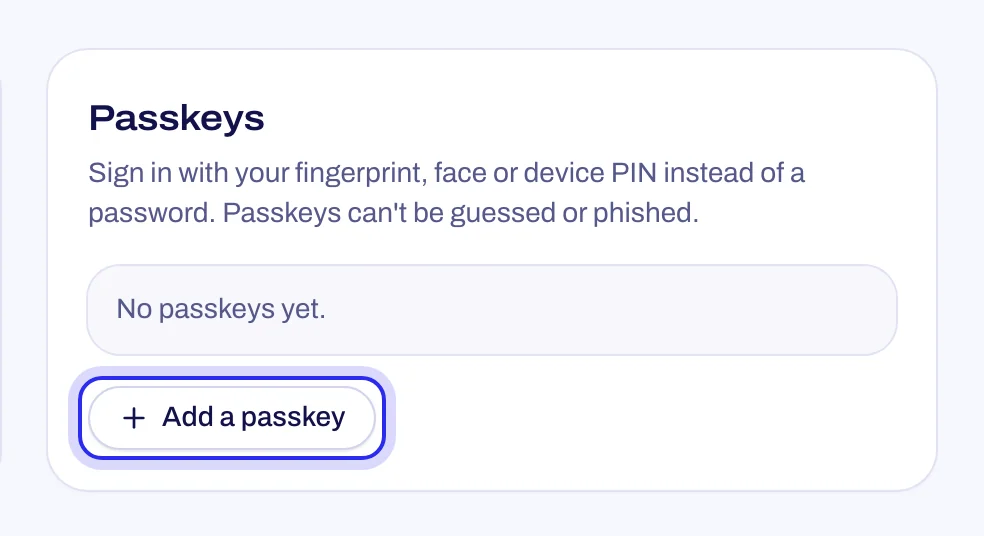
- Under Passkeys, select Add a passkey.
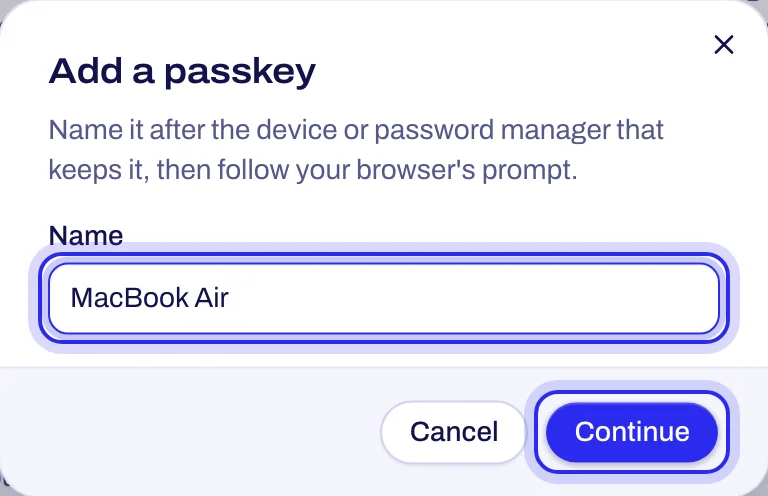
- In Name, keep the suggested name or type your own, such as "MacBook" or the name of your password manager. Names can be up to 50 characters.
- Select Continue.
- Follow your browser's prompt: confirm with your fingerprint, face or PIN, or choose where to save the passkey.
"Passkey added." appears, and the passkey is listed with the date it was added. You also get an email, "A passkey was added to your account".
A passkey marked Synced is kept by a password manager or your device's account, so it's available on your other devices signed in to it too.
Add a passkey on each device you use that doesn't share passkeys with the others, such as a work computer and a personal phone. Then losing one device never locks you out.
Sign in with a passkey
- Go to the Linkbase sign-in page.
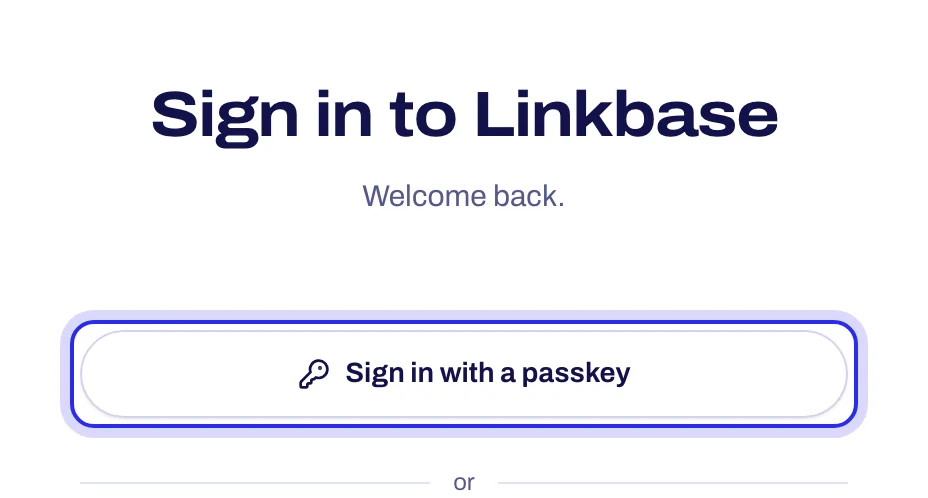
- Select Sign in with a passkey, at the top of the page.
- Choose your passkey and confirm with your fingerprint, face or PIN.
You're signed in straight away. In many browsers, your passkey is also offered when you select the email field: pick it there to sign in in one step.
A passkey is a complete sign-in on its own. If you've turned on two-factor sign-in, a passkey doesn't ask for an authenticator code, because it already needs your device and your fingerprint, face or PIN.
Rename or remove a passkey
In Account → Security → Passkeys, open the menu (three dots) beside a passkey, then:
- Rename: type a new name, then select Save.
- Remove: confirm with Remove. The passkey stops working for Linkbase at once, and you get an email that it was removed.
Removing a passkey in Linkbase doesn't delete it from your device or password manager. Delete it there too, so it isn't offered for a sign-in that no longer works.
Each passkey shows when it was last used, or "not used yet". Remove any you don't recognize, then change your password.
Troubleshooting
| Message | What to do |
|---|---|
| The passkey prompt was closed. | The browser's prompt was canceled. Try again and finish it. |
| This device already has a passkey for your account. | You're set on this device. Use it to sign in, or remove the old one first if you want to replace it. |
| For your security, sign out and sign in again with your code or a passkey, then try again. | Your sign-in is more than a day old, or didn't use a code while two-factor is on. Sign out, sign in again, then add the passkey. |
| Unlock your passkey with your fingerprint, face or PIN to sign in. | The device didn't confirm it was you. Try again and complete the fingerprint, face or PIN step. |
| That passkey didn't work here. Try again, or sign in another way. | Check you picked a passkey saved for Linkbase, or sign in with your password or a sign-in link. |
I lost the device with my passkey. Sign in another way: your password, an emailed sign-in link, or a passkey on another device. Then remove the lost passkey in Security. If you can't sign in at all and two-factor sign-in is on, see "If you lose your phone" in Turn on two-factor sign-in.
Common questions
Does a passkey replace my password? No. Your password and emailed sign-in links keep working. A passkey is a faster, safer way in that you can use instead.
Can I create an account with a passkey? No. Sign up first, then add a passkey in Security.
For why passkeys and two-factor sign-in work well together, read Lock down your account with passkeys and two-factor sign-in.