Accept tips and donations
Add a tip jar with set amounts that open your own payment link, plus an Other amount button for any sum.
The Tip jar block shows a short message and up to four amounts. Use it to let fans, readers or supporters give a little. Each amount is a button that opens your own payment page, with the amount filled in when your link supports it. Visitors pay there, not on Linkbase, and Linkbase takes no cut.
Before you start
- Tip jars are included in every plan.
- Get a payment link from the service you use to receive money. Many services let you put the amount in the link, so each button can ask for its own amount. Check your provider's help to see if yours does.
Add a tip jar
- Open your page in the editor and select Add block at the top of the structure panel on the left.
- In the block library, choose Commerce, then Tip jar. You can also search for "tips" or "donate". Its settings open in the panel on the right.
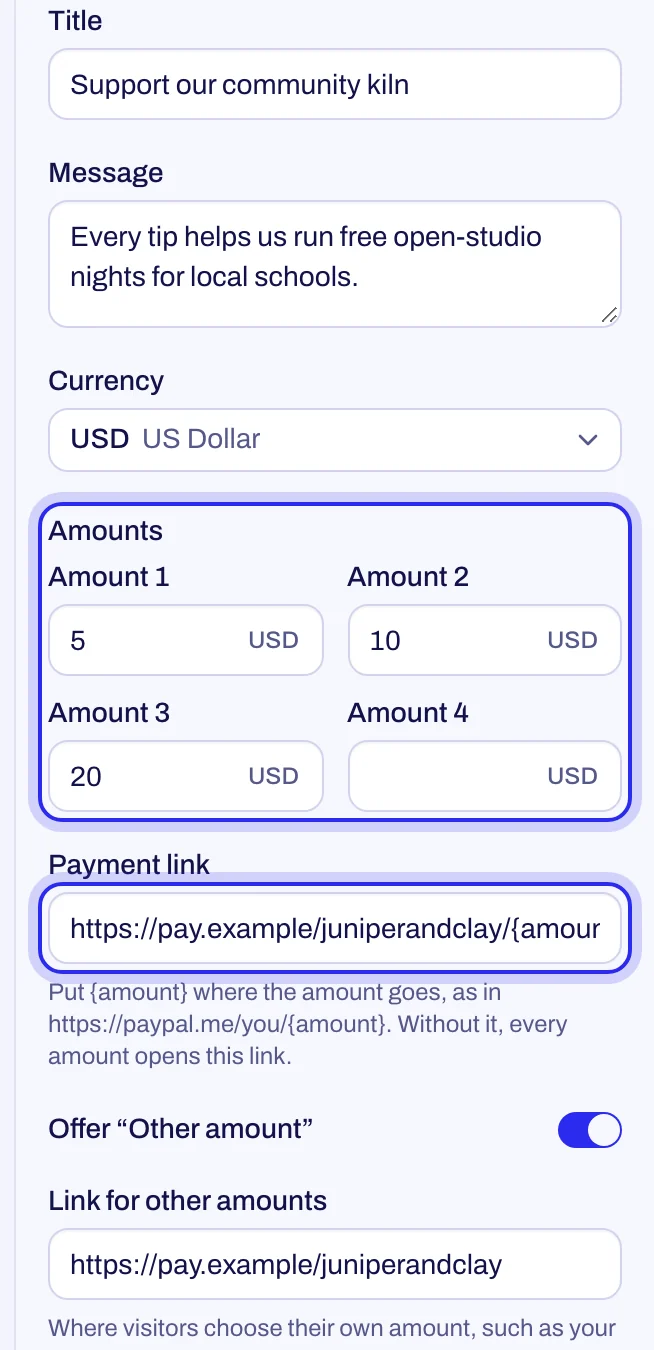
- Enter a Title and a Message, such as what the support pays for.
- Choose the Currency.
- Under Amounts, set up to four, in Amount 1 to Amount 4. The block starts with 5, 10 and 20. Clear a box to leave it out.
- Paste your Payment link (see the next section).
- Leave Offer “Other amount” on to add a button for any sum, or turn it off.
- Select Publish in the top bar.
The title can be up to 120 characters, and the message up to 300.
Put the amount in your payment link
Type {amount} where the amount goes in your link. Each button then opens its own link:
| Payment link | The button for 10 opens |
|---|---|
https://paypal.me/yourname/{amount} | https://paypal.me/yourname/10 |
https://pay.example.com/tip?amount={amount}¤cy={currency} | https://pay.example.com/tip?amount=10¤cy=USD |
https://pay.example.com/yourname | https://pay.example.com/yourname, like every other button |
{currency}adds the block's currency code, such as USD or EUR, for payment pages that need it.- The amount goes in as plain digits, with a point for decimals, such as 10 or 7.5.
- Without
{amount}, every button opens the same link, and visitors enter the amount on your payment page.
The Other amount button
Other amount lets visitors choose their own sum:
- If your payment link has no
{amount}, the button opens that link. - If it has
{amount}, the button needs a page where visitors type their own amount. Enter it in Link for other amounts, which appears below the switch. Without it, the button is left out.
What visitors see
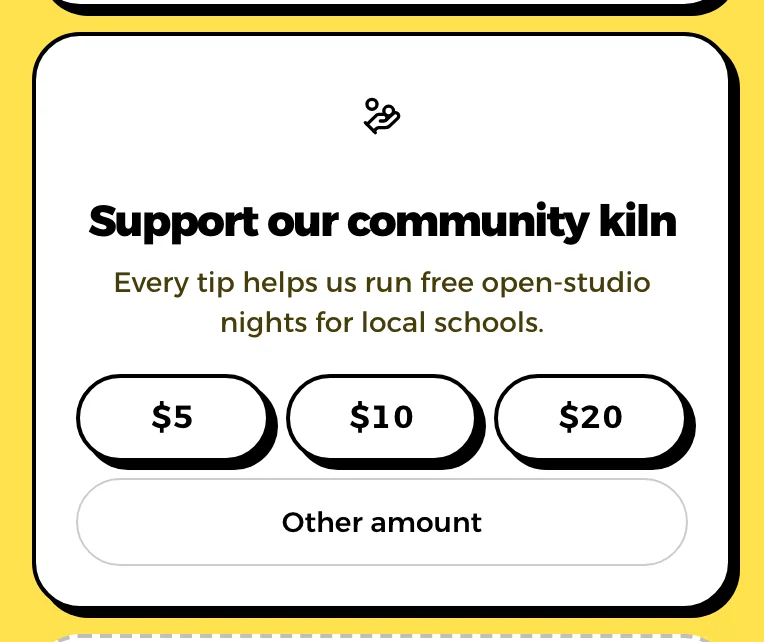
A card with your title and message, a button for each amount in your currency, and Other amount below them. Amounts are written the way your page's language writes them. Each tap counts as a click in your analytics.
The editor reminds you: "Payments aren't handled here: visitors pay on the page you link to." Receipts, refunds and fees are between you, your supporter and your payment provider. See How payments work on Linkbase.
To show how close you are to a target, add a goal next to the tip jar. See Show progress toward a goal.
Troubleshooting
The block shows "Add a payment link to show this tip jar". Visitors don't see a tip jar until it has a Payment link.
There's no Other amount button. Your payment link has {amount}, and Link for other amounts is empty. Add that link, or turn off Offer “Other amount” if you don't want the button.
An amount button is missing. An amount entered twice shows once. Also check that the link still works with the amount in it: Linkbase leaves out a button whose link it can't open.
"Enter a web address, an email address or a phone number." The payment link isn't a full address. Copy it from your payment provider, starting with https://.
"Enter an amount in digits, such as 19.99." Amounts take digits and one decimal separator, with no currency symbol.