Show progress toward a goal
Add a progress bar toward a fundraising or sales target, with a Contribute button, and update it as money comes in.
The Goal block shows how much you've raised toward a target as a progress bar, with your number of supporters and a Contribute button. You update the amount yourself: Linkbase doesn't connect to your payment provider, so the bar moves only when you change it.
Before you start
Goals are included in every plan. Decide where Contribute should go: your fundraiser page, a payment link, or a tab of your page, such as one with your tip jar.
Add a goal
- Open your page in the editor and select Add block at the top of the structure panel on the left.
- In the block library, choose Commerce, then Goal. You can also search for "fundraiser" or "progress". Its settings open in the panel on the right.
- Enter a Title, such as New roof for the community hall.
- In Raised so far, enter what has come in.
- Set the Target. The goal shows on your page once the target is more than zero.
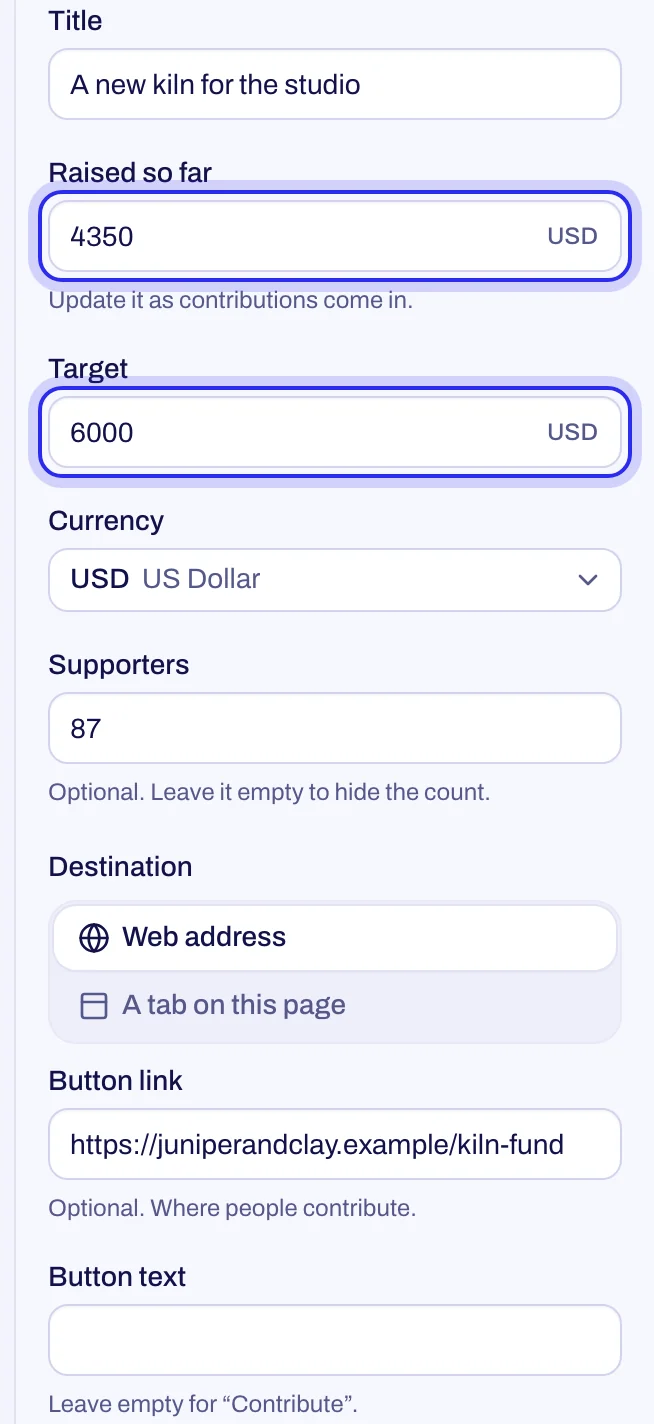
- Choose the Currency.
- Optional: enter the number of Supporters. Leave it empty to hide the count.
- Optional: under Destination, enter a Button link, or choose A tab on this page. Change the Button text if you like. Empty shows Contribute.
- Select Publish in the top bar.
What visitors see
- The amount raised in large type, and the target, as in "$1,250 raised of $5,000".
- A progress bar in your theme's accent color, adjusted when needed so it always stands out on your card, and the share reached, such as 25%.
- The number of supporters, such as "48 supporters", if you entered one.
- The Contribute button, if the goal has a link.
Amounts are written the way your page's language writes them. Screen readers announce the bar's progress in full, as in "$1,250 of $5,000, 25%".
Once you pass the target, the bar stays full and the share keeps counting, such as 120%. To set a stretch goal, raise the Target.
Update the progress
- Open your page in the editor and select the goal block in the structure panel on the left.
- Change Raised so far, and Supporters if you show the count.
- Select Publish in the top bar. Visitors see the new numbers once you publish.
Take the total from your payment provider and update the goal at a regular time, such as every evening. Supporters come back to see it move.
Good to know
- Not only for fundraisers. A goal works for a sales target, preorders or a crowdfunded launch.
- End the campaign on time. On the Pro and Team plans, the block's Schedule section hides it after a date you choose. See Show a block only between two dates.
- Pair it with a tip jar, so visitors can give right there. See Accept tips and donations.
- Clicks are counted. Each tap on Contribute counts as a click in your analytics.
For ideas on turning followers into donors, read Turn followers into donors and volunteers for your nonprofit.
Troubleshooting
The block shows "Set a target to show this goal". Target is empty or zero.
The supporter count doesn't show. Supporters is empty. Enter a number, including 0, to show it.
Visitors still see the old amount. You haven't published since you changed it. Select Publish.
"This could be 1200 or 1.2." A comma or a point before three digits can mean thousands or decimals. Amounts are read the way your page's language writes numbers, so 1,200 is twelve hundred on an English page. When it could still mean two things, Linkbase asks instead of guessing: type the one you mean, such as 1200 or 1.20.
"Enter an amount in digits, such as 19.99." Amounts take digits and one decimal separator, with no currency symbol.
There's no Contribute button. The goal has no link, or it links to a tab that was deleted or hidden.