See and cancel bookings, and how guests reschedule
Find upcoming, past and canceled bookings, cancel one with a note to your guest, and see which emails guests and your team get.
Every booking made on your pages appears in Audience → Bookings. There you can see each guest's details and answers, and cancel a booking with a note. Guests move their own bookings with the links in their confirmation email.
Bookings are on the Pro and Team plans. After a downgrade, your list stays readable and you can still cancel bookings.
Find a booking
- Open Audience in the sidebar, then the Bookings tab.
- At the top, choose Upcoming, Past or Canceled. Upcoming bookings are soonest first, and past and canceled ones newest first.
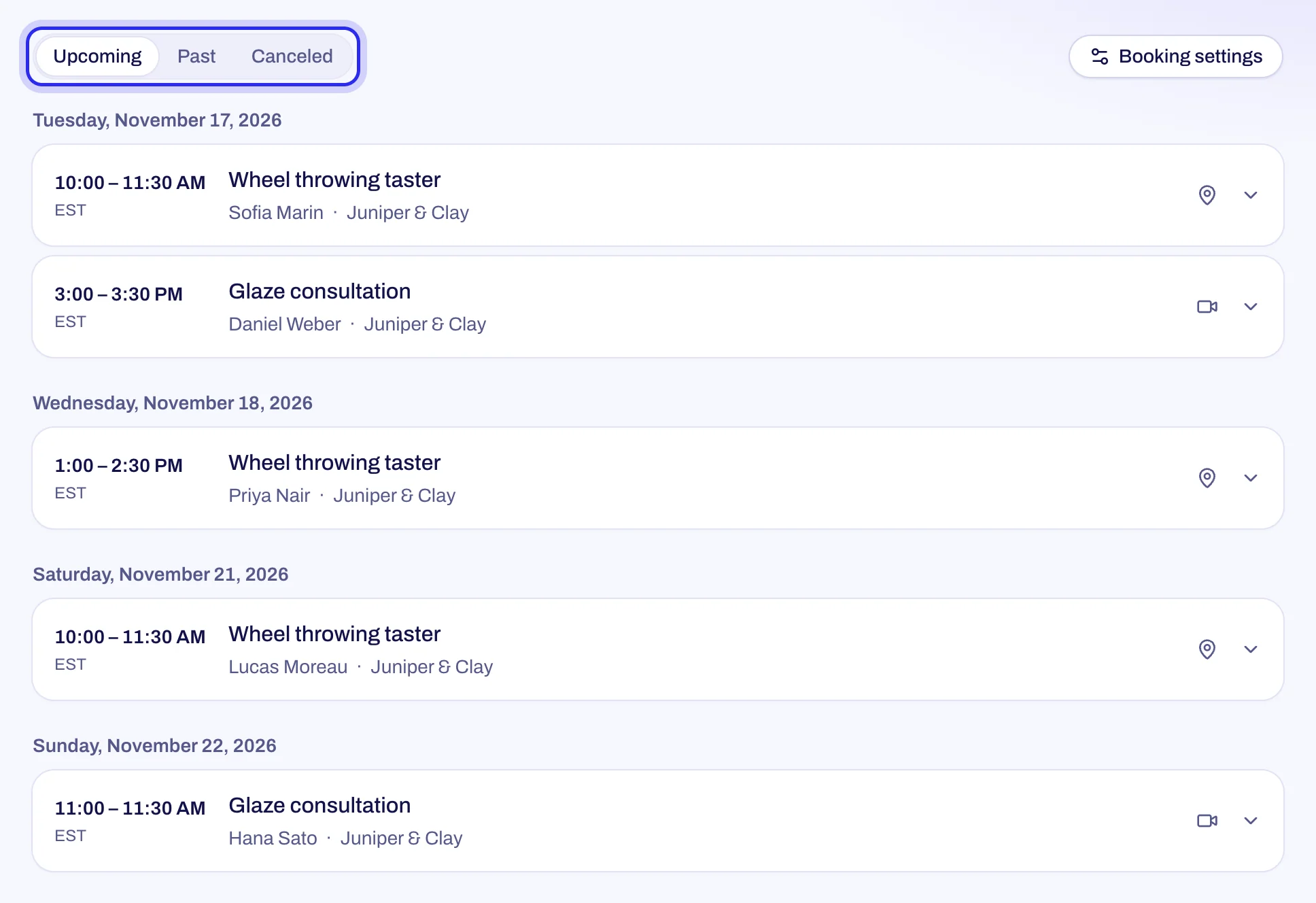
- If your workspace has more than one page, choose a page in the menu beside them, or keep All pages.
- Select a booking to open its details.
Bookings are grouped by day, with times in the page's booking time zone. The list shows 50 at a time: select Show more for the next ones, and Back to the start to return.
A booking's details show:
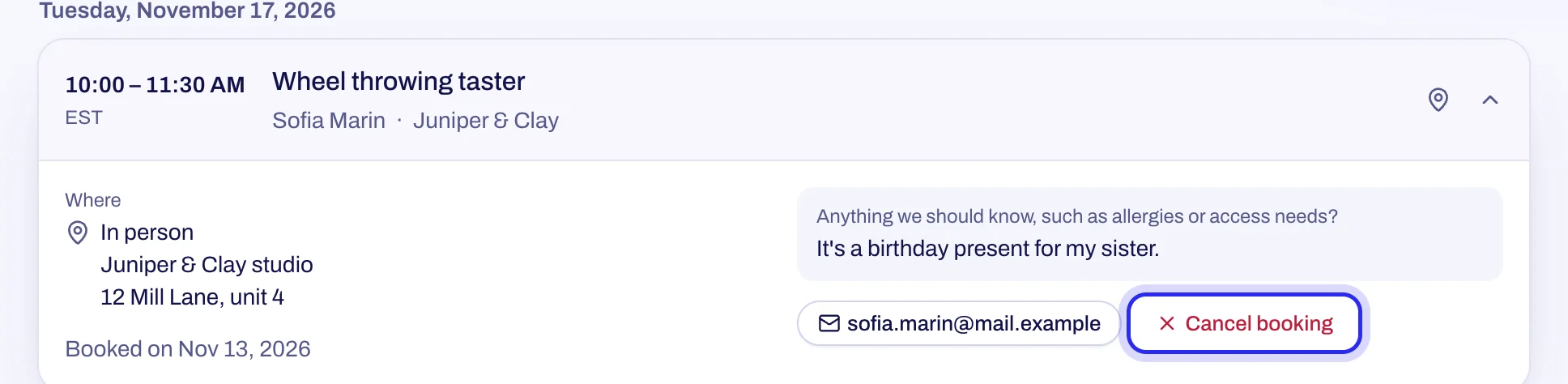
- Where it happens, with the meeting link, phone number or address;
- the time for the guest, when they're in another time zone;
- the date it was booked;
- the guest's answers to your questions;
- the guest's email address, which opens a new email to them.
Members who can open only some pages see only those pages' bookings.
Cancel a booking
- Under Upcoming, open the booking and select Cancel booking, beside the guest's email address.
- A dialog asks "Cancel this booking?". Optional: in the Message to box, which names your guest, say why or what to do next. It goes in their email.
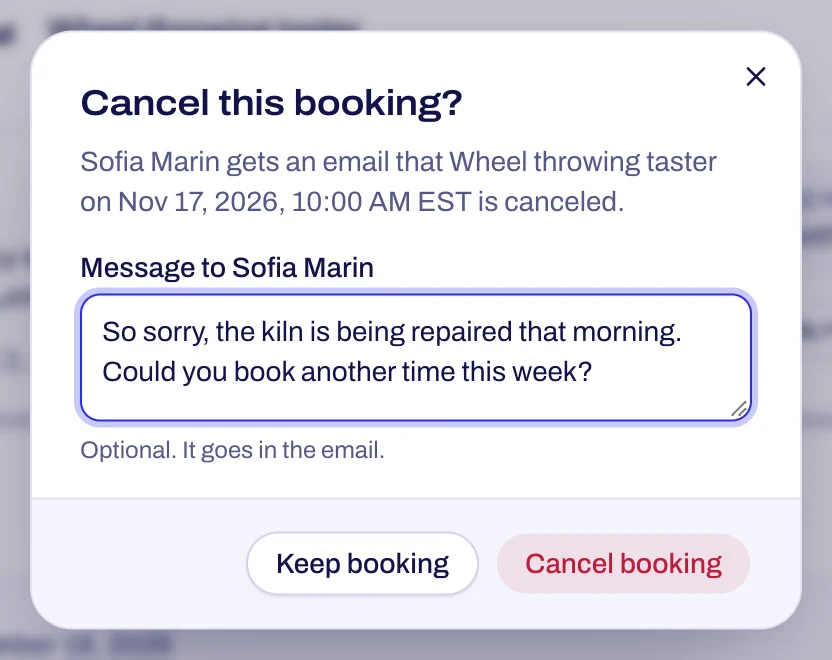
- Select Cancel booking. To leave it as it is, select Keep booking.
A confirmation says the booking is canceled and your guest was emailed, and your team gets an email saying so too. The booking moves to Canceled, marked "Canceled by your team" with your message, and the time is open to other visitors again.
You can cancel a booking until it ends. Owners, admins, client admins and editors can cancel bookings. Viewers can't open bookings.
Move a booking to another time
Bookings can't be moved from your list. Guests move them:
- Ask your guest to select Reschedule in their confirmation email and pick a new time. You both get an email with the new time.
- Or cancel the booking with a message asking them to book again. Their email has a Book another time button that opens your page.
Guests can move a booking while your page is live and your plan includes bookings. They can always cancel. To see what guests see, read Change or cancel a booking you made.
What guests and your team receive
| When | Your guest gets | Your team gets |
|---|---|---|
| Someone books | "Booked:" with the time, length and where, a calendar invitation, and Reschedule and Cancel booking links | "New booking:" with the guest's details and answers |
| The guest moves it | "Moved:", with an invitation that updates their calendar | "Moved:", with the new time and the old one |
| The guest cancels | "Canceled:", with a file that takes it off their calendar | "Canceled:" |
| You cancel | "Canceled:" with your message, and Book another time | "Canceled:", saying your guest was told, with your message |
| You delete the page | "Canceled:", saying your page is no longer on Linkbase, with a file that takes it off their calendar | Nothing |
Your team means every member with a confirmed email address who can see the page's audience: owners and admins, plus client admins and editors who can open that page. Each also sees these alerts under Notifications in the dashboard.
Guests' emails show times in their own time zone, in the language your page showed them, in any of the 40 page languages. The booking page their links open, to see, reschedule or cancel, is part of Linkbase itself, so it shows in one of the nine dashboard languages, or in English. Your team's emails use each member's language and the page's booking time zone, and add the guest's own time when they're in another time zone.
Linkbase doesn't send reminders before a booking. The calendar invitation in the confirmation puts it in your guest's calendar.
Good to know
- Changing a booking type doesn't change bookings already made. They keep the name, length and place they were booked with. If you change a meeting link or address, email the guests who already booked.
- Deleting a booking type keeps its bookings, with their details.
- Deleting a page cancels its upcoming bookings and emails each guest in their language, with a file that takes the booking off their calendar. Their link still opens the booking, marked canceled, and the page's bookings leave your list. Deleting a workspace or your account does the same for each of its pages.
- For a copy of every booking, a workspace owner can download the workspace's data, which includes all bookings with their answers. See Download your data.
The Terms of Service ask you to honor the bookings you accept and to tell people promptly if you need to change or cancel one. Canceling here emails your guest at once and frees the time.
Common questions
I can't find a booking. Check the view (Upcoming, Past or Canceled) and the page menu. A booking that has ended moves to Past.
Can I book a time for someone? Not from your list. You can book it on your live page with their name and email address, and they get the confirmation email as if they'd booked it.
Why didn't I get an email about a booking? Emails go to members whose email address is confirmed and who can see that page's audience. Check your spam folder too, and Notifications in the dashboard.