QR code marketing: the complete guide for print and places
Plan QR code marketing that earns the scan: where codes work, the line that wins trust, what each scan opens, scans by placement and codes that last for years.
7 bölüm22 dk okuma

Somewhere near you is a poster with a QR code nobody has scanned. The code is the size of a postage stamp, it hangs above head height behind scuffed plastic, and the only words near it are the venue's name. The poster is well designed. The code was an afterthought, and it shows.
A QR code is a small promise in ink: point your camera here and something worth your time happens. Keeping it takes more than a pattern. Someone has to notice the code, decide it's worth the effort, trust where it leads, scan it at the distance and in the light where they're standing, and land on a screen that delivers what the print said. Each of those steps can fail, and most fail before anyone opens a camera.
This guide follows that whole journey for print and physical places: where codes earn scans, how to make one people trust, how to print and place it, what each scan should open, how to tell which placement works, and how to keep a printed code working for as long as the paper or the sign survives. It ends with ideas for specific kinds of business. For file formats and a size table, our article on QR codes for print marketing goes deeper, and the help center has the exact steps to create and style a code.
What you'll learn
- Judge whether a spot will earn scans before you print anything for it
- Write the line beside a code that gives people a reason to scan, and a reason to trust it
- Print and place codes that scan at the distance, height and light where people meet them
- Decide what each scan should open: your page, one tab or somewhere else
- Count scans for each placement, and know which plans that takes
- Keep printed codes working for years, and spot what can quietly break them
Where QR codes earn a scan, and where they're ignored
A scan costs effort: stop, take out a phone, open the camera, hold still, wait for a page. People pay that cost only when four things line up.
- Time. They're standing still or waiting: at a table, in a queue, at a bus stop, in a waiting room, beside a stall.
- A free hand. Someone holding a coffee and a shopping bag won't scan a poster, however good it is.
- A reason, right now. The code leads to something they want at that moment: tonight's menu, the next tour time, the price of the chair in the window.
- A connection. In basements, on underground platforms and inside thick-walled old buildings, a camera can read the code while the phone has no signal to open the page.
Places that usually earn scans
Tables and counters, where people sit with time to fill. Shop windows after closing, when the glass is the only way to ask a question. Packaging and inserts, opened at home with no hurry. Waiting rooms, queues and hotel rooms. Event badges, programs and room signs, where people are already looking for what's next. Receipts and bags, read later by someone who just bought from you and might again.
Places that usually don't
Anything that moves: the side of a van, a bus, a T-shirt on someone walking past. Anything far away: a billboard seen from a road, a banner across a hall. Anything shown for a few seconds, such as a slide at a talk or a frame in a video. And anywhere the action is easier another way. A code on a web page that people read on their phone asks them to scan the screen they're holding. The useful exception is a page seen on a computer: the QR code block exists for visitors on a laptop who want to carry your page to their phone.
When a spot won't earn scans, print a short address people can read and remember instead. Your page's address works, and on Pro and Team plans your own domain reads even better on a van door.
Run the scan test before you design
Say you run a bike repair shop in Utrecht and you're planning print for the spring. Walk through each spot with the four conditions:
| Spot | Time to scan | Hand free | A reason right now | Verdict |
|---|---|---|---|---|
| Shop window | Evenings, after closing | Usually | "When are you open? Can I book?" | Print a code |
| Repair tag on each bike | At home, reading the bill | Yes | "How do I look after the new chain?" | Print a code |
| The van | Seconds, in traffic | No | Weak | Print the address only |
| Flyers in the café next door | Plenty, at a table | Yes | Only with an offer | Print a code and a reason |
The van loses its code, the window and the tags get one, and the flyer earns its code only if it carries a reason to scan today, such as a spring tune-up offer. That's the whole method: decide spot by spot, and leave the code off where nobody will use it.
Make a code people trust enough to scan
Write the line beside the code
A code with nothing next to it asks people to scan a mystery. The line beside it does the persuading, and the best ones follow a pattern: a verb, the payoff, and something that ties it to the place.
- "Scan me" says nothing. "Scan for today's specials" says what happens.
- "Follow us" asks for a favor. "Scan to see the finished kitchens" offers something.
- "More info" could mean anything. "Scan for the setup video" gives a reason to scan now, with the box still open on the table.
Write a different line for each placement, even when every code leads to the same page. The window line answers the after-hours question; the table line answers the menu question. Then make sure the page answers it on the first screen, which the chapter on what a scan should open covers.
Show people where the code leads
QR scams have taught people to hesitate. Fake codes stuck over real ones on parking meters and posters are a known trick, and consumer agencies in several countries have warned about them. A careful person wants to know who put the code there and where it goes.
Three things help:
- Your name or logo beside the code, with the code printed as part of the design rather than stuck on afterward. A sticker on top of a poster looks like exactly what a scammer would do.
- Your page's address in readable type next to the code. People can see where they'll land, and anyone whose camera won't cooperate can type it.
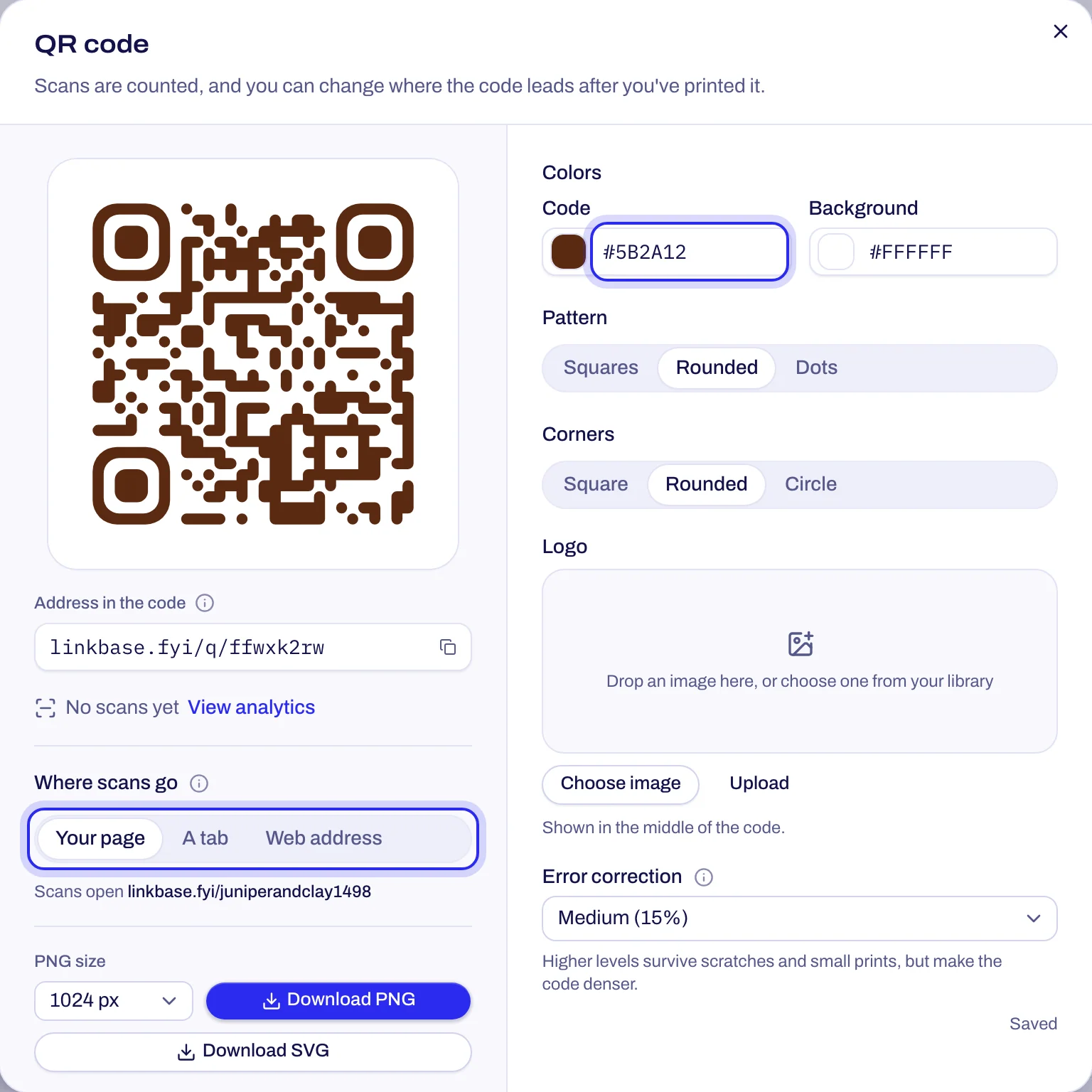
- Something recognizable inside the code. A Linkbase code can carry your logo in the middle. If your page has the verified badge (on Pro and Team plans), the code shows the verified seal by default, so people see whose code it is before they scan. See Get the verified badge.
Know what the phone shows, too. Most phone cameras display the address inside a code before opening it. A Linkbase code holds a short Linkbase address ending in /q/ and a few characters, even when your page has its own domain. That address is what counts each scan and keeps the code working if your domain ever changes, and it's one more reason to print your own address beside it.
Style it without breaking it
Brand colors are fine within limits: a dark code on a light background, a small logo, and the blank margin around the code (the quiet zone) left clear. The designer warns you when contrast drops too low, or when a light code sits on a dark background, which not every phone reads. A logo or the seal raises error correction to at least Quartile on its own, so the code still scans with its middle covered. The print marketing article explains error correction levels and pattern styles in detail.
Leave another way in
Some people won't scan, whatever you print: an old phone, no data left this month, or no trust in codes at all. Make a code one way in, never the only one. Keep paper menus on the tables, print a phone number on the appointment card, and keep the address beside the code short enough to type on a bus.
Print and place it where it scans
Distance decides size: the farther away people stand, the bigger the code must be. A common rule of thumb is a code about a tenth as wide as the scanning distance, and the size table in our print article turns that into starting points for cards, flyers, posters and windows. What no rule can tell you is where people actually stand, and that's where most placements fail.
Height and angle
Put codes in the band between a person's chest and eyes, facing them. A code at knee height on a sidewalk sign makes people crouch. A code at the top of a tall poster makes them stretch with the phone tilted, and a steep angle squashes the pattern. Codes on floors, ceilings and the edges of tables, seen side-on, have the same problem.
Light and surface
- Glare. Gloss lamination, shop glass and acrylic stands bounce light into the camera. Matte finishes scan more reliably.
- Backlighting. A window decal that reads well at noon can turn into a silhouette at night, against a bright room behind it. If the window code is for passers-by after hours, test it after hours.
- Curves and folds. A code wrapped around a cup, folded across a menu's spine or printed on a fabric banner that ripples will distort. Keep codes on flat surfaces.
- Sun and rain. Outdoor prints fade, and a faded code loses contrast. Choose High error correction for anything outdoors, print it larger, and plan to replace it.
The walk test
Before you approve a print run, take a proof to the place. Stand where your customer will stand, at the time they'll be there, with one hand full. Scan with two phones, an iPhone and an Android phone if you can, with Wi-Fi off. Then hand it to someone who didn't design it and watch whether they scan it without being told how.
A worked example: one studio, three pieces of print
Say you run a pottery studio in Austin that sells evening classes. You plan three printed pieces, and each gets its own size, line and spot:
- A flyer on the board of the coffee shop down the street, read at arm's length by someone waiting for an order. A code a few centimeters wide, "Scan for this month's class dates", large enough to scan without taking the flyer off the board.
- A sidewalk sign outside the studio, read from a couple of meters by people walking past. A much larger code on a matte panel at chest height, not at the bottom of the board, "Scan to book a first class".
- A card tucked into every box of finished pieces, read at home. A small code, "Scan for glaze care and the next workshop", printed flat on card stock rather than across a folded flap.
One page can serve all three, but each line promises something different, and the next chapter is about making each scan deliver it.
Download the SVG once and keep it in a shared folder named after the code and where it's printed. The printer, the sign maker and your designer then work from the same file, and nobody screenshots a small PNG and stretches it across a banner.
What the scan should open
The first screen after a scan has one job: keep the promise the print made. Someone who scanned "Scan for this month's class dates" and lands on a bio, three social icons and a newsletter signup has to hunt, and most won't.
Your page's own code opens your main address, unless you choose otherwise
Every Linkbase page has exactly one QR code, and by default it opens the page's main address: the first tab, if your page has tabs. That suits most print, because the page can change while the code stays the same. It also means one code serves every placement that uses it, so the top of your page has to work for all of them.
Two ways to fit the main address to the moment:
- Reorder. Put the block people scan for at the top. On a page with tabs, move the tab you're promoting to the front, since the first tab is what your main address opens. See Split your page into tabs.
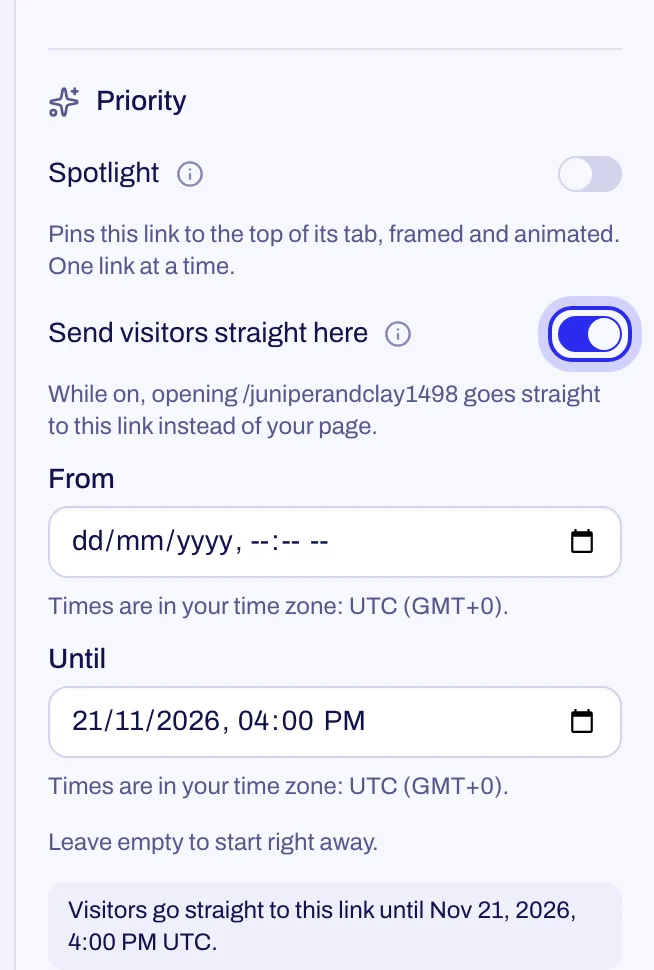
- Send visitors straight to one link for a while. On Pro and Team plans, Send visitors straight here on a link sends your main address, and with it your page's QR code while the code opens your page, to that link until an end date, such as a ticket page during the week tickets go on sale. When the date passes, the page comes back on its own. See Spotlight a link or send visitors straight to it.
Send scans to a tab or another site
Your page's code is dynamic, on every plan. In the QR code dialog, under Where scans go, choose Your page (the main address, and the default), A tab to open one of your page's tabs, or, on Pro and Team, Web address to send scans to any web page: a ticket site, your online store, an app's listing. Web addresses get the same safety checks as short links. You can change the choice at any time, even after printing. The code itself stays the same, the next scan goes to the new place, and scans are still counted on the code. With a custom domain connected, your page and its tabs open on that domain. See Track scans and change where a QR code points.
That choice applies to every printed copy of your page's code. When different placements need different destinations, such as table cards that open the menu tab while the window opens your page, create a short link for each (on Pro and Team plans) and print the short link's own QR code. A short link can lead to one of your tabs, such as …/yourname/classes, or to any web page, and you can change where it leads at any time. See Create short links and Link straight to one tab of your page.
Match each placement to a destination
| Placement | What the scan should open | Which code to print |
|---|---|---|
| A flyer handed out over weeks | Your page, kept current | Your page's code |
| A table card | Your menu tab | Your page's code set to the tab, or a short link to it |
| An appointment card | Your booking tab | Your page's code set to the tab, or a short link to it |
| A poster while tickets are on sale | The ticket link | Your page's code, sent straight to tickets for that week, or a short link |
| Packaging that lasts for years | Care instructions now, something else next year | Any Linkbase code, repointed when the time comes |
| A sign promoting your app | The right app store for each phone | Your page, with a link rule on the download button |
Link rules, on Pro and Team plans, send one button to different addresses by device, so an iPhone opens the App Store and an Android phone opens Google Play. Our guide to link rules by country or device explains the setup.
Make the landing work on a phone, outdoors
- Publish first. Until a page is published, its code opens a "not available" page.
- Answer the question at the top. If the window promises opening hours, the opening hours block, with its "open now", belongs on the first screen.
- Don't send people into an app's sign-in screen. A code that opens a social profile may ask visitors who don't use that app to sign in or install it. Send them to your page and let them choose.
- Think about the visitor's language. With the page language set to "Each visitor's language", the labels Linkbase adds, such as buttons and dates, follow each visitor's browser. Your own words are never translated, so a code that tourists scan may need your key lines in a second language. See Write your page in more than one language.
Track which placement brings the scans
Every Linkbase QR code counts its own scans. A code's report shows scans and unique visitors for the dates you choose, the countries and devices of the people scanning, their browsers' languages, and the busiest hours by day of the week. New scans appear within seconds. What a report can't do is tell placements apart when they share a code.
One page, one code, one total
A page has one QR code. Put it on the flyer, the poster and the window, and their scans add up to a single number. Your page's analytics can't split them either: a scan opens the page's plain address with no referring site, so those visits land under "Direct or unknown", without campaign tags. That's enough to know whether print works at all. It's not enough to decide whether to reprint the poster or the flyer.
One short link for each placement
On Pro and Team plans, give each placement its own short link and print that link's code:
- Create a short link for each placement, each leading to your page or a tab, with campaign tags in its destination, such as
…/yourname?utm_source=window&utm_medium=print&utm_campaign=spring. - Choose back-halves you'll recognize at a glance, such as
spring-windowandspring-flyer, and give each link a name only your team sees, such as "Window decal, March". - Download each link's QR code and print it on its piece.
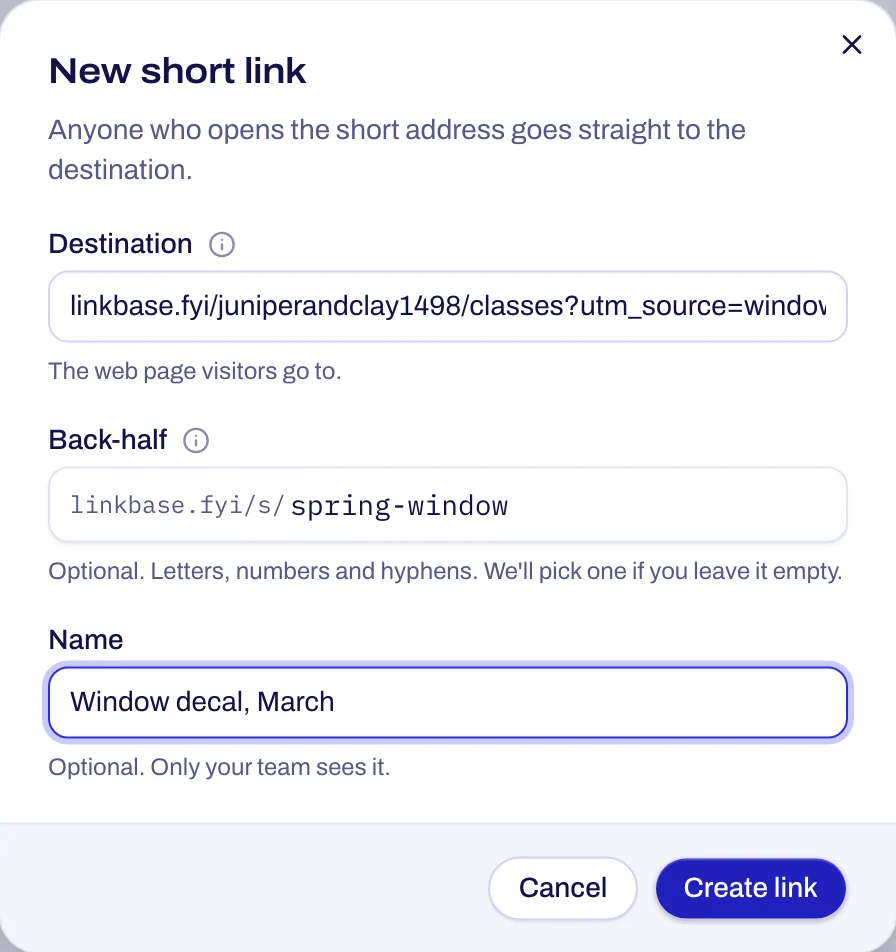
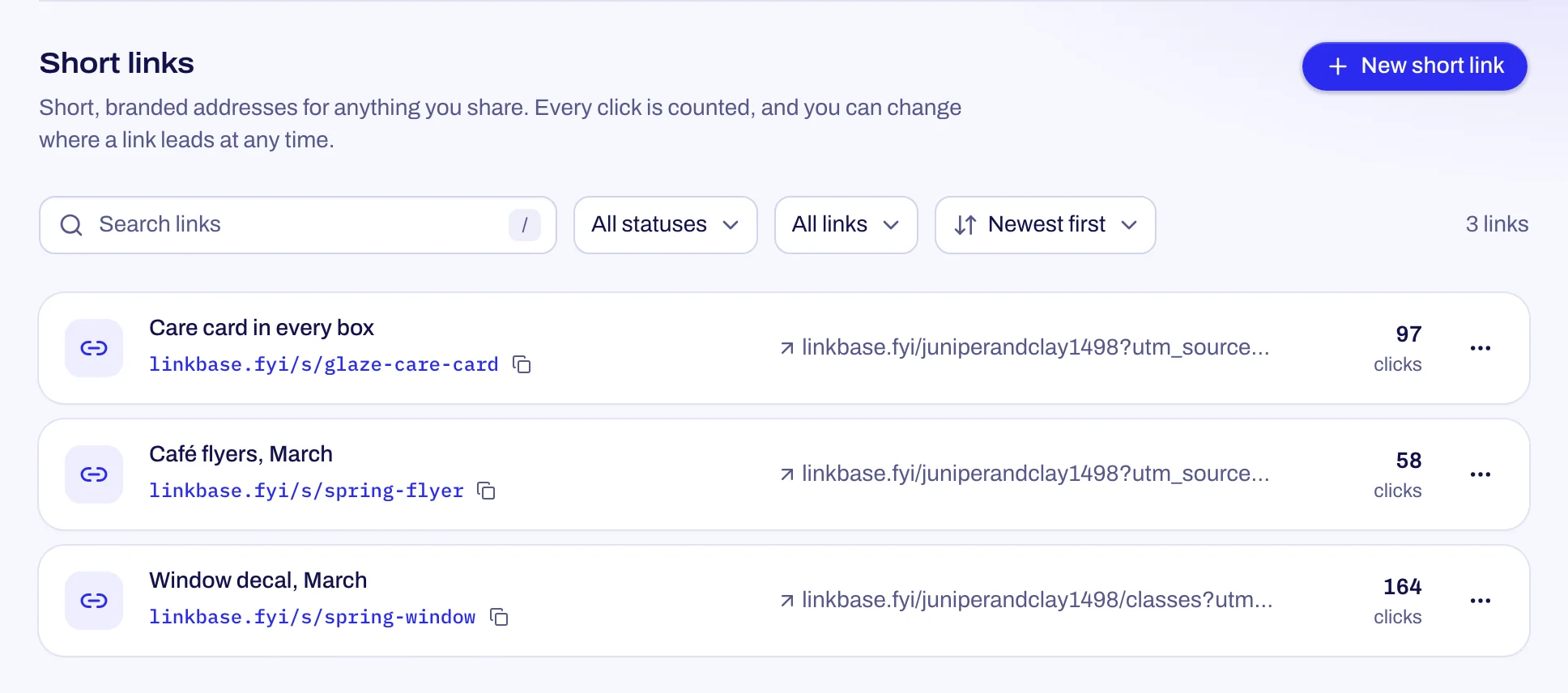
Each piece now has its own scan count under Links → Analytics. Because the tags sit in the destination, your page's analytics also show those visitors under Campaigns, with what they tapped next. On Pro and Team, attribution sets each campaign's views against the clicks they led to, and tagged visits with no referring site appear in their own channel, Tagged links. Put the tags in the destination, not on the short address: tags added to the short address show only in the link's own report and aren't passed on to your page. See Track campaigns with UTM tags.
Read the numbers fairly
Raw scan counts reward the placement the largest crowd saw, not the one that worked best. Before you compare, write down how many people each piece could reach and for how long: 400 flyers handed out over two weekends against a window decal up for a month. Scans per hundred flyers is a figure you can compare from one print run to the next, and it's one you control.
The busiest hours card answers a different question: when a code works. If the window code's scans cluster after closing time, it's doing exactly its job, and the hours belong at the top of the page. If a counter card's scans cluster at lunch, lead with what lunch customers want.
Scans count every time a phone opens the code, while unique visitors count each phone once a day. A wide gap between the two can mean regulars scanning the same table card on each visit, or people scanning a second time because the page didn't load on a weak signal.
Without short links
With only your page's code, test placements in sequence: flyers for two weeks, then the poster for two weeks, and compare the code's scans across the two periods. Or simply ask: a form with a dropdown field, "Where did you hear about us?", tells you where inquiries came from whichever code they scanned. With short links, a hidden form field does it silently, saving the utm_source from the address with every reply. See Build a form. Trade shows are a good place to try this; our article on trade show lead capture tags every booth lead this way.
Keep printed codes working for years
A sign over a storefront can hang for a decade. Packaging sits in cupboards for years. A code printed on either has to keep working as long as the print survives, and codes rarely fail because of their pattern. They fail because of what's behind it.
Why printed codes stop working
- The address inside moved. A code that stores a website address directly (a static code) breaks for good when that page is renamed or deleted.
- The service behind it stopped. A dynamic code stores a short address and forwards each scan, so it works only as long as the service doing the forwarding keeps doing it for you.
- The destination changed shape. A redesigned website, a closed store, a campaign page taken down.
- Something covered it. A sticker, a poster pasted over it, sun damage, a scratch across the three corner squares.
What keeps a Linkbase code working
A Linkbase QR code holds a short Linkbase address rather than your page's, and that address doesn't change:
- Restyle freely. New colors, shapes or a logo don't change the address inside, so copies you've already printed keep working.
- Repoint freely. Send your page's code to a tab or, on Pro and Team, another web address, and back again, under Where scans go. The address inside stays the same, so every printed copy follows from the next scan.
- Change domains freely. Connect your own domain and scans lead there; remove it and they lead to your Linkbase address again. The printed code is the same either way.
- Your page's code follows your page. It points at the page, not at the text of its address, so if you change the
yournamepart, printed codes open the page at its new address without a reprint. - Codes can't be deleted, so nobody removes one by accident. A page's code works as long as the page is published and the account has a plan. If the page is unpublished, or the plan ends, scans show a "not available" page until it's back, and the same print works again.
- Short links can't be taken over. A paused short link shows the "not available" page until you resume it, and a deleted link's back-half is never given to anyone else, so an address you printed can't be claimed by a stranger.
What only you can break
- A tab's address. If a short link opens a tab, changing that tab's address breaks it: the old address shows "not found". Set tab addresses before you print, then leave them alone.
- A destination you don't control. A short link to someone else's site, or your page's code set to one, breaks when they change their site. You can repoint either, so check where it leads now and then.
- A promise that ran out. A code that still says "Scan for the summer menu" in November works, technically. Change the page, not the print. Give a printed discount an expiry date with a coupon block, which hides itself once the code expires, and on Pro and Team plans schedule blocks to appear and disappear on set dates. Our article on scheduling links covers the timing.
Keep a register of every code
Once you have more than a couple of placements, keep a simple sheet: where each code is printed, how many copies, what it opens, which short link it uses, when it went up and when to check it next. Every few months, walk the list. Scan each code in place, look for anything stuck over it, and compare its scans with the previous quarter's. A placement whose scans drop to nothing is often damaged, covered or gone. Page health checks the links on your page every day and flags broken or unsafe ones, which covers where your page sends people once they've scanned. See Find and fix problems with page health.
If your codes sit in public places, such as parking lots, bus shelters or shop windows, check them for stickers placed on top. A fake code over a real one is a known scam, and the people it catches believe they scanned yours.
QR code ideas by business type
Every business has a few moments when people stand still near something it has printed. These are placements that tend to fit each kind of business, what the scan should open and what to watch. Treat them as starting points for your own scan test, and browse the templates for a page built for your trade.
Cafés and restaurants
Table cards that open the menu tab, a window code that leads with opening hours and the address for people passing after closing, and a sticker on takeaway bags with a coupon for the next visit. Compare the window code's scans on the days you're closed with the days you're open, and you'll see whether passers-by use it. Keep paper menus on the tables too. Our restaurant guide covers the menu itself.
Shops and boutiques
A window code for after hours, "Scan to shop tonight", opening product cards whose buttons lead to your own store's checkout. Shelf cards beside a product line, opening a tab with sizes or care. A receipt code that opens your email signup, so a one-time buyer joins your audience list and hears about the next delivery from your email tool. Give the window and the receipt separate short links: they reach different people with different reasons.
Trades and home services
A sign on the job site while the work is under way, "Scan for a quote", opening a short quote form. A magnet left on the client's fridge, opening your page's message buttons for a call or WhatsApp. A label beside the water heater or the electrical panel, opening a form to book the next yearly check. The magnet and the label are long-lived print that open different places, so give each a short link of its own, which you can repoint later. Real estate agents have their own version, covered in our guide to yard-sign QR codes.
Salons, clinics and studios
An appointment card, "Scan to book your next visit", opening the booking tab (bookings are on Pro and Team plans), and an aftercare card with an FAQ and a care sheet to download. The waiting room is the best spot you have, since people sit there with a phone in hand: a code there can open your price list, or an email signup for last-minute openings.
Events, venues and performers
Posters and flyers for tickets, with your page's code showing every date; on Pro and Team plans, a link sent straight to tickets during the on-sale rush. Badges and room signs that open the schedule. A sign by the exit that opens a tip jar or the signup for the next show. Performers flyering through a crowded festival will find the split between page codes and ticket codes in our Edinburgh Fringe guide.
Makers and product brands
Packaging is the longest-lived print you'll make, opened at home by someone who has already bought. A box insert with a setup video, care instructions as an FAQ and a link to reorder; a swing tag with the story of how the piece was made. Every Linkbase code can be repointed, so next year's destination can differ from this year's; for anything printed in the thousands, a short link of its own keeps the box's scans apart from the rest of your print.
Hotels, rentals and tours
A card in the room or the rental's welcome folder, opening a guide tab with a map, the house rules and a contact card with Save contact; a code at the tour's meeting point with today's times. Guests arrive from everywhere, so this is where "Each visitor's language" matters most for Linkbase's labels, and where your own key lines deserve a second language. QR codes are a familiar sight in Japan and South Korea, and our article on reaching customers there covers what people expect to find when they scan.
Nonprofits, schools and clubs
A donation box with a code that opens a tip jar leading to your own donation link, beside a goal bar you update by hand. A banner at a fair stall that opens a join form. A code on the noticeboard for volunteer signups. Our article on student club recruitment shows a fair-stall setup end to end.
Frequently asked questions
Do Linkbase QR codes expire?
No. A code works for as long as what it opens is live: a published page on an account with a plan, or a short link that isn't paused or deleted. If that stops, scans show a "not available" page, and the same printed code works again once it's back.
Can I change where a printed QR code goes?
Yes, on every plan. A page's code opens that page by default, so you change what people find by changing the page. To send it somewhere else, open its QR code dialog and choose a tab, or on Pro and Team a web address, under Where scans go; the next scan goes to the new place. A short link's code (Pro and Team) follows its short link, so you change the short link's destination instead.
Can I have a different QR code for each poster or flyer?
Your page has one QR code, so every placement that uses it shares one count. For a code per placement, create a short link for each one on Pro and Team plans, each leading to your page, and print each link's code. How many codes you can have depends on your plan; see pricing.
Can a QR code open one tab of my page?
Yes. In your page's QR code dialog, choose A tab under Where scans go and pick the tab. Every copy of that code then opens it, so if other print should keep opening your main address, create a short link to the tab's address instead (Pro and Team) and print the short link's code.
Will printed codes still work if I connect my own domain?
Yes. The code holds a Linkbase address, so connecting a domain, or removing one later, doesn't change it. While your domain is connected, scans lead there.
Can I delete a QR code I no longer use?
No, QR codes can't be deleted. To stop a short link's code, pause or delete the short link, and scans show a "not available" page. A page's code works whenever the page is published.


