Reach an international audience: languages, formats and local habits
Find out who visits from where, choose what to translate, handle right-to-left scripts, prices and time zones, local payments, chat apps and links by country.
7 bab22 menit baca

Say you sell hand-drawn sewing patterns from a studio in Melbourne. A creator in Jakarta films herself making one of your dresses, and for a week the Languages card in your analytics puts Indonesian right under English. The orders don't follow. Those visitors met a page written for people down the road: prices in Australian dollars with no word on where you ship, a live workshop at "7 pm" with no time zone, and a contact button for an app they don't use.
None of that needs a translation agency to fix. An international audience mostly needs a page that stops assuming things about the reader: their language, their clock, their currency, the app they message on and the way they pay. Linkbase handles part of that for you. The rest only you can do, because only you know your business.
This guide works through it in the order you'll meet it: finding out who visits, deciding what to translate, mirroring for right-to-left readers, getting prices and times right, meeting local payment and chat habits, sending each country to the right place, and testing the result as a visitor abroad would see it. Each chapter links to the exact steps in the help center and to deeper articles on single markets.
What you'll learn
- Read the Countries and Languages cards together, and turn them into a short list of audiences
- Choose between Each visitor's language and one fixed language, and translate in the right order
- Build right-to-left pages in Arabic, Hebrew, Persian or Urdu whose mixed lines read naturally
- Show prices, dates and live times so nobody abroad misreads them
- Meet buyers on the chat apps and payment methods they already use
- Send each country to the right shop or site, then test the whole page from far away
Who's visiting from where, and what each group needs
Before you translate a word, find out who you'd be translating for. Your follower list is a poor guide: followers aren't visitors, and visitors who never message you don't show up in your inbox. Your analytics see everyone who opens the page.
Read the Countries and Languages cards side by side
Open Analytics, choose a range of at least four weeks, and find two cards below the chart. Countries shows where visitors were when they opened your page, worked out from their internet connection. Languages shows the language each visitor's browser asks for first, with its region when the browser gives one, such as "Canadian French". Both are on every plan, and See where your visitors come from explains every row.
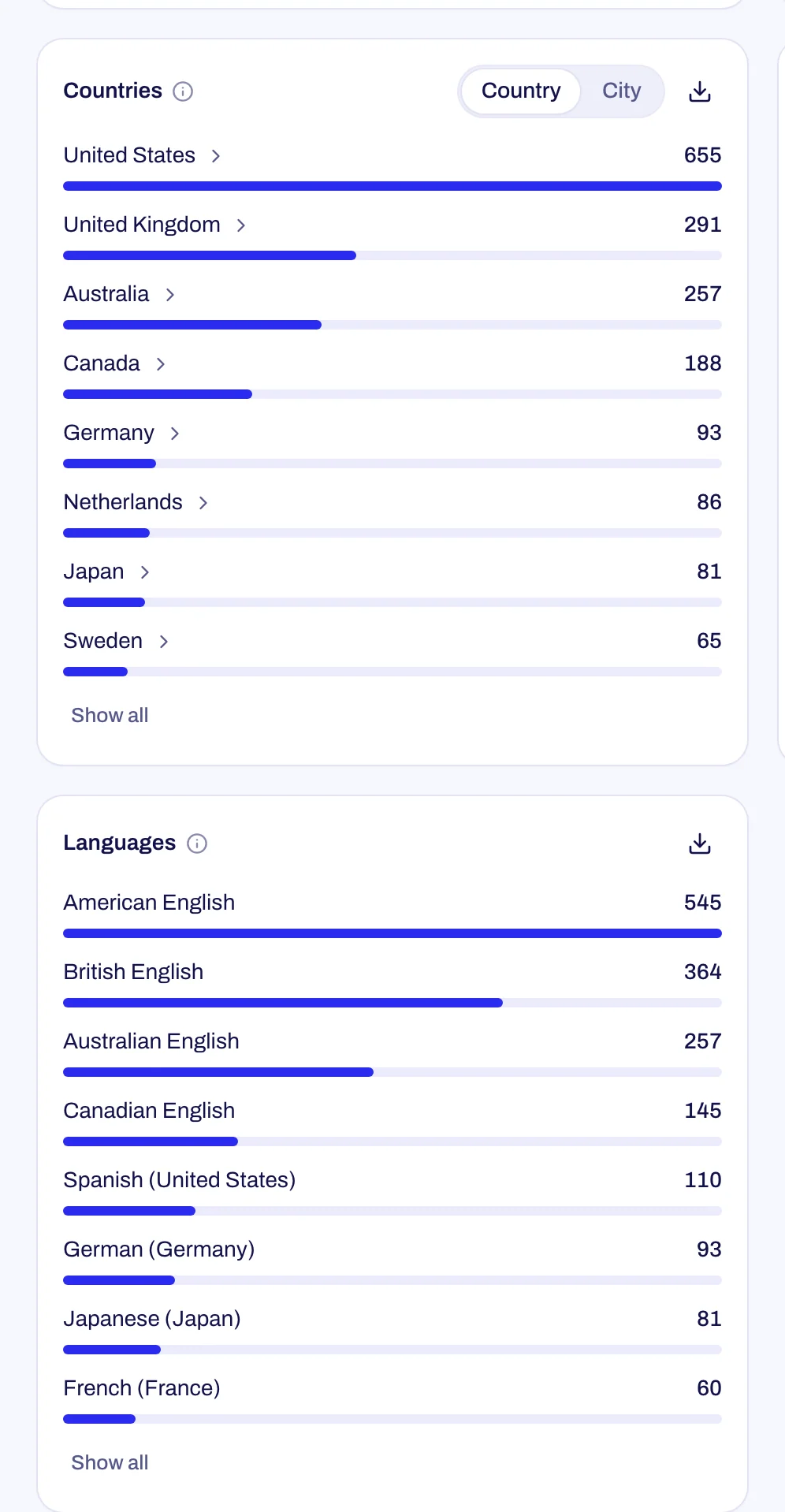
Read them together, because they answer different questions. Country tells you about clocks, currencies, delivery and which chat apps people have. Language tells you what they can read. The two often disagree: a phone in Zurich may be set to Portuguese, and one in Leicester may ask for Gujarati first.
Then select the Click rate tile at the top. Every card re-ranks by it, and for international work this is the view that matters. If visitors whose browsers ask for Japanese open your page as often as English readers but click far less, the page isn't speaking to them yet. Show all lists every row with all four numbers.
On the Pro and Team plans, Countries also gets a City tab. That matters in countries that span several time zones, such as the United States, Brazil, Australia or Indonesia. Visitors whose browsers ask not to be tracked are counted in their country only, and a visitor on a VPN appears wherever the VPN is.
Write each audience down in one line
Turn the cards into a short list of audiences, one line each, in plain words: "game studios in the United States, on computers, arriving from my portfolio site". Then answer five questions for each line: what they read, what time it is for them, what they pay in, how they'd contact you and what they need to see first.
Say you compose music for indie games from Kraków, and four weeks of numbers show three groups:
| Audience | Reads | Their clock | Pays in | Needs first |
|---|---|---|---|---|
| Game studios in the US | English | 6 to 9 hours behind you | US dollars | Showreel, rates, availability |
| Game studios in Japan | Japanese, and some English | 7 or 8 hours ahead | Yen | Credits, how to send a brief |
| Players in Poland | Polish | Yours | Złoty | Soundtracks, concert dates |
The table already makes decisions. Both groups of studios want the same three links, so they can share one tab in English, with a line in Japanese in the bio. The Polish players want different links entirely, which is a reason for a tab of their own, written in Polish. And Germany, fourth in Countries, gets nothing yet: its row has almost no clicks.
Decide who the page is for first
Every page has a first audience: the people who open your main address and see your first tab. Pick it on purpose: the group that books, buys or hires most, not simply the largest. That choice sets your first tab, your default language and the order of your buttons. Every other audience gets a route from there: a tab, a line in their language near the top, or a button that knows their country.
Don't rebuild the page for a spike
One video can send a wave from one country for a week, then stop. Wait until a group holds steady for a month before you write a tab for it, and compare like with like: four weeks against the four before. Rows with a handful of visitors swing wildly, and Unknown in Countries only means the location couldn't be worked out. For what each number counts, read Read your link in bio analytics.
Languages: what to translate first, and what the page does for you
Two kinds of words sit on your page, and only one of them is your job.
The words Linkbase writes, in 40 languages
Linkbase adds labels of its own: buttons such as Subscribe and Save contact, form labels and error messages, the booking calendar, the privacy box, the prompts in front of locked links, and the way dates and prices are written. These come in 40 page languages, from Swahili and Hindi to Korean and Traditional Chinese, on every plan.
Your own words, from your bio to your link titles, are never translated or changed. That's deliberate: a machine translation of "Book a fitting" can come out as something no tailor would say, and you'd never know.
Each visitor's language, or one fixed language
Your page's Default language decides which language those labels use:
- Each visitor's language follows each visitor's browser. A visitor whose phone asks for Korean sees 예약하기 on your booking button, even when your bio is in English. Choose it when your visitors read different languages, or your page is written in more than one.
- One fixed language shows the labels in that language for everyone, and tells search engines and screen readers which language the page is in. Choose it when nearly all your visitors read the one language your page is written in.
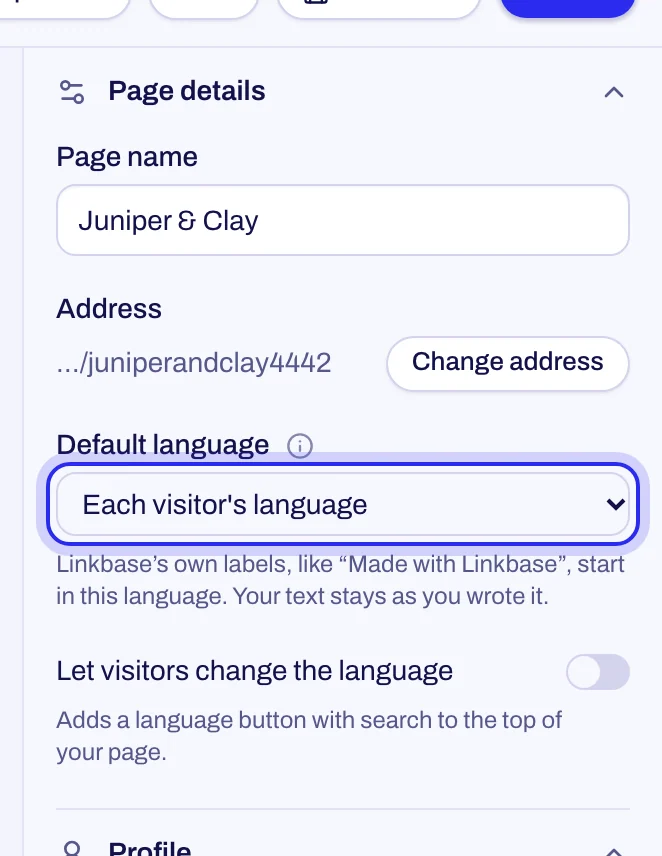
You can also add a Language button so visitors switch the labels themselves. It works with either setting, as a round button or as an item in the page's top bar. The steps are in Choose your page's default language and Let visitors change your page's language.
Translate in this order
You rarely need to translate everything. Work down this list, and stop when the next item stops mattering:
- The bio line. One sentence per language that says what you do and whether you serve them: "Private lessons in English and Japanese, all levels."
- Your top three buttons. Write their text in each language, or leave Button text empty where the built-in label says what you mean. With Each visitor's language, an empty Book a time reads correctly in all 40 languages, with nothing to keep in sync.
- Anything that decides a purchase. Price notes, delivery and returns, booking descriptions and cancellation answers. Mistakes here cost money, so they deserve a fluent reviewer.
- Forms and signups. The signup's description, the form's field labels and both thank-you messages.
- Search titles. Each tab has its own Search title and Search description, so people searching in Japanese can find the Japanese tab.
- Everything else. Your story and captions. Keep testimonials in the language they were written in, and if you add a translation, say it's yours.
A worked example: a ski school in Niseko
Say you run a ski school in Niseko, in Hokkaido, and your guests come from Australia, Hong Kong, Singapore and across Japan. Your first tab is in English, because English readers book most. You add a 日本語 tab and a 繁體中文 tab, each named in its own script with a short address (ja and zh), and set the page to Each visitor's language. A guest whose browser asks for Chinese for Hong Kong now sees the booking calendar (Pro and Team) and the buttons in Traditional Chinese.
One detail makes it work: each tab's booking block has its own description, in that tab's language, saying which languages lessons are taught in, because every group asks. Confirmation emails then follow the language each guest saw, so a guest from Hong Kong gets theirs in Traditional Chinese.
Write each language like someone from there
- Name languages in their own words, such as 日本語 rather than Japanese, and skip flags. A flag stands for a country.
- If you draft with a translation tool, have a fluent reader finish the job, starting with button text and prices.
- Keep the same blocks in the same order on every tab, so updating one language reminds you to update the others.
The four ways to arrange several languages on one page are in Write your page in more than one language, and worked layouts for European audiences are in Multilingual link in bio.
Right-to-left languages, without broken lines
Arabic, Hebrew, Persian and Urdu read from right to left, and a page that ignores it looks like a sign hung backward. Linkbase handles the layout. What you write still needs care.
What mirrors, and when
A page mirrors when it's shown in one of those four languages. Text lines up on the right, pictures on link cards and the round buttons at the top swap sides, and carousels and sliders follow the reading direction. The whole page mirrors as one, never a single tab or block.
What decides it is the language the page is shown in, not the language of your text:
- Make one of the four your fixed default language, and every visitor gets the mirrored page, with labels in that language.
- With Each visitor's language, only visitors whose browsers ask for one of the four get the mirrored layout. Everyone else sees the page left to right, and your right-to-left text still reads correctly inside each block.
- With a Language button, a visitor who picks one of the four gets the mirrored page, and one who picks English gets it back.
A worked example: calligraphy classes from Lahore
Say you teach Urdu calligraphy from Lahore, in person and online, with students in Lahore, Manchester and Toronto. The Languages card says most of their browsers ask for English, even in Lahore, yet the classes are taught in Urdu. There are three honest setups:
| Setup | What students see | Fits when |
|---|---|---|
| Urdu as the fixed language | Every visitor gets a mirrored page with Urdu labels | Nearly everyone reads Urdu comfortably |
| Each visitor's language, with an English tab and an اردو tab | Mirrored only for browsers set to Urdu; Urdu text reads well either way | Readers are split, and their browsers don't say who reads what |
| A separate Urdu page | A fully mirrored page of its own, linked from the English one | The Urdu content is long, or differs from the English |
The second setup fits here. The English tab serves students abroad, and the Urdu tab carries the class schedule in the language the classes use. If the Urdu tab grows into a world of its own, duplicate the page and give the copy Urdu as its fixed language.
Lines that mix scripts
Each piece of text takes its direction from its first letter. A link title that starts with an Urdu word reads right to left, and one that starts with a Latin brand name reads left to right, wherever it sits.
- Start each line in the script you want it to read in. "خطاطی کی کلاسیں · Calligraphy classes" reads right to left, with the English second.
- Give handles, web addresses and phone numbers a line of their own, or put them in a contact card or a message button. The end of a mixed line, where punctuation sits, is where words most often jump sides.
- Ask a reader to check every line on a phone. You'll miss problems in a script you don't read.
Fonts for Arabic script, and for Hebrew
When your page needs Arabic letters, which Urdu and Persian use too, the font picker offers only fonts that have them, and a theme font without them gives way to a matching Arabic font. Urdu readers are used to the flowing Nastaliq style, and the Google library includes Nastaliq faces such as Noto Nastaliq Urdu and Gulzar. Compare one with your theme's Arabic font, with a reader beside you. Hebrew isn't matched the same way: it uses your theme's font when that font has Hebrew letters, and the visitor's device font when it doesn't, so check it on a real phone.
The steps are in Make a right-to-left page. For a full Arabic page, from the language setting to Ramadan planning, read Right to left, done right.
Prices, dates and time zones nobody misreads
A visitor abroad brings their own clock and their own way of writing numbers. The safest page lets blocks write prices and times, and keeps your own text free of anything that depends on where the reader is.
The currency is yours, the format is theirs
Product cards, menus, pricing tables, tip jars and goal bars show the currency you choose in each block, written the way the reader's language writes numbers and never converted. Forty Canadian dollars reads CA$40 on an English page and 40 $CA on a French one, and it's forty Canadian dollars for everyone.
Two decisions follow:
- Selling in one currency to the world? Say so once, near your prices, in each language: "Prices in Canadian dollars. Your bank converts them when you pay." Don't add approximate conversions to your text. Exchange rates move, and your text won't.
- Charging differently by region? Keep one checkout per currency, then send each country to its own with a link rule, or give each market's tab its own product cards. Set every block to the currency its checkout really charges.
Delivery, import charges and sales taxes are yours to explain, since Linkbase doesn't calculate them. If you ship abroad, answer "Who pays import charges?" in an FAQ block, in every language you sell in.
Let blocks write the dates
Events, countdowns, coupons, opening hours and the booking calendar write dates the way each reader's language does: the order of day and month, the 12- or 24-hour clock, the names of months. Thai pages count years in the Buddhist era, Persian pages use the Persian calendar and digits, and the booking calendar starts the week on Sunday in English, Monday in German and Saturday in Arabic.
Two things blocks can't fix:
- English has one format. Every reader of an English page sees month-first dates and a 12-hour clock, in Edinburgh and Sydney too. Blocks spell out the month, so this rarely confuses anyone.
- Dates you type stay as typed. "Workshop 03/04" means March 4 to a reader in Chicago and the 3rd of April to one in Dublin. In your own text, write the month as a word, and when you write a time, name the place: "7:00 PM Lisbon time".
Know which clock each block uses
Blocks don't all use the same clock, and that's on purpose:
- Events show times in the event's own time zone, with the zone's short name, because a concert happens where the venue is.
- Opening hours use the block's time zone, and with Show whether you're open now on, visitors elsewhere see which zone it is.
- Bookings, countdowns and coupon expiry use the visitor's own time zone. Visitors can change the booking calendar's zone, which suits online sessions.
- Scheduled blocks (Pro and Team) switch at one exact moment for everyone, entered in your own device's time zone. A sale that should end at midnight on another continent has to be converted before you type it.
A worked example: piano lessons across the Pacific
Say you teach piano online from Vancouver, with students in Auckland and Tokyo. Private lessons go in the booking block (Pro and Team), so a student in Auckland sees your Thursday evening slots as Friday afternoon without any arithmetic. The monthly student recital goes in an events block, set to Vancouver's time zone, and its description says it falls on the next day for students across the Pacific.
Daylight saving moves the gap between you twice a year: clocks change on different dates in different countries, in opposite seasons on either side of the equator, and not at all in Japan. Blocks follow every change. Times typed into text don't.
Seasons and holidays travel badly too. December is summer in Santiago, and Mother's Day falls on different dates around the world, so read Run a summer sale in either hemisphere and Mother's Day marketing by country before you plan a season for several markets. Every block's clock is listed in How prices, dates and times are shown.
Local payment habits and the chat apps people expect
Your page's language gets a visitor to the button. What happens after the tap decides whether they finish: a checkout that offers the way they pay, or a chat app they already have.
Linkbase opens the link, your provider takes the payment
Buy, tip and contribute buttons open your own checkout, payment link or chat. Linkbase never handles the money and takes no cut, so the payment methods a visitor sees are the ones your shop or payment provider offers in their country. Check that before you name a method on your page. A "Pay with BLIK" note beside a checkout that doesn't offer BLIK to Polish buyers costs you the sale and the buyer's trust. How payments work on Linkbase shows where each block's button goes.
What buyers in different markets reach for
Habits vary inside every country and change over time, so treat this as a starting point and ask a few of your own customers:
| Market | Often expected when paying | Chat app many buyers use | Read more |
|---|---|---|---|
| Brazil | Pix, cards in installments | Pix and WhatsApp | |
| Mexico | Cards, SPEI transfers, cash at convenience stores | Mexico and Latin America | |
| India | UPI | Indian creators | |
| Kenya | M-Pesa | African sellers | |
| Netherlands | iDEAL | ||
| Japan | Cards, convenience-store payment, PayPay | LINE | Japan and Korea |
| South Korea | Cards, KakaoPay, Naver Pay | KakaoTalk | Naver Smart Store sellers |
| Vietnam | Bank transfers by QR, MoMo | Zalo | Zalo orders |
| Thailand | PromptPay | LINE | Southeast Asia |
| Mainland China | Alipay, WeChat Pay | Chinese-speaking customers |
Put the payment answer next to the button
Buyers abroad hesitate over the same three questions: can I pay the way I usually do, in what currency, and is this safe? Answer them in one line under the button, in their language: "Card, PayPal or iDEAL. Prices in euros." Where a method works by scanning a code or copying an account number, prefer a payment link from your provider over an image of the code, for the reasons the Southeast Asia article sets out.
Chat buttons: the app first, then the language
Message buttons cover WhatsApp, Telegram, Signal, a text, a call and an email, and the WhatsApp, text and email buttons can carry a first message written in advance. For LINE, KakaoTalk, Zalo, Messenger and others, use an ordinary link button with the link the app gives you. Then make three choices:
- Lead with the app your biggest audience uses, and stop at two or three. A row of seven chat icons makes every visitor hunt for theirs.
- Write the pre-filled message in the language of the tab it sits on. You'll know which language to answer in before you read a word.
- Write phone numbers in international form, starting with + and the country code. A number that starts with a local zero means nothing to a visitor abroad.
Say you're a tailor in Bangkok. Thai customers reach you on LINE, so a LINE link button sits first on the Thai tab. Visitors in town for a few days message from their own phones, so the English tab leads with a WhatsApp button whose message reads: "Hello, I'd like a fitting. I'm staying at (hotel) until (date)." Those two blanks give you the facts that decide whether a suit can be finished in time. A line under the buttons says when you reply, with the place: "Replies 10:00 to 19:00, Bangkok time."
Country-specific links: the right shop, site or number for each visitor
Some differences between visitors have nothing to do with language. Where a parcel can go, which store sells in which currency, which support number answers, which app store lists your app: these depend on where the visitor is.
What link rules do
On the Pro and Team plans, link rules let one button send visitors to different addresses by country or by device. Rules are checked from the top, and the first one that matches wins. Visitors no rule matches get the link's own address. A link can carry up to 10 rules, and each country rule up to 60 countries, which covers the whole European Union in one rule. The steps are in Send visitors to different links by country or device, and Link rules walks through the common setups.
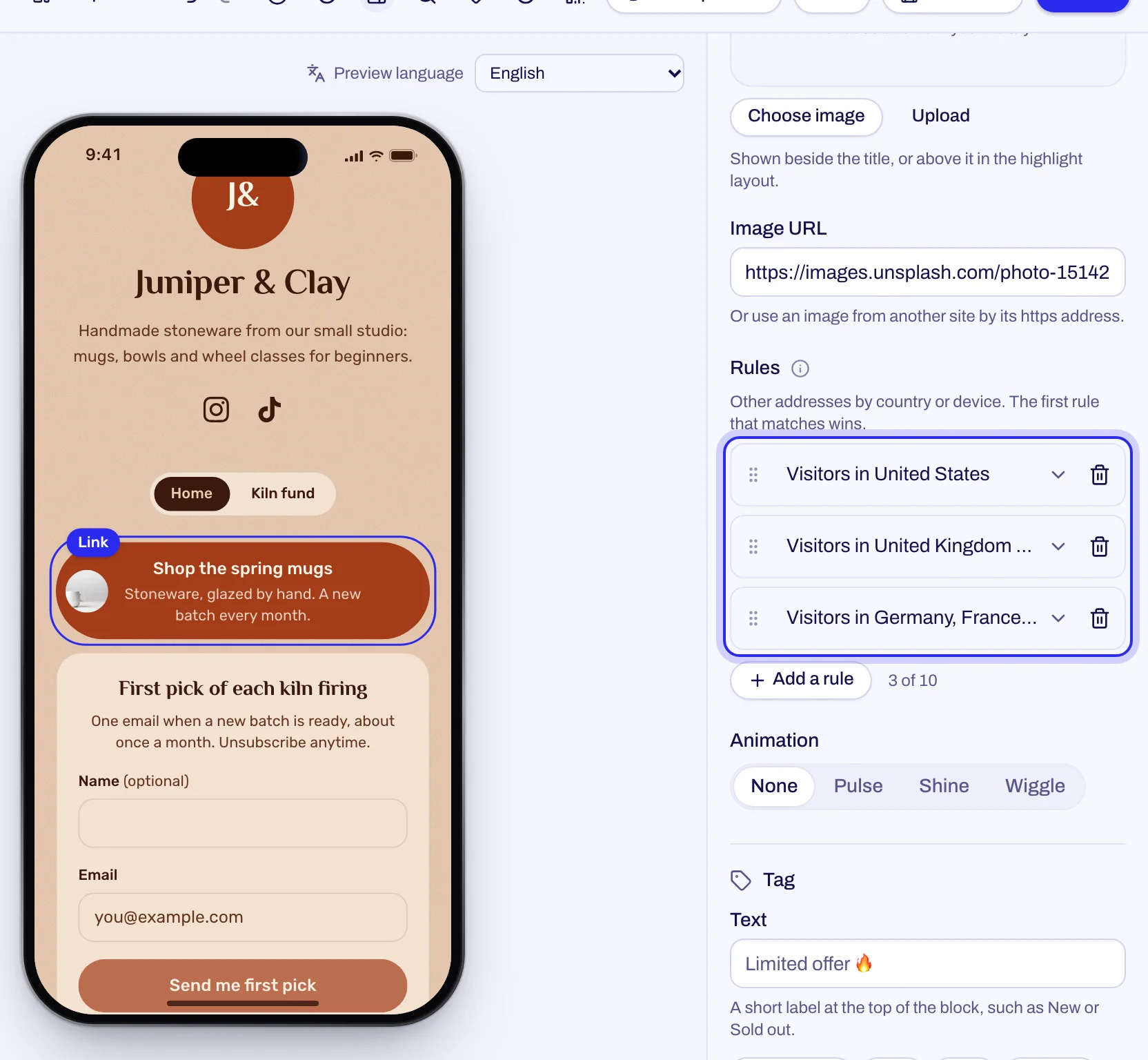
A worked example: one "Buy beans" button for four markets
Say you roast coffee in Nairobi. You sell from your own shop in Kenya, through a partner's stores in the UK and the Netherlands, and through a separate store in the United States. One button, "Buy beans", carries four rules:
- Kenya goes to your own shop.
- United Kingdom goes to the UK store.
- The EU countries, picked into one rule, go to the store in the Netherlands.
- United States goes to the US store.
Everyone else gets the button's own address: your main shop's page listing every country you ship to. Order matters only when rules overlap. If you later add a device rule for a subscription app, decide which should win for a visitor in Kenya on an iPhone, and put that rule higher.
Tabs, pages or rules: choose by what differs
| What differs between audiences | Use |
|---|---|
| A few labels, in two languages | Both languages side by side on one tab |
| The text, in each language | A tab per language, each at its own address |
| Everything, or one version reads right to left | A page per language, duplicated from the first |
| Where a button goes, by country | Link rules on that button (Pro and Team) |
| The dates of a sale or a season | Scheduled blocks (Pro and Team), or a tab per market |
| Printed material in each market | A short link per market, each with its own QR code and click count (Pro and Team) |
Where country rules go wrong
- A country isn't a language. A visitor in Switzerland may read German, French or Italian, and one in Belgium Dutch or French. Use tabs for languages and rules for markets.
- Travelers and VPNs fool them. Country comes from the visitor's connection, so your Kenyan regular on holiday in London gets the UK store, and someone on a VPN counts as being wherever it is. Add a plain "Shipping somewhere else? See every store" link under the button, so nobody gets stuck with a wrong guess.
- The editor proves nothing. In the editor and in preview links, every link opens its own address. Test rules on the published page.
- Analytics count clicks on the link, not which rule matched. Your stores' own reports show where each sale landed.
Link rules, short links, scheduled blocks and bookings are on the Pro and Team plans. Tabs, the Language button and all 40 page languages are on every plan. Compare them on the pricing page.
Test your page the way visitors abroad will see it
You read your page in your own language, on your own phone, in your own country, which is exactly how no visitor abroad sees it. Test it from their side before you announce anything.
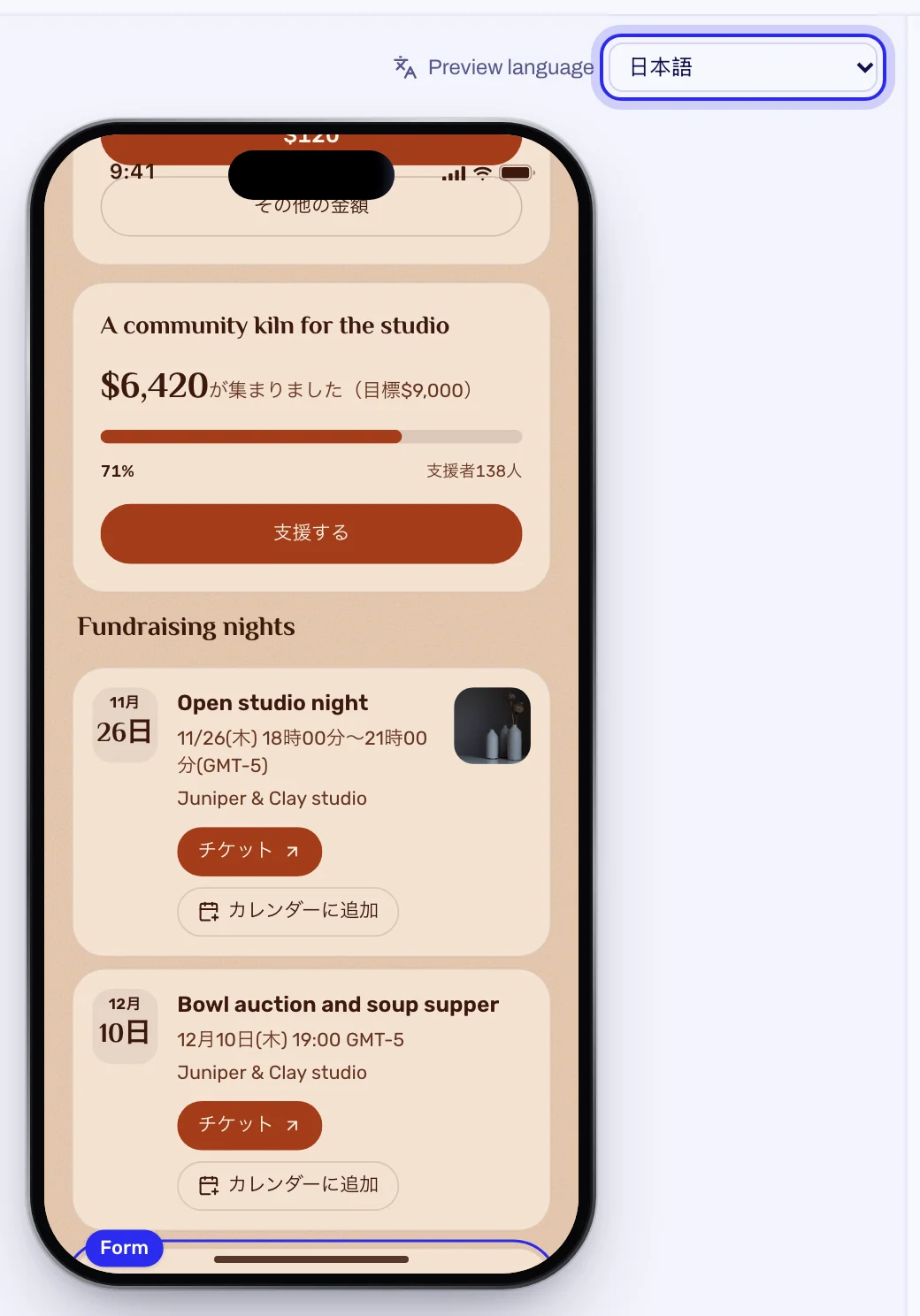
In the editor: Preview language
Above the preview, Preview language shows the built-in labels in any of the 40 languages without changing your setting. On a phone, it's in the Design sheet. Go through every language you serve, and look for three things: buttons whose label no longer fits, Linkbase's messages sitting beside your own text in another language, and mirrored layouts that move something you placed with care.
With a fluent reader: a draft preview link
A draft preview link shows your page as visitors will see it, before you publish. Send one to a fluent reader in each market and ask three specific questions instead of "does it look OK?":
- Does every button say what will happen when you tap it?
- Would you trust these prices and this way to pay?
- Is anything here odd for someone from your country?
The third question finds what no checklist does: a greeting too formal for a young audience, a sale scheduled on a public holiday, an app nobody there uses. Share a draft preview link covers how to ask for sign-off.
On your own phone: pretend to be from somewhere else
- Change your browser's language order. Put the language you're testing first and reload your published page, set to Each visitor's language. Switch back afterward.
- Try the Language button if you added one. Your browser remembers the pick for a year on that page, so choose Page's default when you're done.
- Open the page inside the apps your visitors use, such as Instagram or LINE, because many visitors arrive in an app's built-in browser.
On the live page: what only a real visit tests
- Link rules: ask someone in each country to tap the button, or use a VPN set to that country.
- Payment links: open each from the country it's for, if you can. Some checkouts switch language or currency by location, and some refuse cards from abroad.
- Chat buttons: tap each on a phone without the app, to see where a visitor lands.
- Emails: sign up or book with your browser set to another language, and read what arrives.
After a month: read the cards again
Go back to Countries and Languages, select Click rate, and compare the month since your changes with the month before. If a language's click rate hasn't moved, read that tab again with a fluent reader, starting with the first screen: the bio line and the top three buttons.
Before you call the page done, run this list once:
- Your first tab and default language match the audience that books or buys most.
- Every audience you serve has a route: a tab, a line in their language or a button that knows their country.
- Every price block uses the currency its checkout charges, and says so in words.
- Every time a reader needs is in a block, or names its city.
- Every chat button is an app that market uses, with an international number.
- Every link rule has a visible way out for travelers.
- A fluent reader has seen each language before you published it.
Frequently asked questions
Does Linkbase translate my page for international visitors?
No. Linkbase shows its own labels, such as buttons, form messages and dates, in 40 languages, and with Each visitor's language they follow each visitor's browser. Your own words appear exactly as you wrote them, in whatever languages you write them.
How many languages can one page show?
The built-in labels come in 40 languages on every plan. Your own text can be in as many languages as you write: side by side, in a tab for each or on separate pages. Beyond two, a tab for each reads better than paired labels.
Can visitors see prices in their own currency?
Each block shows the currency you choose, written the way the visitor's language writes numbers, and Linkbase never converts amounts. To charge in several currencies, run a checkout for each and send each country to its own with link rules on the Pro and Team plans, or give each market's tab its own product cards.
Should I use flags to show languages?
Use language names written in each language, such as Deutsch, Français or 日本語. Flags stand for countries, and many languages are spoken in several countries while many countries speak several languages.
What language are booking and signup emails sent in?
Emails to your visitors, such as signup confirmations and booking emails, come in the language the page showed them, in any of the 40 page languages, including one they picked with the Language button. The page a booking email links to, for rescheduling or canceling, comes in the nine dashboard languages (English, Spanish, Brazilian Portuguese, French, German, Indonesian, Turkish, Arabic and Simplified Chinese), and in English otherwise.

